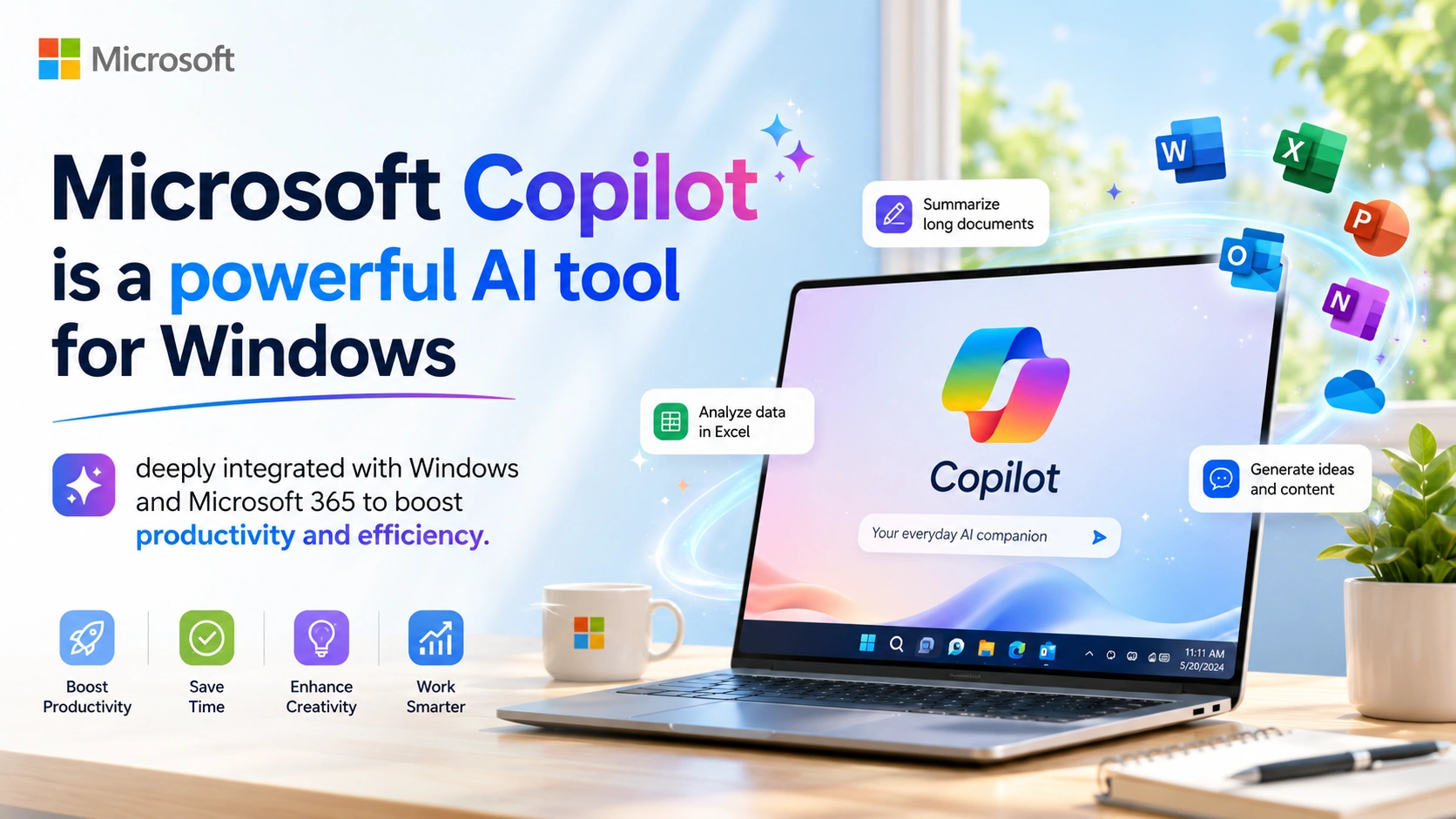
Artificial intelligence has become a major part of modern computing, and Microsoft is leading the change with Microsoft Copilot. Built directly into Windows and Microsoft 365, Copilot is designed to help users complete tasks faster, improve productivity, and simplify everyday work.
From writing emails to summarizing documents and answering questions, Microsoft Copilot acts like a built-in AI assistant for Windows users. But how useful is it in real-world use? This guide reviews Microsoft Copilot, its features, advantages, limitations, and whether it is worth using in 2026.
What Is Microsoft Copilot?
Microsoft Copilot is an AI-powered assistant integrated into Windows and Microsoft applications. It uses advanced artificial intelligence models to help users interact with their computer using natural language.
Instead of manually searching settings or completing repetitive tasks, users can simply ask Copilot to help.
For example, you can ask:
- “Summarize this document”
- “Turn on dark mode”
- “Create a professional email”
- “Analyze this Excel data”
Copilot then generates responses or performs actions automatically.
Main Features of Microsoft Copilot
Microsoft Copilot includes powerful features that improve productivity and simplify daily computer tasks. It helps users write content, manage files, automate workflows, control Windows settings, and work more efficiently through AI-powered assistance integrated directly into the Windows operating system and Microsoft 365 applications.
1. AI Writing Assistance
One of the strongest features is AI-powered writing support.
What it can do:
- Write emails
- Create reports
- Generate summaries
- Rewrite text
- Improve grammar and tone
Why it matters:
It saves time and helps users create professional content quickly.
2. Windows Integration
Unlike standalone AI apps, Copilot is deeply integrated into Windows, allowing seamless access to system features and improving overall user productivity.
Examples:
- Open applications
- Change system settings
- Enable dark mode
- Organize windows
- Search files faster
Benefit:
Users can control Windows more efficiently using simple commands.
3. Microsoft 365 Support
Copilot works directly inside Microsoft Office apps, helping users create documents, analyze data, and prepare presentations more efficiently.
Supported apps:
- Word
- Excel
- Outlook
- PowerPoint
- Teams
Example tasks:
- Summarize meetings
- Create PowerPoint slides
- Analyze spreadsheets
- Draft emails
Benefit:
This improves workflow and reduces repetitive work.
4. AI Chat Experience
Copilot includes a conversational AI interface similar to modern chatbots, allowing users to ask questions and receive helpful responses instantly.
Features:
- Answers questions
- Explains topics
- Provides suggestions
- Generates ideas
Why useful:
Users can get quick assistance without opening multiple websites.
5. Productivity Automation
Copilot automates repetitive tasks, helping users save time by handling routine actions, organizing workflows, and improving overall productivity in Windows.
Examples:
- Scheduling
- Data formatting
- Text generation
- Task organization
Benefit:
Automation reduces manual work and increases efficiency.
Microsoft Copilot Performance
Performance is one of the most important parts of any AI assistant because it determines speed, accuracy, and reliability in completing tasks. A high-performing AI ensures smooth interactions, quick responses, and better productivity for users in everyday work and computing activities.
Speed
Copilot responds quickly, especially for basic tasks like summaries, writing assistance, and generating simple suggestions for users.
Accuracy
For common productivity tasks, accuracy is very good. However, like most AI tools, it may occasionally provide incorrect information.
Ease of Use
The interface is simple and beginner-friendly. Even users with little technical knowledge can use it comfortably.
Advantages of Microsoft Copilot
Microsoft Copilot offers several important benefits that enhance productivity, simplify daily tasks, and improve user experience. It helps users write content faster, automate repetitive work, and access information quickly. With deep integration into Windows and Microsoft 365, Copilot supports efficient workflows, better organization, and smarter decision-making for both personal and professional use.
1. Saves Time
Tasks that normally take minutes can be completed in seconds with Copilot, helping users save time and improve overall productivity in daily work.
2. Improves Productivity
Copilot helps users focus on important work instead of repetitive tasks by automating routine actions and improving overall efficiency in daily computer activities.
3. Built Into Windows
No need to install separate AI software because Copilot is already built into Windows, providing easy and instant access to AI assistance.
4. Works Across Microsoft Apps
The integration with Office applications is extremely useful for professional work, enabling seamless creation, editing, and management of documents, spreadsheets, and presentations.
5. Easy for Beginners
Natural language commands make it accessible to almost everyone, allowing users to interact with Copilot easily using simple everyday language without technical skills.
Disadvantages of Microsoft Copilot
Although powerful, Copilot also has limitations, including dependency on internet connectivity, occasional inaccuracies in responses, and certain advanced features requiring Microsoft 365 subscriptions for full access and functionality in Windows systems.
1. Requires Internet Connection
Many AI features require an active internet connection to function properly, as Copilot processes data through cloud-based services.
2. Some Features Require Subscription
Advanced Microsoft 365 AI tools may require paid plans, limiting access to premium features that enhance productivity and workflow automation.
3. Occasional AI Mistakes
AI-generated information is not always perfect, so users should verify important details to ensure accuracy and avoid potential mistakes in critical tasks.
4. Resource Usage
On older PCs, Copilot may slightly affect system performance due to higher resource usage, which can slow down multitasking and overall responsiveness.
Is Microsoft Copilot Safe?
Microsoft includes several security and privacy protections for Copilot to safeguard user data, ensure secure interactions, and maintain compliance with privacy standards. These measures help protect sensitive information while using AI features across Windows and Microsoft 365 applications safely and reliably.
Security features:
- Microsoft account protection
- Enterprise-level security
- Cloud-based protection
However, users should still avoid sharing highly sensitive personal information with AI systems.
Who Should Use Microsoft Copilot?
Microsoft Copilot is useful for many types of users, including students, professionals, and businesses, as it helps improve productivity, simplify tasks, and provide AI-powered assistance for writing, analysis, and daily computer activities.
Best for:
- Office workers
- Students
- Content writers
- Business teams
- Remote workers
Less useful for:
- Users who rarely use Microsoft services
- PCs with very limited hardware resources
Microsoft Copilot vs Traditional Assistants
Compared to older digital assistants, Copilot is much more advanced, offering smarter AI capabilities, deeper Windows integration, and more accurate responses for a wider range of tasks.
| Feature | Traditional Assistants | Microsoft Copilot |
|---|---|---|
| Voice Commands | Basic | Advanced |
| AI Writing | Limited | Excellent |
| Windows Integration | Partial | Deep Integration |
| Productivity Features | Basic | Extensive |
| Office Support | Limited | Full Microsoft 365 Support |
Tips for Using Microsoft Copilot Effectively
Tips for using Microsoft Copilot effectively include giving clear and specific prompts, using natural language commands, exploring advanced features, and always verifying AI-generated results to ensure accuracy and improve productivity.
1. Use Clear Commands
Specific prompts produce better results because they give Copilot clear instructions, leading to more accurate, relevant, and useful AI responses.
2. Combine with Microsoft 365
The best experience comes from Office integration, allowing seamless use of Copilot across Word, Excel, PowerPoint, and Outlook.
3. Verify Important Information
Always review AI-generated content before using it professionally to ensure accuracy, clarity, and suitability for your specific purpose or audience.
4. Explore Automation Features
Many users only use basic functions and miss powerful automation tools that can significantly improve productivity and streamline complex workflows.
Conclusion
Microsoft Copilot is one of the best AI productivity tools available for Windows users in 2026. Its deep integration with Windows and Microsoft 365 makes it more practical than many standalone AI assistants.
The ability to automate tasks, generate content, summarize information, and assist with productivity makes Copilot highly valuable for work, study, and daily computer use.
While it still has some limitations, especially regarding subscriptions and occasional AI inaccuracies, Microsoft Copilot represents a major step forward in AI-powered computing.