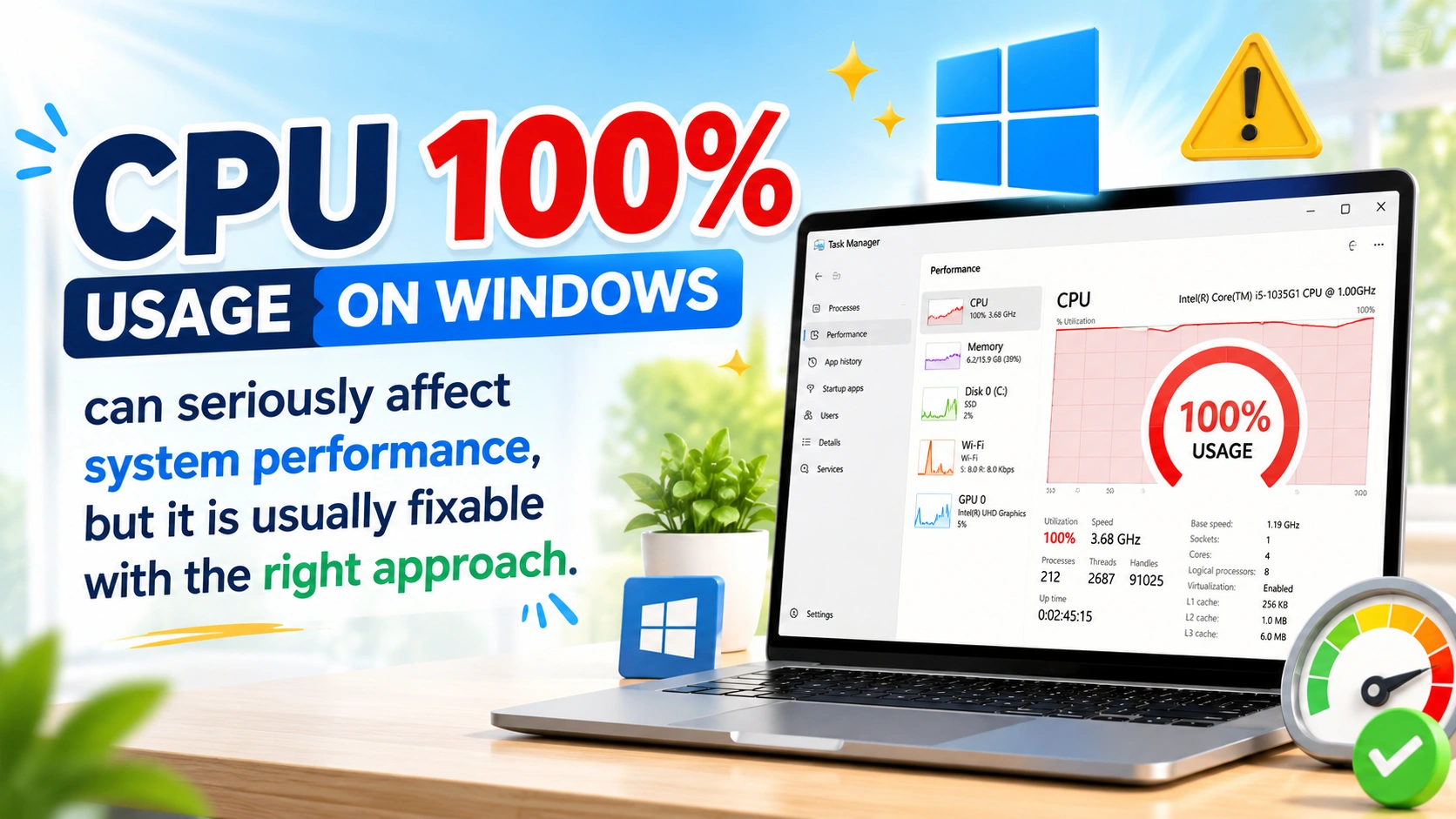
Experiencing CPU 100% usage on Windows is a common but serious performance issue. When your processor runs at full capacity, your PC becomes slow, unresponsive, and difficult to use. Applications may freeze, games may stutter, and even simple tasks can lag or take longer to complete.
This issue is often caused by too many background processes, malware, outdated drivers, or heavy startup programs. Sometimes, system updates or poorly optimized software can also increase CPU load unexpectedly.
This guide explains the main causes of CPU 100% usage and provides step-by-step solutions to fix it, helping you restore smooth, stable, and efficient Windows performance.
What Is CPU 100% Usage?
CPU 100% usage means your computer’s processor is fully overloaded and cannot handle any additional tasks efficiently. This usually happens when too many processes are running or a single process is consuming excessive resources.
Common Symptoms of CPU 100% Usage
You may notice several signs when your CPU is overloaded:
- Slow system performance
- Lag when opening apps
- Fans running loudly
- Overheating issues
- Programs freezing or crashing
- Delayed response from Windows
Main Causes of CPU 100% Usage
Understanding the root cause is important before applying fixes because it helps identify the exact problem, choose effective solutions, avoid unnecessary troubleshooting, and improve overall system performance efficiently on Windows computers.
1. Background Processes Overload
Too many applications running in the background consume CPU resources, causing slow performance, lag, overheating, and reduced system responsiveness.
2. Malware or Virus Infection
Malicious software can secretly use CPU power, slowing down system performance, increasing resource usage, and causing instability on Windows computers.
3. Windows Services Issues
Some system services may malfunction and overuse CPU resources, causing high processor usage, lag, overheating, and reduced Windows performance overall.
4. Outdated Drivers
Old or incompatible drivers can cause high CPU load by creating hardware conflicts, system instability, and inefficient resource management in Windows.
5. Startup Programs
Too many startup apps increase CPU usage at boot time, slowing Windows startup speed and reducing overall system responsiveness during initialization.
6. Software Bugs
Poorly optimized applications may consume excessive processing power, causing high CPU usage, slower performance, overheating, and reduced system stability on Windows computers.
How to Fix CPU 100% Usage on Windows
Follow these proven solutions to reduce CPU usage and improve performance by optimizing processes, updating drivers, and removing background load.
1. Check Task Manager
Task Manager helps identify which process is using the most CPU, allowing users to monitor system performance and close resource-heavy applications.
Steps:
- Press Ctrl + Shift + Esc
- Go to the Processes tab
- Sort by CPU usage
- End unnecessary tasks
2. Disable Startup Programs
Too many startup apps can overload CPU at boot, slowing system startup and reducing overall Windows performance and responsiveness.
Steps:
- Open Task Manager
- Go to Startup tab
- Disable unnecessary programs
3. Scan for Malware
Viruses often cause high CPU usage by running hidden processes, consuming system resources, and reducing overall Windows performance and stability.
Solution:
- Run Windows Security full scan
- Remove detected threats
4. Update Windows and Drivers
Updates fix bugs and improve system performance by patching vulnerabilities, optimizing processes, and enhancing overall stability and security in Windows.
Steps:
- Go to Windows Update
- Install latest updates
- Update device drivers
5. Adjust Power Settings
High performance mode can stabilize CPU usage by prioritizing system resources for performance over energy saving, ensuring smoother and more consistent Windows operation.
Steps:
- Open Power Options
- Select Balanced or High Performance
6. Disable Background Apps
Background apps may silently consume CPU resources, leading to higher usage, reduced performance, and slower responsiveness in Windows systems.
Steps:
- Go to Settings
- Open Background Apps
- Turn off unnecessary apps
7. Check for Overheating
Overheating can force the CPU to throttle, reducing performance to protect hardware and causing noticeable slowdowns in Windows systems.
Fix:
- Clean cooling fans
- Improve airflow
- Replace thermal paste if needed
8. Stop Windows Search Indexing (Optional)
Indexing can sometimes cause high CPU usage by scanning files in the background, temporarily increasing system load and reducing Windows performance.
Steps:
- Open Services
- Disable Windows Search temporarily
9. Reset or Reinstall Problematic Apps
Some apps may cause CPU spikes by suddenly consuming large amounts of processing power, leading to lag, instability, and reduced Windows performance.
Solution:
- Reinstall or remove heavy applications
10. Upgrade Hardware (If Needed)
- Faster processor
- More RAM
- SSD storage
How to Prevent CPU 100% Usage
To prevent CPU 100% usage on Windows, keep your system clean and well-optimized. Regularly close unnecessary background applications and avoid running too many programs at the same time. Make sure to update Windows and device drivers to fix bugs and improve performance.
Use reliable antivirus software to prevent malware infections that can secretly overload your CPU. Disable unnecessary startup programs to reduce CPU load during boot. It is also important to monitor system performance using Task Manager to identify unusual activity early.
Keeping your PC cool by preventing overheating and using optimized software instead of heavy applications can also help maintain stable CPU usage. With consistent maintenance and smart usage habits, you can avoid high CPU usage and ensure smooth, efficient Windows performance.
1. Keep System Updated
Regular updates improve stability and performance by fixing system bugs, enhancing security, and optimizing Windows processes for better efficiency.
2. Avoid Heavy Background Apps
Run only necessary programs to reduce CPU usage, free up system resources, and maintain smooth and efficient Windows performance.
3. Use Lightweight Software
Choose optimized applications to reduce CPU usage, improve system efficiency, and ensure smoother and faster Windows performance.
4. Regular Maintenance
Clean temporary files and monitor system performance regularly to free up storage, detect issues early, and maintain smooth and efficient Windows operation.
5. Use Antivirus Protection
Prevent malware infections that increase CPU usage by using reliable antivirus protection, avoiding suspicious downloads, and keeping your system and software updated.
Conclusion
CPU 100% usage on Windows can seriously affect system performance, but it is usually fixable with the right approach. By identifying the cause—whether it is background processes, malware, outdated drivers, or poorly optimized software—you can apply targeted solutions to reduce CPU load.
Simple habits such as managing startup programs, keeping Windows updated, using antivirus protection, and monitoring system performance can make a significant difference. Preventive maintenance is just as important as fixing issues after they occur.
With consistent optimization and safe usage practices, you can keep CPU usage stable, improve responsiveness, and ensure a smoother Windows experience overall.