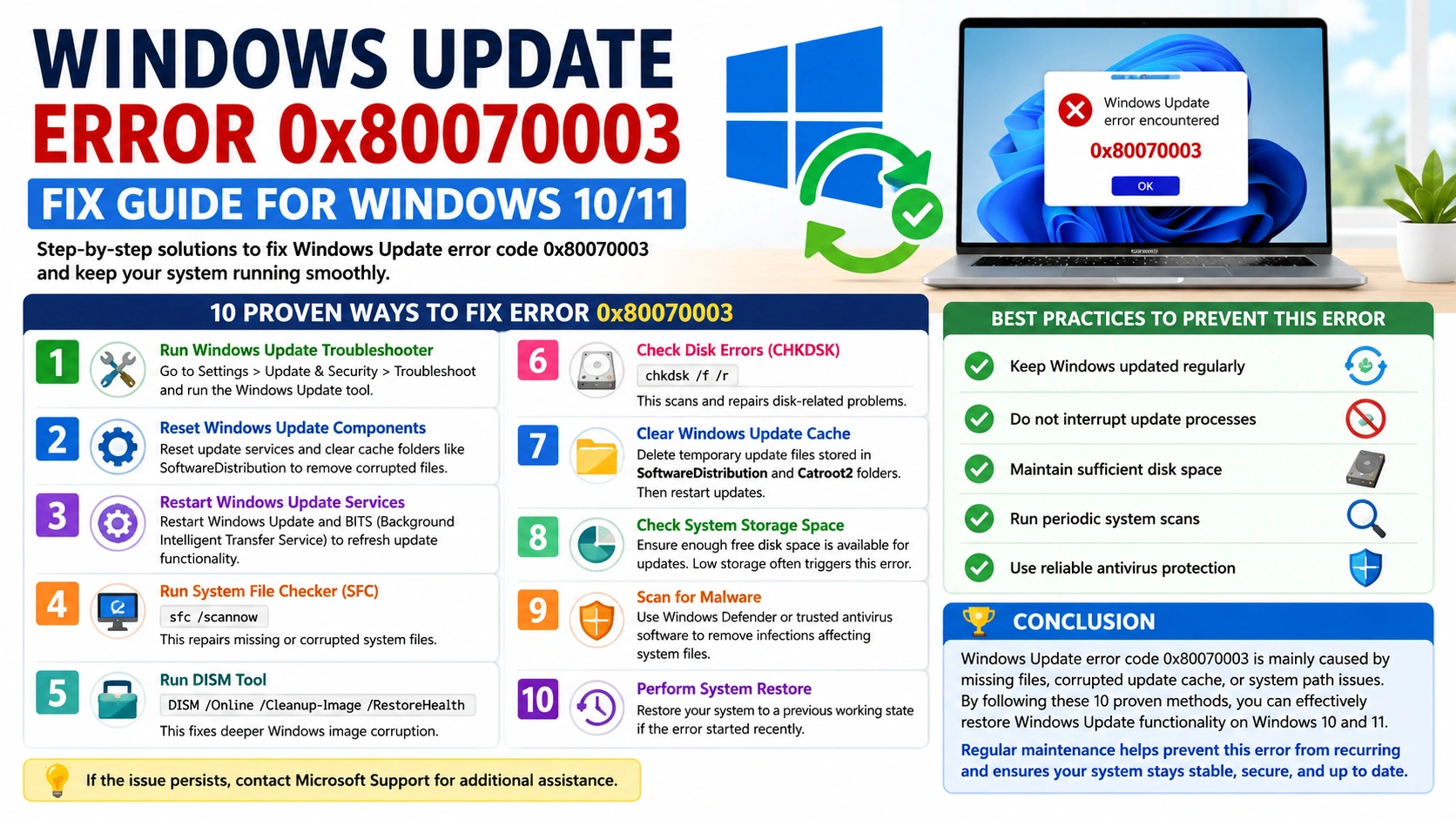
Windows Update is designed to keep your computer secure, stable, and compatible with the latest software and hardware. However, updates do not always install smoothly. One common problem Windows users may encounter is Windows Update error code 0x80070003.
This error can appear when Windows attempts to download or install an update but cannot properly access, locate, or process required update files. In some cases, corrupted Windows Update components, interrupted downloads, incorrect system settings, or damaged system files can contribute to the problem.
Fortunately, error 0x80070003 can often be fixed without reinstalling Windows. This guide explains several practical solutions, starting with the easiest methods and progressing to more advanced troubleshooting steps.
What Is Windows Update Error 0x80070003?
The Windows Update error 0x80070003 generally indicates that Windows cannot complete an update operation because a required file or resource cannot be found or accessed correctly.
You might see the error when:
- Downloading a Windows update
- Installing cumulative updates
- Installing feature updates
- Upgrading to a newer Windows version
- Restarting after an update
- Using Windows Update repeatedly after a failed installation
The problem is not necessarily caused by a single component, so several troubleshooting methods may be required.
Common Causes of Error 0x80070003
Understanding possible causes can make troubleshooting easier. Windows Update error 0x80070003 may occur because of:
- Corrupted Windows Update cache files
- Interrupted or incomplete update downloads
- Windows Update services not running correctly
- Corrupted system files
- Damaged Windows component-store files
- Insufficient free disk space
- Incorrect Windows Update configuration
- Temporary problems with Microsoft’s update servers
- Third-party security software interfering with the update
- Problems with the Windows Update database
Before making major changes, restart your PC and try Windows Update again. A temporary update service problem can sometimes disappear after a reboot.
1. Restart Your Computer
The simplest solution is often overlooked.
A restart can clear temporary processes and restart Windows services that may have become stuck.
- Save your work.
- Open Start.
- Select Power.
- Click Restart.
- After Windows starts, open Settings.
- Go to Windows Update.
- Select Check for updates.
If the update installs successfully, no further troubleshooting is necessary.
2. Check Your Internet Connection
Windows Update requires a reliable internet connection to download update packages.
If your connection frequently disconnects, an update download can become incomplete or corrupted.
Try the following:
- Restart your router.
- Disconnect and reconnect to Wi-Fi.
- Try an Ethernet connection if available.
- Temporarily disable a VPN.
- Avoid downloading large files while updating.
- Restart Windows before trying again.
You can also open a web browser and test several websites to make sure your connection is working normally.
3. Make Sure You Have Enough Free Disk Space
Windows may fail to install updates if the system drive does not have enough available storage.
To check your storage:
- Press Windows + I.
- Select System.
- Choose Storage.
- Check the available space on your system drive.
If your drive is nearly full, remove unnecessary files before attempting the update again.
You can use Temporary files under Windows Storage settings to remove unnecessary cached data.
Be careful when deleting files manually. Avoid removing folders you do not recognize.
4. Run the Windows Update Troubleshooter
Windows includes built-in troubleshooting tools that can detect and repair common update problems.
On supported versions of Windows:
- Open Settings.
- Select System.
- Choose Troubleshoot.
- Select Other troubleshooters.
- Find Windows Update.
- Click Run.
- Follow the instructions provided by Windows.
After the troubleshooter finishes, restart the computer and check for updates again.
5. Restart Windows Update Services
Windows Update depends on several background services. If one of them is stopped or malfunctioning, updates may fail with error 0x80070003.
You can restart the relevant services through Services.
- Press Windows + R.
- Type:
services.msc- Press Enter.
- Locate Windows Update.
- Right-click it and select Restart.
Also check these services:
- Background Intelligent Transfer Service (BITS)
- Cryptographic Services
- Windows Update Medic Service
If a service is stopped and provides a Start option, start it.
Afterward, restart your computer and try Windows Update again.
6. Clear the Windows Update Cache
A corrupted update cache is one of the most useful areas to troubleshoot when Windows Update repeatedly fails.
Windows stores downloaded update files in system folders. If those files become damaged, Windows may repeatedly attempt to use an incomplete or corrupted package.
Stop the Update Services
Open Command Prompt as Administrator and run:
net stop wuauserv
net stop bits
net stop cryptsvc
Rename the Update Cache Folders
Run:
ren %systemroot%\SoftwareDistribution SoftwareDistribution.old
ren %systemroot%\System32\catroot2 catroot2.old
Renaming these folders allows Windows to create fresh versions.
Start the Services Again
Run:
net start wuauserv
net start bits
net start cryptsvc
Restart Windows and check for updates.
Why This Works
Renaming the folders does not delete your personal files. It gives Windows Update a clean environment in which to rebuild its cached update data.
If everything works correctly, Windows will recreate the required folders automatically.
7. Run System File Checker
Damaged Windows system files can interfere with update installation.
Microsoft’s System File Checker (SFC) can scan protected system files and repair problems when possible.
Open Command Prompt as Administrator and run:
sfc /scannowWait for the scan to reach 100%.
Do not close the Command Prompt while the scan is running.
When the process finishes, restart your computer and try Windows Update again.
8. Use DISM to Repair the Windows Image
If SFC cannot resolve the problem, use the Deployment Image Servicing and Management (DISM) tool.
Open an elevated Command Prompt and run:
DISM /Online /Cleanup-Image /RestoreHealthThe process can take some time.
When it completes, run SFC again:
sfc /scannowThen restart Windows.
Running DISM before SFC can help repair the Windows component store that SFC relies on for certain repairs.
9. Check Windows Update-Related Services From Command Prompt
If Windows Update services have configuration problems, resetting them manually may help.
Open Command Prompt as Administrator and run:
net stop wuauserv
net stop bits
net stop cryptsvc
net stop msiserver
Then restart them:
net start msiserver
net start cryptsvc
net start bits
net start wuauserv
Restart your computer afterward.
This method is particularly useful if Windows Update appears stuck or repeatedly fails at the same stage.
10. Check Your Date and Time Settings
Incorrect system time can cause problems with Windows services and secure connections.
To verify your settings:
- Open Settings.
- Go to Time & language.
- Select Date & time.
- Enable Set time automatically.
- Enable Set time zone automatically if available.
- Click Sync now.
Then restart your computer and try the update again.
11. Temporarily Check Third-Party Security Software
Some third-party antivirus, firewall, VPN, or system-optimization programs can interfere with Windows Update.
If you recently installed security or system-management software and Windows Update started failing afterward, consider whether it could be contributing to the problem.
Do not leave your computer unprotected for longer than necessary. If you temporarily disable a security feature for troubleshooting, re-enable it immediately afterward.
Windows Security can remain enabled while you investigate third-party software conflicts.
12. Disconnect Unnecessary Hardware
External devices can occasionally complicate Windows upgrades or driver installation.
Before trying a major update, disconnect unnecessary devices such as:
- USB storage drives
- External hard drives
- Printers
- USB hubs
- Game controllers
- External capture devices
Keep only essential peripherals connected, such as your keyboard, mouse, and display.
Then retry Windows Update.
13. Perform a Clean Boot
A clean boot starts Windows with a minimal set of startup applications and services. This can help identify whether third-party software is interfering with Windows Update.
To perform a clean boot:
- Press Windows + R.
- Enter:
msconfig- Press Enter.
- Open the Services tab.
- Select Hide all Microsoft services.
- Click Disable all.
- Open the Startup tab.
- Open Task Manager.
- Disable unnecessary startup applications.
- Restart your computer.
Try Windows Update again.
If the update works after a clean boot, a third-party service or startup application may be responsible.
Remember to restore your normal startup configuration after troubleshooting.
14. Download the Problematic Update Manually
If Windows Update repeatedly fails to install one particular update, you may be able to install it manually.
First, identify the update’s KB number in Windows Update history.
Go to:
Settings → Windows Update → Update history
Look for the failed update and note its KB number.
You can then search Microsoft’s official Microsoft Update Catalog for that KB number and select the package appropriate for your Windows version and system architecture.
Manual installation can be useful when the Windows Update client is having trouble downloading or installing a particular package.
15. Reset Windows Update Components More Completely
If the standard cache reset does not work, a more comprehensive reset may help.
Open Command Prompt as Administrator and stop the update services:
net stop wuauserv
net stop bits
net stop cryptsvc
net stop msiserver
Then rename the relevant folders:
ren %systemroot%\SoftwareDistribution SoftwareDistribution.old
ren %systemroot%\System32\catroot2 catroot2.old
Start the services again:
net start wuauserv
net start bits
net start cryptsvc
net start msiserver
Restart the PC and check Windows Update.
Important: Only run commands you understand, and do not delete system folders unnecessarily.
16. Check for Pending Restarts
Sometimes Windows has already installed part of an update but requires a restart before continuing.
If Windows displays a message such as Restart required, restart the PC before attempting another update.
After rebooting, wait a few minutes for Windows to finish background update operations before manually checking for another update.
17. Try Windows Update Again After a Restart
After completing repairs, give Windows Update another opportunity to work.
Go to:
Settings → Windows Update → Check for updates
If the previous update cache was corrupted or system files were repaired, Windows may now be able to download and install the update normally.
What If Error 0x80070003 Still Appears?
If none of the solutions above work, the issue may be deeper than a temporary Windows Update problem.
Consider these additional options:
Use an in-place Windows repair
An in-place repair installation can reinstall Windows system components while preserving compatible personal files and applications.
This is more advanced than normal troubleshooting, so make sure you have a current backup before proceeding.
Check the Windows Update logs
Advanced users and administrators can inspect Windows Update logs to determine which component is failing.
Check recent software changes
Think about what changed immediately before the problem appeared. For example:
- A new driver was installed.
- Security software was changed.
- A Windows component was modified.
- Storage became critically low.
- A previous update failed.
- System-cleaning software removed files.
Identifying the timing of the problem can provide an important clue.
Frequently Asked Questions
What does Windows Update error 0x80070003 mean?
It generally means Windows Update cannot locate, access, or process a required file or resource needed to complete an update operation.
Can restarting Windows fix error 0x80070003?
Yes. If the error is caused by a temporary service or update process problem, restarting Windows may resolve it.
Is it safe to clear the Windows Update cache?
Yes, when done correctly. Stopping the appropriate services and renaming the SoftwareDistribution and catroot2 folders allows Windows to recreate the required update data.
Will SFC delete my personal files?
No. SFC is designed to scan and repair protected Windows system files. Nevertheless, maintaining a current backup is always recommended before performing system repairs.
Why does Windows Update keep failing with the same error?
Repeated failures can indicate corrupted update files, damaged system components, service problems, insufficient storage, or software interference. Resetting the update cache and running DISM and SFC are useful next steps.
Should I reinstall Windows to fix 0x80070003?
Usually, no. Try the less disruptive troubleshooting methods first. A repair installation should generally be considered only after standard Windows Update repairs have failed.
Final Thoughts
Windows Update error code 0x80070003 can be frustrating, especially when the same update repeatedly fails. Fortunately, you can often resolve it without reinstalling Windows.
Start with simple solutions such as restarting the PC, checking your internet connection, freeing disk space, and running the Windows Update troubleshooter. If the problem persists, reset the Windows Update cache and use SFC and DISM to repair potentially damaged Windows components.
For persistent failures, manually installing the affected KB update or performing an in-place Windows repair may be appropriate.
The key is to work through the solutions in order rather than making multiple system changes at once. This makes it easier to identify what fixed the problem and reduces the risk of introducing additional issues.


