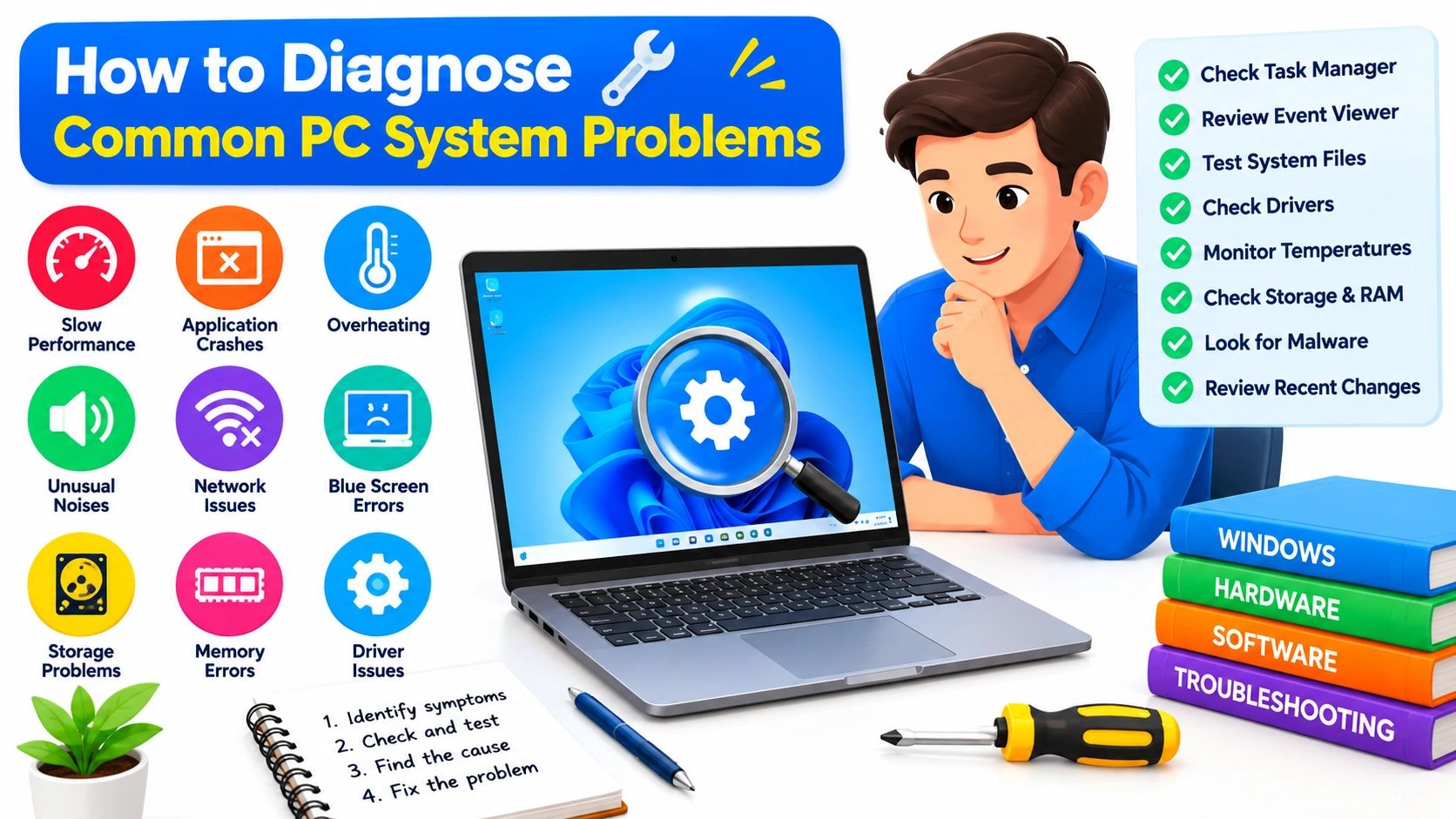
When a Windows PC starts behaving strangely, the cause is not always obvious. Slow performance, random crashes, overheating, unusual noises, network failures, and application errors can come from software, hardware, drivers, or configuration problems.
Learning how to diagnose common PC system problems can help you identify the source before attempting potentially unnecessary repairs. A systematic approach also makes troubleshooting faster and reduces the risk of making the original problem worse.
This guide explains practical ways to diagnose common PC issues and determine which troubleshooting steps are worth trying.
Start by Identifying the Symptoms
Before changing settings or installing repair tools, clearly identify what is happening.
Ask yourself:
- When did the problem first appear?
- Does it happen every time or only occasionally?
- What were you doing when it occurred?
- Did you recently install software, drivers, or Windows updates?
- Does the problem affect one application or the entire system?
- Did you recently change or upgrade hardware?
- Are there any error messages or unusual sounds?
For example, a single application crashing points toward an application or compatibility issue, while system-wide freezing may indicate a driver, memory, storage, temperature, or Windows problem.
Writing down the symptoms can also help you recognize patterns.
Check Task Manager for Resource Usage
Windows Task Manager is one of the quickest tools for finding performance problems.
Press Ctrl + Shift + Esc to open Task Manager. On the Processes tab, examine CPU, memory, disk, and network usage.
High CPU Usage
If CPU usage remains near 100%, identify the process consuming the most resources.
A demanding application may be responsible, but persistent high usage while the PC is idle could indicate a background process, software problem, or unwanted program.
High Memory Usage
If memory usage is consistently high, close unnecessary applications and browser tabs. Too many startup programs or memory-intensive applications can make Windows slow.
If applications frequently become unresponsive, hardware memory problems should also be considered.
High Disk Usage
A drive operating at 100% active time can cause severe slowdowns. Possible causes include Windows processes, indexing, background updates, failing storage hardware, or applications performing heavy disk operations.
Task Manager does not always identify the underlying cause, but it provides an important starting point.
Monitor PC Temperatures
Overheating can cause performance throttling, crashes, unexpected shutdowns, and reduced hardware lifespan.
Common warning signs include:
- Fans constantly running at high speed
- The PC becoming unusually hot
- Performance dropping during demanding workloads
- Sudden shutdowns
- System instability during gaming or intensive tasks
Check whether the computer’s air vents are blocked by dust or objects. On a desktop PC, make sure the case fans are spinning properly.
If temperatures become unusually high, cleaning dust and improving airflow may help. Persistent overheating can require further inspection of the cooling system.
Check Windows Event Viewer
Event Viewer records many system and application events and can be useful when a problem is difficult to reproduce.
To open it, press Windows + R, type:
eventvwr.msc
and press Enter.
Look under areas such as Windows Logs > System and Windows Logs > Application.
Pay particular attention to errors that occurred around the same time as the problem. Event Viewer can reveal information about failed services, drivers, applications, storage devices, and other system components.
However, not every warning represents a serious problem. Focus on events that match the exact time and symptoms of the failure.
Test Windows System Files
Corrupted Windows system files can cause strange errors, crashes, or malfunctioning components.
Windows includes the System File Checker tool for checking protected system files.
Open Command Prompt as administrator and run:
sfc /scannow
Allow the scan to finish. If Windows finds corrupted files, it will attempt to repair them.
If SFC cannot repair everything, the Deployment Image Servicing and Management tool can be useful:
DISM /Online /Cleanup-Image /RestoreHealth
After DISM completes, running sfc /scannow again can help verify that system files are healthy.
Check Device Manager
Hardware and driver problems can often be identified through Device Manager.
Right-click the Start button and select Device Manager.
Look for devices displaying warning symbols. Expand categories such as:
- Display adapters
- Network adapters
- Disk drives
- Sound, video and game controllers
- Bluetooth
- Universal Serial Bus controllers
A warning icon may indicate a driver or device configuration problem.
If an issue started immediately after a driver update, consider rolling back the driver if that option is available. Otherwise, obtain drivers from the hardware manufacturer’s official support source.
Check Storage Health
A failing SSD or hard drive can produce symptoms that look like ordinary Windows problems.
Potential warning signs include:
- Files becoming corrupted
- Frequent application crashes
- Very slow file operations
- Windows freezing during disk activity
- Missing or inaccessible files
- Unexpected boot failures
- Unusual noises from mechanical hard drives
Back up important files before performing extensive troubleshooting if you suspect a storage device is failing.
Windows tools such as chkdsk can check a file system for errors, but disk repairs should be approached carefully when hardware failure is suspected. Repeatedly stressing a failing drive can make data recovery more difficult.
Test RAM for Errors
Defective memory can cause random crashes, freezes, corrupted files, and blue-screen errors.
Windows includes a built-in memory diagnostic tool. Press Windows + R, enter:
mdsched.exe
Then choose to restart and check the memory.
For more extensive testing, specialized memory-testing utilities can perform longer tests.
If memory errors are detected, test individual RAM modules and verify that they are properly installed and compatible with the motherboard.
Investigate Blue Screen Errors
A Blue Screen of Death (BSOD) usually indicates that Windows encountered a serious problem.
Record the following information:
- Stop code
- Driver or file name shown on screen
- What you were doing before the crash
- Whether the crashes started after a recent update or hardware change
Repeated BSODs involving the same driver can provide a strong clue. However, the displayed driver is not always the true root cause, so additional testing may be necessary.
Check Windows Event Viewer and reliability information for events around the crash.
Use Windows Reliability Monitor
Reliability Monitor provides a convenient timeline of crashes and system failures.
Press Windows + R, type:
perfmon /rel
and press Enter.
The timeline can show:
- Application failures
- Windows failures
- Driver-related problems
- Hardware errors
- Failed updates
- Installation events
This is especially useful when a PC has been unstable for several days and you want to determine when the problem began.
Check Startup Programs
Too many applications launching with Windows can increase startup time and consume system resources.
Open Task Manager and select Startup apps.
Review applications with high startup impact and disable programs you do not need to launch automatically.
Avoid disabling essential Windows components or security software unless you know exactly what the program does.
Diagnose Internet and Network Problems
When the problem appears to be network-related, first determine whether the issue affects one device or the entire network.
Try:
- Checking the network connection.
- Restarting the router if appropriate.
- Testing another device.
- Testing both Wi-Fi and Ethernet when possible.
- Checking the network adapter in Device Manager.
- Running Windows network troubleshooting tools.
- Testing whether websites or applications are experiencing broader outages.
If other devices work normally but one PC does not, focus your investigation on that computer’s adapter, drivers, configuration, or software.
Look for Recent Changes
One of the most valuable diagnostic clues is a recent change.
Think about whether the problem appeared after:
- Installing a Windows update
- Updating a driver
- Installing an application
- Connecting new hardware
- Changing BIOS settings
- Installing security software
- Changing system configuration
If the timing is clear, temporarily reversing the change can help determine whether it caused the problem.
Create backups before making major system changes.
Check for Malware and Unwanted Software
Unexpected CPU usage, browser changes, pop-ups, slow performance, and unfamiliar processes can sometimes be caused by unwanted software.
Run a scan with Windows Security and review installed applications for programs you do not recognize.
Avoid downloading random “PC cleaner” or “driver booster” utilities simply because they promise to fix system problems. Some third-party utilities can introduce additional problems instead of solving the original issue.
Separate Software Problems From Hardware Problems
A useful diagnostic technique is to determine whether the problem follows the software environment or the physical hardware.
For example, if Windows crashes only when a particular application is running, investigate that application first.
If the computer crashes across multiple applications and workloads, hardware, drivers, or Windows itself become more likely suspects.
Similarly, if a problem continues after reinstalling or booting into a different software environment, hardware deserves closer attention.
Try the Simplest Fixes First
Good troubleshooting usually starts with low-risk steps.
Before performing complicated repairs:
- Restart the PC.
- Install pending Windows updates if appropriate.
- Check cables and external connections.
- Close unnecessary applications.
- Check available storage space.
- Review recent software or driver changes.
- Run appropriate built-in Windows diagnostics.
- Back up important data.
Avoid making multiple major changes simultaneously. If you change five settings at once, it becomes difficult to know which change actually fixed the problem—or caused another one.
Keep a Troubleshooting Record
For recurring problems, maintain a simple record of:
- Date and time of the failure
- Error message
- Application being used
- Recent system changes
- Temperature or resource usage
- Troubleshooting steps attempted
- Whether the change solved the issue
This can reveal patterns that are difficult to notice otherwise.
It also makes it much easier to explain the problem to a professional technician if you eventually need assistance.
When to Stop Troubleshooting
Some problems should not be handled through repeated trial and error.
Stop and seek professional help if you notice:
- Burning smells
- Smoke
- Electrical sparks
- Repeated hardware shutdowns
- A failing drive containing important data
- Physical damage
- Severe overheating
- Persistent memory errors
- Hardware components that are not detected
If important files are stored on a potentially failing drive, prioritize data backup or recovery rather than repeatedly testing the device.
Final Thoughts
Diagnosing common PC system problems is largely about narrowing down possibilities rather than immediately replacing hardware or reinstalling Windows.
Start by identifying the symptoms, then check resource usage, temperatures, Windows logs, drivers, system files, storage, memory, and recent changes. Built-in tools such as Task Manager, Event Viewer, Reliability Monitor, Device Manager, System File Checker, and Windows Memory Diagnostic can provide valuable clues without requiring expensive software.
Most importantly, troubleshoot methodically. Change one thing at a time, protect important data, and pay attention to patterns. With a structured approach, many PC problems can be identified before they become bigger or more expensive issues.


