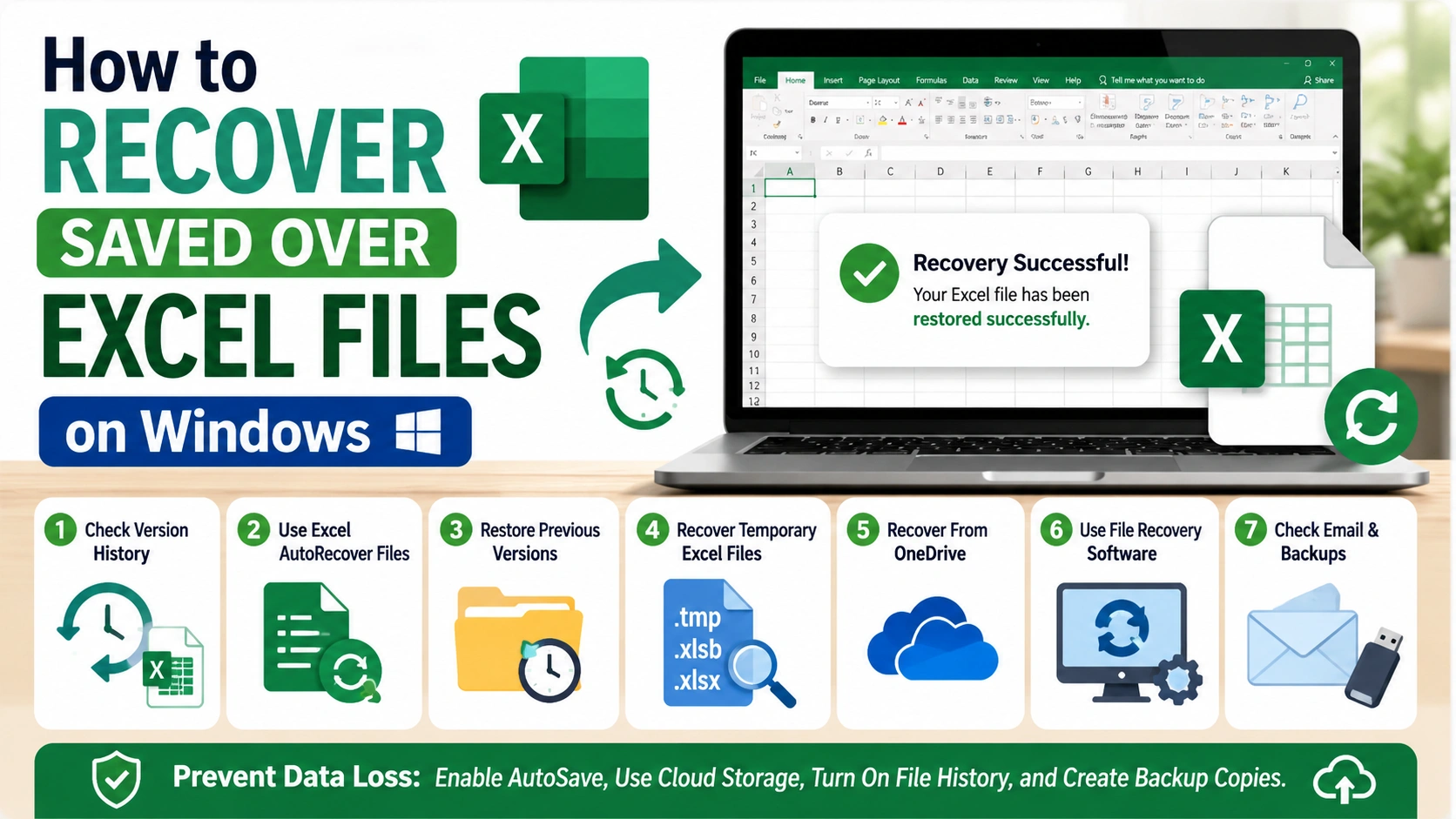
Accidentally saving over an important Excel file can be frustrating, especially when valuable data disappears unexpectedly. Fortunately, Windows and Microsoft Excel provide several built-in recovery features that may help restore overwritten spreadsheets quickly and safely.
In this tutorial, you will learn step-by-step methods to recover saved over Excel files on Windows using AutoRecover, Version History, temporary files, backups, and data recovery tools.
Why Excel Files Get Overwritten
Excel files can be overwritten for many different reasons, often during routine editing or file management. In many cases, users do not realize the original spreadsheet has been replaced until important data is already missing.
Common causes include:
- Accidentally clicking Save after making unwanted changes
- Replacing an older spreadsheet with a newer version
- Editing and saving the wrong workbook
- Automatic cloud synchronization from services like OneDrive
- System crashes or software errors during file saving
Fortunately, Microsoft Excel and Windows frequently create temporary files, recovery copies, or backup versions automatically. These built-in features can help restore overwritten Excel files before the data is permanently lost.
Method 1: Recover Saved Over Excel Files Using Version History
If your Excel spreadsheet is stored in OneDrive or SharePoint, Version History is usually the fastest and easiest way to recover an overwritten file. Microsoft 365 automatically saves older versions of cloud-based documents, allowing you to restore previous edits in just a few clicks.
Steps to Restore an Older Excel Version
- Open the overwritten Excel file in Microsoft Excel.
- Click File in the top-left corner.
- Select Info from the sidebar.
- Click Version History.
- Review the list of available file versions.
- Open the version you want to recover.
- Click Restore to replace the current file, or save the older version as a separate copy.
Version History works best for Microsoft 365 users who have OneDrive or SharePoint synchronization enabled. If cloud backup is active, Excel may automatically save multiple historical versions of the same spreadsheet.
Method 2: Use Excel AutoRecover Files
Microsoft Excel includes an AutoRecover feature that automatically saves temporary backup copies of your spreadsheets while you work. If a file was accidentally overwritten, crashed, or closed unexpectedly, AutoRecover may still contain a usable version of the document.
How to Find AutoRecover Files
- Open Microsoft Excel.
- Click File.
- Select Info from the left menu.
- Choose Manage Workbook.
- Click Recover Unsaved Workbooks.
- Open any available recovery file.
- Save the recovered spreadsheet immediately using a new file name.
You can also manually check the AutoRecover folder in Windows:
C:\Users\YourUsername\AppData\Roaming\Microsoft\Excel
Replace YourUsername with your actual Windows account name.
Inside this folder, look for files with temporary Excel extensions such as .xlsb, .tmp, or unsaved workbook files. Open each file carefully to check whether it contains the spreadsheet data you need.
Method 3: Restore Previous Versions in Windows
Windows includes built-in backup features such as File History and System Protection, which can store older copies of files automatically. If these features were enabled before the Excel file was overwritten, you may be able to restore an earlier version of the spreadsheet easily.
Steps to Restore Previous Versions
- Locate the overwritten Excel file in File Explorer.
- Right-click the file.
- Select Properties.
- Open the Previous Versions tab.
- Review the list of available backup versions.
- Select the version you want to recover.
- Click Restore to replace the current file, or choose Copy to save the older version separately.
This recovery method only works if Windows File History, Backup and Restore, or System Protection was enabled before the file was overwritten. If no previous versions appear, the feature may not have been active on your system.
Method 4: Recover Temporary Excel Files
Windows and Microsoft Excel often create temporary files while spreadsheets are being edited. These temporary files may still contain recoverable data, especially if the workbook was overwritten, closed unexpectedly, or affected by a system crash.
Steps to Locate Temporary Excel Files
- Press Windows + R to open the Run dialog box.
- Type the following command:
%temp%
- Press Enter.
- Browse the temporary folder and search for files ending in:
.tmp.xlsb.xlsx
You can also sort files by Date Modified to find the most recent Excel-related files more quickly.
Open suspicious files using Microsoft Excel and check whether they contain your missing spreadsheet data. If you find the correct file, save it immediately with a new name and in a secure location to prevent further overwriting.
Method 5: Recover Overwritten Excel Files From OneDrive
If your Excel file is synchronized with OneDrive, you can often recover an older version directly from Microsoft’s cloud storage system. OneDrive automatically stores version history for many documents, making it possible to restore previous spreadsheet copies after accidental overwrites.
Steps to Restore OneDrive Versions
- Open OneDrive in your web browser.
- Sign in to your Microsoft account if required.
- Locate the overwritten Excel file.
- Right-click the file.
- Select Version History.
- Browse the available file versions.
- Restore the correct version or download it separately.
OneDrive cloud storage frequently keeps multiple historical copies automatically, especially for Microsoft 365 documents. This makes it one of the most reliable ways to recover overwritten Excel files without using third-party recovery software.
Method 6: Use File Recovery Software
If Windows backups and Excel recovery features cannot restore your spreadsheet, third-party file recovery software may still help recover overwritten Excel files. These tools scan your storage drive for temporary, deleted, or partially recoverable data that may not be visible through normal Windows recovery methods.
Popular Excel Recovery Software
Some widely used recovery tools include:
- Recuva
- EaseUS Data Recovery Wizard
- Disk Drill
- Stellar Data Recovery
Tips Before Using Recovery Software
- Stop using the affected drive immediately whenever possible.
- Avoid saving new files to the same storage location.
- Install recovery software on a different drive or partition.
- Recover restored files to another location to reduce the risk of permanent overwriting.
Most recovery applications provide a preview feature that allows you to check whether the Excel spreadsheet is still recoverable before saving the recovered file.
Method 7: Check Email Attachments and Backups
In some cases, the easiest way to recover an overwritten Excel file is by locating an older copy stored elsewhere. Many users unknowingly keep backup versions through email attachments, cloud storage, or external devices.
Places to Check for Backup Copies
Search the following locations for older spreadsheet versions:
- Email attachments
- USB flash drives
- External hard drives
- Google Drive backups
- NAS (Network Attached Storage) devices
- Archived ZIP or RAR folders
Older spreadsheet copies may still contain the missing data you need, even if the current Excel file was overwritten. Searching backup sources carefully can sometimes restore important information faster than advanced recovery methods.
How to Prevent Excel File Overwrites
Preventing accidental overwrites in Excel is just as important as knowing how to recover files. By applying a few simple habits and system settings, you can significantly reduce the risk of losing important spreadsheet data in the future.
Best Practices to Avoid File Overwrites
Enable AutoSave
If you are using Microsoft 365, turn on AutoSave and store your files in OneDrive. This ensures every change is saved automatically and previous versions are preserved.
Create Backup Copies
Manually save different versions of important spreadsheets so you always have a fallback option. For example:
- Budget_v1.xlsx
- Budget_v2.xlsx
- Budget_Final.xlsx
This simple naming system helps you track changes and restore earlier versions easily.
Turn On File History
Enable Windows File History to automatically back up your files at regular intervals. This feature allows you to restore previous versions if something goes wrong.
Use Cloud Storage
Services like OneDrive or Google Drive store version history automatically, making it easy to recover earlier copies of your Excel files without extra effort.
Avoid Editing Original Files
Instead of working directly on the original spreadsheet, create a duplicate copy before making major changes. This reduces the risk of accidental overwrites.
By following these best practices, you can protect your Excel files from accidental data loss and ensure safer file management in the long term.
Common Questions
Can overwritten Excel files be recovered?
Yes. Overwritten Excel files can often be recovered using features like Version History, AutoRecover, temporary files, or backup copies created by Windows or cloud storage services.
Does Excel automatically save backups?
Yes, Microsoft Excel can automatically create AutoRecover files while you are working, but this feature must be enabled in the settings for it to function properly.
Where are Excel recovery files stored?
Excel recovery files are typically stored in system folders such as:
C:\Users\Username\AppData\Roaming\Microsoft\Excel
and temporary system directories like:
%temp%
Replace Username with your actual Windows account name when accessing these locations.
Can File History restore Excel spreadsheets?
Yes. Windows File History can restore previous versions of Excel files, but only if the feature was enabled before the file was overwritten or lost.
Conclusion
Learning how to recover saved over Excel files on Windows can help you restore important spreadsheets without starting from scratch. Built-in features such as Version History, AutoRecover, Previous Versions, and cloud backups provide multiple reliable options for retrieving overwritten Excel documents.
For better data protection, it is recommended to enable automatic backups and use cloud synchronization services like OneDrive. These practices reduce the risk of permanent file loss and ensure your Excel data remains safe and recoverable in the future.


