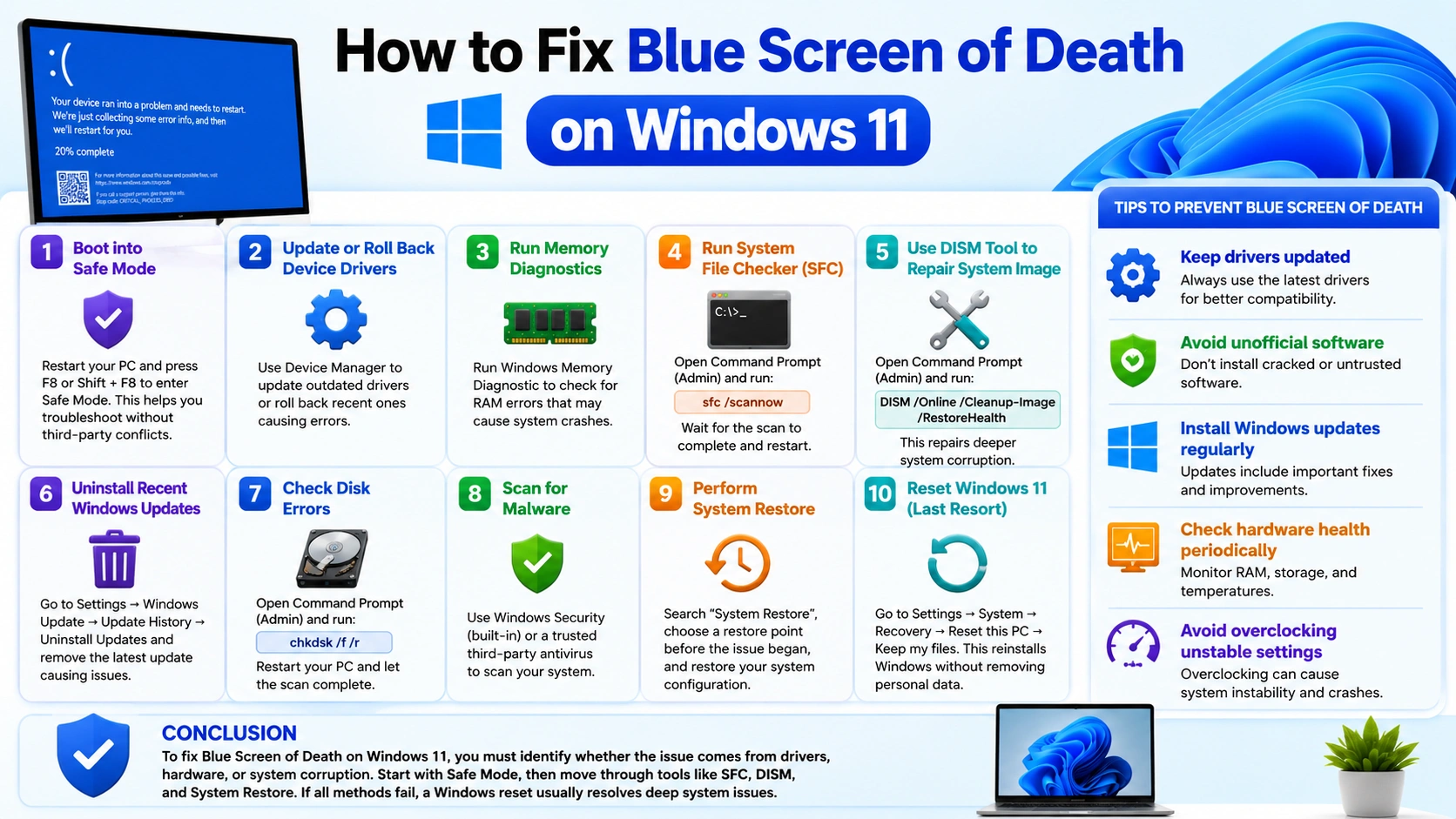
The Blue Screen of Death (BSOD) is one of the most serious and frustrating errors in Windows 11. It occurs when the system experiences a critical failure that forces an immediate restart to protect your computer from further damage or data loss.
This guide will show you how to fix Blue Screen of Death on Windows 11 using simple, effective, and proven troubleshooting methods that target the most common causes of the error.
What Causes Blue Screen of Death on Windows 11?
Before you fix it, it’s important to understand what triggers the Blue Screen of Death in Windows 11. BSOD usually happens when the system detects a critical error that it cannot safely recover from, forcing an automatic restart.
Common causes include:
- Corrupted, missing, or outdated drivers
- Faulty or incompatible Windows updates
- Hardware problems such as failing RAM, SSD, or GPU
- Malware infections or damaged system files
- Unstable overclocking settings
- Incompatible or poorly optimized software
These issues can affect system stability and lead to sudden crashes, especially during startup, gaming, or heavy workloads.
1. Restart Your PC in Safe Mode
Safe Mode is a diagnostic mode in Windows 11 that starts your computer with only essential drivers and services. This helps you identify whether a driver, app, or background service is causing the Blue Screen of Death.
Steps:
- Hold Shift and click Restart
- Go to Troubleshoot → Advanced Options
- Select Startup Settings → Restart
- Press F4 to enter Safe Mode
What it means:
If your system runs normally in Safe Mode without crashing, the issue is most likely related to a recently installed driver, software, or background process.
2. Update or Roll Back Drivers
Outdated, corrupted, or incompatible drivers are one of the most common causes of Blue Screen of Death in Windows 11. When a driver conflicts with the system, it can trigger sudden crashes and instability.
How to Fix:
- Open Device Manager
- Expand key sections like Display Adapters, Network Adapters, and Storage Controllers
- Right-click the problematic driver → select Update driver
- If the issue started after a recent update, choose Roll Back Driver instead
Why this works:
Updating ensures your system uses the latest stable driver versions, while rolling back restores a previous version that may have been more stable for your setup.
3. Run Windows Memory Diagnostic
Faulty or unstable RAM is another common cause of Blue Screen of Death in Windows 11. When memory modules fail, the system may crash unexpectedly during normal use or startup.
Steps:
- Press Windows + R
- Type
mdsched.exeand press Enter - Click Restart now and check for problems
- Wait while the system scans your memory
What happens next:
After the restart, the tool will automatically test your RAM for errors. If any issues are detected, you may need to reseat or replace the RAM module to restore system stability.
4. Run System File Checker (SFC)
Corrupted or missing system files can cause instability and trigger the Blue Screen of Death in Windows 11. The System File Checker (SFC) tool scans and repairs these damaged files automatically.
Steps:
- Open Command Prompt (Admin)
- Type the following command and press Enter:
sfc /scannow
- Wait for the scan to complete
- Restart your PC
Why this helps:
SFC checks the integrity of protected Windows system files and replaces any corrupted versions with correct copies, helping restore system stability and reduce crash errors.
5. Use DISM Tool to Repair System Image
If the System File Checker (SFC) cannot fully fix the problem, you can use the DISM tool to repair deeper system image corruption in Windows 11. DISM helps restore the health of Windows components that SFC depends on.
Steps:
- Open Command Prompt (Admin)
- Run the following command:
DISM /Online /Cleanup-Image /RestoreHealth
- Wait for the process to complete (it may take several minutes)
- Restart your PC
Why this helps:
DISM repairs the underlying Windows system image, fixing issues that may not be detected by SFC. This makes it especially useful for resolving persistent Blue Screen of Death errors caused by deep system corruption.
6. Uninstall Recent Windows Updates
Sometimes a faulty or incomplete update in Windows 11 can introduce system instability and trigger the Blue Screen of Death.
Steps:
- Open Settings
- Go to Windows Update
- Click Update History
- Select Uninstall Updates
- Find the most recent update and remove it
Why this helps:
If the BSOD started after a recent update, rolling it back can quickly restore system stability by removing the problematic changes or drivers introduced by that update.
7. Check Disk Errors
Hard drive or SSD issues can also trigger the Blue Screen of Death in Windows 11, especially if there are bad sectors or file system corruption.
Steps:
- Open Command Prompt (Admin)
- Run the following command:
chkdsk /f /r
- Press Y to schedule the scan if prompted
- Restart your PC and wait for the scan to complete
Why this helps:
This tool scans your drive for errors, repairs corrupted file structures, and attempts to recover data from bad sectors, helping improve system stability and reduce crash risks.
8. Scan for Malware
Malware infections can damage system files, corrupt drivers, and interfere with core processes, which may lead to the Blue Screen of Death in Windows 11.
How to fix:
- Open Windows Security (built-in antivirus)
- Go to Virus & threat protection
- Run a Full Scan or Offline Scan
You can also use a trusted third-party antivirus tool for a deeper inspection if needed.
Why this helps:
Removing malware helps restore system integrity by eliminating malicious processes that may be causing crashes, file corruption, or driver conflicts.
9. Perform System Restore
If the Blue Screen of Death started recently on Windows 11, using System Restore can help you revert your PC back to a stable state without affecting your personal files.
Steps:
- Search for System Restore in the Start menu
- Open Create a restore point
- Click System Restore
- Choose a restore point from a date before the issue began
- Confirm and restore your system configuration
Why this helps:
System Restore rolls back system settings, drivers, and updates to a previous stable state, which can quickly fix crashes caused by recent changes.
10. Reset Windows 11 (Last Resort)
If none of the previous methods resolve the Blue Screen of Death on Windows 11, resetting Windows is the final troubleshooting step. This reinstalls the operating system while giving you the option to keep your personal files.
Steps:
- Open Settings
- Go to System → Recovery
- Click Reset this PC
- Choose Keep my files
- Follow the on-screen instructions to complete the reset
Why this helps:
A reset removes corrupted system files, problematic settings, and unstable configurations that may be causing repeated crashes, giving you a fresh and stable Windows environment.
Tips to Prevent Blue Screen of Death
To reduce the risk of experiencing the Blue Screen of Death on Windows 11 in the future, it’s important to maintain both your system software and hardware in good condition.
Best prevention practices:
- Keep all drivers updated to ensure compatibility and stability
- Avoid installing unofficial or untrusted software
- Install Windows updates regularly to receive security and stability fixes
- Check your hardware health periodically, especially RAM and storage drives
- Avoid unstable overclocking settings that can cause system crashes
Why this matters:
Most BSOD errors are caused by preventable issues like outdated drivers, system conflicts, or hardware stress. Regular maintenance helps keep your system stable and reliable.
Conclusion
To fix Blue Screen of Death on Windows 11, it’s important to identify whether the problem is caused by drivers, hardware failures, or system file corruption. Most issues can be resolved by starting in Safe Mode and applying key repair tools such as SFC, DISM, and System Restore.
If the problem persists after all troubleshooting steps, performing a Windows reset is often the most effective way to eliminate deep system issues and restore stability.


