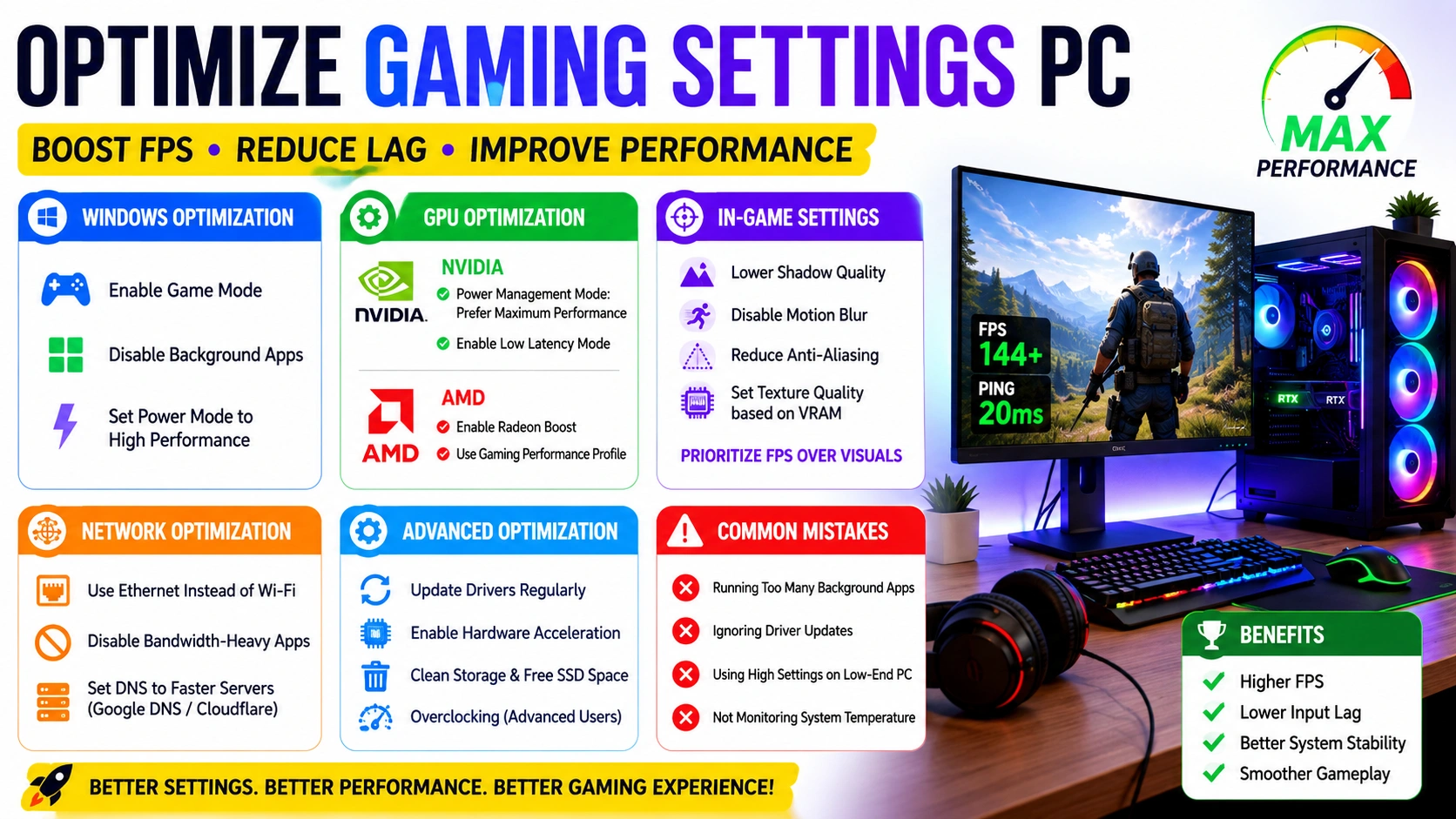
To Optimize Gaming Settings PC, it is important to understand how system performance, graphics configuration, and background processes affect your overall gaming experience. Many players experience low FPS, stuttering, or input lag not because of weak hardware, but because their settings are not properly optimized.
This guide provides a complete, step-by-step approach to help you Optimize Gaming Settings PC, covering Windows configuration, GPU tuning, in-game adjustments, network improvements, and advanced optimization techniques. Whether you are a beginner or an advanced user, these methods will help you achieve smoother gameplay and better system performance without needing expensive upgrades.
Why Optimize Gaming Settings PC Matters
When you Optimize Gaming Settings PC, you significantly improve overall gaming performance and system efficiency. Proper optimization ensures your hardware is used effectively instead of being limited by unnecessary background load or incorrect settings.
Key benefits include:
- Improved frame rate stability (FPS)
- Faster system responsiveness
- Better GPU utilization and efficiency
- Reduced input lag for competitive gaming
- Improved thermal performance and reduced overheating
Modern games require well-optimized hardware and software configurations. Without proper tuning, even high-end PCs can experience stuttering, frame drops, and inconsistent performance during gameplay.
System Check Before You Optimize Gaming Settings PC
Before you apply any tweaks, it is important to evaluate your current system performance. This ensures you Optimize Gaming Settings PC based on real bottlenecks instead of guessing.
Start by checking the following key components:
- CPU and GPU usage during gameplay or idle
- RAM availability and memory pressure
- Storage type (SSD is strongly recommended for gaming performance)
- Driver updates for GPU and chipset
These factors directly influence how well your system can handle modern games.
You can also use built-in Windows tools to monitor performance, troubleshoot issues, and verify system health through official Microsoft resources:
Microsoft Windows Support
Optimize Gaming Settings PC in Windows
To Optimize Gaming Settings PC in Windows, you need to adjust core system features that directly affect performance, CPU usage, and memory allocation.
1. Enable Game Mode
Game Mode helps Windows prioritize gaming performance by reducing background activity.
- Go to Settings > Gaming > Game Mode
- Turn Game Mode ON
2. Disable Background Apps
Background applications can consume CPU, RAM, and disk resources, reducing gaming performance.
- Remove unnecessary startup apps via Task Manager
- Disable apps running in the background
- Free up system memory for games
3. Adjust Power Settings
Power settings control how your system balances performance and energy efficiency.
- Set Power Mode to “High Performance”
- Ensure the system is not running in battery-saving mode (for laptops)
These Windows-level optimizations significantly improve responsiveness, reduce stutters, and help maintain stable FPS when you Optimize Gaming Settings PC.
Optimize Gaming Settings PC Using GPU Settings
Your GPU is one of the most important components when you Optimize Gaming Settings PC, as it directly affects frame rate, rendering quality, and input latency.
Proper GPU configuration can significantly increase FPS stability and reduce stuttering in modern games.
NVIDIA Optimization
NVIDIA settings can be adjusted through the official control panel to improve gaming performance.
Official website: NVIDIA Official Website
To optimize settings:
- Open NVIDIA Control Panel
- Set Power Management Mode to Prefer Maximum Performance
- Enable Low Latency Mode
- Adjust texture filtering for performance (optional)
These settings help ensure your GPU runs at full performance during gameplay when you Optimize Gaming Settings PC.
AMD Optimization
AMD provides performance tuning through its Adrenalin software suite.
Official website: AMD Official Website
To optimize settings:
- Open AMD Adrenalin Software
- Enable Radeon Boost for dynamic performance scaling
- Set performance tuning to a Gaming Profile
- Disable unnecessary visual enhancements if FPS is unstable
These adjustments help balance performance and visual quality effectively.
Proper GPU configuration ensures your system delivers maximum performance, making this a critical step when you Optimize Gaming Settings PC for smooth and responsive gameplay.
Optimize Gaming Settings PC In-Game Settings
To Optimize Gaming Settings PC, in-game graphics configuration is one of the most effective ways to improve FPS and reduce input lag. These settings directly control how your GPU and CPU render visual elements during gameplay.
Lower Shadow Quality
Shadows are one of the most performance-heavy settings in modern games. Reducing shadow quality can significantly increase FPS without heavily impacting gameplay clarity.
Disable Motion Blur
Motion blur reduces visual clarity during fast movements and is unnecessary for most players, especially in competitive gaming. Turning it off improves sharpness and responsiveness.
Reduce Anti-Aliasing
Anti-aliasing smooths edges but can be demanding on GPU performance. Lowering or disabling it helps improve frame rates when you Optimize Gaming Settings PC.
Set Texture Quality Based on VRAM
Texture quality should match your GPU memory capacity:
- High VRAM GPUs: High textures
- Mid-range GPUs: Medium textures
- Low VRAM GPUs: Low textures
This prevents stuttering and texture loading issues.
Prioritize FPS Over Visuals
For competitive gaming, performance should always come first. Lowering visual settings ensures higher and more stable FPS, reduced input lag, and smoother gameplay experience when you Optimize Gaming Settings PC.
Network Settings Optimization
To Optimize Gaming Settings PC for online gaming, network configuration is just as important as hardware and graphics settings. A stable and low-latency connection can significantly improve responsiveness in multiplayer games.
Use Ethernet Instead of Wi-Fi
A wired Ethernet connection provides:
- Lower ping and latency
- More stable connection
- Reduced packet loss
Wi-Fi is more prone to interference, especially in crowded networks or long distances from the router.
Disable Bandwidth-Heavy Apps
Background applications can consume network bandwidth and increase lag during gameplay.
- Close streaming apps (YouTube, Netflix, etc.)
- Stop downloads and updates while gaming
- Disable cloud sync temporarily
This ensures maximum bandwidth is available when you Optimize Gaming Settings PC for online play.
Set DNS to Faster Servers
Changing your DNS can improve connection speed and stability when resolving game server addresses.
Popular DNS options include:
- Google DNS:
8.8.8.8/8.8.4.4 - Cloudflare DNS:
1.1.1.1/1.0.0.1
This step may help reduce latency and improve connection consistency in some games.
By applying these network optimizations, you can achieve smoother online gameplay with lower ping and better stability when you Optimize Gaming Settings PC.
Advanced Methods to Optimize Gaming Settings PC
To take performance further, you can apply advanced techniques to Optimize Gaming Settings PC beyond basic Windows and in-game adjustments. These methods help unlock additional FPS, reduce latency, and improve overall system efficiency.
1. Update Drivers Regularly
Keeping your drivers up to date ensures your system benefits from the latest performance improvements and bug fixes.
- Update GPU drivers for better game optimization
- Install chipset drivers for improved CPU communication
- Check updates from official sources regularly
This is one of the simplest yet most effective ways to Optimize Gaming Settings PC.
2. Enable Hardware Acceleration
Hardware acceleration allows supported applications to use your GPU instead of relying only on the CPU.
- Improves rendering performance in browsers and apps
- Reduces CPU load during multitasking
- Helps maintain smoother gameplay when background apps are open
3. Clean Storage
A cluttered drive can slow down loading times and cause performance drops.
- Delete temporary and junk files
- Uninstall unused applications
- Ensure SSD has free space for optimal performance
SSDs perform best when they are not near full capacity, which helps you Optimize Gaming Settings PC more effectively.
4. Overclocking (Advanced Users)
Overclocking increases CPU or GPU clock speeds for higher performance.
- Use trusted tools like MSI Afterburner or manufacturer utilities
- Monitor temperatures carefully to avoid overheating
- Increase performance gradually and test stability
Overclocking can significantly boost FPS, but it should only be done with proper cooling and caution when you Optimize Gaming Settings PC.
These advanced methods provide deeper performance gains for users who want to push their system beyond standard optimization limits.
Common Mistakes When Optimizing Gaming Settings PC
When you try to Optimize Gaming Settings PC, it is easy to make mistakes that actually reduce performance instead of improving it. Avoiding these issues is just as important as applying the right settings.
Running Too Many Background Apps
Keeping unnecessary applications open consumes CPU, RAM, and disk usage.
- Causes FPS drops and stuttering
- Increases input lag
- Reduces overall system responsiveness
Always close non-essential apps before gaming.
Ignoring Driver Updates
Outdated drivers can significantly impact game performance and stability.
- Missing performance optimizations
- Compatibility issues with new games
- Increased chance of crashes or glitches
Regular updates are essential when you Optimize Gaming Settings PC.
Using High Graphics Settings on Low-End Hardware
Not matching settings to your hardware limits leads to poor performance.
- Low FPS and frequent lag
- Overloaded GPU or CPU
- Inconsistent frame timing
Always adjust settings based on your system capability.
Not Monitoring System Temperature
Overheating can throttle performance and damage hardware over time.</p>
- Reduced clock speeds under load
- Sudden FPS drops
- System instability or shutdowns
Use monitoring tools to keep temperatures under control while you Optimize Gaming Settings PC.
Avoiding these common mistakes ensures smoother gameplay, better stability, and more consistent performance across all games.
Conclusion
To Optimize Gaming Settings PC, you need a balanced combination of Windows system tweaks, GPU configuration, network improvements, and in-game settings adjustments. Each layer of optimization contributes to better overall performance and stability.
By applying the methods in this guide, you can significantly improve FPS, reduce input lag, and enhance your gaming experience without requiring any hardware upgrades.
Consistent optimization also helps maintain long-term system health, ensuring your PC remains fast, responsive, and capable of handling modern games smoothly over time.


