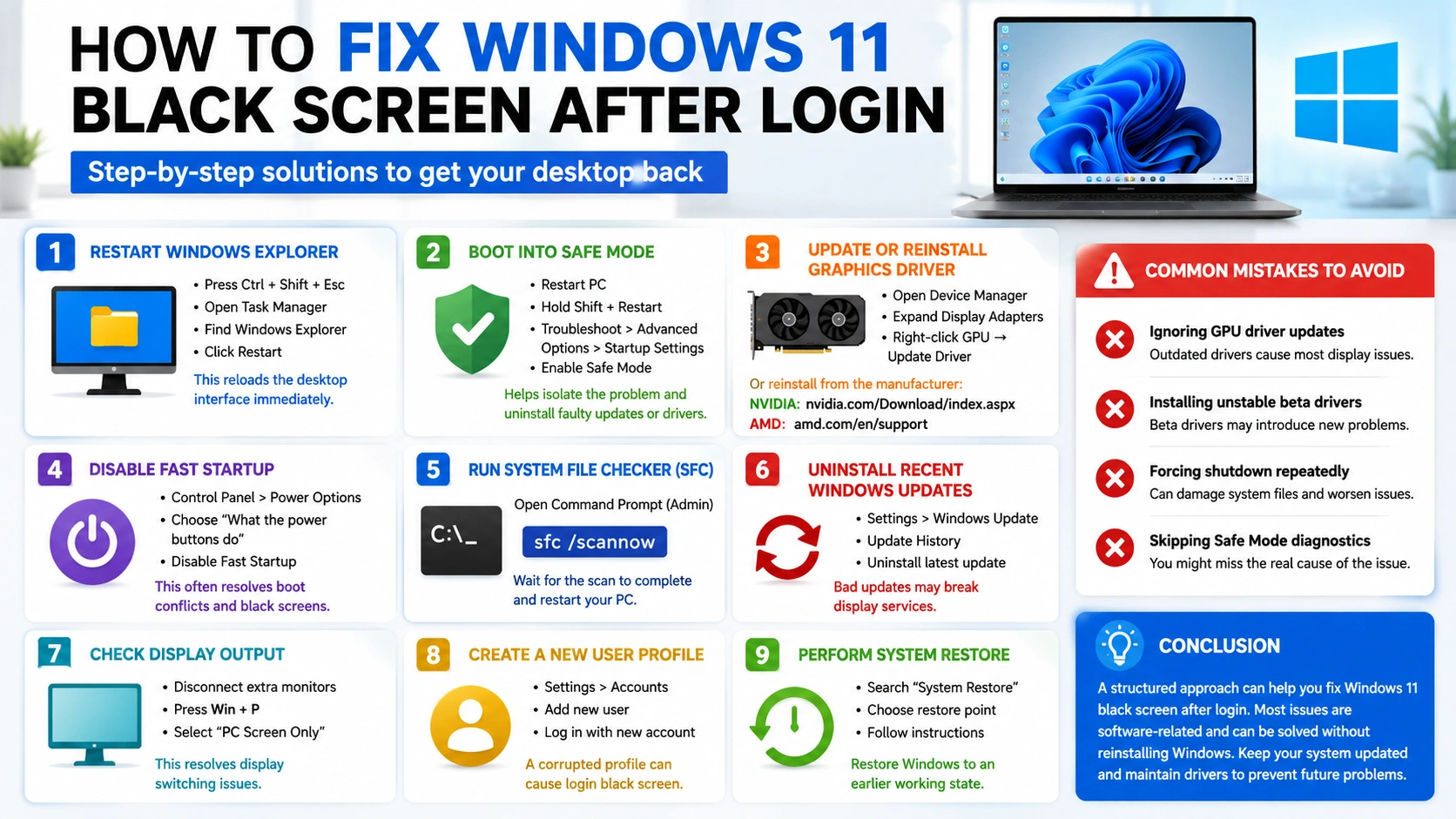
Windows users often encounter a frustrating issue where the system boots normally, but instead of loading the desktop, a black screen appears immediately after login. In many cases, the mouse cursor may still be visible, but the taskbar, icons, and wallpaper fail to load properly, making the system unusable. This issue can be caused by corrupted system files, outdated or faulty graphics drivers, failed Windows updates, or problems with the Windows Explorer process.
This guide explains how to Fix Windows 11 Black Screen After Login using simple and effective troubleshooting methods. Each solution is designed to help you identify the root cause and restore normal desktop functionality without requiring advanced technical skills or a full system reinstall.
What Causes Black Screen After Login in Windows 11?
The Fix Windows 11 Black Screen After Login issue is typically triggered by a range of system, driver, or startup-related problems. Identifying the exact cause is important because it helps you apply the most effective solution instead of trying random fixes.
In most cases, this problem occurs due to corrupted or outdated graphics drivers that fail to properly initialize the display after login. It can also happen when a Windows update is incomplete or faulty, causing system components to load incorrectly.
Another common cause is the Explorer.exe process not loading, which prevents the desktop interface, taskbar, and icons from appearing even though the system is running in the background. Display output conflicts, especially when using multiple monitors or external displays, may also trigger a black screen.
Additionally, features like Fast Startup can sometimes interfere with proper system initialization, leading to temporary glitches during boot. In rare cases, general system corruption or background service failures can also result in this issue.
Understanding these causes is the first step to effectively Fix Windows 11 Black Screen After Login and restore normal system performance quickly.
1. Restart Windows Explorer
One of the quickest and most effective ways to Fix Windows 11 Black Screen After Login is by restarting the Windows Explorer process. This method works because Explorer controls the desktop interface, including the taskbar, icons, and system tray. When it fails to load properly, the system may appear as a black screen even though Windows is running in the background.
Steps:
- Press Ctrl + Shift + Esc to open Task Manager
- Click on More details if needed
- Locate Windows Explorer in the Processes list
- Right-click it and select Restart
Once restarted, the desktop interface usually reloads instantly, resolving the black screen issue.
2. Boot Into Safe Mode
Booting into Safe Mode is another important method to Fix Windows 11 Black Screen After Login, especially when the issue is caused by drivers, updates, or third-party software conflicts. Safe Mode starts Windows with only essential system services, making it easier to troubleshoot and remove problematic components.
Steps:
- Restart your PC
- Hold Shift + Restart from the login screen or Start menu
- Navigate to Troubleshoot > Advanced Options > Startup Settings
- Click Restart, then press the key for Safe Mode (usually F4 or F5)
Once in Safe Mode, you can uninstall recent Windows updates, remove faulty drivers, or disable startup programs that may be causing the issue.
3. Update or Reinstall Graphics Driver
Outdated or corrupted graphics drivers are one of the most common reasons you need to Fix Windows 11 Black Screen After Login. When the GPU driver fails to initialize properly, Windows may boot, but the display interface does not load correctly, resulting in a black screen.
Keeping your graphics driver updated ensures compatibility with Windows updates and improves system stability.
Steps:
- Open Device Manager
- Expand Display Adapters
- Right-click your GPU (Graphics Card)
- Select Update Driver and follow the on-screen instructions
If updating does not solve the issue, reinstalling the driver is recommended. You can download the latest official version from your GPU manufacturer:
4. Disable Fast Startup
Fast Startup is a Windows feature designed to reduce boot time, but it can sometimes cause system initialization conflicts. These conflicts may lead to black screen issues after login, making it necessary to Fix Windows 11 Black Screen After Login by disabling this feature.
Disabling Fast Startup allows Windows to perform a full shutdown and clean startup process, which often resolves hidden boot-related problems.
Steps:
- Open Control Panel
- Go to Power Options
- Click Choose what the power buttons do
- Select Change settings that are currently unavailable
- Uncheck Turn on fast startup (recommended)
- Click Save changes
After disabling Fast Startup, restart your computer and check if the issue is resolved.
5. Run System File Checker (SFC)
Corrupted or missing system files are a common reason you may need to Fix Windows 11 Black Screen After Login. When essential Windows components are damaged, the system may fail to load the desktop properly after login, resulting in a black screen.
The System File Checker (SFC) tool scans your system and automatically repairs corrupted files.
Run SFC using Command Prompt:
- Press Windows + S and type Command Prompt
- Right-click it and select Run as administrator
- Enter the following command:
sfc /scannow
- Wait for the scan to complete (do not interrupt the process)
- Restart your PC after the scan finishes
This process helps restore missing or corrupted system files that may be causing the black screen issue.
6. Uninstall Recent Windows Updates
Sometimes, a faulty or incomplete Windows update can break display drivers or system services, leading to the need to Fix Windows 11 Black Screen After Login. If the issue started after a recent update, removing it can quickly restore system stability.
Steps:
- Open Settings
- Go to Windows Update
- Click Update History
- Select Uninstall updates
- Choose the most recent update and uninstall it
- Restart your computer
After rebooting, check if the system loads the desktop normally again.
7. Check Display Output
In some cases, you may need to Fix Windows 11 Black Screen After Login due to incorrect display output settings, especially when using multiple monitors or external displays. Windows may mistakenly send the display signal to another screen that is not active or properly connected, resulting in a black screen on your main monitor.
Steps:
- Disconnect all extra monitors or external displays
- Press Win + P on your keyboard
- Select PC screen only
This forces Windows to output the display to a single primary screen and often resolves issues caused by incorrect projection settings or display switching conflicts.
8. Create a New User Profile
A corrupted user profile can also lead to a black screen after login, making it necessary to Fix Windows 11 Black Screen After Login by creating a new account. When a user profile becomes damaged, Windows may fail to load the desktop environment correctly, even though the system itself is functioning normally.
Steps:
- Open Settings
- Go to Accounts
- Select Other users or Family & other users
- Click Add account
- Create a new local or Microsoft account
- Log in using the new account
If the new profile works correctly, the issue is likely caused by corruption in the original user profile.
9. Perform System Restore
If none of the previous methods work, the final and most reliable way to Fix Windows 11 Black Screen After Login is by using System Restore. This feature allows you to roll back your system to a previous working state when everything was functioning correctly.
System Restore does not affect your personal files, but it can remove recently installed drivers, updates, or system changes that may be causing the black screen issue.
Steps:
- Press Windows + S and type System Restore
- Click Create a restore point
- In the System Properties window, select System Restore
- Choose Next, then select a working restore point
- Click Next and then Finish
- Confirm and allow your system to restore
After the process is complete, your PC will restart automatically and return to the selected restore point.
This method is especially useful when the issue started after a major update or driver installation, making it an effective final step to Fix Windows 11 Black Screen After Login.
Common Mistakes to Avoid
When trying to Fix Windows 11 Black Screen After Login, many users unintentionally make the problem worse by skipping important troubleshooting steps or applying risky fixes too quickly. Avoiding these mistakes can significantly improve your chances of resolving the issue safely and effectively.
Ignoring GPU driver updates
Outdated graphics drivers are one of the most common causes of black screen problems. Ignoring driver updates can prevent Windows from properly loading the display interface after login.
Installing unstable beta drivers
Beta or experimental GPU drivers may introduce compatibility issues with Windows 11. These unstable versions can trigger crashes, flickering, or black screen errors instead of improving performance.
Forcing shutdown repeatedly
Turning off your PC by holding the power button can damage system files over time. This may worsen corruption issues and make it harder to Fix Windows 11 Black Screen After Login later.
Skipping Safe Mode diagnostics
Safe Mode is one of the most important troubleshooting environments in Windows. Skipping it can prevent you from identifying whether the issue is caused by drivers, updates, or third-party software.
By avoiding these common mistakes, you increase the chances of a faster and more stable recovery of your system.
Conclusion
To Fix Windows 11 Black Screen After Login, a structured troubleshooting approach is essential. Starting with simple solutions like restarting Windows Explorer and progressing through methods such as updating graphics drivers, running system file checks, and reviewing recent updates can effectively resolve most cases.
In many situations, the issue is caused by software-related conflicts rather than hardware failure, meaning it can usually be fixed without reinstalling Windows. Applying these methods step by step helps identify the root cause and restore normal desktop functionality.
Maintaining consistent system updates, using stable drivers, and avoiding risky modifications are key practices to prevent the Fix Windows 11 Black Screen After Login issue from occurring again in the future.


