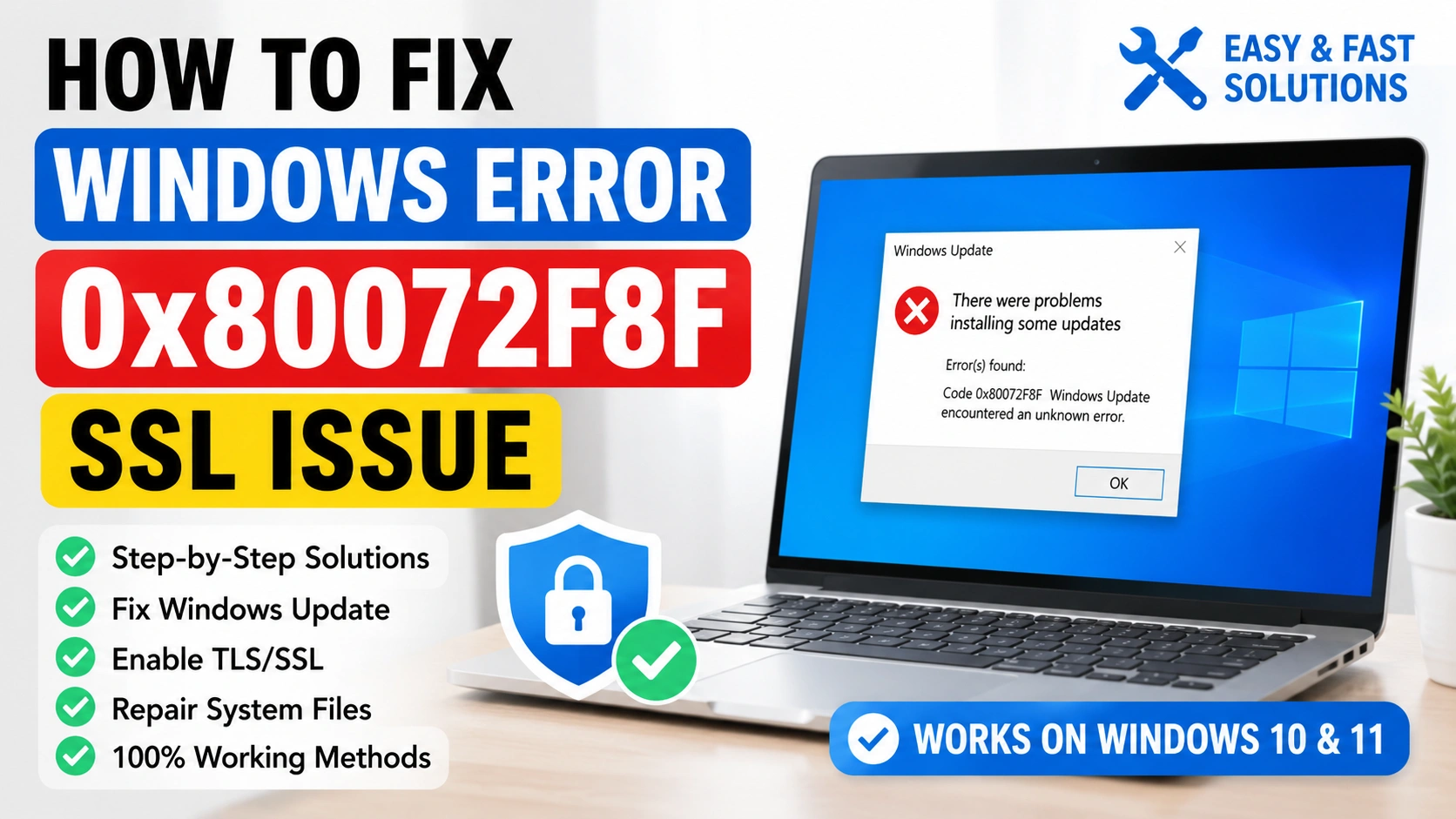
Windows Error 0x80072F8F SSL Issue usually appears when Windows cannot establish a secure SSL or TLS connection with Microsoft servers. This security-related problem commonly affects Windows Update, Microsoft Store, Windows activation services, and other encrypted Microsoft connections. When the operating system fails to verify SSL certificates correctly, Windows blocks the communication to protect the system from potentially insecure or invalid connections.
Many users encounter Windows Error 0x80072F8F SSL Issue while downloading updates, activating Windows, syncing Microsoft accounts, or installing applications from Microsoft Store. In some cases, the error appears immediately after changing network settings, installing antivirus software, modifying SSL configurations, or using outdated versions of Windows.
The issue is often caused by incorrect date and time settings, disabled TLS protocols, corrupted Windows Update components, damaged system files, expired root certificates, firewall restrictions, or proxy server conflicts. Older Windows builds may also fail to support modern SSL encryption standards required by Microsoft services.
Fortunately, there are several effective ways to Fix Windows Error 0x80072F8F SSL Issue without reinstalling Windows completely. By following the methods below carefully, you can restore secure SSL communication, repair Windows Update functionality, and prevent similar SSL problems from returning in the future.
What Causes Windows Error 0x80072F8F SSL Issue?
Several system, network, and security-related factors can trigger Windows Error 0x80072F8F SSL Issue, including:
- Incorrect date and time settings
- Expired or outdated SSL certificates
- Disabled TLS security protocols
- Corrupted Windows Update cache
- Damaged system files
- Firewall or antivirus interference
- Incorrect proxy server settings
- Outdated Windows versions
- Corrupted network configurations
- Missing root certificate updates
Understanding the exact cause helps you apply the correct solution faster and avoid unnecessary troubleshooting steps.
1. Correct Date and Time Settings
Incorrect system date and time settings are one of the most common causes of Windows Error 0x80072F8F SSL Issue. SSL certificates require accurate time synchronization to verify secure connections properly.
Steps to Adjust Date and Time
- Press
Windows + Ito open Settings. - Open Time & Language.
- Select Date & Time.
- Enable:
- Set time automatically
- Set time zone automatically
- Click Sync now.
- Restart the computer.
After restarting, test Windows Update again.
2. Enable TLS Protocols
TLS protocols secure communication between Windows and Microsoft servers. Disabled TLS settings can prevent SSL verification.
Steps to Enable TLS
- Press
Windows + R. - Type:
inetcpl.cpl
- Open the Advanced tab.
- Scroll to the Security section.
- Enable:
- Use TLS 1.2
- Use TLS 1.3 if available
- Click Apply and OK.
- Restart the computer.
This method often helps Fix Windows Error 0x80072F8F SSL Issue immediately.
3. Clear Windows Update Cache
Corrupted Windows Update cache files may interrupt SSL communication with Microsoft servers.
Steps to Clear Windows Update Cache
- Open Command Prompt as Administrator.
- Run the following commands:
net stop wuauserv
net stop bits
ren C:\Windows\SoftwareDistribution SoftwareDistribution.old
net start wuauserv
net start bits
- Restart the computer.
This process rebuilds the update cache and repairs damaged update components.
4. Run Windows Update Troubleshooter
Windows includes a built-in troubleshooting tool that automatically repairs update-related problems.
Steps to Run Windows Update Troubleshooter
- Open Settings.
- Go to System.
- Select Troubleshoot.
- Open Other troubleshooters.
- Run Windows Update Troubleshooter.
- Apply any recommended fixes.
- Restart the computer.
The troubleshooter can automatically Fix Windows Error 0x80072F8F SSL Issue in many cases.
5. Disable Proxy Server
Incorrect proxy settings can interrupt secure SSL connections.
Steps to Disable Proxy Server
- Open Settings.
- Go to Network & Internet.
- Select Proxy.
- Disable:
- Use setup script
- Use a proxy server
- Restart the computer.
Direct internet access often improves SSL connectivity.
6. Temporarily Disable Antivirus and Firewall
Some antivirus programs and firewall settings may block SSL certificate verification.
Steps to Disable Antivirus and Firewall
- Disable third-party antivirus software temporarily.
- Open Windows Security.
- Go to Firewall & Network Protection.
- Disable the active firewall temporarily.
- Test Windows Update again.
Remember to re-enable security protection afterward.
7. Repair Corrupted System Files
Damaged system files can interfere with SSL operations and Windows Update services.
Run SFC Scan
Open Command Prompt as Administrator and run:
sfc /scannow
Wait for the scan to complete.
Run DISM Repair
After SFC finishes, run:
DISM /Online /Cleanup-Image /RestoreHealth
Restart the computer after the repair process finishes.
These tools help Fix Windows Error 0x80072F8F SSL Issue caused by system corruption.
8. Install Root Certificate Updates
Expired or missing certificates can prevent secure SSL verification.
Steps to Install Root Certificate Updates
- Open Windows Update.
- Click Check for updates.
- Install all available updates.
- Restart the computer.
You can also manually download certificates from Microsoft Update Catalog if needed.
9. Reset Network Configuration
Corrupted network settings can affect SSL communication and certificate verification.
Run Network Reset Commands
Open Command Prompt as Administrator and run:
netsh winsock reset
netsh int ip reset
ipconfig /flushdns
Restart the computer afterward.
These commands reset network sockets, TCP/IP settings, and DNS cache.
10. Update Windows to the Latest Version
Older Windows builds may not fully support modern SSL and TLS encryption standards.
Steps to Update Windows
- Open Settings.
- Go to Windows Update.
- Click Check for updates.
- Install all pending updates.
- Restart the system.
Keeping Windows updated improves SSL compatibility, system security, and network stability.
Additional Tips to Prevent Windows Error 0x80072F8F SSL Issue
To reduce the chances of future SSL problems:
- Keep Windows updated regularly
- Use automatic time synchronization
- Avoid unreliable proxy servers
- Keep antivirus software updated
- Install official Microsoft updates only
- Avoid unnecessary SSL registry modifications
- Use stable internet connections
- Perform regular system maintenance
Preventive maintenance helps maintain secure system communication and improves long-term Windows stability.
Common Mistakes to Avoid
Ignoring Incorrect System Time
Even small time differences can break SSL certificate verification.
Disabling Security Permanently
Leaving antivirus or firewall disabled permanently increases security risks.
Using Unsupported Windows Versions
Outdated Windows versions may lack support for modern encryption protocols.
Interrupting Windows Updates
Force shutdowns during updates can corrupt update components and trigger SSL errors.
When to Consider Advanced Repair
If Windows Error 0x80072F8F SSL Issue still appears after trying all methods:
- Perform an in-place Windows repair
- Use System Restore
- Reset Windows Update components completely
- Create a new Windows user profile
- Reinstall Windows as a last resort
Persistent SSL problems may indicate deeper operating system corruption.
Conclusion
To Fix Windows Error 0x80072F8F SSL Issue, you should begin by correcting the system time, enabling TLS protocols, and repairing Windows Update components. Most SSL connection failures are caused by incorrect security settings, corrupted update files, outdated certificates, or damaged system components.
By following these 10 proven solutions, you can restore secure SSL communication, repair Windows Update functionality, and improve overall system security on Windows 10 and Windows 11. Regular maintenance, updated software, and proper network configuration will also help prevent Windows Error 0x80072F8F SSL Issue from returning in the future.


