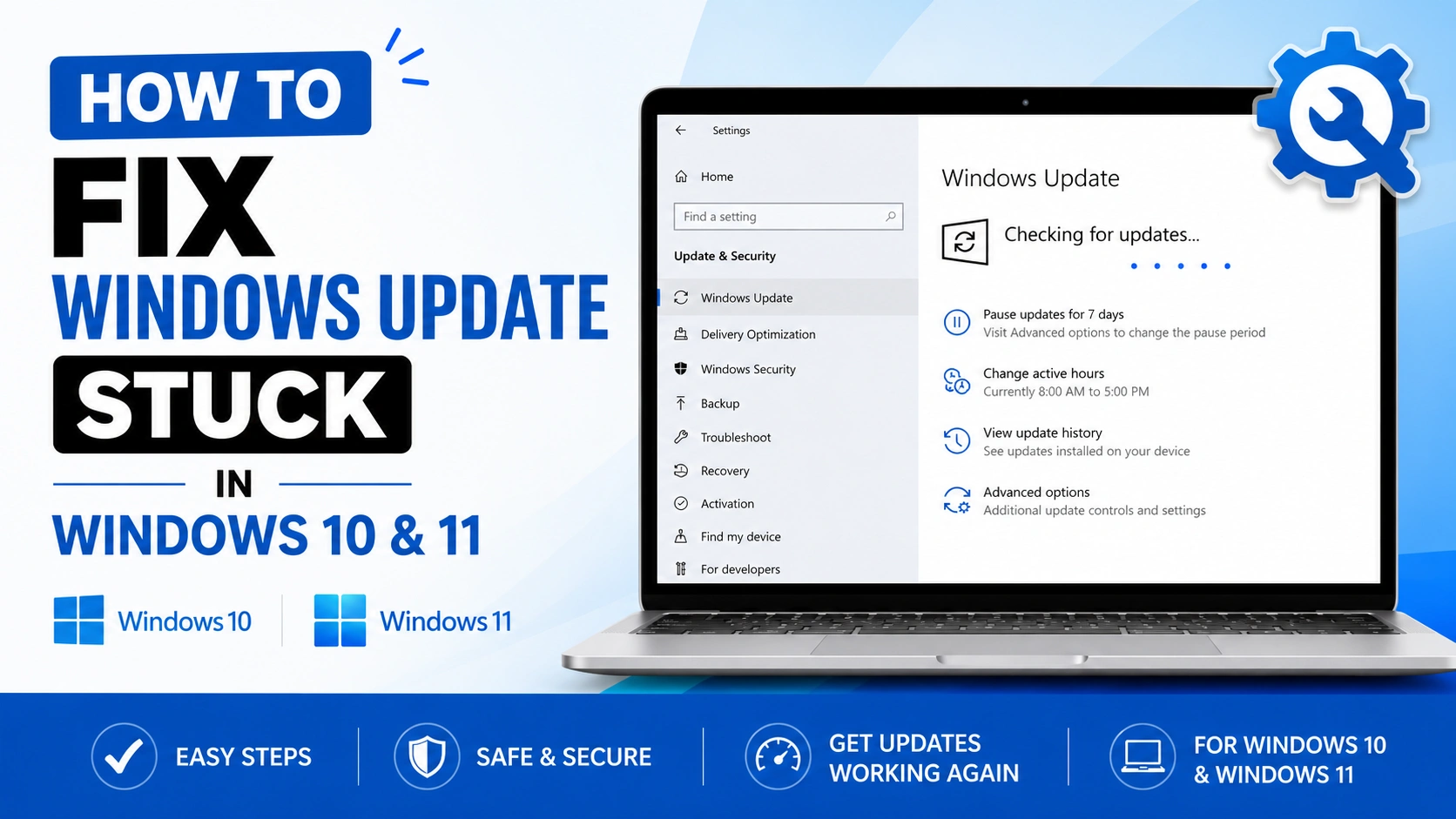
Windows Update is essential for keeping your PC secure, stable, and optimized. However, many users encounter situations where Windows Update becomes stuck during download, installation, or restart. This issue can occur on both Windows 10 and Windows 11 and may prevent your computer from updating properly.
If you want to know how to fix Windows Update stuck problems, this guide provides step-by-step solutions that can restore normal update functionality and prevent future update failures.
Why Windows Update Gets Stuck
Several factors can cause Windows Update to freeze or stop progressing:
- Corrupted update cache files
- Interrupted internet connection
- Damaged system files
- Insufficient disk space
- Antivirus conflicts
- Windows Update service errors
- Faulty drivers or hardware conflicts
Identifying the cause helps determine the most effective solution.
Common Symptoms of Windows Update Stuck
You may experience one or more of these symptoms:
- Update stuck at 0%, 20%, 50%, or 100%
- Endless “Working on updates” screen
- PC keeps restarting during updates
- Windows Update downloads but never installs
- Error messages during installation
- Frozen update progress for hours
1. Wait Before Interrupting the Update
Some Windows updates, especially feature updates, may take a long time to install. Before attempting repairs:
- Wait at least 30–60 minutes
- Check if disk activity is still active
- Keep the device plugged into power
- Avoid forcing shutdown immediately
Large cumulative updates often appear frozen when they are still processing in the background.
2. Restart Your Computer
A simple restart can sometimes resolve temporary update glitches.
Steps
- Hold the power button if the system is unresponsive
- Restart the PC normally
- Open:
- Settings
- Windows Update
- Check for updates again
This refreshes update services and temporary processes.
3. Run Windows Update Troubleshooter
Windows includes a built-in troubleshooter for update problems.
Steps
- Open Settings
- Go to:
- System
- Troubleshoot
- Other troubleshooters
- Find Windows Update
- Click Run
The troubleshooter automatically detects and repairs common update issues.
4. Free Up Disk Space
Insufficient storage space can stop updates from completing.
Recommended Actions
- Delete temporary files
- Empty Recycle Bin
- Remove unused applications
- Run Disk Cleanup
Use Disk Cleanup
- Search for Disk Cleanup
- Select the system drive
- Check:
- Temporary files
- Windows Update Cleanup
- Delivery Optimization files
- Click OK
At least 20 GB of free space is recommended for major updates.
5. Reset Windows Update Components
Corrupted update cache files are one of the most common causes of stuck updates.
Steps
- Open Command Prompt as Administrator
- Run these commands one by one:
net stop wuauserv
net stop bits
net stop cryptsvc
- Rename update folders:
ren C:\Windows\SoftwareDistribution SoftwareDistribution.old
ren C:\Windows\System32\catroot2 catroot2.old
- Restart services:
net start wuauserv
net start bits
net start cryptsvc
- Restart your computer
This forces Windows to create fresh update files.
6. Repair Corrupted System Files
Damaged system files can prevent updates from installing properly.
Run SFC Scan
Open Command Prompt as Administrator and run:
sfc /scannow
Wait for the process to complete.
Run DISM Repair
If SFC cannot fix everything, run:
DISM /Online /Cleanup-Image /RestoreHealth
Restart the PC afterward.
7. Disable Antivirus Temporarily
Third-party antivirus software can sometimes block updates.
What to Do
- Disable real-time protection temporarily
- Pause firewall features
- Retry Windows Update
Do not leave antivirus disabled permanently.
8. Boot Into Safe Mode
Safe Mode helps isolate software conflicts affecting updates.
Steps
- Hold Shift
- Click Restart
- Go to:
- Troubleshoot
- Advanced options
- Startup Settings
- Press 4 for Safe Mode
Then attempt Windows Update again.
9. Install Updates Manually
If automatic updates fail repeatedly, manually install the update.
Steps
- Open:
- Settings
- Windows Update
- Update History
- Note the KB number
- Visit Microsoft Update Catalog
- Download the matching update
- Install manually
Manual installation bypasses some automatic update issues.
10. Perform a Clean Boot
Background applications may interfere with update services.
Steps
- Press Windows + R
- Type:
msconfig
- Open Services
- Check:
- Hide all Microsoft services
- Click Disable all
- Restart the PC
Try updating again afterward.
11. Use Startup Repair
If Windows becomes stuck in a boot loop during updates:
Steps
- Force restart the PC three times
- Enter Windows Recovery Environment
- Select:
- Troubleshoot
- Advanced options
- Startup Repair
Windows attempts to repair update-related startup issues automatically.
12. Restore Windows to an Earlier Point
System Restore can undo problematic updates.
Steps
- Search for Create a restore point
- Open System Restore
- Choose a restore point before the issue started
- Complete the restoration process
This does not usually affect personal files.
13. Reset Windows as a Last Resort
If nothing works, resetting Windows may solve severe corruption issues.
Steps
- Open:
- Settings
- System
- Recovery
- Select Reset this PC
- Choose:
- Keep my files
- Remove everything
A reset reinstalls Windows and removes damaged system components.
Common Mistakes to Avoid
Forcing Shutdown Repeatedly
Repeated hard shutdowns can corrupt system files.
Ignoring Error Codes
Windows Update error codes often reveal the exact problem.
Disabling Update Services Permanently
Stopping update services long-term weakens system security.
Skipping Driver Updates
Outdated drivers frequently cause update conflicts.
Tips to Prevent Windows Update Problems
To reduce future update issues:
- Keep storage space available
- Update drivers regularly
- Avoid interrupting updates
- Use stable internet connections
- Install updates consistently
- Create restore points before major updates
Preventive maintenance significantly improves update reliability.
Conclusion
Knowing how to fix Windows Update stuck issues can save time and prevent unnecessary Windows reinstalls. Most update problems are caused by corrupted cache files, insufficient storage, damaged system files, or software conflicts.
By following these troubleshooting methods, you can restore Windows Update functionality on both Windows 10 and Windows 11 and keep your system secure, stable, and fully updated.


