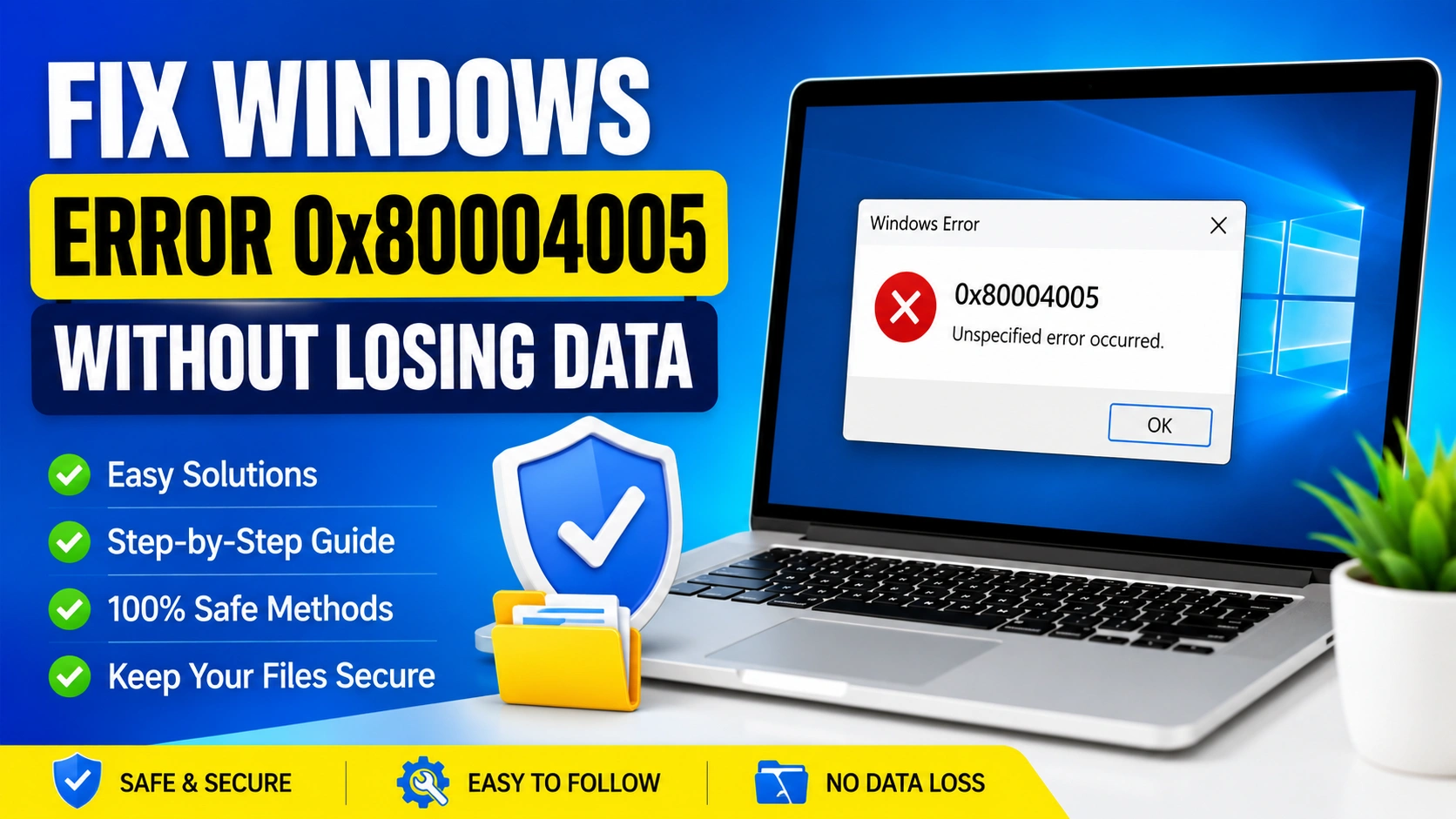
Windows Error 0x80004005 is one of the most common unspecified errors that Windows users encounter. It may appear during Windows updates, file extraction, shared folder access, virtual machine operations, or system upgrades.
The good news is that you can Fix Windows Error 0x80004005 Without Losing Data by following several safe troubleshooting methods. This guide explains the causes of the error and provides step-by-step solutions that protect your files and personal information.
What Is Windows Error 0x80004005?
Windows Error 0x80004005 is an unspecified error code that appears when the Windows operating system cannot complete a requested task. Because the error is categorized as “unspecified,” it does not point to a single cause, making troubleshooting necessary to identify the underlying issue.
This error can occur in various situations, including Windows updates, file operations, network sharing, and virtual machine management. In many cases, corrupted system files, incorrect permissions, software conflicts, or damaged registry entries are responsible for triggering the error.
Common scenarios where Windows Error 0x80004005 appears include:
- Windows Update failures
- Shared folder and network access issues
- ZIP or compressed file extraction errors
- Virtual machine startup problems
- Corrupted or missing system files
- Registry conflicts and configuration errors
- User account permission restrictions
Since multiple factors can trigger this error, understanding the root cause is essential before applying a solution. Proper diagnosis helps you Fix Windows Error 0x80004005 Without Losing Data and prevents the issue from recurring in the future.
Common Causes of Windows Error 0x80004005
Windows Error 0x80004005 is a generic error code that can occur in a variety of situations, making it difficult to identify the exact cause immediately. Understanding the most common triggers can help you diagnose the problem more effectively and apply the appropriate solution.
Corrupted System Files
Damaged or missing Windows system files can interfere with essential operating system functions. When critical files become corrupted due to malware, improper shutdowns, or failed updates, Windows may display Error 0x80004005 during various operations.
Windows Update Problems
Failed or incomplete Windows updates are among the most frequent causes of Error 0x80004005. Corrupted update files, damaged update components, or communication issues between Windows Update services can prevent updates from installing successfully.
Permission Restrictions
Windows requires appropriate user permissions to access certain files, folders, and system resources. If your account lacks the necessary privileges, Windows may block the requested action and generate Error 0x80004005.
Antivirus Interference
Some antivirus and security applications may mistakenly identify legitimate Windows processes as suspicious. This can result in blocked operations, failed updates, or restricted file access that triggers the error.
Damaged Registry Entries
The Windows Registry stores critical configuration settings for the operating system and installed applications. Corrupted, outdated, or invalid registry entries can create conflicts that lead to Error 0x80004005 and other system-related issues.
Corrupted Archive Files
When extracting ZIP or compressed files, Error 0x80004005 may appear if the archive is incomplete, damaged, or improperly downloaded. In some cases, unsupported compression methods can also cause extraction failures.
Network Sharing Issues
Users frequently encounter Error 0x80004005 when accessing shared folders, network drives, or remote resources. Incorrect sharing settings, disabled network discovery, or permission conflicts are common causes of these connectivity problems.
Disk Errors and File System Corruption
Bad sectors, file system inconsistencies, and hard drive corruption can prevent Windows from reading or writing data correctly. These issues can trigger Error 0x80004005 during updates, installations, file transfers, or normal system operations.
By identifying which of these factors is responsible for the problem, you can choose the most effective method to Fix Windows Error 0x80004005 Without Losing Data and restore your system to normal operation.
Before You Begin
Before attempting any troubleshooting steps, it is important to take a few precautions to protect your system and data. These measures can help prevent unexpected issues and make recovery easier if something goes wrong during the repair process.
1. Create a System Restore Point
A restore point allows you to revert Windows to a previous working state if a fix causes unintended problems. This provides a safety net while making system changes.
2. Back Up Important Files
Although most solutions for Windows Error 0x80004005 do not affect personal data, backing up important documents, photos, and other files is always recommended before troubleshooting.
3. Install the Latest Windows Updates
Make sure your system is running the latest version of Windows. Updates often contain bug fixes, security patches, and improvements that may resolve the error automatically.
4. Sign In with an Administrator Account
Many repair procedures require elevated permissions. Using an administrator account ensures you can access all necessary system settings and tools.
Taking these precautions helps you Fix Windows Error 0x80004005 Without Losing Data while minimizing the risk of data loss or system instability.
Method 1: Run Windows Update Troubleshooter
If Windows Error 0x80004005 occurs during system updates, the built-in Windows Update Troubleshooter can automatically identify and fix common update-related problems.
Steps to Run Windows Update Troubleshooter
- Open Settings.
- Select System.
- Click Troubleshoot.
- Choose Other troubleshooters.
- Locate Windows Update and click Run.
- Follow the on-screen instructions to complete the troubleshooting process.
- Restart your computer after the repair is finished.
Once Windows restarts, try running Windows Update again and check whether Error 0x80004005 has been resolved.
Why this works:
The troubleshooter can automatically repair corrupted update components, reset update services, and fix configuration issues that may be preventing updates from installing correctly.
Method 2: Repair Corrupted System Files
Damaged or missing Windows system files are one of the most common causes of Windows Error 0x80004005. Running the built-in System File Checker (SFC) and Deployment Image Servicing and Management (DISM) tools can repair these files and restore system stability.
Run an SFC Scan
- Press Windows + S and search for Command Prompt.
- Right-click Command Prompt and select Run as Administrator.
- Enter the following command:
sfc /scannow
- Press Enter.
- Wait for the scan to complete. This process may take several minutes.
- Restart your computer after the scan finishes.
The SFC tool will automatically detect and replace corrupted system files using cached copies stored by Windows.
Run the DISM Tool
If the SFC scan cannot fix the problem or reports unrepaired files, use the DISM utility to repair the Windows system image.
Open Command Prompt as Administrator and run:
DISM /Online /Cleanup-Image /RestoreHealth
Allow the process to reach 100% completion. Depending on your system and internet connection, this may take some time.
After the scan finishes:
- Restart your computer.
- Run Windows Update or the affected application again.
- Check whether Windows Error 0x80004005 has been fixed.
Why this works:
DISM repairs the underlying Windows image used by SFC. Running both tools together is often one of the most effective ways to Fix Windows Error 0x80004005 Without Losing Data.
Method 3: Reset Windows Update Components
If Windows Error 0x80004005 occurs while downloading or installing updates, corrupted Windows Update components may be preventing the process from completing successfully. Resetting these components can clear damaged update files and restore normal update functionality.
Steps to Reset Windows Update Components
- Open Command Prompt as Administrator.
- Stop the Windows Update-related services by entering the following commands one at a time:
net stop wuauserv
net stop bits
net stop cryptsvc
- Rename the update cache folders by running:
ren C:\Windows\SoftwareDistribution SoftwareDistribution.old
ren C:\Windows\System32\catroot2 catroot2.old
- Restart the services using these commands:
net start wuauserv
net start bits
net start cryptsvc
- Close Command Prompt and restart your computer.
- Open Settings > Windows Update and check for updates again.
Why this works:
The SoftwareDistribution and Catroot2 folders store temporary update files. If these files become corrupted, Windows Update may fail and generate Error 0x80004005. Resetting the components forces Windows to create fresh update files and configurations.
Method 4: Disable Antivirus Software Temporarily
In some cases, third-party antivirus programs can block Windows processes, file operations, or updates, resulting in Windows Error 0x80004005. Temporarily disabling antivirus protection can help determine whether security software is causing the issue.
Steps to Disable Antivirus Temporarily
- Open your antivirus program.
- Locate the Real-Time Protection, Active Protection, or similar security setting.
- Temporarily disable the protection feature.
- Retry the operation that previously triggered Error 0x80004005.
- If the operation completes successfully, re-enable antivirus protection immediately.
What to Do If Antivirus Is the Cause
- Update the antivirus software to the latest version.
- Add the affected application or Windows process to the antivirus exclusion list.
- Review antivirus logs for blocked files or actions.
- Contact the antivirus vendor for support if the issue persists.
Important:
Never leave antivirus protection disabled longer than necessary. Always re-enable your security software after testing to keep your system protected from threats.
Why this works:
Some antivirus applications mistakenly identify legitimate Windows files or processes as suspicious, preventing them from running correctly. Disabling the software temporarily helps confirm whether it is responsible for Windows Error 0x80004005 and allows you to apply the appropriate fix.
Method 5: Fix Shared Folder Access Issues
Windows Error 0x80004005 frequently appears when users attempt to access shared folders or network resources. This typically happens because of incorrect network settings, insufficient permissions, or disabled sharing features.
Enable Network Discovery and File Sharing
- Open Control Panel.
- Navigate to Network and Sharing Center.
- Click Change Advanced Sharing Settings.
- Under your current network profile, enable:
- Network Discovery
- File and Printer Sharing
- Save the changes and restart your computer if necessary.
Verify Folder Permissions
- Right-click the shared folder and select Properties.
- Open the Sharing tab and click Advanced Sharing.
- Confirm that the folder is shared correctly.
- Click Permissions and verify that your user account or network users have the appropriate access rights.
- Apply the changes and try accessing the folder again.
Why this works:
Network sharing errors often occur when Windows cannot authenticate user access or discover devices on the network. Enabling sharing features and correcting permissions can resolve Error 0x80004005 in many cases.
Method 6: Extract ZIP Files Using Alternative Tools
If Windows Error 0x80004005 appears while opening or extracting a ZIP archive, the compressed file may be corrupted or incompatible with the built-in Windows extraction utility.
Steps to Resolve ZIP Extraction Errors
- Download the ZIP file again from its original source.
- Verify that the download completed successfully.
- Save the archive to a local drive rather than a network location.
- Try extracting the file using a third-party extraction tool.
- Extract the contents to a new folder with full write permissions.
Additional Checks
- Ensure the ZIP file is not password-protected without the correct password.
- Check that sufficient disk space is available.
- Scan the archive for malware before opening it.
Why this works:
Corrupted downloads, damaged archives, and compatibility issues can prevent Windows from extracting compressed files properly. Using an alternative extraction tool often bypasses these limitations and resolves Error 0x80004005.
Method 7: Check Disk for Errors
File system corruption or bad sectors on a hard drive can cause Windows Error 0x80004005. Running the Check Disk utility can detect and repair disk-related issues automatically.
Run CHKDSK
- Open Command Prompt as Administrator.
- Enter the following command:
chkdsk C: /f /r
- Press Enter.
- If prompted, type Y to schedule the scan for the next restart.
- Restart your computer.
Windows will scan the drive, repair file system errors, and attempt to recover readable information from damaged sectors.
Why this works:
Disk corruption can interfere with Windows updates, file operations, and application processes. Repairing these errors often eliminates Error 0x80004005 and improves overall system stability.
Method 8: Use System Restore
If Error 0x80004005 started appearing after a recent update, driver installation, or system change, System Restore may return Windows to a working state without affecting personal files.
Steps to Perform a System Restore
- Search for Create a Restore Point in the Windows search box.
- Open the result and click System Restore.
- Select Choose a Different Restore Point if available.
- Choose a restore point created before the error first appeared.
- Follow the on-screen instructions to begin the restoration process.
- Allow Windows to restart and complete the recovery.
Why this works:
System Restore reverses problematic system changes, drivers, registry modifications, and software installations that may have triggered Error 0x80004005 while preserving your personal documents and files.
Method 9: Perform an In-Place Repair Upgrade
If none of the previous methods resolve the issue, an in-place repair upgrade can reinstall Windows while keeping your applications, settings, and personal files intact.
Steps to Perform an In-Place Repair Upgrade
- Download the latest Windows installation media from Microsoft’s website.
- Launch the installation setup file.
- Select Upgrade This PC Now.
- Follow the installation wizard.
- When prompted, choose Keep Personal Files and Apps.
- Continue the installation and allow Windows to complete the upgrade process.
Benefits of an In-Place Repair Upgrade
- Repairs damaged Windows components.
- Replaces corrupted system files.
- Preserves installed applications.
- Keeps personal documents and settings intact.
- Avoids a complete system reset.
Why this works:
An in-place repair upgrade reinstalls core Windows files without erasing your data. It is one of the most effective and safest methods to Fix Windows Error 0x80004005 Without Losing Data when standard troubleshooting solutions fail.
How to Prevent Windows Error 0x80004005
While Windows Error 0x80004005 can usually be fixed through troubleshooting, taking preventive measures can help reduce the chances of encountering the error in the future. Regular system maintenance improves overall stability, security, and performance.
Follow These Best Practices
Install Windows Updates Regularly
Keeping Windows up to date ensures you receive the latest bug fixes, security patches, and performance improvements that can prevent system errors.
Maintain Antivirus Software
Use reputable antivirus software and keep its virus definitions updated to protect your system from malware that may corrupt files or interfere with Windows processes.
Avoid Force Shutdowns
Unexpected power losses and forced shutdowns can damage system files and cause file system corruption. Always shut down Windows properly whenever possible.
Create Restore Points Periodically
Regular restore points provide an easy recovery option if future updates, software installations, or configuration changes cause problems.
Scan for Malware Routinely
Perform scheduled malware scans to detect and remove threats before they can damage system files or Windows components.
Monitor Disk Health
Check your hard drive or SSD periodically for errors and signs of hardware failure. Early detection can prevent serious system issues and data loss.
Back Up Important Data Frequently
Maintain regular backups of important files using external drives or cloud storage. A reliable backup strategy protects your data from unexpected system failures.
By following these maintenance practices, you can significantly reduce the likelihood of encountering Windows Error 0x80004005 and other common Windows problems.
Frequently Asked Questions
What causes Windows Error 0x80004005?
Windows Error 0x80004005 can occur for several reasons, including corrupted system files, failed Windows updates, insufficient permissions, antivirus software conflicts, damaged registry entries, network-sharing issues, and corrupted ZIP archives. Identifying the specific cause is essential for applying the correct fix.
Can I fix Windows Error 0x80004005 without reinstalling Windows?
Yes. In most cases, the error can be resolved without reinstalling Windows. Common solutions include running the SFC and DISM repair tools, resetting Windows Update components, repairing disk errors, adjusting permissions, or using System Restore.
Will fixing Error 0x80004005 delete my files?
No. The troubleshooting methods covered in this guide are designed to repair Windows components and system settings without deleting personal files, documents, photos, or other user data. However, creating a backup before making system changes is always recommended.
Is Error 0x80004005 a virus?
No. Windows Error 0x80004005 is not a virus. It is a generic Windows error code that indicates an operation could not be completed. However, malware infections can sometimes damage system files or settings, which may contribute to the error.
Does System Restore remove personal files?
No. System Restore primarily affects Windows settings, drivers, installed applications, and system files. Personal files such as documents, pictures, videos, and other user data are generally not removed during the restoration process.
Conclusion
Windows Error 0x80004005 is a common but often frustrating issue that can occur during Windows updates, network sharing, ZIP file extraction, virtual machine operations, or general system tasks. Because the error is classified as an unspecified error, identifying the root cause is often the key to resolving it successfully.
Fortunately, most cases can be fixed without reinstalling Windows or losing personal data. By following the methods outlined in this guide—such as running the Windows Update Troubleshooter, repairing system files with SFC and DISM, resetting update components, checking disk health, correcting permissions, and using System Restore—you can effectively Fix Windows Error 0x80004005 Without Losing Data.
Regular maintenance, timely updates, malware protection, and routine backups can also help prevent the error from returning and keep your Windows system running smoothly and reliably.


