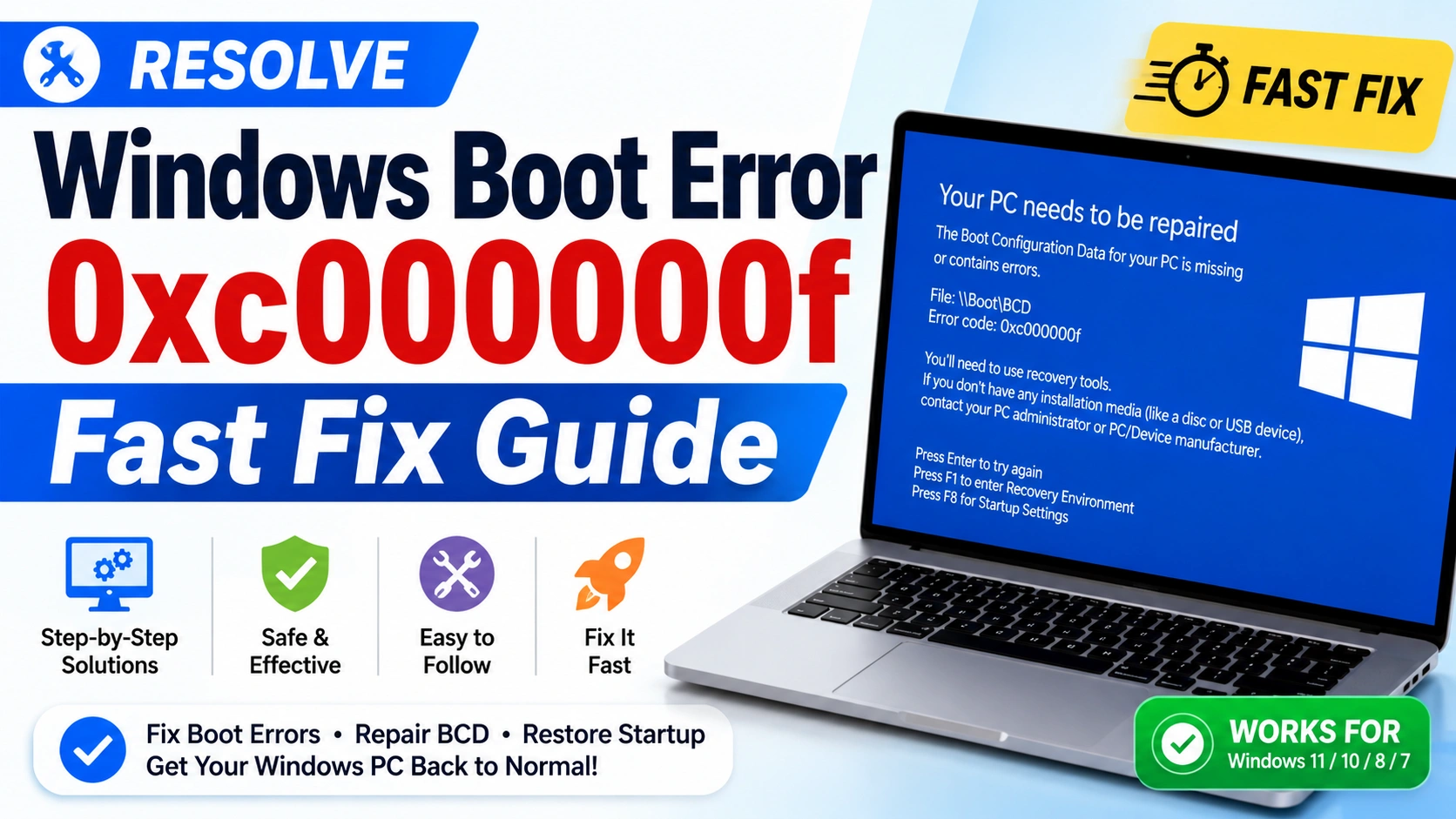
Windows boot problems can prevent your computer from starting normally. One of the most common startup issues is Windows Boot Error 0xc000000f. This error typically appears during startup and prevents Windows from loading successfully.
The error message often states:
“Your PC needs to be repaired. The Boot Configuration Data for your PC is missing or contains errors. Error Code: 0xc000000f.”
Fortunately, you can resolve Windows Boot Error 0xc000000f using several effective troubleshooting methods. This guide explains the causes and provides step-by-step solutions to restore normal system startup.
What Causes Windows Boot Error 0xc000000f?
Before attempting repairs, it helps to understand why this error occurs.
Common causes include:
- Corrupted Boot Configuration Data (BCD)
- Damaged system files
- Faulty hard drive sectors
- Interrupted Windows updates
- Improper shutdowns
- Loose SATA or SSD connections
- Corrupted Windows installation files
- Disk partition problems
Identifying the root cause can make troubleshooting faster and more effective.
Method 1: Disconnect External Devices
External hardware can sometimes interfere with the boot process.
Steps
- Turn off your PC completely.
- Disconnect all external devices:
- USB drives
- External hard disks
- Printers
- Memory cards
- Leave only the keyboard and mouse connected.
- Restart the computer.
If Windows boots normally, reconnect devices one at a time to identify the problematic hardware.
Method 2: Run Startup Repair
Startup Repair can automatically fix boot-related issues.
Steps
- Boot from a Windows installation USB.
- Select your language settings.
- Click Repair your computer.
- Navigate to:Troubleshoot → Advanced Options → Startup Repair
- Select your Windows installation.
- Wait for the repair process to complete.
- Restart the PC.
Startup Repair often resolves Windows Boot Error 0xc000000f without additional steps.
Method 3: Rebuild the Boot Configuration Data (BCD)
Corrupted BCD files are among the most common causes of this error.
Steps
- Boot into Windows Recovery Environment.
- Open:Troubleshoot → Advanced Options → Command Prompt
- Run the following commands:
bootrec /fixmbr
bootrec /fixboot
bootrec /scanos
bootrec /rebuildbcd
- Confirm adding detected Windows installations.
- Restart the computer.
This process rebuilds essential boot records and often restores startup functionality.
Method 4: Repair System Files Using SFC
Corrupted Windows files can trigger boot failures.
Steps
Open Command Prompt in Recovery Mode and run:
sfc /scannow /offbootdir=C:\ /offwindir=C:\Windows
Wait for the scan to finish.
The System File Checker will automatically replace damaged files with healthy versions.
Method 5: Check Disk for Errors
Disk corruption may prevent Windows from locating required boot files.
Steps
Run the following command:
chkdsk C: /f /r
Explanation:
/ffixes file system errors/rlocates bad sectors and recovers readable data
The scan may take considerable time depending on drive size.
Method 6: Restore the System Using System Restore
If the error appeared after installing software, drivers, or updates, System Restore may help.
Steps
- Boot into Recovery Environment.
- Select:Troubleshoot → Advanced Options → System Restore
- Choose a restore point created before the issue began.
- Follow the on-screen instructions.
- Restart the PC.
System Restore preserves personal files while reverting system settings.
Method 7: Verify BIOS Boot Settings
Incorrect boot settings can cause Windows Boot Error 0xc000000f.
Steps
- Enter BIOS or UEFI firmware.
- Locate the Boot section.
- Confirm that:
- The correct SSD or HDD is selected.
- Windows Boot Manager appears first in the boot order.
- Save changes.
- Restart the system.
Incorrect boot priorities frequently cause startup failures after hardware changes.
Method 8: Repair Windows Using Installation Media
If critical Windows components are damaged, a repair installation may help.
Steps
- Create a bootable Windows USB.
- Boot from the USB drive.
- Choose:Repair your computer
- Access recovery tools and perform:
- Startup Repair
- System Restore
- Command Prompt repairs
This method allows extensive recovery without deleting personal data.
Method 9: Perform a Clean Windows Installation
If all repair attempts fail, reinstalling Windows may be necessary.
Steps
- Back up important files if possible.
- Boot from Windows installation media.
- Choose Install Now.
- Delete existing Windows partitions if performing a completely clean installation.
- Install Windows on the target drive.
- Complete setup.
A clean installation removes corruption and provides a fresh operating system environment.
How to Prevent Windows Boot Error 0xc000000f
Preventive maintenance reduces the likelihood of future boot problems.
Best Practices
- Shut down Windows properly.
- Keep Windows updated.
- Regularly check disk health.
- Avoid sudden power interruptions.
- Use a reliable surge protector.
- Create recovery drives.
- Back up important data frequently.
- Monitor SSD and HDD health status.
Consistent maintenance helps keep boot files intact and prevents startup failures.
Conclusion
If your computer displays Windows Boot Error 0xc000000f, the issue is usually related to corrupted boot files, damaged system files, or disk errors. In most cases, running Startup Repair, rebuilding the Boot Configuration Data, repairing system files, and checking the disk for corruption can restore normal startup functionality. By following the methods outlined in this guide, you can resolve Windows Boot Error 0xc000000f quickly and minimize the risk of future boot failures.


