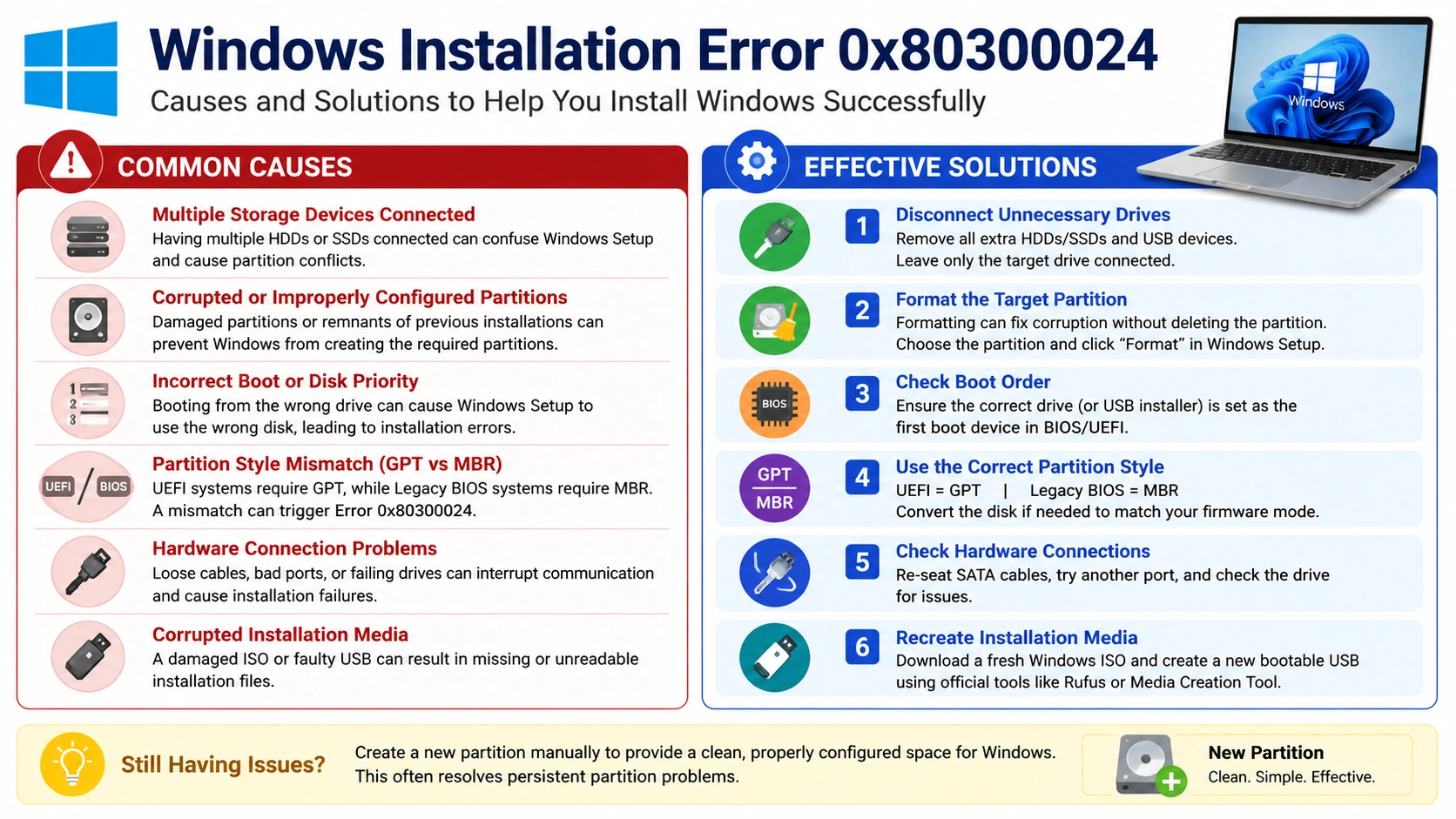
Windows installation should normally be straightforward, but sometimes users encounter Windows Installation Error 0x80300024 during setup. This error typically appears when selecting a drive or partition for Windows installation and prevents the installation process from continuing.
The error message often states:
“Windows is unable to install to the selected location. Error 0x80300024.”
Fortunately, there are several effective ways to Fix Windows Installation Error 0x80300024. This guide explains the causes and provides step-by-step solutions to help you complete your Windows installation successfully.
What Causes Windows Installation Error 0x80300024?
Windows Installation Error 0x80300024 usually occurs when Windows Setup cannot install the operating system to the selected drive or partition. The problem is often related to disk configuration, hardware connections, or installation media.
Several factors can trigger this error:
1. Incorrect Boot Order in BIOS or UEFI
If the system attempts to install Windows on a drive that is not set as the primary boot device, the installation process may fail. Incorrect boot priority settings can confuse Windows Setup when multiple storage devices are present.
2. Damaged or Corrupted Partitions
Corrupted partition structures can prevent Windows from creating or modifying the files required for installation. This commonly happens after failed installations, improper shutdowns, or disk errors.
3. Multiple Storage Drives Connected
Having several HDDs or SSDs connected during installation can cause Windows Setup to select the wrong disk for system partitions. This conflict is one of the most common causes of Error 0x80300024.
4. Disk Partition Table Conflicts
Windows installations require a compatible partition scheme. Problems can occur when the disk contains invalid partition information or when the partition table has become corrupted.
5. Insufficient Installation Space
Windows requires adequate free space to create system partitions and install operating system files. If the selected partition is too small, the installation may stop with Error 0x80300024.
6. Faulty SATA Ports or Cables
Loose, damaged, or malfunctioning SATA cables and ports can interrupt communication between the motherboard and storage drive. Windows Setup may then fail to access the target disk properly.
7. Incompatible Partition Style (MBR or GPT)
Modern UEFI systems typically require a GPT disk, while Legacy BIOS systems often use MBR. A mismatch between the firmware mode and partition style can prevent Windows from installing.
8. Corrupted Installation Media
A damaged Windows ISO file, faulty USB drive, or improperly created bootable media can cause installation files to become unreadable, resulting in setup errors such as 0x80300024.
Why Identifying the Cause Matters
Before applying fixes, it is important to determine the most likely cause of the error. Understanding whether the issue is related to disk partitions, hardware, BIOS settings, or installation media can help you choose the correct solution and reduce troubleshooting time significantly.
Solution 1: Disconnect Additional Hard Drives
One of the most common causes of Windows Installation Error 0x80300024 is having multiple storage devices connected to the computer during the installation process. When several HDDs or SSDs are attached, Windows Setup may have difficulty determining where to create the required system and boot partitions, which can lead to installation errors. Disconnecting unnecessary drives ensures that Windows focuses on the intended installation disk and helps prevent partition-related conflicts.
Steps:
- Shut down the computer.
- Disconnect all secondary HDDs and SSDs.
- Leave only the target installation drive connected.
- Restart the Windows installation.
Many users find that Windows installs successfully after removing extra drives.
Solution 2: Delete Existing Partitions
Corrupted or improperly configured partitions can prevent Windows Setup from installing the operating system correctly. If a partition contains damaged file system structures, invalid partition information, or remnants of previous installations, Windows may be unable to create the necessary system files and boot partitions. As a result, the installation process can fail and display Windows Installation Error 0x80300024. Removing, recreating, or formatting the affected partitions often resolves the issue and allows the installation to proceed successfully.
Warning
Deleting partitions removes all data stored on them.
Steps:
- Boot from the Windows installation USB.
- Proceed to the disk selection screen.
- Select each partition on the target drive.
- Click Delete.
- Continue until all space becomes Unallocated Space.
- Select the unallocated space.
- Click Next.
Windows Setup will automatically create the required partitions.
Solution 3: Format the Target Partition
If deleting partitions is not desirable, formatting the target partition may resolve the issue. Formatting removes the existing file system and clears corrupted data structures without requiring you to delete the entire partition layout. This can help Windows Setup access the partition correctly and continue the installation process. In many cases, formatting eliminates file system errors and partition inconsistencies that contribute to Windows Installation Error 0x80300024, making it a useful troubleshooting step before attempting more advanced fixes.
Steps:
- At the installation screen, select the target partition.
- Click Format.
- Confirm the action.
- Retry the installation.
Formatting removes file system corruption that may interfere with setup.
Solution 4: Change the Installation Disk Priority
An incorrect boot order or disk priority can trigger Windows Installation Error 0x80300024 by causing the system to reference the wrong storage device during setup. When multiple drives are connected, the BIOS or UEFI firmware may prioritize a different disk than the one selected for Windows installation. This can prevent Windows Setup from creating the required system and boot partitions, resulting in installation failures. Ensuring that the target installation drive is set as the primary boot device can help eliminate these conflicts and allow the installation to proceed successfully.
Steps:
- Restart the computer.
- Enter BIOS or UEFI settings.
- Locate the Boot section.
- Set the target drive as the primary installation disk.
- Save changes.
- Restart Windows Setup.
Proper disk prioritization often resolves drive-selection issues.
Solution 5: Convert the Disk to GPT
Modern systems using UEFI firmware generally require GPT (GUID Partition Table) partitions for Windows installation. GPT supports larger storage capacities, improved partition management, and enhanced reliability compared to the older MBR (Master Boot Record) format. If a drive is configured as MBR while the system is booted in UEFI mode, Windows Setup may be unable to install the operating system and display Error 0x80300024. Converting the target disk to GPT ensures compatibility with UEFI firmware and often resolves installation-related partition errors.
Steps:
- Press Shift + F10 during Windows Setup.
- Open Command Prompt.
- Run:
diskpart
list disk
select disk 0
clean
convert gpt
exit
- Close Command Prompt.
- Refresh the disk list.
- Retry installation.
GPT is recommended for Windows 11 and newer hardware platforms.
Solution 6: Convert the Disk to MBR
Older systems that use Legacy BIOS firmware may require an MBR (Master Boot Record) partition style instead of GPT. If the installation drive is formatted as GPT while the system is running in Legacy BIOS mode, Windows Setup may encounter compatibility issues and fail to install the operating system, sometimes resulting in Windows Installation Error 0x80300024. Converting the disk to MBR can restore compatibility between the firmware and the storage device, allowing Windows Setup to proceed normally. Before making changes, ensure that the partition style matches the firmware mode configured in your BIOS settings.
Steps:
- Open Command Prompt with Shift + F10.
- Run:
diskpart
list disk
select disk 0
clean
convert mbr
exit
- Restart the installation process.
Ensure the partition style matches your firmware mode.
Solution 7: Try a Different SATA Port
Hardware connection problems can cause installation failures by interrupting communication between the storage drive and the motherboard. Loose SATA cables, damaged connectors, faulty SATA ports, or failing storage devices can prevent Windows Setup from properly accessing the target disk. When the installer cannot reliably read from or write to the drive, errors such as Windows Installation Error 0x80300024 may occur. Checking all cable connections, trying a different SATA port, and inspecting the drive for hardware issues can help identify and resolve the problem.
Steps:
- Power off the PC.
- Open the computer case.
- Move the drive cable to another SATA port.
- Secure all connections.
- Restart installation.
A defective SATA controller port may be the root cause.
Solution 8: Recreate the Windows Installation USB
Corrupted installation media can generate installation errors by preventing Windows Setup from accessing the files required to complete the installation. A damaged ISO file, an improperly created bootable USB drive, or faulty storage media can result in missing or unreadable installation files. When Windows Setup encounters these issues, it may display errors such as Windows Installation Error 0x80300024 and stop the installation process. Creating a new bootable USB using a fresh Windows ISO and a reliable flash drive can often resolve media-related installation problems.
Steps:
- Download the latest Windows ISO.
- Create a new bootable USB drive.
- Use a reliable USB flash drive.
- Boot from the newly created media.
- Attempt installation again.
Fresh installation media eliminates corrupted setup files.
Solution 9: Use DiskPart to Create a New Partition
Creating a new partition manually can solve persistent partition issues that prevent Windows from installing correctly. If the existing partition table is damaged, improperly configured, or contains remnants of previous installations, Windows Setup may be unable to create the required system files and boot partitions. By manually creating a new partition, you establish a clean and properly formatted space for the operating system, eliminating many common disk-related conflicts. This approach is particularly useful when other solutions, such as formatting or deleting partitions, have failed to resolve Windows Installation Error 0x80300024.
Steps:
Open Command Prompt and run:
diskpart
list disk
select disk 0
clean
create partition primary
format fs=ntfs quick
active
exit
Return to Windows Setup and continue the installation.
Additional Troubleshooting Tips
If the error persists:
- Update BIOS or UEFI firmware.
- Test the SSD or HDD for hardware faults.
- Replace damaged SATA cables.
- Verify sufficient free disk space.
- Check RAM for errors.
- Disable RAID temporarily if not required.
- Reset BIOS settings to default.
These advanced fixes can resolve deeper hardware or configuration issues.
How to Prevent Windows Installation Error 0x80300024
To avoid future installation problems:
- Use official Windows installation media.
- Disconnect unnecessary drives before installation.
- Maintain healthy disk partitions.
- Keep BIOS firmware updated.
- Use GPT with UEFI systems.
- Regularly check storage devices for errors.
- Replace aging SATA cables when necessary.
Preventive maintenance helps ensure smooth Windows installations.
Conclusion
Fix Windows Installation Error 0x80300024 by checking drive configurations, removing unnecessary disks, repairing partitions, converting disk formats, and recreating installation media when necessary. In most cases, deleting problematic partitions or disconnecting secondary drives resolves the issue immediately. Following the solutions in this guide should allow Windows Setup to complete successfully and get your system running again.


