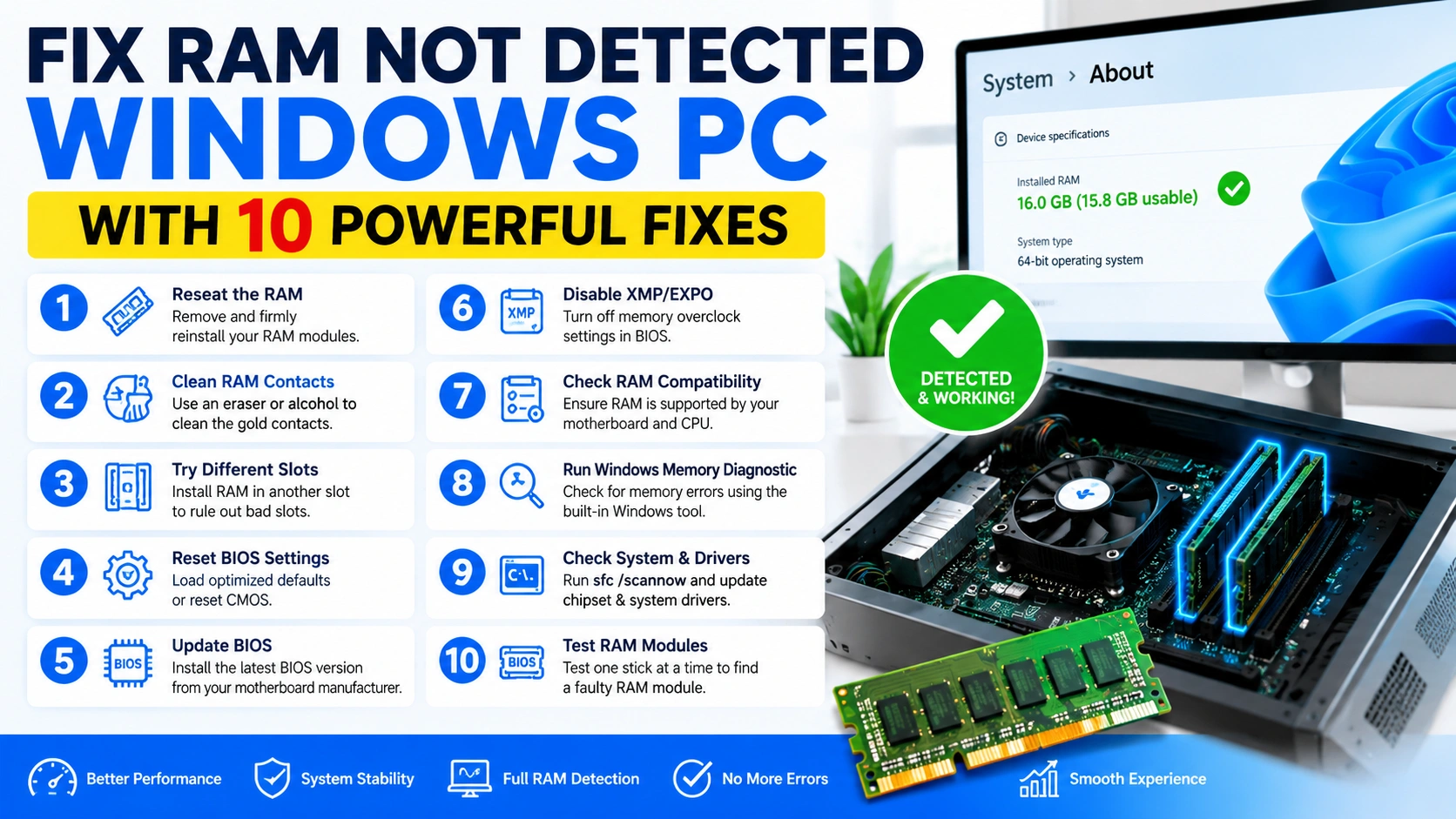
If your computer suddenly shows less memory than installed, you need to fix RAM not detected Windows PC issues immediately. Missing RAM can reduce system performance, cause crashes, and prevent applications from running properly.
This problem commonly appears after upgrading RAM, updating BIOS, cleaning hardware, or installing Windows updates. Fortunately, several proven solutions can help you restore full memory detection quickly.
In this tutorial, you will learn how to fix RAM not detected Windows PC problems step by step.
Why RAM Is Not Detected in Windows PC
Before applying any solution, you should understand what causes RAM detection problems. Incorrect BIOS settings, loose RAM modules, faulty memory sticks, or incompatible hardware often prevent Windows from recognizing installed memory properly.
Common reasons include:
- Loose RAM installation
- Faulty RAM stick
- Damaged motherboard slot
- Incorrect BIOS settings
- Windows memory limitation
- Incompatible RAM modules
- Outdated BIOS firmware
- Corrupted system files
Identifying the exact cause helps users troubleshoot RAM problems efficiently and apply the proper solution quickly.
1. Check Installed RAM in Windows
The first step to fix RAM not detected Windows PC issues is verifying how much installed memory Windows currently recognizes and whether the system displays the correct usable RAM capacity properly.
Follow these steps:
- Press
Ctrl + Shift + Esc - Open the Performance tab
- Click Memory
Check:
- Installed RAM
- Usable RAM
- Memory speed
- Slot usage
You can also verify memory information through System Information.
Open System Information:
- Press
Windows + R - Type
msinfo32 - Press Enter
Look for:
- Installed Physical Memory
- Total Physical Memory
If installed RAM differs from usable memory, proceed with additional troubleshooting methods to resolve the issue.
2. Reseat the RAM Properly
Loose memory modules are among the most common reasons Windows fails to detect installed RAM correctly, especially after upgrading hardware, cleaning the computer, or moving the PC to another location.
For Desktop PCs
- Turn off the computer
- Unplug the power cable
- Hold the power button for 10 seconds
- Open the computer case
- Remove RAM modules carefully
- Clean dust from slots
- Reinsert RAM firmly until clips lock
For Laptops
- Shut down the laptop
- Remove charger and battery if possible
- Open RAM compartment
- Reseat SO-DIMM modules securely
Restart the PC and check whether Windows detects all RAM.
3. Test RAM One Stick at a Time
Faulty memory sticks can prevent Windows from detecting installed RAM correctly, causing missing memory, random crashes, system instability, failed boots, or situations where only part of the installed RAM becomes usable.
How to test RAM modules:
- Insert one RAM stick only
- Boot the PC
- Check memory detection
- Repeat using different slots
This method helps determine:
- Bad RAM stick
- Faulty motherboard slot
- Compatibility issues
If one stick fails repeatedly, replacement may be necessary.
4. Enable Memory Remapping in BIOS
Some BIOS configurations may disable access to full system memory, preventing Windows from detecting and using all installed RAM properly after hardware upgrades, BIOS resets, or incorrect motherboard memory settings.
To fix RAM not detected Windows PC problems, enable memory remapping in BIOS settings to allow the operating system access to the full amount of installed physical memory correctly.
Enter BIOS:
- Restart the PC
- Press
Delete,F2, orF10
Look for settings such as:
- Memory Remap Feature
- Memory Hole Remapping
- Above 4G Decoding
Enable the feature, save settings, and restart the computer.
5. Disable Maximum Memory Limit in Windows
Windows may restrict RAM usage through boot configuration settings, causing the system to recognize less usable memory than the total amount of physically installed RAM available on the computer.
Disable memory limits:
- Press
Windows + R - Type
msconfig - Open the Boot tab
- Click Advanced options
- Uncheck Maximum memory
- Restart the PC
This solution often fixes RAM not detected Windows PC errors instantly.
6. Verify You Are Using 64-Bit Windows
A 32-bit operating system can only use about 4 GB of RAM, limiting memory access and preventing Windows from recognizing larger installed RAM capacities fully and efficiently.
Check system type:
- Open Settings
- Go to System
- Select About
Under System Type, verify that Windows shows:
- 64-bit operating system
If you use a 32-bit version, upgrading to 64-bit Windows is required.
7. Update BIOS Firmware
Outdated BIOS firmware can create memory compatibility problems, causing Windows or the motherboard to fail detecting installed RAM modules correctly, especially after upgrading to newer or higher-capacity memory sticks.
Visit your motherboard manufacturer’s official support page and install the latest BIOS version to improve RAM compatibility, system stability, hardware detection, and overall computer performance effectively.
Useful support websites:
- ASUS: https://www.asus.com/support/
- MSI: https://www.msi.com/support
- Gigabyte: https://www.gigabyte.com/Support
- Dell: https://www.dell.com/support
- HP: https://support.hp.com/
Always follow official update instructions carefully to avoid system damage.
8. Run Windows Memory Diagnostic
Windows includes a built-in RAM testing utility that helps detect memory errors, faulty RAM modules, system instability, and hardware-related problems affecting overall computer performance and memory recognition accuracy.
Run the diagnostic tool:
- Press
Windows + R - Type
mdsched.exe - Press Enter
- Select Restart now and check for problems
Windows will scan for memory errors automatically.
If errors appear, replacing the RAM may solve the issue.
9. Check RAM Compatibility
Not all RAM modules work with every motherboard, because compatibility depends on memory type, speed, voltage, capacity limits, chipset support, and BIOS firmware versions installed on the computer system.
Verify:
- RAM generation (DDR3, DDR4, DDR5)
- Supported speed
- Voltage requirements
- Maximum motherboard capacity
Using unsupported RAM can cause detection failures and boot problems.
10. Clean RAM Contacts and Slots
Dust buildup and oxidation can interrupt memory connections, causing unstable RAM detection, system crashes, boot failures, and situations where Windows cannot recognize installed memory modules properly.
Cleaning tips:
- Use compressed air for slots
- Gently clean contacts with a soft eraser
- Avoid touching gold connectors directly
After cleaning, reinstall the RAM and test the system again.
Common Symptoms of RAM Detection Problems
Here are typical signs that indicate memory detection issues:
| Symptom | Possible Cause |
|---|---|
| 16 GB installed but only 8 GB usable | BIOS memory remap disabled |
| PC boots with one stick only | Faulty RAM module |
| No display after RAM upgrade | Incompatible RAM |
| Random crashes and blue screens | Defective memory |
| BIOS detects RAM but Windows does not | Windows memory limit |
Recognizing symptoms helps speed up troubleshooting.
How to Prevent RAM Detection Problems
You can reduce future memory issues by following these best practices:
- Install compatible RAM only
- Keep BIOS updated
- Avoid mixing different RAM brands
- Clean your PC regularly
- Handle RAM carefully during upgrades
- Use stable XMP or EXPO settings
Proper maintenance improves system stability and memory reliability.
Conclusion
Learning how to fix RAM not detected Windows PC issues can save time, money, and frustration. In many cases, the problem comes from loose RAM, BIOS settings, or Windows memory limits rather than failed hardware.
Start with simple solutions like reseating RAM and checking BIOS settings before replacing components. If the issue continues after testing all methods, the motherboard or RAM module may require replacement.
By following the solutions in this guide, you can restore full memory detection and improve overall PC performance.


