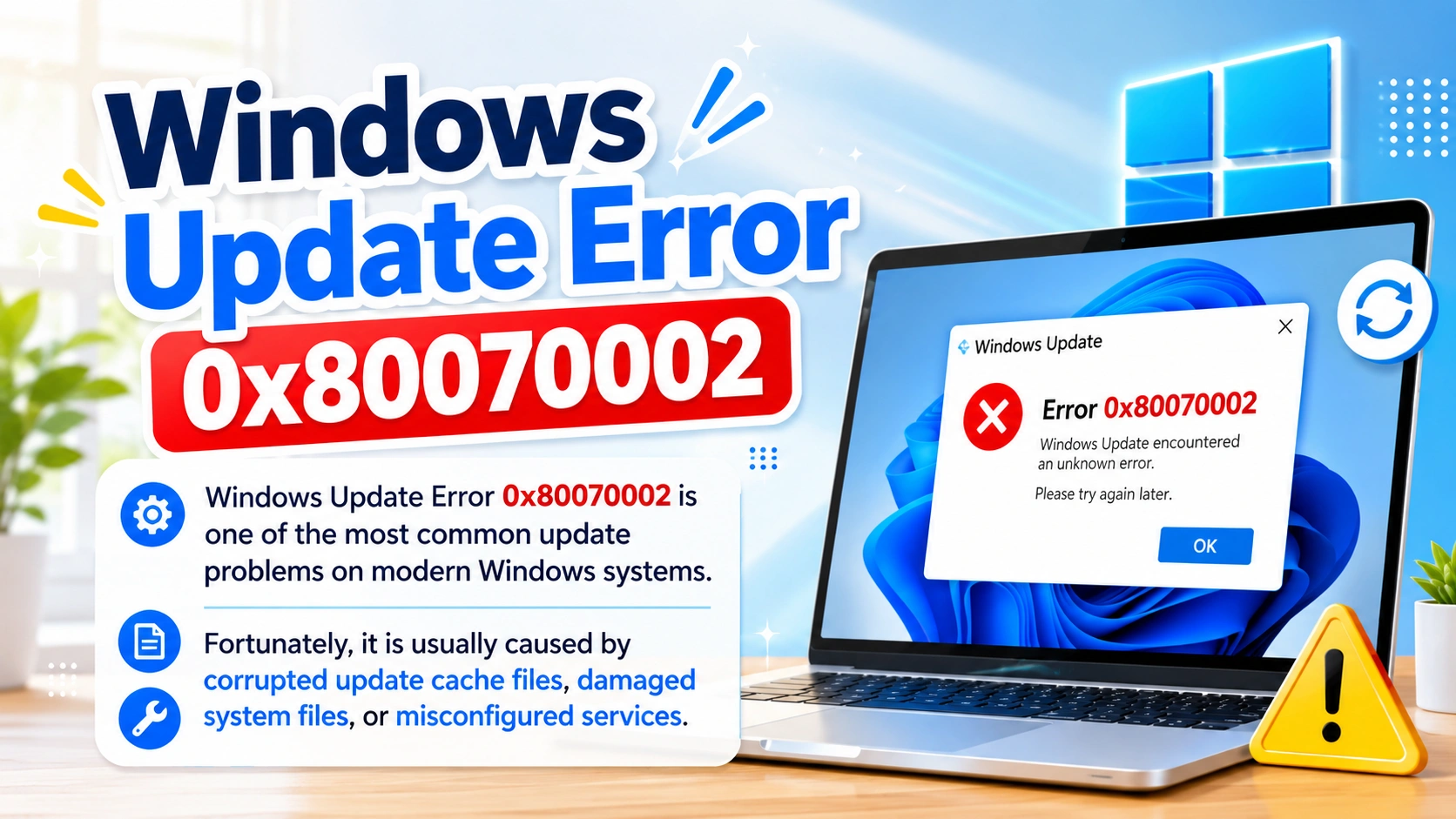
Windows Update is essential for keeping your PC secure, stable, and running smoothly. However, many users encounter update problems that prevent Windows from installing important patches. One of the most common issues is Windows Update Error 0x80070002.
This error usually appears when Windows cannot locate the files required to complete an update. It can happen during cumulative updates, feature updates, or security patches on both Windows 10 and Windows 11.
The good news is that this problem is often fixable without reinstalling Windows. In this guide, you will learn the real causes of error 0x80070002 and several proven methods to solve it.
What Is Windows Update Error 0x80070002?
Error code 0x80070002 indicates that Windows Update cannot access or verify important update files. In many cases, the system attempts to download or install an update but fails because some files are missing, corrupted, or inaccessible.
Users may see messages such as:
- “Something went wrong”
- “Updates failed”
- “Windows could not search for new updates”
- “Error encountered: 0x80070002”
The issue may also cause updates to become stuck at certain percentages such as 0%, 20%, or 100%.
Common Causes of Error 0x80070002
Several factors can trigger this update error, including:
1. Corrupted Windows Update Cache
Windows stores temporary update files inside the SoftwareDistribution folder. If these files become damaged, updates may fail.
2. Missing System Files
Corrupted or deleted system files can prevent Windows Update from functioning properly.
3. Incorrect Date and Time
Windows security verification depends on accurate time settings. Incorrect time zones or dates can interrupt updates.
4. Interrupted Updates
Power outages, forced shutdowns, or unstable internet connections may damage update components.
5. Disabled Windows Services
Important services like Windows Update or Background Intelligent Transfer Service (BITS) must remain active.
6. Antivirus Software Conflicts
Some third-party antivirus applications may block Windows Update processes.
How to Fix Windows Update Error 0x80070002
Below are the most effective methods to fix Windows Update Error 0x80070002. Follow each solution carefully step by step until the update problem is completely resolved on your Windows PC.
Method 1 — Restart Windows Update Services
Windows Update uses background services to function properly. Restarting these services can fix temporary update installation problems quickly.
Steps
- Press Windows + R
- Type:
services.msc
- Press Enter
- Locate these services:
- Windows Update
- Background Intelligent Transfer Service
- Cryptographic Services
- Right-click each service and select Restart
After restarting the services, try checking for updates again.
Method 2 — Run the Windows Update Troubleshooter
Microsoft includes a built-in troubleshooter that can automatically detect and fix Windows Update issues. It scans the system and repairs common errors quickly.
On Windows 11
- Open Settings
- Go to:
- System → Troubleshoot → Other troubleshooters
- Find Windows Update
- Click Run
On Windows 10
- Open Settings
- Go to:
- Update & Security → Troubleshoot
- Select Additional troubleshooters
- Run the Windows Update troubleshooter
The tool may automatically repair damaged update components.
Method 3 — Delete the SoftwareDistribution Folder
The SoftwareDistribution folder stores temporary Windows Update files. Deleting its contents often resolves error 0x80070002 and update installation problems quickly.
Step 1 — Stop Update Services
Open Command Prompt as Administrator and run:
net stop wuauserv
net stop bits
Step 2 — Delete Cached Files
Open File Explorer and go to:
C:\Windows\SoftwareDistribution
Delete all files and folders inside.
Do not worry—Windows will recreate them automatically.
Step 3 — Restart Services
Run:
net start wuauserv
net start bits
Restart the computer and try updating again.
Method 4 — Repair Corrupted System Files
Damaged system files can interfere with Windows Update.
Run System File Checker
Open Command Prompt as Administrator and enter:
sfc /scannow
Wait for the scan to finish.
Run DISM Repair
After SFC completes, run:
DISM /Online /Cleanup-Image /RestoreHealth
DISM repairs the Windows image and downloads missing components if needed.
Restart the PC after both scans finish.
Method 5 — Check Date and Time Settings
Incorrect system time may prevent update verification.
Fix Time Settings
- Open Settings
- Navigate to:
- Time & Language
- Enable:
- Set time automatically
- Set time zone automatically
Restart the PC afterward.
Method 6 — Reset Windows Update Components Completely
If basic fixes do not work, resetting all update components may help.
Open Command Prompt as Administrator and run the following commands one by one:
net stop wuauserv
net stop bits
net stop cryptsvc
net stop msiserver
ren C:\Windows\SoftwareDistribution SoftwareDistribution.old
ren C:\Windows\System32\catroot2 catroot2.old
net start wuauserv
net start bits
net start cryptsvc
net start msiserver
Restart your computer after running the commands.
Method 7 — Install Updates Manually
Sometimes Windows Update itself fails, but manual installation still works.
Steps
- Open Windows Update history
- Note the KB number of the failed update
- Visit the official Microsoft Update Catalog
- Search the KB number
- Download the correct version for your system
- Install it manually
This method often works when automatic updates fail repeatedly.
Additional Tips to Prevent Error 0x80070002
Here are some extra recommendations that may help prevent update problems in the future.
Keep Enough Free Storage
Windows updates require free disk space. Try keeping at least 20 GB available.
Restart Your PC Regularly
Long uptime sessions sometimes interfere with updates.
Avoid Forced Shutdowns
Improper shutdowns may corrupt update files.
Disable VPN During Updates
VPN connections can occasionally interrupt Microsoft servers.
Temporarily Disable Antivirus
Some antivirus tools block update installations.
When Should You Reinstall Windows?
If none of the fixes work, your Windows installation may be heavily corrupted. In this situation, you may need to:
- Perform an in-place repair upgrade
- Use Reset This PC
- Reinstall Windows completely
However, reinstalling should only be considered as a last resort.
Conclusion
Windows Update Error 0x80070002 is one of the most common update problems on modern Windows systems. Fortunately, it is usually caused by corrupted update cache files, damaged system files, or misconfigured services.
In most cases, clearing the SoftwareDistribution folder, repairing system files, and resetting Windows Update components will solve the issue successfully.
By following the methods in this guide, you can restore normal update functionality and keep your Windows system secure and up to date.