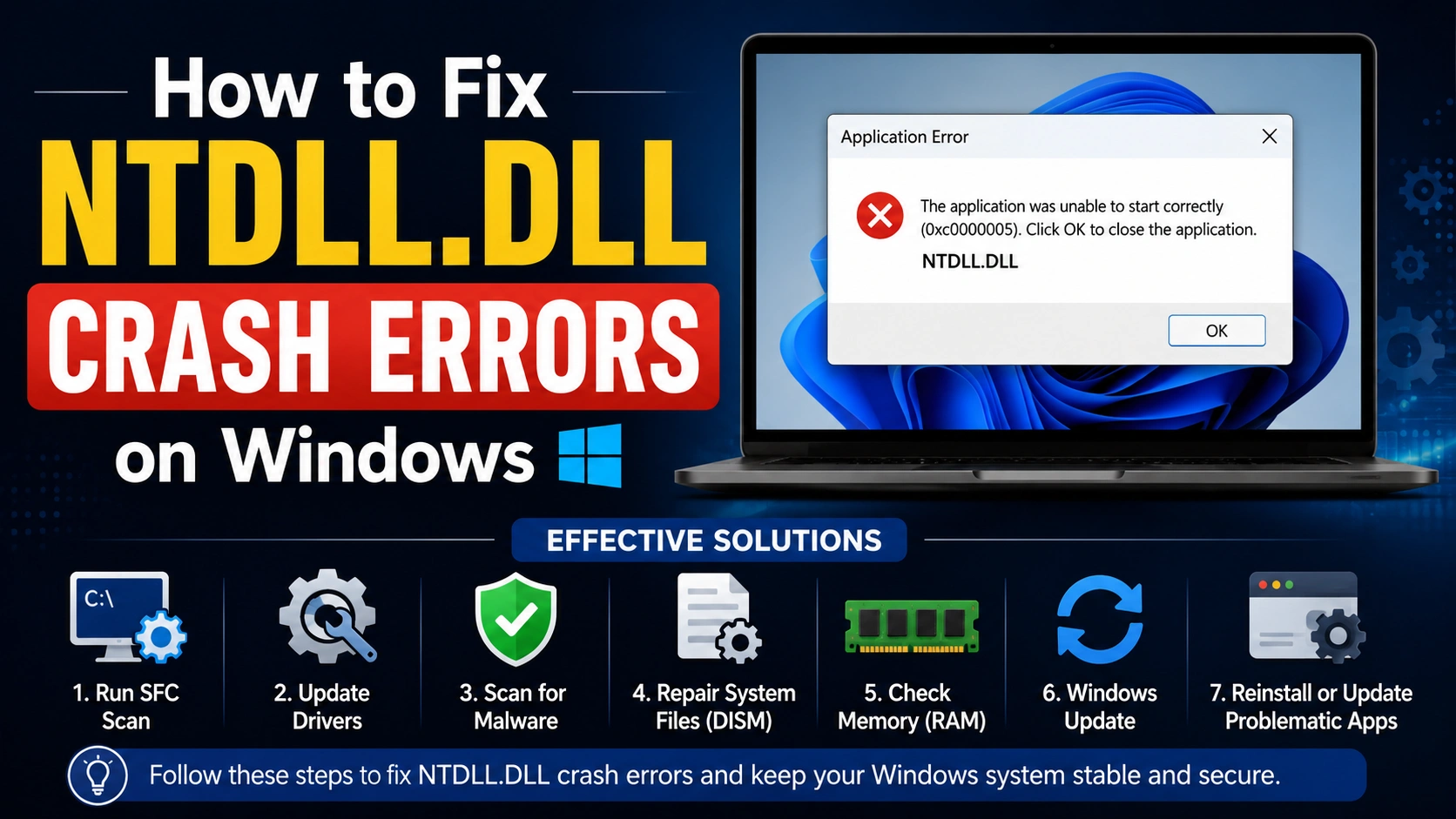
Experiencing an NTDLL.DLL crash can be frustrating, especially when applications suddenly close or Windows becomes unstable. This error is commonly related to system files, incompatible software, corrupted memory, or outdated drivers. Understanding the cause of the issue can help you apply the correct solution quickly.
What Is NTDLL.DLL?
The NTDLL.DLL file is a critical system library used by the Windows operating system. It handles essential system functions and communication between software applications and the Windows kernel. When this file becomes corrupted or conflicted, users may encounter application crashes, startup failures, or blue screen errors.
Common error messages include:
- “NTDLL.DLL Crash”
- “Faulting module name: ntdll.dll”
- “Access violation in ntdll.dll”
- “Application error caused by ntdll.dll”
Common Causes of NTDLL.DLL Crash
Several factors can trigger an NTDLL.DLL error, including:
1. Corrupted System Files
Damaged or missing Windows system files are one of the leading causes of NTDLL.DLL crashes. When essential system components become corrupted, applications may fail to launch, freeze unexpectedly, or display error messages related to ntdll.dll. Running system repair tools like SFC and DISM can help restore damaged files and improve system stability.
2. Outdated Windows Version
Older Windows builds may contain bugs, security vulnerabilities, or compatibility issues that can affect important system DLL files like NTDLL.DLL. These problems may lead to application crashes, performance instability, or unexpected system errors. Installing the latest Windows updates helps improve compatibility, fix known bugs, and maintain overall system reliability and security.
3. Faulty RAM or Hardware
Defective memory modules can corrupt system data and trigger random application crashes involving NTDLL.DLL. Faulty RAM may cause programs to freeze, close unexpectedly, or display recurring system errors. Running a memory diagnostic test can help identify hardware problems early and prevent further instability, data corruption, or serious Windows performance issues.
4. Driver Conflicts
Outdated or incompatible drivers may interfere with critical system operations and cause NTDLL.DLL crashes or application instability. Drivers that are not properly updated can create conflicts between hardware and Windows components, leading to freezes, errors, or unexpected shutdowns. Regularly updating drivers helps maintain compatibility, improve performance, and reduce system-related crash problems.
5. Malware or Virus Infection
Malicious software can damage DLL files, modify system settings, or alter normal Windows behavior, leading to NTDLL.DLL crashes and application errors. Viruses and malware may corrupt important system components, reduce performance, and create security risks. Performing regular antivirus scans and keeping security software updated helps protect the system from harmful threats and instability.
6. Third-Party Software Issues
Some applications may conflict with Windows components, especially after new installations or software updates. These conflicts can trigger NTDLL.DLL crashes, application freezes, or unexpected system behavior. Incompatible programs, outdated software versions, or corrupted installations are common causes. Reinstalling the affected application or updating it to the latest version often helps resolve compatibility issues.
How to Fix NTDLL.DLL Crash Errors
Below are several effective methods to resolve NTDLL.DLL crash errors and improve overall Windows system stability and performance.
1. Run System File Checker (SFC)
Windows includes a built-in tool to repair corrupted system files.
Open Command Prompt as Administrator and run:
sfc /scannow
Wait until the scan completes and restart your computer.
2. Use DISM Repair Tool
If SFC cannot fix the problem, use DISM.
DISM /Online /Cleanup-Image /RestoreHealth
This command repairs the Windows system image.
3. Update Windows
Keeping Windows updated helps fix bugs and improve system stability.
Steps:
- Open Settings
- Go to Windows Update
- Click “Check for updates”
- Install all available updates
4. Update Drivers
Outdated graphics, chipset, or audio drivers can cause NTDLL.DLL crashes.
Focus on updating:
- GPU drivers
- Motherboard chipset drivers
- Audio drivers
- Storage drivers
Download drivers only from official manufacturer websites.
5. Perform a Memory Test
Faulty RAM can trigger random DLL errors.
Use Windows Memory Diagnostic:
- Press
Windows + R - Type
mdsched.exe - Restart and scan for memory problems
6. Scan for Malware
Run a full antivirus scan using Windows Security or trusted antivirus software to detect malicious programs.
7. Reinstall the Problematic Application
If the crash occurs only with a specific program:
- Uninstall the application
- Restart your PC
- Install the latest version
This often resolves compatibility issues.
8. Disable Problematic Extensions or Add-ons
Browser plugins or shell extensions sometimes conflict with system libraries. Disable recently installed extensions and test again.
Preventing Future NTDLL.DLL Crashes
To minimize future crashes:
- Keep Windows updated
- Install software from trusted sources
- Avoid modifying system DLL files manually
- Regularly update drivers
- Use reliable antivirus protection
- Monitor hardware health
Conclusion
An NTDLL.DLL crash usually indicates a deeper issue within Windows, drivers, hardware, or software compatibility. Fortunately, most problems can be fixed using built-in Windows repair tools, driver updates, and malware scans. By following the methods above, users can restore system stability and prevent recurring crashes.
If the issue continues after trying all solutions, consider performing a clean Windows installation or checking hardware components professionally.