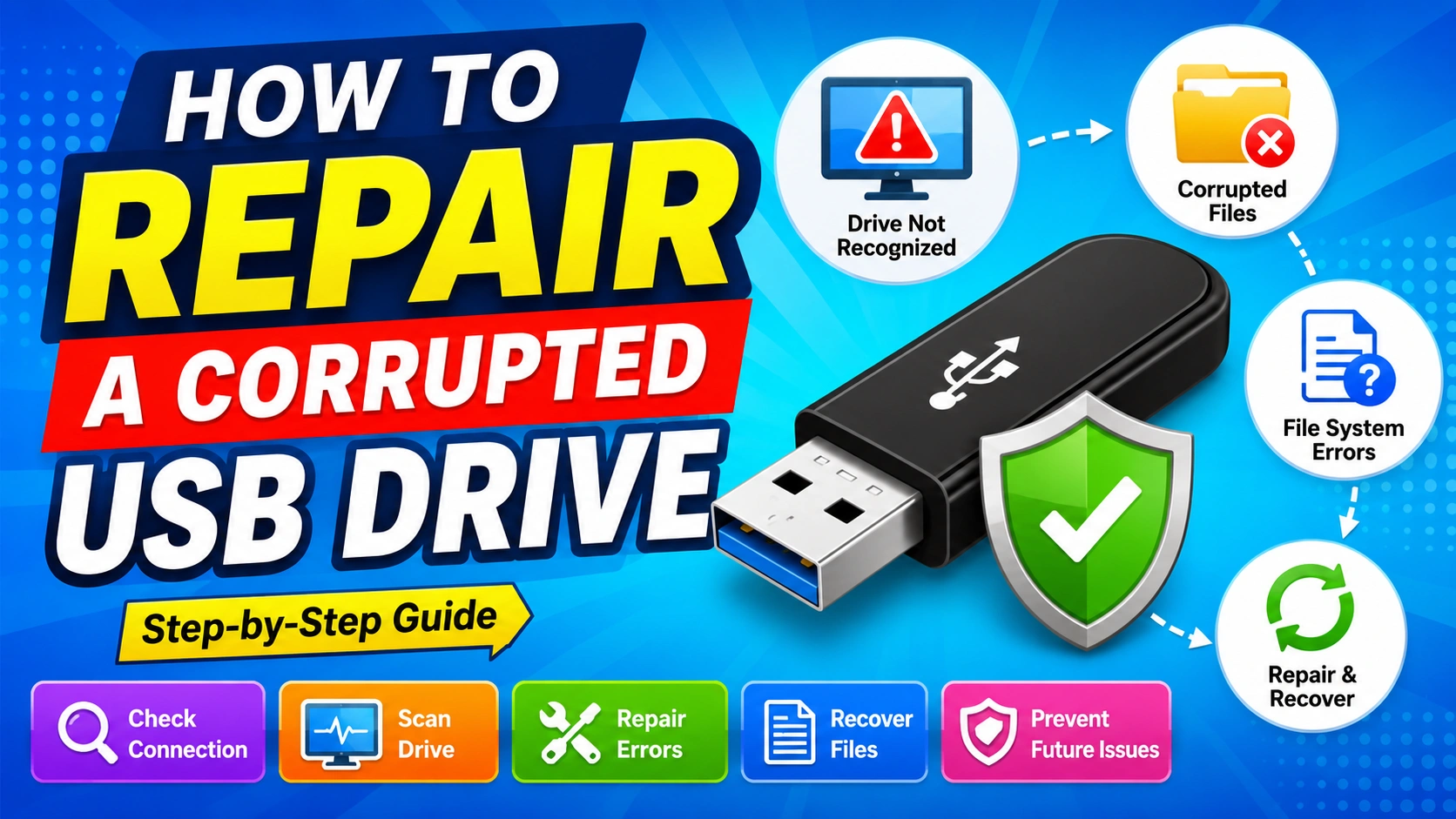
A corrupted USB drive can be frustrating, especially when it contains important documents, photos, videos, or work files. You may see messages such as “You need to format the disk before you can use it,” “USB device not recognized,” or “The parameter is incorrect.” In some cases, the drive may appear in Windows but refuse to open.
Fortunately, USB corruption does not always mean the drive is permanently damaged. File-system errors, interrupted transfers, malware, unsafe removal, damaged partition information, and Windows driver problems can all make a USB drive appear corrupted.
This guide explains how to repair a corrupted USB drive in Windows while minimizing the risk of losing your data.
Why Does a USB Drive Become Corrupted?
Before attempting a repair, it helps to understand what may have caused the problem.
Common causes include:
- Removing the USB drive while files are being transferred
- Sudden computer shutdowns or power interruptions
- File-system errors
- Malware or ransomware infections
- Damaged partition information
- Bad sectors or failing flash memory
- Using the USB drive on multiple devices with different operating systems
- Faulty USB ports or hubs
- Outdated or corrupted USB drivers
- Excessive read/write activity
- Physical damage to the USB connector or storage chip
If the USB drive has suffered physical damage, software-based repair methods may not work.
Signs of a Corrupted USB Drive
A corrupted USB drive can behave in several different ways. Typical symptoms include:
- Windows cannot open the drive
- The drive appears as RAW instead of NTFS or exFAT
- Files suddenly disappear
- Files have strange names or cannot be opened
- Windows repeatedly asks you to format the drive
- Copying files produces errors
- The USB drive becomes extremely slow
- The drive disconnects randomly
- Windows reports that the device needs to be scanned and repaired
- The USB drive is visible in Disk Management but has no usable partition
The specific symptom can help determine which repair method to try first.
Important: Protect Your Data Before Repairing the USB Drive
If the USB contains important files, do not immediately format it.
Formatting can remove the file-system structures needed to recover your data. Similarly, repeatedly running repair utilities on a severely damaged drive can potentially make data recovery more difficult.
If the files are irreplaceable, consider creating a full image of the drive or using professional data-recovery software before performing aggressive repairs.
For less serious corruption, you can proceed with the following troubleshooting steps.
1. Try a Different USB Port
The problem may not actually be the USB drive.
Disconnect the device and connect it directly to another USB port. If you’re using a desktop computer, try a port on the rear of the motherboard instead of a front-panel port.
Avoid USB hubs during troubleshooting because a faulty or underpowered hub can cause connection problems.
If the drive works normally on another port, the original USB port or hub may be the real problem.
2. Test the USB Drive on Another Computer
Connect the USB drive to another Windows computer.
This simple test can tell you whether the problem is related to the drive or your computer.
If the drive works on another PC, investigate:
- USB drivers
- Windows configuration
- Security software
- USB power management
- File-system compatibility
If the same corruption appears on multiple computers, the USB drive itself is more likely to be responsible.
3. Restart Windows
A temporary Windows or USB subsystem problem can sometimes make a healthy drive appear inaccessible.
Restart your computer, wait for Windows to load completely, and then reconnect the USB drive.
This is a basic step, but it can clear temporary driver and device-state problems without changing any data.
4. Check the USB Drive in Disk Management
Windows Disk Management provides useful information about the drive’s partition and file system.
To open it:
- Press Windows + X.
- Select Disk Management.
- Locate your USB drive.
- Check its capacity, partition status, and file-system information.
Look for conditions such as:
- NTFS/exFAT/FAT32: The partition is recognized normally.
- RAW: Windows detects the partition but cannot recognize its file system.
- Unallocated: The partition information may be missing.
- No drive letter: The partition may exist but cannot be accessed through File Explorer.
Be extremely careful when identifying the correct disk. Do not delete or format another drive by mistake.
5. Run CHKDSK to Repair File-System Errors
If Windows recognizes the USB drive and assigns it a drive letter, CHKDSK can attempt to repair logical file-system problems.
For example, if the USB drive appears as drive E:, open Command Prompt as an administrator and run:
chkdsk E: /f
Replace E: with the actual drive letter.
The /f parameter tells Windows to fix detected file-system errors.
Depending on the size and condition of the USB drive, the process may take some time.
Should You Use CHKDSK on a RAW USB Drive?
Be cautious.
If the USB drive appears as RAW and contains important files, forcing repair commands may not be the best first step. RAW status can indicate severe file-system damage, and data recovery should generally be considered before destructive or intensive repair attempts.
6. Use Windows Error Checking
Windows also provides a graphical disk-checking option.
Open File Explorer, right-click the USB drive, and select:
Properties → Tools → Error checking
Click Check and follow the instructions displayed by Windows.
This method is convenient for basic file-system problems and does not require Command Prompt.
7. Update or Reinstall USB Drivers
Sometimes Windows detects the physical device but has trouble communicating with it because of a driver problem.
To troubleshoot the USB driver:
- Press Windows + X.
- Open Device Manager.
- Expand Disk drives.
- Find the USB device.
- Right-click it and select Update driver.
You can also check Universal Serial Bus controllers for devices showing warning icons.
If the USB device continues to malfunction, uninstalling the affected device from Device Manager and restarting Windows can allow Windows to reinstall the appropriate driver.
8. Assign a New Drive Letter
A USB drive may be healthy but inaccessible because Windows has not assigned it a usable drive letter.
In Disk Management:
- Right-click the USB partition.
- Select Change Drive Letter and Paths.
- Click Change or Add.
- Select an available drive letter.
- Click OK.
Then open File Explorer and check whether the USB drive becomes accessible.
This method can solve situations where the drive appears correctly in Disk Management but is missing from File Explorer.
9. Scan the USB Drive for Malware
Malware can modify files, hide folders, damage system structures, or interfere with removable storage.
If the USB drive suddenly became unusable after being connected to an unfamiliar computer, perform a malware scan using trusted security software.
Avoid opening suspicious executable files from the USB drive before scanning it.
If you can access the files, copy only necessary personal documents and avoid transferring unknown programs or scripts.
10. Recover Files Before Formatting
If Windows detects the USB drive but cannot open it, consider recovering important files before formatting.
Data-recovery software may be able to find files even when the file system is damaged.
For the best chance of recovery:
- Stop writing new data to the USB drive.
- Do not save recovered files back to the same USB drive.
- Avoid repeatedly formatting the device.
- Recover the most important files first.
- Consider creating a disk image if the drive is unstable.
If the USB drive repeatedly disconnects, becomes unusually hot, or makes the computer freeze, professional recovery may be safer than continued software experimentation.
11. Format the USB Drive as a Last Resort
If you have already recovered your important files—or the USB contains no important data—formatting can restore a damaged file system.
In File Explorer:
- Right-click the USB drive.
- Select Format.
- Choose a suitable file system.
- Select Quick Format if appropriate.
- Click Start.
Which File System Should You Choose?
exFAT is often a good choice for USB drives that need to work across modern Windows, macOS, and other devices.
NTFS is useful when the drive will primarily be used with Windows and you need NTFS-specific features.
FAT32 offers broad compatibility with older devices, but it has a maximum individual file-size limit of approximately 4 GB.
If formatting fails, the problem may be more serious than ordinary file-system corruption.
12. What to Do When Windows Cannot Format the USB Drive
If File Explorer cannot format the USB drive, Disk Management may provide another option.
However, if the drive contains important data, stop before deleting partitions or creating a new volume.
For a USB drive that contains no valuable data, advanced Windows disk-management commands may be used to remove damaged partition information and recreate the drive. These operations are destructive, so carefully verify the disk number before proceeding.
A single mistake in a disk-management command can erase the wrong drive.
When a USB Drive Is Probably Physically Failing
Not every USB problem is caused by corrupted files.
Consider replacing the USB drive if it:
- Disconnects repeatedly
- Is detected only intermittently
- Reports wildly incorrect capacity
- Becomes unusually hot
- Causes Windows to freeze
- Cannot be formatted after multiple attempts
- Produces recurring read/write errors
- Stops working on multiple computers
Flash memory has a finite write lifespan, and inexpensive or counterfeit USB drives can also fail prematurely.
If the drive contains valuable information and shows signs of hardware failure, professional data recovery may be the safest option.
How to Prevent USB Drive Corruption
Once you’ve repaired or replaced the USB drive, a few habits can reduce future problems.
Always Eject the Drive Safely
Use Windows’ Safely Remove Hardware option before disconnecting the device, particularly when files have recently been written.
Avoid Interrupting File Transfers
Do not unplug a USB drive while Windows is copying, moving, or modifying files.
Keep Malware Away
Scan removable drives that have been used on unfamiliar computers.
Avoid Filling the Drive Completely
Leaving some free space can make normal file operations easier and can help avoid performance problems.
Replace Aging USB Drives
If a flash drive frequently develops errors, don’t rely on it as the only location for important files.
Keep Multiple Copies of Important Data
A USB drive should not be your only backup. Important files should ideally exist in more than one location.
Frequently Asked Questions
Can a corrupted USB drive be repaired?
Yes. Many USB problems are caused by logical file-system errors, missing drive letters, driver issues, or damaged partition information. These problems can sometimes be repaired without replacing the drive.
Can I repair a USB drive without formatting it?
Often, yes. You can try changing the drive letter, checking drivers, using Windows Error Checking, or running CHKDSK when appropriate. If the drive contains valuable files, avoid formatting until you’ve considered data recovery.
Why does Windows say my USB drive needs to be formatted?
Windows may display this message when it cannot correctly read the drive’s file system. This can happen because of file-system corruption, partition damage, incompatible formatting, or failing hardware.
Does CHKDSK delete files?
CHKDSK is designed to repair file-system problems, but repairs can sometimes affect corrupted file records. If the data is extremely important, consider recovering or imaging the drive before running repair operations.
Why is my USB drive detected but not showing in File Explorer?
The drive may not have a drive letter, may have an unsupported or corrupted file system, or may contain partition problems. Check Disk Management to determine how Windows sees the device.
Can formatting permanently fix a corrupted USB drive?
Formatting can fix many logical file-system problems, but it cannot repair failing flash memory or physical damage. If the drive continues to fail after formatting, replacement is usually the better option.
Final Thoughts
A corrupted USB drive does not necessarily mean your files are gone forever. Start with simple checks such as trying another USB port, testing the drive on another computer, and inspecting it through Disk Management.
If Windows recognizes the drive and the problem appears to be logical, tools such as Error Checking and CHKDSK may help. However, if important files are involved, prioritize data recovery before formatting or making major changes to the partition structure.
Finally, if the USB drive repeatedly disconnects or develops new errors after repair, treat that as a warning sign of possible hardware failure. Replacing an unreliable USB drive is often safer than trusting it with important data again.