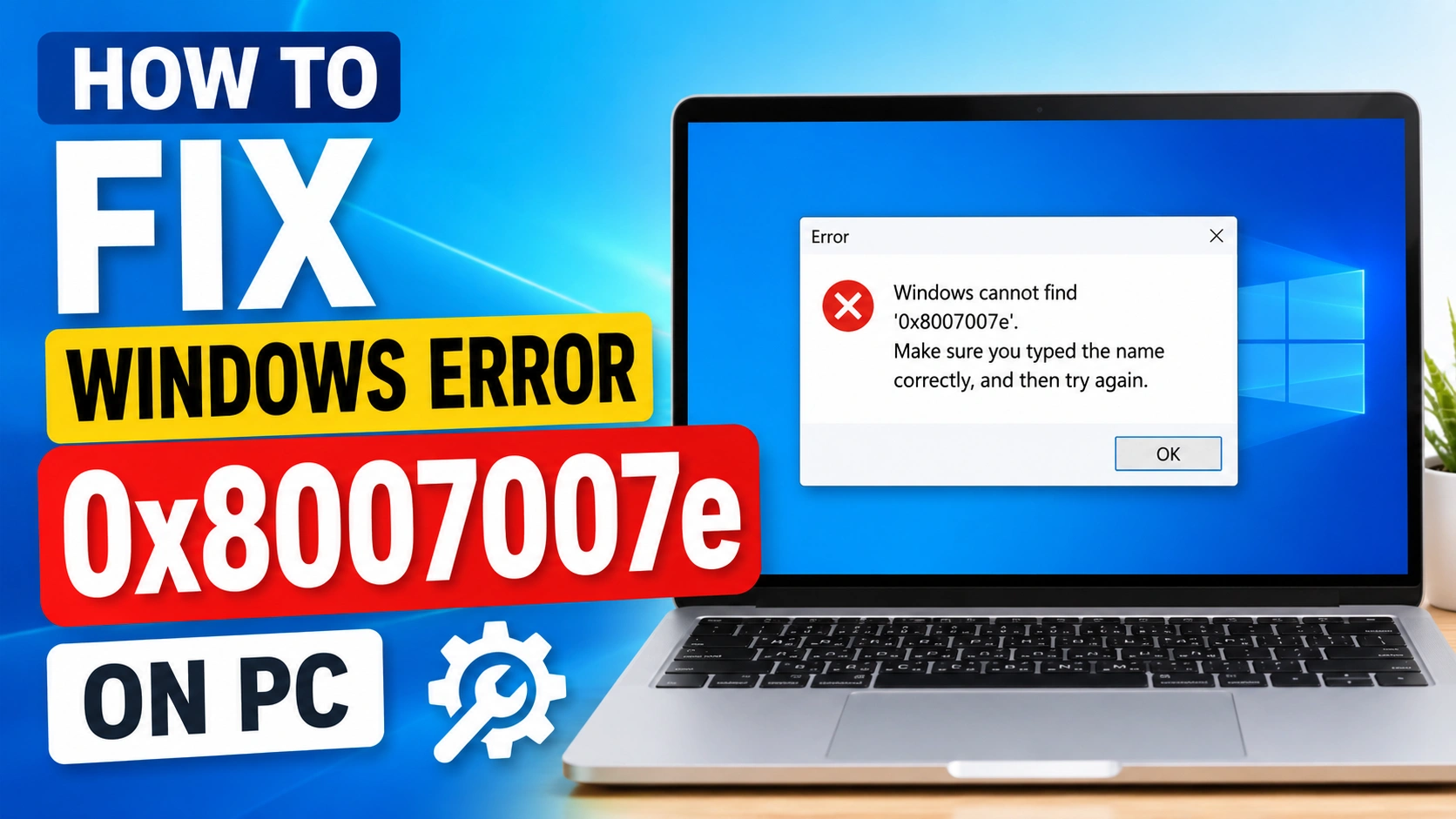
Windows Error 0x8007007e is a common Windows system error that may occur during software installations, Windows updates, operating system upgrades, or when launching specific applications. In most cases, the error indicates that Windows is unable to locate, access, or load a required system file, DLL file, or software component necessary to complete the requested operation.
When this error appears, it can interrupt updates, prevent programs from running properly, and affect overall system performance. The issue is often associated with corrupted system files, damaged Windows Update components, outdated device drivers, malware infections, or software compatibility problems.
If you are looking for How to Fix Windows Error 0x8007007e on PC, this comprehensive guide will walk you through the most effective troubleshooting methods. By following the step-by-step solutions outlined below, you can identify the root cause of the error and restore your Windows system to normal operation.
What Is Windows Error 0x8007007e?
Windows Error 0x8007007e is a common system error that occurs when Windows cannot find or load a required file, module, or component needed to complete a specific task. This issue can prevent applications, updates, or system processes from running correctly.
The error may appear in several situations, including:
- Installing Windows updates
- Running third-party applications
- Upgrading to a newer version of Windows
- Launching programs or games
- Using Microsoft services and tools
In most cases, Windows Error 0x8007007e is caused by corrupted or missing system files, outdated device drivers, damaged Windows Update components, software compatibility issues, or incomplete system updates. Identifying the underlying cause is the first step toward successfully fixing the problem and restoring normal system operation.
Common Causes of Windows Error 0x8007007e
Before learning How to Fix Windows Error 0x8007007e on PC, it is important to understand what causes this error. Identifying the root cause can help you apply the most effective solution and prevent the issue from recurring.
Missing System Files
Windows relies on numerous system files to perform essential operations. If one or more of these files become deleted, corrupted, or inaccessible, the operating system may fail to complete certain tasks and display Error 0x8007007e.
Corrupted Windows Update Components
Damaged or incomplete Windows Update files can interfere with the installation process. When Windows cannot access required update components, Error 0x8007007e may occur during updates or system upgrades.
Outdated Device Drivers
Device drivers allow hardware and software to communicate with Windows. If drivers are outdated, incompatible, or corrupted, they can create conflicts that trigger system errors, including Error 0x8007007e.
Malware Infection
Viruses, malware, and other malicious programs can alter, delete, or damage critical Windows files. As a result, Windows may be unable to locate required components and generate this error message.
Software Compatibility Issues
Some applications may not be fully compatible with your current version of Windows. When incompatible software attempts to access unsupported files or system functions, it can cause Error 0x8007007e to appear.
Incomplete Windows Installation or Upgrade
A failed Windows installation or interrupted system upgrade can leave important files missing or improperly configured. This often results in system instability and error codes such as 0x8007007e.
Damaged Registry Entries
Incorrect or corrupted Windows Registry entries can prevent applications and system processes from locating necessary resources. Registry issues are another common contributor to this error.
Third-Party Software Conflicts
Security software, optimization tools, or recently installed applications can sometimes conflict with Windows services. These conflicts may block required processes and trigger Error 0x8007007e.
How to Fix Windows Error 0x8007007e on PC
If you are experiencing Windows Error 0x8007007e, the good news is that several proven troubleshooting methods can resolve the issue. Follow the solutions below in order until the error is fixed.
Method 1: Restart Your Computer
Sometimes, temporary system glitches or background process conflicts can trigger Error 0x8007007e. A simple restart may clear these issues and restore normal functionality.
Steps:
- Save all open files and applications.
- Click the Start menu.
- Select Power.
- Choose Restart.
- Allow Windows to reboot completely.
After restarting, check whether the error still appears.
Method 2: Run Windows Update Troubleshooter
Windows includes a built-in troubleshooting tool that can automatically identify and repair common update-related problems.
Steps:
- Open Settings.
- Navigate to System > Troubleshoot.
- Select Other Troubleshooters.
- Locate Windows Update.
- Click Run.
- Follow the on-screen instructions.
Allow Windows to detect and repair update issues automatically.
Method 3: Run System File Checker (SFC)
The System File Checker utility scans Windows for corrupted or missing system files and replaces them with healthy copies.
Steps:
- Open Command Prompt as Administrator.
- Type the following command:
sfc /scannow
- Press Enter.
- Wait for the scan to finish.
- Restart your computer.
This is one of the most effective methods for fixing Windows Error 0x8007007e caused by damaged system files.
Method 4: Use the DISM Tool
Deployment Image Servicing and Management (DISM) repairs corrupted Windows system images that may prevent updates and applications from functioning correctly.
Steps:
- Open Command Prompt as Administrator.
- Run the following commands one at a time:
DISM /Online /Cleanup-Image /CheckHealth
DISM /Online /Cleanup-Image /ScanHealth
DISM /Online /Cleanup-Image /RestoreHealth
- Wait for each process to complete.
- Restart your PC.
Method 5: Install Pending Windows Updates
Running an outdated version of Windows can result in compatibility issues and system errors.
Steps:
- Open Settings.
- Select Windows Update.
- Click Check for Updates.
- Install all available updates.
- Restart your computer.
Keeping Windows updated ensures important bug fixes and security patches are installed.
Method 6: Update Device Drivers
Outdated or incompatible drivers can create conflicts with Windows services and applications.
Steps:
- Press Windows + X.
- Select Device Manager.
- Look for devices showing warning icons.
- Right-click the device.
- Select Update Driver.
- Choose Search Automatically for Drivers.
Pay special attention to graphics, network, storage, and chipset drivers.
Method 7: Perform a Clean Boot
A clean boot starts Windows with only essential services and helps identify software conflicts.
Steps:
- Press Windows + R.
- Type msconfig and press Enter.
- Open the Services tab.
- Check Hide All Microsoft Services.
- Click Disable All.
- Open the Startup tab.
- Click Open Task Manager.
- Disable all startup programs.
- Restart the computer.
If the error disappears after a clean boot, a third-party application is likely causing the problem.
Method 8: Scan for Malware
Malware infections can damage or replace critical Windows files, leading to Error 0x8007007e.
Steps:
- Open Windows Security.
- Select Virus & Threat Protection.
- Click Scan Options.
- Choose Full Scan.
- Click Scan Now.
- Remove any detected threats.
After the scan is complete, restart the system.
Method 9: Reinstall the Problematic Application
If Error 0x8007007e appears only when launching a specific application, reinstalling the software may resolve the issue.
Steps:
- Open Control Panel.
- Select Programs and Features.
- Locate the affected application.
- Click Uninstall.
- Restart the computer.
- Download the latest version from the official developer website.
- Reinstall the application.
This ensures that all required files and components are installed correctly.
Method 10: Reset Windows Update Components
Corrupted update services and cached files can prevent Windows updates from installing properly.
Steps:
- Open Command Prompt as Administrator.
- Stop Windows Update services.
- Rename the SoftwareDistribution folder.
- Rename the Catroot2 folder.
- Restart Windows Update services.
- Reboot your computer.
Resetting Windows Update components often resolves persistent update-related instances of Error 0x8007007e.
Method 11: Perform a System Restore
If the error started recently, restoring Windows to a previous working state may fix the problem.
Steps:
- Search for Create a Restore Point.
- Open System Protection.
- Click System Restore.
- Select a restore point created before the error appeared.
- Follow the restoration process.
- Restart your PC.
System Restore does not affect personal files but can reverse problematic system changes.
Method 12: Reset or Reinstall Windows
If all troubleshooting methods fail, resetting Windows may be necessary.
Steps:
- Open Settings.
- Navigate to System > Recovery.
- Select Reset this PC.
- Choose whether to keep your files or remove everything.
- Follow the on-screen instructions.
Use this method as a last resort after all other fixes have been attempted.
Additional Tips to Prevent Error 0x8007007e
While knowing how to fix Windows Error 0x8007007e on PC is important, preventing the issue from occurring in the first place can save time and reduce system downtime. Following these best practices can help keep your computer stable and minimize the risk of encountering this error in the future.
Keep Windows Updated
Regular Windows updates include security patches, bug fixes, and performance improvements. Installing updates promptly helps ensure that your operating system remains compatible with the latest software and hardware components.
Install Drivers from Trusted Sources
Always download device drivers from official manufacturer websites or through Windows Update. Avoid using unverified driver packages, as they may contain outdated, incompatible, or malicious files that can cause system errors.
Use Reliable Antivirus Software
A trusted antivirus solution can protect your computer from malware, viruses, and other threats that may damage critical system files. Schedule regular scans and keep your security software updated for maximum protection.
Create Regular System Restore Points
System Restore allows you to revert Windows to a previous working state if problems occur. Creating restore points before installing new software, drivers, or updates provides a safety net in case something goes wrong.
Avoid Force-Shutdowns During Updates
Interrupting Windows while updates are installing can corrupt system files and update components. Always allow updates to complete fully before shutting down or restarting your computer.
Remove Unused Software
Unused or outdated applications can create software conflicts and consume valuable system resources. Periodically uninstall programs you no longer need to keep your system clean and efficient.
Maintain Sufficient Disk Space
Windows requires free storage space to install updates and manage temporary files. Keeping adequate disk space available can help prevent update failures and system instability.
Run Regular System Maintenance
Use built-in tools such as Disk Cleanup and Storage Sense to remove unnecessary files. Routine maintenance helps improve system performance and reduces the likelihood of file corruption.
Monitor Hardware Health
Failing storage drives and faulty memory modules can contribute to file corruption and system errors. Periodically check your hardware for signs of wear or failure to prevent unexpected issues.
Back Up Important Data
Maintaining regular backups protects your files in the event of severe system problems. Whether using cloud storage or an external drive, backups ensure your data remains safe and recoverable.
Frequently Asked Questions
What does Windows Error 0x8007007e mean?
It usually indicates that Windows cannot locate or load a required file, module, or system component.
Can corrupted system files cause Error 0x8007007e?
Yes. Corrupted or missing system files are among the most common causes of this error.
Does updating Windows fix Error 0x8007007e?
In many cases, installing the latest Windows updates resolves the issue by replacing damaged files and components.
Is Error 0x8007007e caused by malware?
Sometimes. Malware can modify or delete important system files, leading to the error.
Should I reinstall Windows to fix Error 0x8007007e?
Reinstalling Windows should be the last option after trying troubleshooting methods such as SFC, DISM, driver updates, and Windows Update repairs.
Conclusion
Understanding How to Fix Windows Error 0x8007007e on PC can help you quickly resolve the issue and avoid unnecessary troubleshooting or system reinstalls. This error is commonly caused by corrupted system files, outdated device drivers, damaged Windows Update components, malware infections, or software compatibility problems.
Fortunately, most cases can be resolved using built-in Windows repair tools and maintenance procedures. Running SFC and DISM scans, installing the latest Windows updates, updating device drivers, scanning for malware, and repairing Windows Update components are among the most effective solutions for fixing Error 0x8007007e.
To reduce the likelihood of encountering this error again, it is important to keep Windows updated, maintain reliable security software, create regular system restore points, and perform routine system maintenance. By following the troubleshooting methods and preventive tips outlined in this guide, you can improve system stability and keep your Windows PC running smoothly and efficiently.