

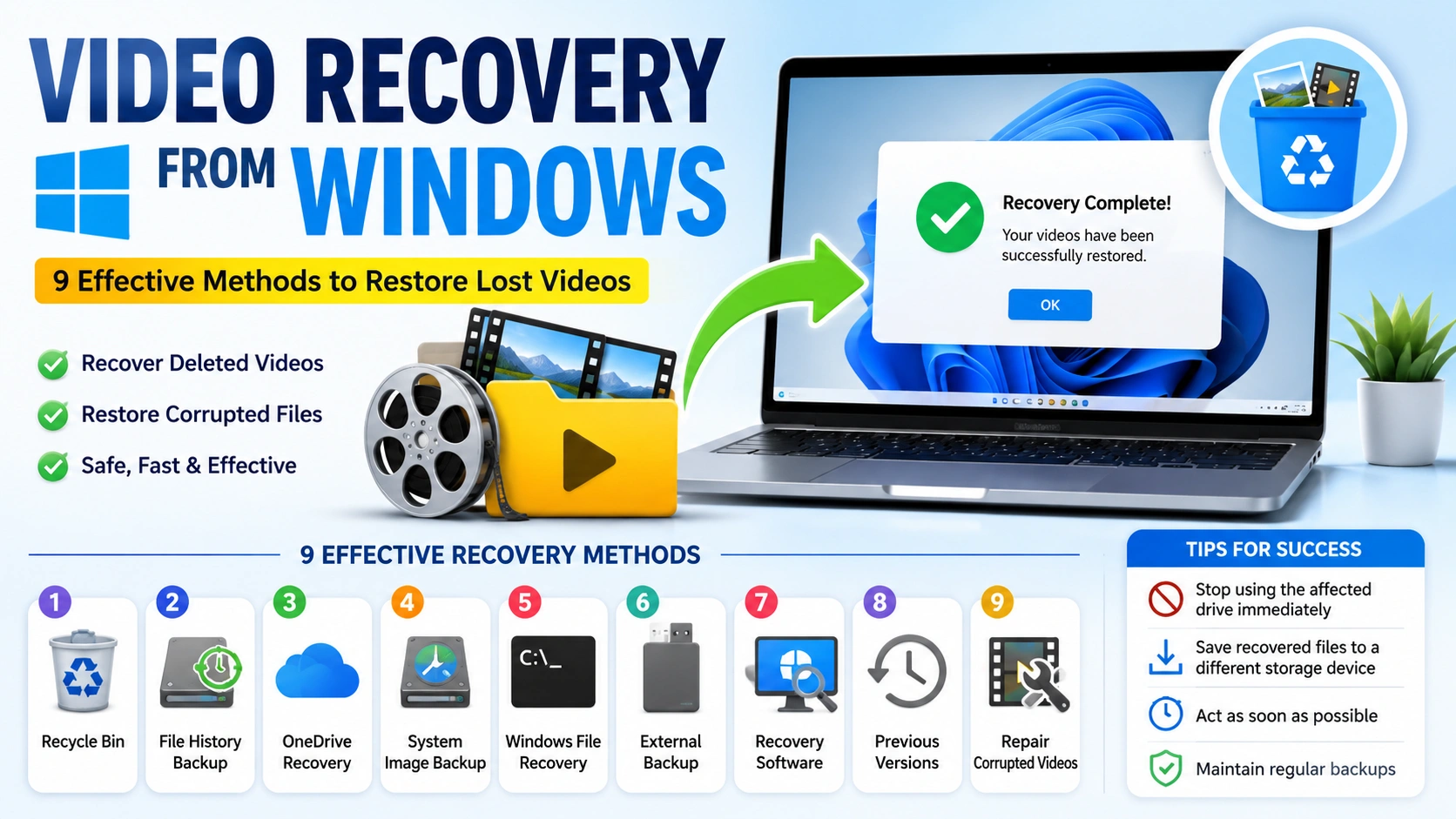
Losing important videos can be a stressful experience, particularly when they contain valuable memories, work-related recordings, educational materials, or content that cannot be easily replaced. The good news is that Video Recovery from Windows is often possible, provided you take action before the deleted data is overwritten.
Videos can disappear for many reasons, including accidental deletion, drive formatting, system crashes, storage device errors, or malware attacks. Fortunately, Windows provides several built-in recovery options, and additional tools are available when standard methods are not enough.
If your videos were removed using the Shift + Delete shortcut, you may also find our guide on How to Recover Shift Deleted Files on Windows helpful, as it covers recovery techniques specifically designed for permanently deleted files.
In this tutorial, you’ll learn the most effective methods to recover lost videos and improve your chances of restoring them successfully.
Why Video Files Get Lost in Windows
Before attempting Video Recovery from Windows, it is important to understand what may have caused your video files to disappear. Knowing the source of the problem can help you choose the most effective recovery method and avoid further data loss.
Video files can be lost for a variety of reasons, including:
- Accidental deletion of files or folders
- Permanent deletion using the Shift + Delete shortcut
- Formatting of a hard drive, SSD, USB flash drive, or memory card
- Corrupted or damaged storage devices
- Unexpected Windows updates or system crashes
- Virus and malware attacks that remove or hide files
- File system errors that make data inaccessible
- External drive disconnections or hardware failures
In some cases, the videos are not actually gone but have become inaccessible due to file corruption or storage issues. Identifying the underlying cause is an important first step, as it allows you to select the most appropriate recovery solution and improves the chances of successfully restoring your lost videos.
Method 1: Check the Recycle Bin
When starting Video Recovery from Windows, the Recycle Bin should always be your first destination. In many cases, deleted video files are temporarily stored there, making recovery quick and straightforward without the need for additional software.
Steps:
- Double-click the Recycle Bin icon on your desktop.
- Browse or search for the missing video file.
- Right-click the video you want to recover.
- Select Restore from the menu.
Once restored, the video will automatically return to its original folder location.
This method is effective for files that were deleted using the standard Delete command. However, if the video was removed using Shift + Delete, the Recycle Bin was emptied, or the file was deleted from certain external devices, you may need to try one of the advanced recovery methods covered later in this guide.
Method 2: Recover Videos Using File History
File History is a built-in Windows backup feature that automatically saves copies of your files and folders when enabled. If your videos were accidentally deleted, modified, or replaced, File History may allow you to restore an earlier version without using third-party recovery software.
Steps:
- Open the folder where the video was originally stored.
- Right-click inside the folder and select Properties.
- Navigate to the Previous Versions tab.
- Review the available backup versions.
- Select a version created before the video was lost.
- Click Restore to recover the file.
If a suitable backup is available, Windows will restore the video to its original location.
File History is one of the quickest and safest methods for Video Recovery from Windows because it relies on previously saved backups rather than scanning the drive for deleted data.
Method 3: Use Windows Backup and Restore for Video Recovery from Windows
If you previously configured Windows Backup and Restore, performing Video Recovery from Windows can be a straightforward process. This built-in backup feature stores copies of your files, allowing you to recover lost videos even after accidental deletion, system failures, or storage device issues.
Steps:
- Open the Control Panel on your Windows computer.
- Navigate to Backup and Restore (Windows 7).
- Click Restore my files.
- Browse the available backup sets.
- Locate and select the lost video files you want to recover.
- Follow the on-screen instructions to complete the restoration process.
Once the recovery is finished, the videos will be restored to their original location or a folder of your choice.
Using Windows Backup and Restore is one of the most reliable methods for Video Recovery from Windows, particularly when recovering large video collections, important recordings, or media files that were lost due to hardware failures, accidental deletion, or operating system problems. Regular backups also provide an extra layer of protection against permanent data loss.
Method 4: Recover Videos from OneDrive
If your computer is connected to OneDrive, you may be able to perform Video Recovery from Windows without using recovery software. Many Windows devices automatically synchronize files with Microsoft’s cloud storage service, creating an additional layer of protection against accidental deletion and data loss.
Steps:
- Sign in to your OneDrive account.
- Open your synced folders and cloud storage files.
- Search for the missing video file.
- Download or restore the video to your computer.
If you cannot find the video in your main OneDrive folders, check the OneDrive Recycle Bin. Deleted files are often stored there for a limited period before being permanently removed.
OneDrive can be especially useful for Video Recovery from Windows when files have been accidentally deleted from a local device, damaged by system errors, or lost after hardware issues. Because the files are stored in the cloud, recovery is often faster and more reliable than scanning a drive for deleted data.
For additional assistance and recovery options, visit Microsoft OneDrive Support for detailed instructions and troubleshooting guidance.
Method 5: Restore Videos Using Windows File Recovery
Windows File Recovery is Microsoft’s official data recovery utility designed to help users perform Video Recovery from Windows when files have been permanently deleted. Unlike the Recycle Bin or backup-based methods, this tool scans storage drives directly to locate recoverable files.
The application is available free of charge through the Microsoft Store and works through the Command Prompt interface.
Steps:
- Install Windows File Recovery from the Microsoft Store.
- Open Command Prompt as an Administrator.
- Enter the appropriate recovery command based on your file type and storage device.
- Save the recovered videos to a different drive to prevent overwriting recoverable data.
Example Command
winfr C: D: /regular /n *.mp4
This command searches drive C: for deleted MP4 video files and restores any recoverable files to drive D:.
Windows File Recovery can be particularly useful for Video Recovery from Windows after accidental deletion, Shift + Delete removal, file system corruption, or drive formatting. However, recovery success depends on how much new data has been written to the affected drive since the videos were lost.
If Windows File Recovery cannot locate your missing videos, consider using one of the tools featured in our Best Data Recovery Software for Windows guide. Advanced recovery applications often provide deeper scanning capabilities and support a wider range of video file formats.
Method 6: Recover Videos from an External Backup
One of the easiest ways to perform Video Recovery from Windows is by restoring files from an existing backup. Many users regularly store copies of important videos on separate devices or cloud platforms, making recovery much simpler than attempting to scan a drive for deleted data.
Common backup locations include:
- USB flash drives
- External hard drives
- Network Attached Storage (NAS) devices
- Cloud storage services
- Secondary internal drives
- Personal backup servers
Before installing recovery software or running deep scans, take a few minutes to check your backup locations. The missing video may already exist in a previously saved copy.
Steps:
- Connect or access your backup device.
- Browse the folders where your videos were stored.
- Locate the missing video files.
- Copy the files back to your Windows computer.
- Verify that the videos play correctly after restoration.
Using a backup is often the safest method for Video Recovery from Windows because it does not rely on recovering deleted data from the original drive. Instead, you are simply restoring an existing copy, which reduces the risk of data corruption and saves considerable time.
If you maintain regular backups, recovering lost videos can take only a few minutes compared to the hours sometimes required for advanced recovery scans.
Method 7: Use Professional Video Recovery Software
If the built-in recovery options are unable to restore your files, professional recovery applications may improve your chances of successful Video Recovery from Windows. These tools are specifically designed to scan storage devices at a deeper level and recover video files that are no longer visible in Windows.
Some of the most popular video recovery solutions include:
- Recuva
- Disk Drill
- EaseUS Data Recovery Wizard
- Stellar Data Recovery
These applications search the storage drive for traces of deleted files and attempt to restore them before the data is permanently overwritten. Many tools support common video formats such as MP4, AVI, MOV, MKV, WMV, and other multimedia file types.
Professional recovery software can be particularly useful for Video Recovery from Windows after:
- Permanent deletion using Shift + Delete
- Drive formatting
- Partition loss
- File system corruption
- Accidental data removal from USB drives or memory cards
Best Practices for Video Recovery
To maximize recovery success, follow these recommendations:
- Stop using the affected drive immediately to prevent deleted data from being overwritten.
- Install the recovery software on a different drive whenever possible.
- Save recovered videos to a separate storage location rather than the original drive.
- Perform the recovery process as soon as possible after the files are lost.
- Preview recovered videos before restoring them to ensure file integrity.
While no recovery tool can guarantee 100% success, professional software often provides one of the highest recovery rates for Video Recovery from Windows, especially when the lost files have not yet been overwritten by new data.
Method 8: Recover Videos from Previous Versions
Another effective method for Video Recovery from Windows is restoring files from Previous Versions. Windows can automatically create restore snapshots, often referred to as Shadow Copies, which preserve earlier versions of files and folders.
If a video was deleted, modified, or damaged, a previous version of the folder may still contain a recoverable copy of the file.
Steps:
- Navigate to the folder where the video was originally stored.
- Right-click the folder and select Properties.
- Open the Previous Versions tab.
- Review the available folder versions.
- Choose a version created before the video was lost.
- Click Restore to recover the missing video files.
For added safety, you can also open a previous version and copy the files to another location before performing a full restoration.
This method is particularly useful for Video Recovery from Windows after accidental deletion, file corruption, unwanted modifications, or software-related issues. Because the recovery relies on existing system snapshots rather than scanning the drive, it is often faster and more reliable than traditional recovery software.
Keep in mind that Previous Versions are only available if System Protection, File History, or another backup feature was enabled before the video files were lost.
Method 9: Repair Corrupted Video Files
Sometimes Video Recovery from Windows is not necessary because the video file still exists but has become corrupted. This can happen due to system crashes, interrupted transfers, storage errors, or malware infections.
You can repair corrupted videos using:
- VLC Media Player repair features
- Online video repair tools
- Professional video repair software
Common Signs of Video Corruption
- Video will not play
- Missing audio
- Black screen during playback
- Playback freezes or stutters
- Error messages when opening the file
Repairing a corrupted video can often restore access without requiring a full recovery scan. If the file is still present on your drive, try a repair tool before attempting more advanced Video Recovery from Windows methods.
Tips to Improve Video Recovery Success
To increase the chances of successful Video Recovery from Windows, it is important to act quickly after discovering that your videos are missing.
Follow these best practices:
- Stop using the affected drive immediately.
- Avoid installing new programs on the drive.
- Save recovered files to a different storage device.
- Start the recovery process as soon as possible.
- Maintain regular backups of important videos.
The longer you wait, the higher the risk that deleted data will be overwritten, making recovery more difficult or even impossible.
How to Prevent Future Video Loss
Preventing video loss is much easier than performing Video Recovery from Windows after files disappear. By following a few simple practices, you can protect your videos and reduce the risk of permanent data loss.
Consider these recommendations:
- Enable File History for automatic backups.
- Use OneDrive or another cloud storage service for file synchronization.
- Create regular system and file backups.
- Keep copies of important videos on external drives.
- Install reliable antivirus and security software.
- Monitor your hard drive’s health regularly.
These habits can help safeguard valuable videos and ensure they remain accessible even if your computer experiences hardware failures, accidental deletion, or other unexpected issues.
Conclusion
Video Recovery from Windows is possible in many cases, whether your videos were accidentally deleted, permanently removed, corrupted, or lost due to system errors. Start with simple recovery options such as the Recycle Bin, File History, OneDrive, and backups before turning to advanced recovery tools.
If your files were permanently deleted, you may also find our guide on How to Recover Shift Deleted Files on Windows helpful. For more advanced recovery solutions, check out our article on Best Data Recovery Software for Windows.
The key to successful Video Recovery from Windows is acting quickly. The sooner you begin the recovery process, the better your chances of restoring lost videos before they are overwritten. Combined with a reliable backup strategy, these methods can help keep your important video files safe and recoverable.