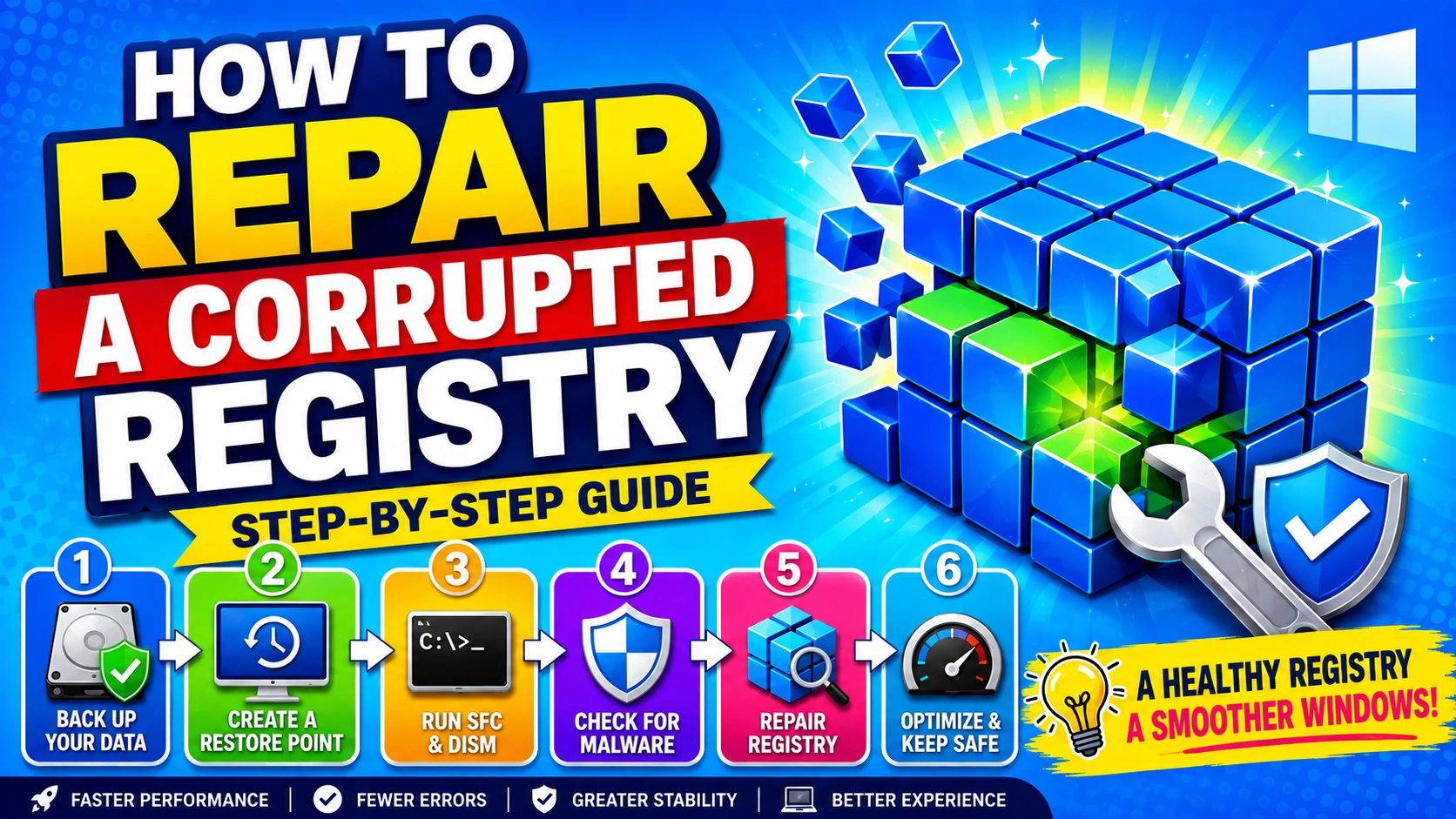
A corrupted Windows Registry can cause some of the most frustrating computer problems. Applications may stop launching, Windows settings can behave unexpectedly, startup errors may appear, or the operating system may become unstable. Because the Registry contains important configuration information, repairing it requires more care than simply deleting suspicious entries.
The good news is that many Registry-related problems can be repaired without reinstalling Windows. The key is to identify the underlying issue, create a recovery option first, and use Windows’ built-in repair tools before attempting manual Registry modifications.
What Is the Windows Registry?
The Windows Registry is a centralized database that stores configuration information used by Windows and installed applications. It contains settings related to hardware, software, user accounts, drivers, services, file associations, and many other system components.
The Registry is organized into several major root keys, including:
- HKEY_LOCAL_MACHINE (HKLM) — system-wide configuration.
- HKEY_CURRENT_USER (HKCU) — settings for the currently logged-in user.
- HKEY_CLASSES_ROOT (HKCR) — file associations and application-related information.
- HKEY_USERS (HKU) — configuration for Windows user profiles.
- HKEY_CURRENT_CONFIG (HKCC) — information associated with the current hardware configuration.
A Registry problem does not necessarily mean that the entire database is damaged. Sometimes a single invalid configuration, corrupted system file, failed update, or incompatible application is responsible for the symptoms.
Common Signs of a Corrupted Registry
Registry corruption can produce different symptoms depending on which configuration is affected. Common warning signs include:
- Windows repeatedly displaying startup or configuration errors.
- Programs refusing to open after an update or installation.
- Missing or incorrect file associations.
- Unexpected Windows settings or permissions.
- Frequent system instability or crashes.
- Services failing to start.
- Problems occurring immediately after software installation or removal.
- Windows becoming unable to boot normally.
However, these symptoms can also be caused by malware, damaged system files, failing hardware, driver problems, or Windows updates. Therefore, it is important not to assume that the Registry is responsible simply because Windows is behaving strangely.
Step 1: Back Up Important Data First
Before repairing a potentially damaged Registry, protect your personal files.
Copy important documents, photos, project files, and other irreplaceable data to an external drive or trusted cloud storage. If Windows is still usable, this is one of the easiest precautions you can take.
A Registry repair can affect system configuration, so having a separate backup of your personal data provides an additional layer of protection if troubleshooting goes wrong.
Step 2: Create a System Restore Point
If Windows still starts normally, create a System Restore point before making changes.
Search Windows for Create a restore point, open the corresponding system settings, and select Create if System Protection is enabled.
A restore point can provide a convenient way to return Windows to an earlier system configuration if a repair causes additional problems.
It is important to understand that System Restore is not the same as a complete backup. It should be considered a recovery mechanism rather than a replacement for backing up personal files.
Step 3: Repair Windows System Files
Many apparent Registry problems are actually caused by damaged Windows system files. Windows includes built-in tools that can check and repair these files.
Open Command Prompt as Administrator and run:
sfc /scannow
Allow the scan to finish. If Windows detects corrupted protected system files, it may automatically replace them with valid versions.
If System File Checker cannot repair everything, use Deployment Image Servicing and Management (DISM):
DISM /Online /Cleanup-Image /RestoreHealth
After DISM completes, run:
sfc /scannow
again.
Restart Windows afterward and check whether the original problem has disappeared.
Step 4: Use System Restore When Appropriate
If the problem began after installing software, a driver, or a significant Windows configuration change, System Restore may be safer than manually editing the Registry.
Open System Restore and select a restore point created before the problem appeared.
Windows will attempt to restore relevant system files, drivers, Registry settings, and installed-program configuration to their earlier state.
Personal documents are generally not the target of System Restore, but it is still wise to maintain a current personal-data backup.
Step 5: Repair Windows From Recovery Environment
If Windows cannot start normally, you can use the Windows Recovery Environment (WinRE).
Depending on the version and configuration of Windows, WinRE can provide tools such as:
- Startup Repair
- System Restore
- Command Prompt
- Uninstall Updates
- Startup Settings
Startup Repair is particularly useful when Registry or system configuration problems prevent Windows from booting.
To avoid making the situation worse, start with automated recovery options before attempting advanced manual Registry restoration.
Step 6: Check for Malware
Malware can modify Registry settings, disable security features, alter startup behavior, and interfere with Windows services.
Run a scan using Windows Security or another reputable security solution.
If suspicious software is found, remove it and restart the computer before continuing with Registry troubleshooting.
Repairing Registry entries without addressing an active infection may only provide a temporary solution.
Step 7: Avoid Random Registry Cleaners
One of the most important Registry-repair rules is simple: do not delete Registry entries just because a third-party utility labels them as invalid.
Registry-cleaning applications often identify obsolete, unused, or supposedly unnecessary entries. Removing such entries does not automatically make Windows faster or more reliable, and deleting the wrong configuration can introduce new problems.
If you know exactly which Registry value is causing a problem, targeted editing may be appropriate. Otherwise, Windows’ built-in recovery and repair tools are usually safer.
Step 8: Manually Edit the Registry Only When Necessary
If you have identified a specific Registry setting that needs to be changed, open the Registry Editor by searching for:
regedit
Before modifying a key, select it and use File > Export to create a backup of that portion of the Registry.
Then make only the required change.
Do not delete entire Registry branches simply because their names look unfamiliar. Many legitimate Windows components use technical names that may not be obvious to users.
A useful rule is:
If you cannot explain what a Registry value does and why it needs to change, do not modify it.
What If Windows Will Not Boot?
When Windows cannot boot, the repair strategy changes.
Start with the recovery options available through WinRE. Try Startup Repair first. If the issue began recently, System Restore or uninstalling a recent update may also help.
For severely damaged installations, repairing Windows from installation or recovery media may be necessary. In some cases, the most reliable solution is a Windows repair installation or reset rather than attempting to reconstruct Registry files manually.
Can You Replace a Corrupted Registry?
Older Windows versions had specific Registry backup and recovery mechanisms that were sometimes used to restore Registry hives manually. Modern versions of Windows handle system configuration and recovery differently, so copying Registry files from another computer is generally not a safe solution.
Registry hives contain system- and installation-specific information. A Registry file taken from another PC may not match the hardware, drivers, applications, security identifiers, or Windows configuration of your machine.
For that reason, use a restore point, recovery environment, system image, or another backup created for the affected computer whenever possible.
How to Prevent Future Registry Problems
The best Registry repair is often the one you never need to perform.
Follow a few basic practices:
- Keep Windows updated.
- Install software from trustworthy sources.
- Avoid unnecessary Registry-cleaning utilities.
- Maintain regular backups of important files.
- Create a restore point before major system modifications.
- Be cautious when following Registry-editing tutorials.
- Keep reputable security software enabled.
- Uninstall applications through normal Windows procedures instead of manually deleting their Registry entries.
Final Thoughts
A corrupted Registry can look like a serious Windows failure, but manually rebuilding the Registry should rarely be the first solution.
Start with the safest options: back up your data, use System Restore, run SFC and DISM, check for malware, and use Windows Recovery Environment when necessary. Only consider manual Registry editing after identifying a specific problematic setting and creating an appropriate backup.
Most importantly, remember that not every Windows error is a Registry problem. Treat the Registry as a critical system component rather than a database that should routinely be cleaned or optimized. A careful diagnostic approach is much safer—and usually more effective—than deleting Registry entries at random.