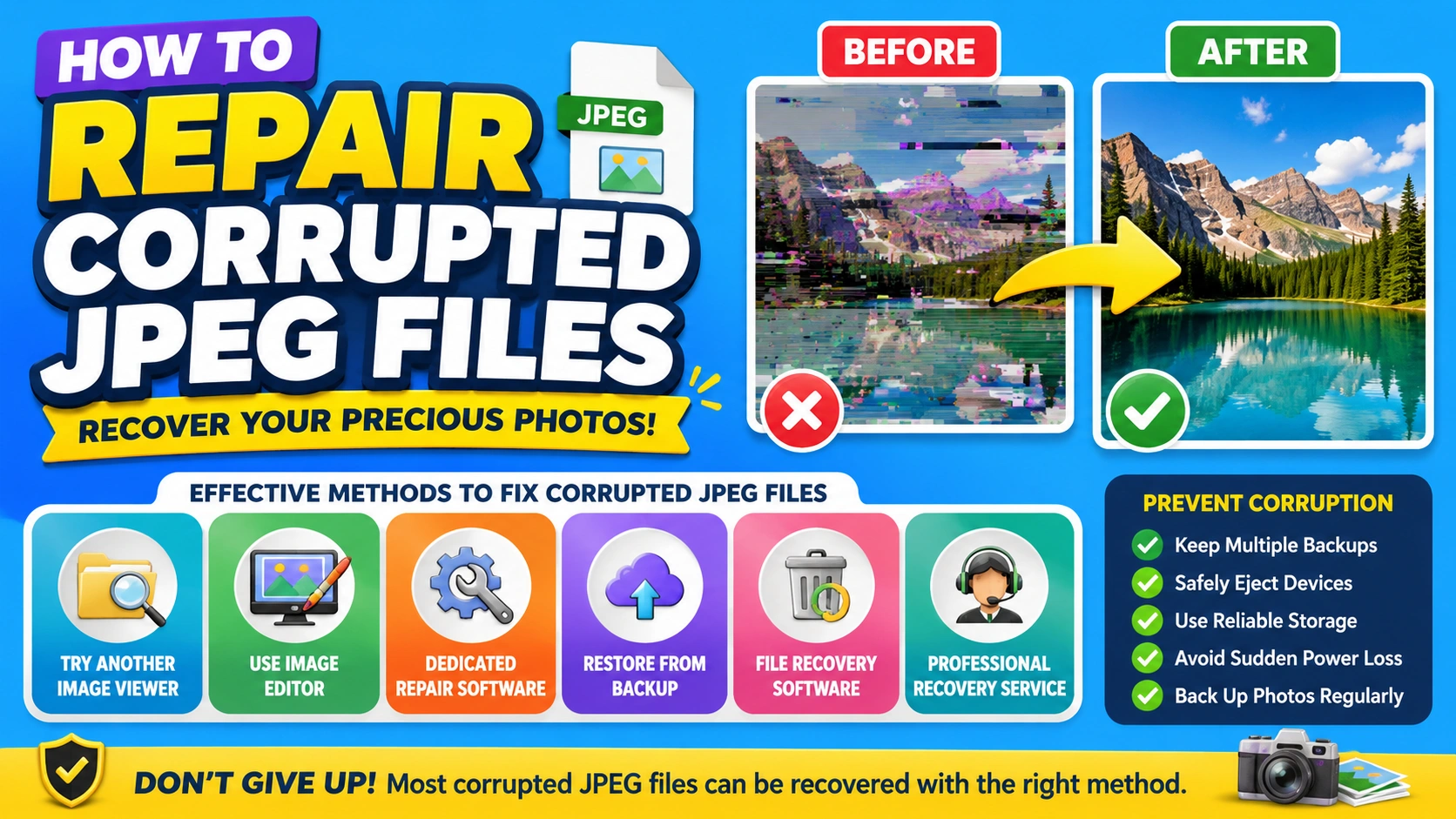
JPEG is one of the most widely used image formats because it provides good visual quality while keeping file sizes relatively small. However, JPEG files can become corrupted, damaged, unreadable, or partially distorted for many reasons, including interrupted transfers, faulty storage devices, software crashes, accidental file modifications, and improper shutdowns.
The good news is that a corrupted JPEG does not always mean the photo is permanently lost. Depending on the type and severity of the damage, you may be able to repair the image using built-in operating system tools, image editors, file-repair software, backups, or alternative methods of opening and resaving the picture.
This guide explains how to repair corrupted JPEG files, what causes JPEG corruption, which recovery methods are worth trying, and how to prevent similar problems in the future.
What Is a Corrupted JPEG File?
A corrupted JPEG file is an image whose internal data no longer follows the structure expected by JPEG-compatible software.
You might notice corruption through symptoms such as:
- The JPEG will not open.
- Windows or another operating system reports that the file is invalid.
- The image displays only partially.
- The photo contains strange lines, blocks, or missing sections.
- The image appears gray, black, or distorted.
- An application crashes when attempting to open the file.
- The JPEG opens in one program but not another.
- The file suddenly has an unusually small or large size.
- The image thumbnail is missing even though the file exists.
Not every opening problem means the JPEG itself is damaged. Sometimes the problem is caused by an incompatible application, incorrect file association, insufficient permissions, or a damaged storage device.
Common Causes of JPEG Corruption
Understanding why a JPEG became corrupted can help you choose the right recovery method.
1. Interrupted File Transfers
Removing a USB drive, disconnecting an external hard disk, or interrupting a network transfer while a photo is being copied can leave the JPEG incomplete.
A partially copied JPEG may retain its filename but lack important image data.
2. Failing Storage Devices
Hard drives, SSDs, memory cards, and USB flash drives can develop bad sectors or other storage problems. If JPEG data is stored in an affected area, the image may become unreadable.
3. Sudden Power Loss
A computer shutdown or camera power failure while an image is being written can damage the file structure.
This is particularly important for cameras and smartphones because photographs may be stored immediately after capture.
4. Malware or Unwanted Software
Certain malware infections can modify, encrypt, or damage files. If multiple JPEG files suddenly become unreadable, investigate the possibility of a broader storage or security problem.
5. Faulty Memory Cards
Digital cameras frequently use SD or microSD cards. Repeatedly filling, formatting, removing, or using a damaged memory card can eventually result in corrupted photos.
6. Software Errors
A crash while editing or exporting a photograph may produce an incomplete or malformed JPEG.
7. Improper File Conversion
Changing extensions manually—for example, renaming photo.png to photo.jpg—does not actually convert the image. This can result in a file that software interprets incorrectly.
Before Repairing a Corrupted JPEG
Before attempting aggressive repairs, protect the original file.
Do not repeatedly edit, overwrite, or save the corrupted JPEG.
Instead:
- Create a copy of the damaged file.
- Store the original somewhere safe.
- Perform recovery attempts on the copy.
- If the image is located on a failing memory card or hard drive, minimize further use of that device.
This is especially important when the corruption may be caused by physical storage failure.
Method 1: Try Opening the JPEG With Another Program
The simplest solution is sometimes the most effective.
A JPEG that fails in one application may still open in another because different programs handle damaged image structures differently.
Try opening the file with:
- Your default photo viewer
- A web browser
- A professional image editor
- An alternative graphics application
- An image management program
If one application successfully displays the image, immediately use Save As or Export to create a new JPEG.
This can rebuild parts of the JPEG structure and produce a healthy copy.
Method 2: Open the JPEG in a Web Browser
Modern browsers can sometimes display JPEG files that a desktop photo application refuses to open.
To test this method, drag the JPEG into a browser window or use the browser’s file-opening functionality.
If the image appears, save or capture a new copy using an appropriate image application.
However, this technique cannot recover image information that is genuinely missing from the file.
Method 3: Rename the File Extension Carefully
Sometimes the problem is not corruption but an incorrect extension.
For example, a file may have been renamed incorrectly during a transfer or export.
Before changing anything, make a backup.
If you know the file was originally a JPEG but has an unusual extension, changing the extension back to .jpg or .jpeg may restore normal behavior.
Keep in mind that changing an extension does not repair corrupted image data. It only corrects the filename’s format indicator.
Method 4: Use an Image Editor to Recover the Photo
Professional image-editing applications sometimes handle partially damaged JPEG files better than basic viewers.
Open the damaged image in an image editor and check whether any portion of the photograph appears.
If it does:
- Open the JPEG.
- Wait for the application to finish processing it.
- Check whether the visible image looks correct.
- Use Save As or Export.
- Save the recovered image as a new JPEG or another suitable format.
If only part of the image is visible, saving the displayed portion may recover at least some of the photograph.
Method 5: Repair a JPEG Using Dedicated File-Repair Software
When standard applications cannot open the image, specialized JPEG-repair software may be worth trying.
These tools are designed to analyze damaged image structures and reconstruct information when possible.
Some JPEG repair utilities can address problems involving:
- Damaged JPEG headers
- Invalid file structures
- Missing image segments
- Corrupted metadata
- Partially damaged image data
However, results vary significantly. A repair application cannot magically recreate image pixels that have been physically overwritten or completely deleted.
Before paying for a repair application, look for a preview or evaluation feature so you can determine whether the software can actually recover your photograph.
Method 6: Recover the Original From a Backup
If you regularly back up your photos, restoring the original may be safer than repairing the damaged copy.
Check locations such as:
- External hard drives
- Network storage
- Cloud backup services
- Computer backups
- Smartphone backups
- Camera storage
- Previous versions of folders
A backup containing the original JPEG is usually preferable to attempting complex file reconstruction.
Method 7: Check the Memory Card or Storage Device
If several JPEG files become corrupted at the same time, the storage device may be the real problem.
For example, if a camera’s memory card contains dozens of damaged photographs, avoid taking additional photographs on that card.
Continuing to use the device can overwrite recoverable data.
Instead, copy any accessible files to another location and consider using professional data-recovery software or a reputable recovery service.
Method 8: Use File Recovery Software
There is an important distinction between JPEG repair and JPEG recovery.
Repair attempts to fix a file that still exists but is damaged.
Recovery attempts to locate deleted, lost, or inaccessible data.
If the JPEG disappeared entirely, file-recovery software may be more appropriate than a JPEG repair utility.
Recovery tools may scan storage media for recognizable file signatures and reconstruct deleted files.
For the best chance of recovery, avoid writing new data to the affected drive or memory card.
Method 9: Check for Previous Versions
On supported operating systems and storage configurations, previous versions or backup snapshots may contain an earlier, undamaged version of the photograph.
If the JPEG was previously healthy, check whether your backup or file-history system has an older copy.
This approach is particularly useful when a file became corrupted after editing or synchronization.
Method 10: Repair Multiple JPEGs With a Professional Recovery Service
If many important JPEG files are corrupted and software cannot recover them, professional data recovery may be the safest option.
A professional service can sometimes work with damaged storage media at a deeper level than consumer applications.
This can be particularly appropriate when:
- The hard drive is making unusual noises.
- The storage device frequently disconnects.
- Files disappear unexpectedly.
- A memory card is no longer recognized.
- Many files suddenly become corrupted.
- The photographs are irreplaceable.
If the storage hardware itself is failing, repeatedly scanning it can potentially make the situation worse.
How to Repair a JPEG That Shows Gray or Black Areas
A partially visible JPEG can sometimes be more promising than a file that will not open at all.
If part of the image appears but another area is gray, black, or filled with blocks, the JPEG’s image data may be partially damaged.
Try these steps:
- Make a backup copy.
- Open the file with several image applications.
- Try importing it into an image editor.
- If any portion is displayed correctly, export that visible portion.
- Try a dedicated JPEG-repair application.
- If the file came from a memory card, stop using the card and consider recovery software.
The exact result depends on which portion of the JPEG data has been damaged.
How to Repair a JPEG That Says “Invalid Image”
An “invalid image” error can result from either corruption or an incorrectly formatted file.
First, verify that the file extension is correct.
Then try opening the file with another application.
If the file still cannot be opened, inspect its file size. A JPEG that is only a few kilobytes when the original photograph should be several megabytes may indicate that the file is incomplete.
If the file contains a reasonable amount of data, a specialized repair or recovery solution may have a better chance.
Can a Corrupted JPEG Be Repaired Online?
Online JPEG-repair services exist and can be convenient when the damage is relatively minor.
However, consider privacy before uploading photographs to an online service.
Personal, confidential, professional, or sensitive photographs should not be uploaded to an unknown website simply to test a repair tool.
Before using an online service, check:
- How uploaded files are handled.
- Whether files are deleted after processing.
- Whether files are used for other purposes.
- Whether the connection is secure.
- Whether the service provides a preview before payment.
For private photographs, local recovery software may be a better choice.
Can You Repair a JPEG Without Software?
Sometimes.
If the JPEG opens partially in an existing application, you may be able to recover it simply by opening it and exporting a new copy.
You can also test the image in different viewers and browsers.
However, genuinely corrupted JPEG data usually requires some form of software processing. If important portions of the file have been lost, manual filename changes will not restore them.
What Not to Do When a JPEG Is Corrupted
Some actions can reduce your chances of recovery.
Avoid:
- Overwriting the original JPEG.
- Repeatedly saving the damaged file.
- Formatting the affected memory card before recovery.
- Installing large amounts of software onto the affected drive.
- Continuing to photograph onto a damaged memory card.
- Using random online repair tools without considering privacy.
- Assuming that changing
.jpgto another extension repairs the image.
The most important rule is simple: preserve the original data before experimenting.
How to Prevent JPEG Corruption
Preventing corruption is easier than recovering an irreplaceable photograph.
Keep Multiple Backups
Follow the basic 3-2-1 backup principle:
- Keep at least three copies of important data.
- Store the copies on at least two different types of storage.
- Keep at least one copy in a separate location.
Safely Eject External Storage
Use the operating system’s safe-ejection procedure before disconnecting USB drives and memory-card readers.
Replace Unreliable Memory Cards
If a camera memory card repeatedly produces corrupted photographs, stop trusting it.
Memory cards are inexpensive compared with the value of irreplaceable photos.
Avoid Filling Storage Completely
Leave sufficient free space on storage devices to reduce operational problems and make file management easier.
Protect Devices From Sudden Power Loss
For desktop computers, an uninterruptible power supply can reduce the risk of abrupt shutdowns.
For cameras and smartphones, avoid removing batteries or shutting down devices while photographs are being written.
Back Up Photos Immediately
For valuable photographs, create a backup as soon as practical after transferring them from a camera or smartphone.
Frequently Asked Questions
Why won’t my JPEG file open?
The file may be corrupted, incomplete, incorrectly formatted, or associated with an application that cannot interpret it. Try another image viewer first, then consider repair or recovery software.
Can a permanently corrupted JPEG be recovered?
Not always. If important image data has been completely overwritten or physically destroyed, no software can guarantee complete recovery. However, partially damaged JPEGs may sometimes be reconstructed.
Does changing JPG to JPEG fix corruption?
No. .jpg and .jpeg are different filename extensions for the same JPEG image format. Changing the extension does not repair damaged image data.
Can Windows repair corrupted JPEG files?
Windows can help diagnose storage-related problems, but it does not provide a universal built-in tool that can reconstruct every corrupted JPEG. For the image itself, alternative viewers, backups, recovery software, or dedicated repair tools may be necessary.
Can I repair a JPEG that is only partially visible?
Possibly. If some image data remains intact, an image editor or specialized repair utility may recover part or all of the visible photograph.
Is online JPEG repair safe?
It depends on the service. Avoid uploading sensitive photographs to services you do not trust. For private images, consider local software instead.
Final Thoughts
A corrupted JPEG is frustrating, but an unreadable photograph is not necessarily a lost photograph. Start with the least invasive methods: make a backup, try another viewer, check for a backup copy, and determine whether the storage device itself is causing the problem.
If those methods fail, dedicated JPEG repair or file-recovery software may be able to reconstruct a damaged image. When the photographs are extremely valuable or the storage device appears to be failing, professional data recovery is often the safer choice.
Most importantly, prevention matters. Maintaining multiple backups and replacing unreliable storage devices can save you from having to repair corrupted JPEG files in the first place.