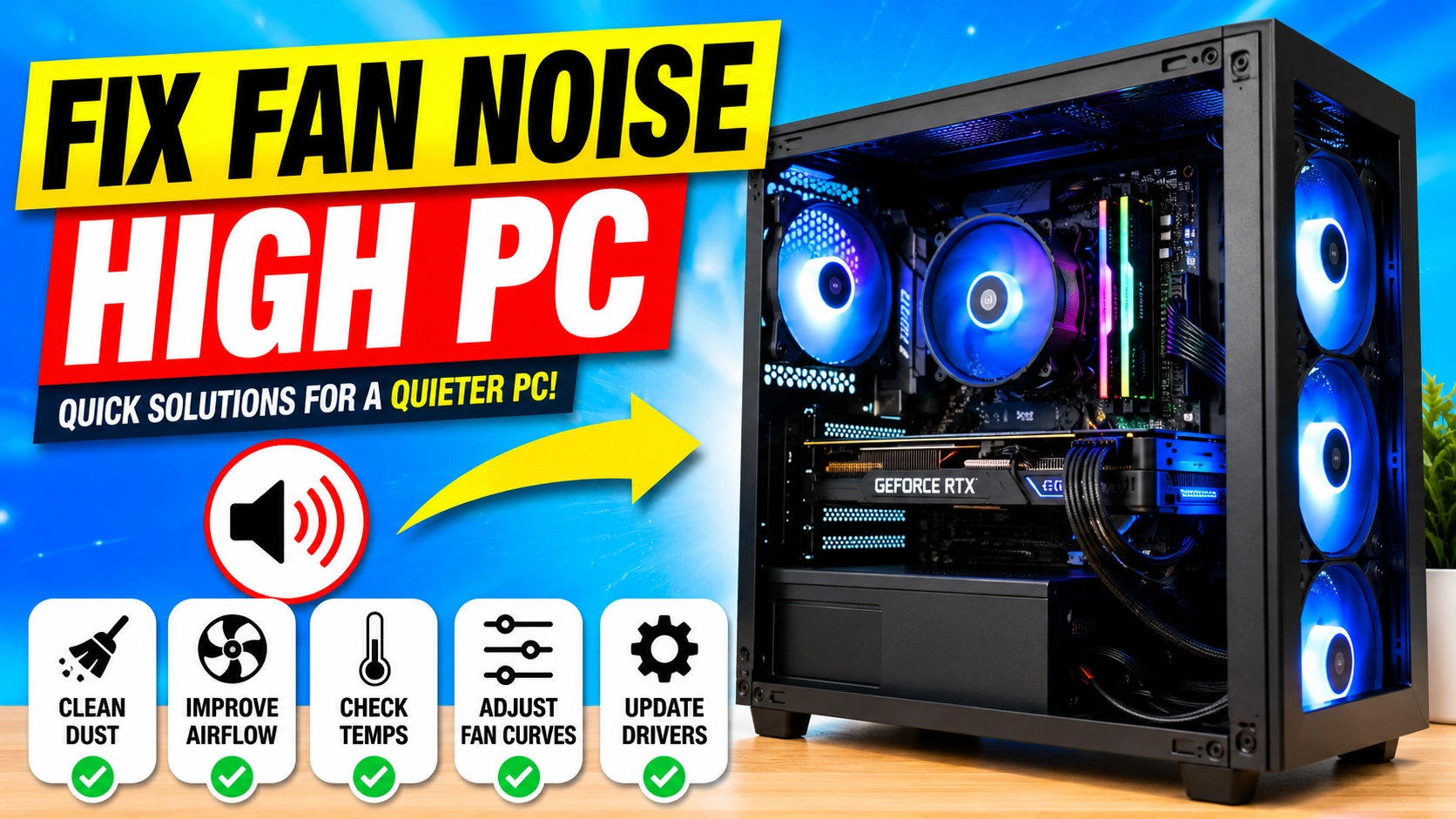
A loud computer fan can quickly become annoying, especially when the noise continues even during light tasks. If you want to Fix Fan Noise High PC problems, the good news is that most causes can be identified and resolved without replacing your entire system.
Fan noise is usually a sign that your computer is working harder than necessary to manage heat. Dust buildup, poor airflow, excessive CPU usage, outdated firmware, and aging cooling components can all contribute to this issue.
This guide explains how to Fix Fan Noise High PC systems using practical troubleshooting methods that improve cooling performance and reduce unwanted noise.
Why Fan Noise Becomes Excessive
Before you can effectively Fix Fan Noise High PC problems, it is important to understand what causes computer fans to become louder than normal.
PC fans are designed to regulate internal temperatures automatically. When the processor, graphics card, or other components generate more heat, the cooling system responds by increasing fan speed. While this behavior is normal during gaming, video editing, or other demanding tasks, continuously loud fans often indicate an underlying issue that needs attention.
Several factors can cause excessive fan noise:
- Dust buildup inside the case and cooling components
- High CPU usage from demanding applications
- High GPU usage during gaming or rendering
- Blocked air vents restricting airflow
- Poor airflow design inside the computer case
- Worn or faulty fan bearings
- Dried or aging thermal paste
- Incorrect BIOS or fan control settings
- Too many background applications running
- Malware consuming system resources
In many situations, the noise itself is not the actual problem but rather a symptom of excessive heat or inefficient cooling. As temperatures rise, fans must work harder to maintain safe operating conditions, resulting in increased noise levels.
By identifying the specific cause of the problem, you can apply the most effective solution and successfully Fix Fan Noise High PC issues while improving overall system performance and cooling efficiency.
Method 1: Clean Dust from Your PC
Dust is the most common reason people need to Fix Fan Noise High PC problems.
Over time, dust accumulates on cooling fans, heatsinks, and air vents. This reduces cooling efficiency and forces fans to spin faster.
Steps to Clean Dust
- Turn off the computer.
- Disconnect the power cable.
- Open the side panel.
- Use compressed air to clean:
- CPU cooler
- Case fans
- Graphics card fans
- Air vents
- Power supply intake
- Reassemble the system.
Regular cleaning can significantly reduce fan noise and lower temperatures.
Method 2: Check CPU Usage
High processor activity often causes loud fan operation.
How to Check CPU Usage
- Press Ctrl + Shift + Esc.
- Open Task Manager.
- Click the Processes tab.
- Sort by CPU usage.
- Identify applications consuming excessive resources.
Programs that frequently increase fan noise include:
- Web browsers with many tabs
- Video editing software
- Virtual machines
- Games
- Background updates
Closing unnecessary programs can immediately reduce fan speeds.
Method 3: Monitor System Temperatures
Temperature monitoring helps determine whether overheating is responsible for the problem.
Recommended Temperature Ranges
| Component | Idle | Load |
|---|---|---|
| CPU | 30°C–50°C | 70°C–85°C |
| GPU | 30°C–55°C | 65°C–85°C |
| SSD | 25°C–50°C | Under 70°C |
If temperatures exceed these ranges, additional cooling improvements may be required.
For temperature monitoring tools, visit the official websites of:
Method 4: Improve Airflow Inside the Case
Poor airflow traps heat and forces fans to work harder.
Airflow Optimization Tips
- Organize cables neatly.
- Remove airflow obstructions.
- Install intake fans.
- Add exhaust fans.
- Maintain space around the PC.
- Keep vents unobstructed.
Improved airflow often provides an immediate reduction in fan noise.
Method 5: Adjust Fan Curves
Many motherboards allow custom fan speed control.
Using BIOS Fan Controls
- Restart the computer.
- Enter BIOS or UEFI.
- Open Fan Control settings.
- Configure a quieter fan curve.
- Save and exit.
A balanced fan profile can help Fix Fan Noise High PC systems without sacrificing cooling performance.
Method 6: Update BIOS and Drivers
Outdated firmware may contain inefficient thermal management settings.
Update:
- Motherboard BIOS
- Chipset drivers
- Graphics drivers
- Fan control utilities
Manufacturers frequently release updates that improve cooling behavior.
Visit your motherboard manufacturer’s official support page for the latest updates.
Method 7: Replace Old Thermal Paste
Thermal paste transfers heat from the processor to the cooler.
As it ages, thermal conductivity decreases.
Signs of Worn Thermal Paste
- Constant high temperatures
- Loud fans during idle use
- Thermal throttling
- Unexpected shutdowns
Replacing thermal paste can dramatically improve cooling efficiency.
Method 8: Disable Unnecessary Startup Programs
Too many startup applications increase system load.
Steps
- Open Task Manager.
- Select Startup Apps.
- Disable unnecessary entries.
- Restart the computer.
Reducing background activity lowers temperatures and fan speeds.
Method 9: Scan for Malware
Malware can silently consume CPU resources.
Perform a Full Scan
- Open Windows Security.
- Select Virus & Threat Protection.
- Run a Full Scan.
- Remove detected threats.
Malware removal often helps Fix Fan Noise High PC issues caused by unexplained resource usage.
Method 10: Inspect the Cooling Fans
Fans eventually wear out.
Signs of Fan Failure
- Grinding noises
- Clicking sounds
- Rattling vibrations
- Uneven rotation
- Fan wobbling
Replacing a damaged fan is often the most effective long-term solution.
Method 11: Upgrade Your Cooling System
If your PC regularly handles demanding workloads, upgrading cooling hardware may be worthwhile.
Recommended Upgrades
- Larger CPU air cooler
- High-quality case fans
- Better airflow PC case
- Liquid cooling system
- Additional ventilation
Modern cooling components can deliver lower temperatures while producing less noise.
Preventing Future Fan Noise Problems
The best way to avoid having to repeatedly Fix Fan Noise High PC issues is through regular maintenance and good cooling practices. Preventive measures help keep internal temperatures under control, reduce wear on cooling components, and ensure your computer operates quietly and efficiently over the long term.
Clean Dust Regularly
Dust is one of the leading causes of excessive fan noise. As dust accumulates on fans, heatsinks, and air filters, airflow becomes restricted and cooling efficiency decreases.
For optimal performance:
- Clean your PC every 3 to 6 months.
- Use compressed air to remove dust from fans and vents.
- Pay special attention to the CPU cooler, graphics card, and case filters.
Regular cleaning helps maintain proper airflow and prevents fans from working harder than necessary.
Monitor System Temperatures
Keeping track of temperatures can help identify cooling issues before they become serious.
Monitor:
- CPU temperature
- GPU temperature
- SSD and HDD temperatures
- System and motherboard temperatures
If you notice temperatures gradually increasing over time, it may be a sign that cleaning or maintenance is required.
Keep Drivers and Firmware Updated
Manufacturers frequently release updates that improve thermal management and fan control.
Regularly update:
- Graphics drivers
- Chipset drivers
- Motherboard BIOS
- Fan control software
These updates can improve cooling efficiency and reduce unnecessary fan activity.
Maintain Proper Airflow
Good airflow is essential for keeping component temperatures low.
To improve airflow:
- Organize cables to reduce obstructions.
- Ensure intake and exhaust fans are functioning properly.
- Leave sufficient space around the computer case.
- Avoid placing the PC in enclosed cabinets or tight spaces.
Proper airflow allows heat to escape efficiently, reducing fan workload and noise.
Replace Worn Fans Promptly
Cooling fans are mechanical components that wear out over time.
Signs a fan may need replacement include:
- Grinding noises
- Clicking sounds
- Excessive vibration
- Inconsistent fan speeds
- Difficulty starting
Replacing aging fans early can prevent future cooling issues and maintain quiet operation.
Avoid Blocking Air Vents
Blocked ventilation openings restrict airflow and trap heat inside the system.
Always ensure that:
- Front intake vents remain unobstructed.
- Rear and top exhaust vents have adequate clearance.
- Dust filters are cleaned regularly.
Even minor airflow restrictions can cause temperatures and fan speeds to increase.
Keep the Environment Cool
Room temperature directly affects computer cooling performance.
Helpful practices include:
- Using air conditioning during hot weather.
- Improving room ventilation.
- Keeping the PC away from direct sunlight.
- Avoiding placement near heat-producing appliances.
A cooler environment allows the cooling system to operate more efficiently and quietly.
Schedule Routine Maintenance
Creating a simple maintenance schedule can help prevent future cooling problems.
Recommended routine:
- Monthly: Check temperatures and fan operation.
- Every 3–6 months: Clean dust and inspect airflow.
- Annually: Inspect thermal paste condition and fan health.
Consistent maintenance is one of the most effective ways to Fix Fan Noise High PC issues before they develop into serious hardware problems.
By following these preventive measures, you can significantly reduce fan noise, improve cooling performance, extend component lifespan, and keep your PC running quietly and efficiently for years to come.
Conclusion
Knowing how to Fix Fan Noise High PC issues is essential for maintaining a comfortable and efficient computing experience. Excessive fan noise is often a warning sign that your PC is struggling with heat, restricted airflow, dust accumulation, or unnecessary system activity. Fortunately, most of these problems can be resolved with simple maintenance and troubleshooting.
Regularly cleaning dust from internal components, monitoring system temperatures, improving case airflow, and adjusting fan settings can dramatically reduce noise levels while improving overall cooling performance. Keeping drivers, BIOS firmware, and software up to date also helps ensure that your system manages heat efficiently.
If fan noise continues despite these efforts, inspecting cooling hardware for worn bearings, replacing old thermal paste, or upgrading to higher-quality cooling solutions may provide a long-term fix. Addressing the problem early can prevent overheating, improve hardware longevity, and maintain stable system performance.
By following the methods outlined in this guide, you can successfully Fix Fan Noise High PC problems, keep temperatures under control, and enjoy a quieter, more reliable computer for years to come.


