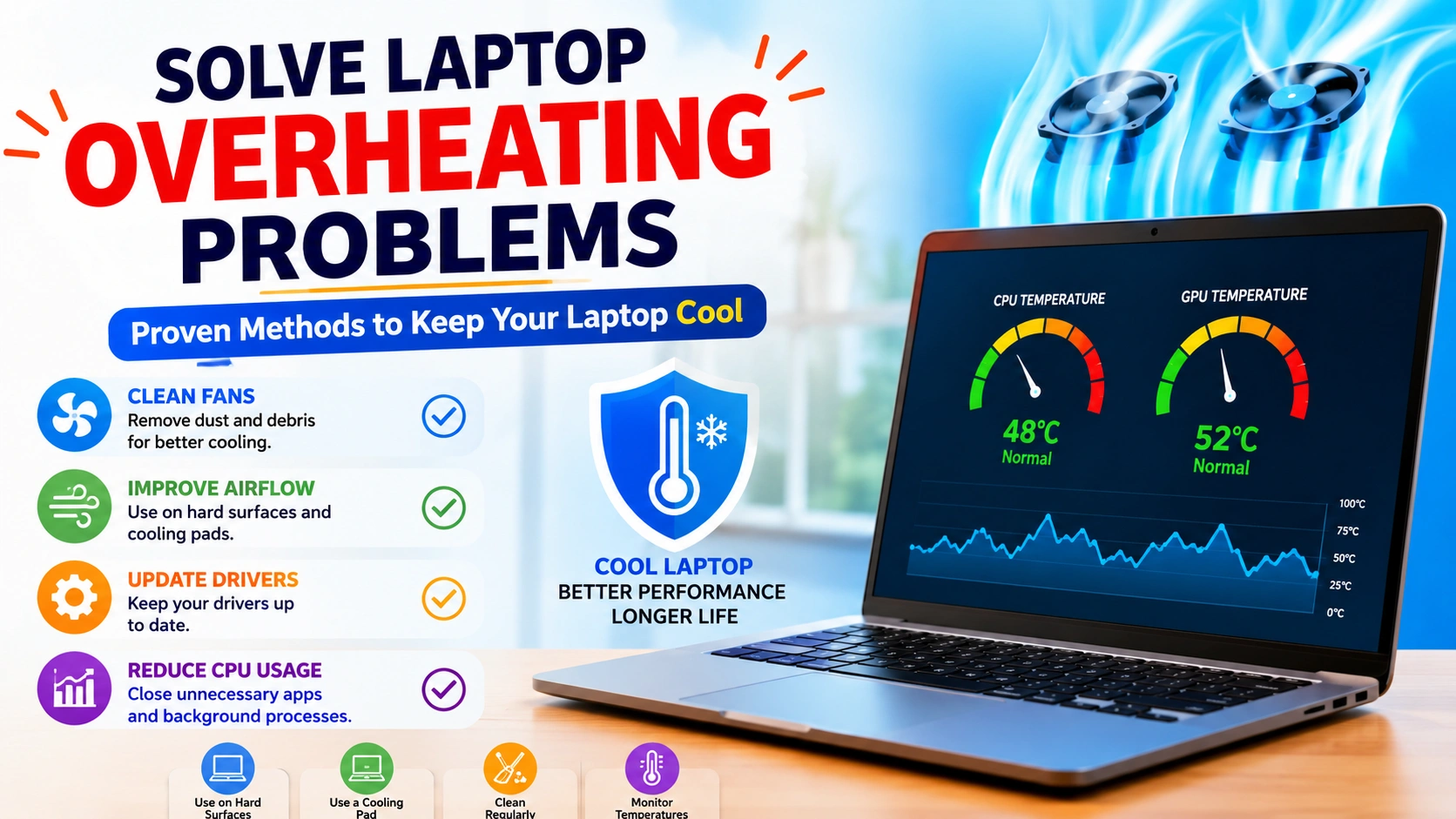
Laptop overheating is one of the most common issues affecting performance, battery life, and hardware reliability. When temperatures rise too high, your laptop may slow down, freeze, unexpectedly shut down, or even suffer permanent component damage.
Fortunately, most overheating problems can be fixed without replacing the entire device. This guide explains how to identify the causes of excessive heat and provides practical solutions to keep your laptop running at safe temperatures.
Common Signs of Laptop Overheating
Before attempting any fixes, it’s important to recognize the warning signs of an overheating laptop. Excessive heat can affect performance, reduce hardware lifespan, and lead to unexpected system failures.
Watch for these common symptoms:
- Cooling fans running loudly or continuously, even during light tasks.
- The laptop feels unusually hot around the keyboard, bottom panel, or air vents.
- System performance becomes noticeably slower due to thermal throttling.
- Applications freeze, crash, or stop responding unexpectedly.
- Random restarts or sudden shutdowns without warning.
- Battery life decreases faster than normal.
- The screen freezes or becomes unresponsive during gaming, video editing, or other demanding activities.
- Reduced performance when multitasking or running resource-intensive programs.
If your laptop regularly displays several of these warning signs, overheating is a likely cause. Identifying the problem early can help prevent hardware damage and restore normal system performance before the issue becomes more serious.
Why Laptops Overheat
Laptop overheating can occur for many reasons, ranging from simple dust accumulation to hardware wear and software-related issues. Identifying the underlying cause is the first step toward finding an effective solution and preventing future temperature problems.
Some of the most common causes of laptop overheating include:
- Dust and debris blocking cooling vents, restricting airflow inside the system.
- Dirty, damaged, or failing cooling fans that cannot efficiently remove heat.
- Excessive CPU or GPU usage caused by demanding applications, gaming, or multitasking.
- Poor ventilation from using the laptop on soft surfaces such as beds, couches, or blankets.
- Running resource-intensive software for extended periods without allowing the system to cool down.
- Outdated drivers or BIOS firmware that may affect power management and thermal performance.
- Malware or unwanted background processes consuming system resources and generating unnecessary heat.
- Aging or dried thermal paste that reduces heat transfer between the processor and the cooling system.
In many cases, overheating is caused by a combination of these factors rather than a single issue. Understanding the root cause makes troubleshooting easier and helps you apply the most effective fix to restore safe operating temperatures and maintain optimal performance.
Method 1: Clean Air Vents and Cooling Fans
Dust buildup is one of the most common causes of laptop overheating. Over time, dust accumulates inside air vents and around cooling fans, restricting airflow and preventing heat from escaping efficiently. As a result, internal temperatures rise, causing reduced performance, louder fan noise, and potential hardware stress.
Regular cleaning helps maintain proper airflow and allows the cooling system to operate more effectively.
Steps to Clean Air Vents and Cooling Fans
- Shut down your laptop completely and wait for it to cool down.
- Disconnect the power adapter and any connected peripherals.
- Remove the battery if your laptop model allows it.
- Locate the air intake and exhaust vents on the sides, rear, or bottom of the device.
- Use a can of compressed air to blow dust out of the vents using short bursts.
- Carefully clean both intake and exhaust openings without inserting objects into the vents.
- If accessible, gently clean visible fan blades to remove accumulated dust.
- Reassemble the laptop if necessary and power it back on.
- Monitor temperatures and fan behavior to verify cooling performance has improved.
Additional Tips
- Perform this maintenance every three to six months, depending on your environment.
- Clean more frequently if you have pets or use the laptop in dusty areas.
- Hold the fan blades in place when using compressed air to prevent overspinning.
- Avoid using vacuum cleaners, which can generate static electricity and potentially damage internal components.
Regular cleaning of air vents and cooling fans improves airflow, enhances cooling efficiency, reduces fan noise, and helps prevent overheating-related performance issues. Consistent maintenance can significantly extend the lifespan of your laptop’s internal hardware.
Method 2: Place the Laptop on a Hard Surface
The surface you place your laptop on can have a significant impact on its operating temperature. Many laptops draw cool air through vents located on the bottom or sides of the device. When these vents become blocked, airflow is restricted, causing heat to build up inside the system.
Soft surfaces can easily obstruct ventilation openings and reduce the effectiveness of the cooling system.
Avoid Using Your Laptop On
The following surfaces can block airflow and contribute to overheating:
- Beds
- Pillows
- Blankets
- Sofas
- Cushions
- Carpets
- Upholstered furniture
These materials can cover air intake vents, trap heat, and prevent proper cooling.
Use These Surfaces Instead
For optimal airflow and cooling performance, place your laptop on:
- A desk
- A table
- A laptop stand
- A cooling pad
- Any flat, hard, and stable surface
These surfaces allow air to circulate freely around the laptop and help the cooling system work more efficiently.
Why This Helps
When airflow is unrestricted:
- Internal temperatures remain lower.
- Cooling fans operate more effectively.
- Thermal throttling is reduced.
- Performance remains more stable during heavy workloads.
- Hardware components experience less heat-related stress.
Additional Tip
If you frequently use your laptop for gaming, video editing, programming, or other demanding tasks, consider using a laptop stand or cooling pad. Elevating the device improves ventilation underneath the chassis and can significantly reduce operating temperatures.
Simply placing your laptop on a hard surface is one of the easiest and most effective ways to prevent overheating and maintain long-term system performance.
Method 3: Check CPU Usage
A hidden background process or resource-intensive application can cause your laptop’s processor to work harder than necessary, generating excessive heat. Monitoring CPU usage can help identify programs that are consuming abnormal amounts of system resources and contributing to overheating.
Steps
- Press Ctrl + Shift + Esc to open Task Manager.
- Select the Processes tab.
- Click the CPU column to sort processes by CPU usage.
- Review the list and identify applications consuming unusually high resources.
- Close unnecessary programs that are not currently needed.
- Monitor CPU usage to see if temperatures improve.
Why This Works
Reducing CPU workload decreases power consumption and heat production. In many cases, closing a problematic application or background process can lower laptop temperatures almost immediately and improve overall system responsiveness.
Method 4: Close Unnecessary Startup Programs
Many applications are configured to launch automatically when Windows starts. While convenient, too many startup programs can increase CPU and memory usage, causing your laptop to generate more heat even when idle.
Steps
- Open Task Manager.
- Click the Startup Apps tab.
- Review the list of startup programs.
- Identify applications that are not essential.
- Right-click unnecessary items and select Disable.
- Restart your laptop to apply the changes.
Benefits
Disabling unnecessary startup applications can:
- Reduce background activity
- Improve boot times
- Lower CPU and memory usage
- Decrease heat generation
- Extend battery life
A lighter startup environment helps your laptop run cooler and more efficiently.
Method 5: Update Graphics Drivers
Outdated or corrupted graphics drivers can cause inefficient GPU performance, excessive resource usage, and increased heat output. Keeping drivers updated ensures optimal communication between the operating system and hardware.
Steps
- Press Windows + X.
- Select Device Manager.
- Expand Display Adapters.
- Right-click your graphics device.
- Choose Update Driver.
- Follow the on-screen instructions to install available updates.
Why Driver Updates Matter
Updated graphics drivers often include:
- Performance optimizations
- Improved power management
- Bug fixes
- Better thermal control
- Enhanced system stability
Regular updates can help reduce unnecessary GPU workload and improve cooling efficiency.
Method 6: Adjust Windows Power Settings
Power settings directly affect processor performance and energy consumption. Running in maximum performance mode can increase temperatures significantly, especially during intensive workloads.
Steps
- Open Control Panel.
- Select Power Options.
- Choose the Balanced power plan.
- Click Change Plan Settings.
- Select Change Advanced Power Settings.
- Expand Processor Power Management.
- Reduce the Maximum Processor State to 95–99%.
- Save the changes.
Benefits
Lowering the maximum processor state can:
- Reduce CPU temperatures
- Minimize fan noise
- Lower power consumption
- Improve battery efficiency
- Prevent thermal throttling
Most users notice little to no performance difference during everyday tasks.
Method 7: Scan for Malware
Malware and unwanted software can run continuously in the background, consuming CPU resources and generating unnecessary heat. Regular security scans help identify and remove these threats.
Steps
- Open Windows Security.
- Select Virus & Threat Protection.
- Click Scan Options.
- Choose Full Scan.
- Start the scan process.
- Remove or quarantine any detected threats.
Why It Helps
A malware-free system typically experiences:
- Lower CPU usage
- Improved performance
- Reduced background activity
- Better battery life
- Lower operating temperatures
Routine scans are an important part of laptop maintenance.
Method 8: Use a Laptop Cooling Pad
A cooling pad provides additional airflow underneath your laptop, helping dissipate heat more effectively. These accessories are especially useful for gaming laptops and systems that regularly handle demanding workloads.
Benefits of a Cooling Pad
- Lower operating temperatures
- Improved airflow beneath the laptop
- Better gaming and multitasking performance
- Reduced cooling fan strain
- Less thermal throttling
- Extended hardware lifespan
When to Use One
Cooling pads are particularly beneficial during:
- Gaming sessions
- Video editing
- 3D rendering
- Software development
- Long work sessions
Additional airflow can make a noticeable difference in overall cooling performance.
Method 9: Update BIOS and Firmware
Laptop manufacturers frequently release BIOS and firmware updates that improve thermal management, fan control, and power efficiency.
Steps
- Visit your laptop manufacturer’s support website.
- Locate your exact laptop model.
- Download the latest BIOS or firmware update.
- Follow the official installation instructions carefully.
- Restart the laptop after the update is complete.
Important Note
Always keep the laptop connected to a power source during BIOS updates. Interrupting the process can cause serious system issues.
Benefits
Updated firmware can provide:
- Improved thermal management
- Better fan behavior
- Enhanced hardware compatibility
- Increased system stability
- More efficient power usage
Method 10: Replace Thermal Paste
Thermal paste is a heat-conductive material placed between the processor and the cooling system. Over time, it can dry out and lose effectiveness, causing temperatures to rise.
Components That Use Thermal Paste
- CPU (Central Processing Unit)
- GPU (Graphics Processing Unit)
Signs Thermal Paste May Need Replacement
- Persistent overheating despite cleaning
- Higher temperatures than normal
- Frequent thermal throttling
- Sudden temperature spikes under load
Important Considerations
Replacing thermal paste requires partial or complete laptop disassembly. If you are unfamiliar with laptop hardware, consider seeking assistance from a qualified technician.
Fresh thermal paste can significantly improve heat transfer and cooling performance, particularly on older laptops.
Method 11: Reduce Gaming and High-Performance Workloads
Intensive tasks place heavy demands on the CPU and GPU, naturally generating more heat. Adjusting performance settings can help keep temperatures under control.
Ways to Reduce Heat During Heavy Workloads
- Lower in-game graphics settings
- Reduce screen resolution when appropriate
- Limit frame rates
- Close unnecessary background applications
- Use hardware monitoring tools
- Take breaks during long gaming or rendering sessions
Benefits
These adjustments can:
- Lower system temperatures
- Reduce thermal throttling
- Improve stability
- Decrease fan noise
- Extend component lifespan
Managing workload intensity is one of the most effective ways to control heat generation.
Method 12: Monitor Laptop Temperatures
Monitoring temperatures regularly helps detect cooling issues before they become serious problems. Many free utilities can display real-time CPU and GPU temperatures.
Typical Safe Temperature Ranges
| Component | Normal Range |
|---|---|
| CPU Idle | 35°C–55°C |
| CPU Under Load | 70°C–85°C |
| GPU Idle | 35°C–55°C |
| GPU Under Load | 65°C–85°C |
When to Be Concerned
Temperatures consistently exceeding 90°C on either the CPU or GPU often indicate a cooling issue that requires attention. Excessive heat can lead to thermal throttling, reduced performance, unexpected shutdowns, and long-term hardware wear.
By monitoring temperatures regularly, you can identify problems early and take corrective action before overheating causes serious damage.
Tips to Prevent Laptop Overheating
Preventing overheating is much easier than dealing with performance issues or hardware damage later. By following a few simple maintenance habits, you can keep your laptop running cooler and more efficiently.
Here are some recommended best practices:
- Clean air vents and cooling fans every few months to remove dust buildup.
- Keep Windows, drivers, and BIOS firmware updated to ensure optimal thermal management.
- Always place your laptop on a hard, flat surface that allows proper airflow.
- Avoid blocking ventilation openings with blankets, pillows, or other soft materials.
- Perform regular malware scans to prevent unwanted background processes from overloading the CPU.
- Shut down or restart your laptop occasionally instead of leaving it running continuously for long periods.
- Use a cooling pad when gaming, editing videos, or performing other resource-intensive tasks.
- Monitor CPU and GPU temperatures regularly to detect potential cooling issues early.
Consistent preventive maintenance not only helps avoid overheating problems but also improves system performance, extends hardware lifespan, and reduces the risk of unexpected shutdowns. A few minutes of routine care can save you from costly repairs and performance-related frustrations in the future.
Conclusion
Understanding how to solve an overheating laptop problem is essential for maintaining optimal performance, protecting internal components, and preventing unexpected system shutdowns. Excessive heat can slow down your laptop, reduce battery life, and shorten the lifespan of critical hardware if left unaddressed.
Fortunately, most overheating issues can be resolved through simple maintenance and system optimization. Cleaning dust from air vents, improving airflow, reducing unnecessary CPU usage, updating drivers, and adjusting power settings are often enough to restore safe operating temperatures. Regular monitoring and preventive maintenance can also help identify potential cooling problems before they become serious.
For laptops that continue to overheat despite basic troubleshooting, more advanced solutions such as replacing thermal paste, servicing the cooling system, or upgrading cooling accessories may be required. Addressing overheating early can prevent costly repairs and ensure your device remains reliable over the long term.
By following the methods outlined in this guide, you can keep your laptop running cooler, quieter, and more efficiently, helping it deliver stable performance for years to come.


