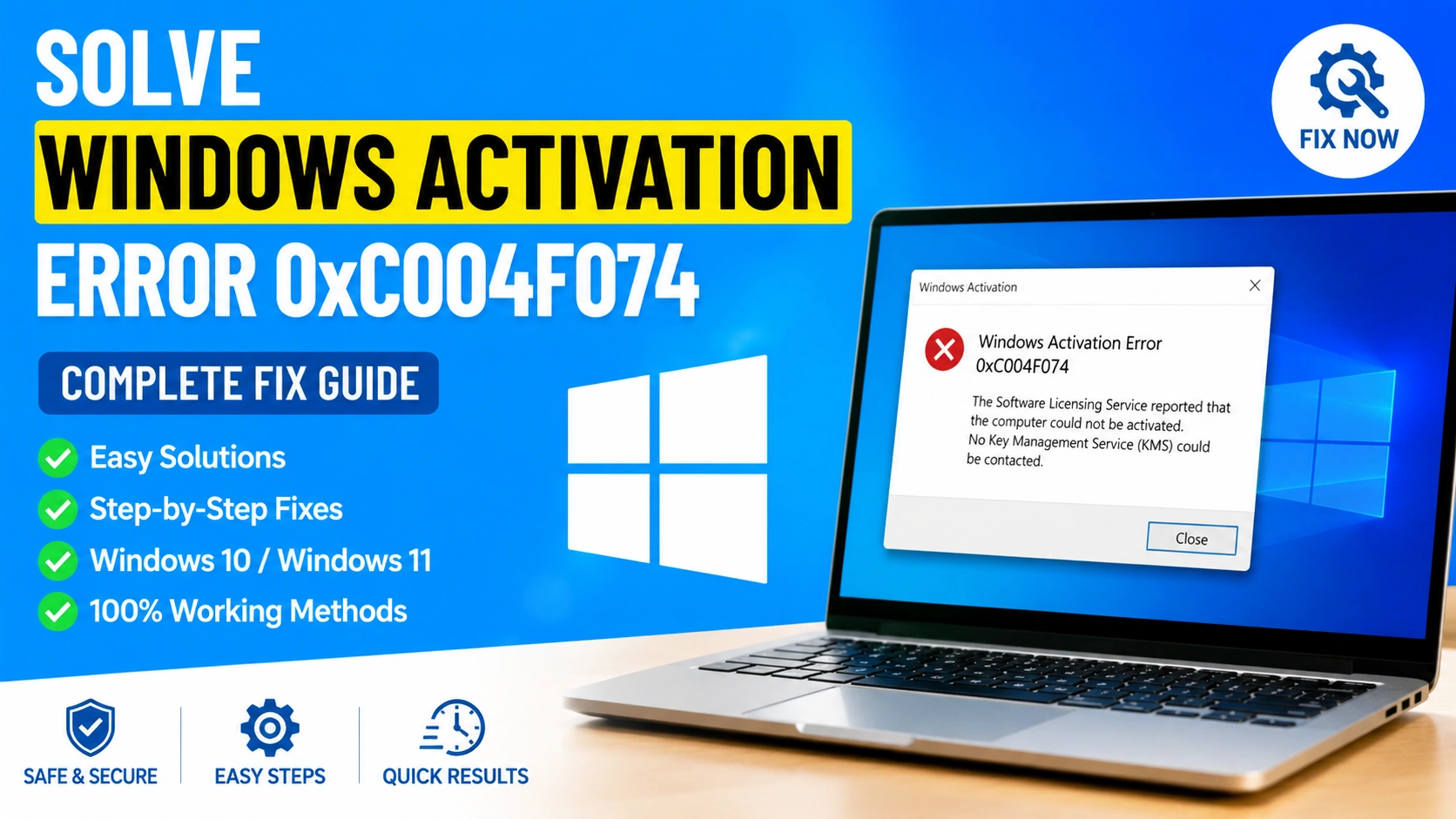
Windows activation problems can prevent users from accessing all operating system features. One of the most common activation issues is Windows Activation Error 0xC004F074. This error usually appears when Windows cannot communicate properly with the Key Management Service (KMS) server during activation.
If you are looking to solve Windows Activation Error 0xC004F074, this guide provides several effective solutions that work for both Windows 10 and Windows 11.
What Is Windows Activation Error 0xC004F074?
Windows Activation Error 0xC004F074 indicates that the activation service could not connect to a valid KMS host. The error commonly appears with messages such as:
“The Software Licensing Service reported that the computer could not be activated. No Key Management Service (KMS) could be contacted.”
This problem often occurs in business environments using volume licensing but may also affect individual users.
Common Causes of Windows Activation Error 0xC004F074
Before attempting repairs, it helps to understand what triggers the issue.
Incorrect System Date and Time
Windows activation relies on accurate system time settings.
KMS Server Communication Failure
The client device cannot reach the activation server.
Corrupted System Files
Damaged Windows files may interrupt activation services.
Outdated Windows Version
Older Windows builds can create compatibility issues with activation.
DNS Configuration Problems
Incorrect DNS settings may prevent communication with Microsoft or KMS servers.
How to Solve Windows Activation Error 0xC004F074
Follow the solutions below in order until the activation issue is resolved.
Method 1: Verify Date and Time Settings
Incorrect date and time values frequently cause activation failures.
- Open Settings.
- Select Time & Language.
- Click Date & Time.
- Enable:
- Set time automatically
- Set time zone automatically
- Restart your computer.
After rebooting, attempt Windows activation again.
Method 2: Run the Windows Activation Troubleshooter
Windows includes a built-in activation diagnostic tool.
- Open Settings.
- Navigate to System > Activation.
- Click Troubleshoot.
- Follow the on-screen instructions.
The troubleshooter can automatically detect and repair common activation issues.
Method 3: Force Windows Activation Using Command Prompt
You can manually trigger activation using administrative commands.
- Open Command Prompt as Administrator.
- Enter:
slmgr.vbs /ato
- Press Enter.
- Wait for the activation process to complete.
If successful, Windows should display an activation confirmation message.
Method 4: Reinstall the Product Key
A corrupted activation configuration can sometimes be repaired by reinstalling the key.
Open Command Prompt as Administrator and run:
slmgr.vbs /upk
Then install the product key again:
slmgr.vbs /ipk XXXXX-XXXXX-XXXXX-XXXXX-XXXXX
Replace the X characters with your valid Windows license key.
Finally activate Windows:
slmgr.vbs /ato
Method 5: Repair Corrupted System Files
System file corruption may interfere with activation services.
Open Command Prompt as Administrator and execute:
sfc /scannow
Allow the scan to finish.
Next run:
DISM /Online /Cleanup-Image /RestoreHealth
Restart the computer after both scans complete.
Method 6: Check KMS Configuration
For corporate environments using KMS activation:
- Open Command Prompt as Administrator.
- Run:
slmgr.vbs /dlv
- Verify KMS host details.
- Confirm that the KMS server is online and reachable.
Network administrators may need to update KMS host records if configuration problems exist.
Method 7: Update Windows
Installing the latest updates can resolve activation-related bugs.
- Open Settings.
- Select Windows Update.
- Click Check for updates.
- Install all available updates.
- Restart the system.
Method 8: Reset DNS Settings
DNS problems can block activation communication.
Open Command Prompt as Administrator and run:
ipconfig /flushdns
Then:
ipconfig /registerdns
Restart the computer and retry activation.
How to Verify Activation Status
After applying the fixes, verify whether Windows is activated.
- Open Command Prompt.
- Run:
slmgr.vbs /xpr
A message should indicate whether Windows is permanently activated.
Preventing Windows Activation Error 0xC004F074
To avoid future activation issues:
- Keep Windows updated.
- Use genuine Microsoft licenses.
- Maintain correct system date and time.
- Avoid unauthorized activation tools.
- Regularly check network connectivity in KMS environments.
- Repair system file corruption promptly.
Frequently Asked Questions
What causes Windows Activation Error 0xC004F074?
The error typically occurs when Windows cannot communicate with a valid KMS activation server or when activation components become corrupted.
Does Error 0xC004F074 affect Windows 11?
Yes. The error can occur on both Windows 10 and Windows 11 systems.
Can corrupted system files cause activation failure?
Yes. Damaged Windows system files can interrupt activation services and generate Error 0xC004F074.
Is running SFC and DISM safe?
Yes. Both tools are official Microsoft utilities used to repair Windows system files.
Can updating Windows fix activation errors?
In many cases, installing the latest updates resolves activation bugs and compatibility problems.
Conclusion
Learning how to solve Windows Activation Error 0xC004F074 can save significant time and frustration when Windows fails to activate properly. The issue is commonly related to KMS communication failures, incorrect time settings, damaged system files, or outdated Windows components.
By following the troubleshooting methods outlined above—including running the Activation Troubleshooter, repairing system files, resetting DNS settings, updating Windows, and verifying activation configuration—you can successfully restore activation functionality and ensure your Windows installation remains properly licensed and fully operational.


