

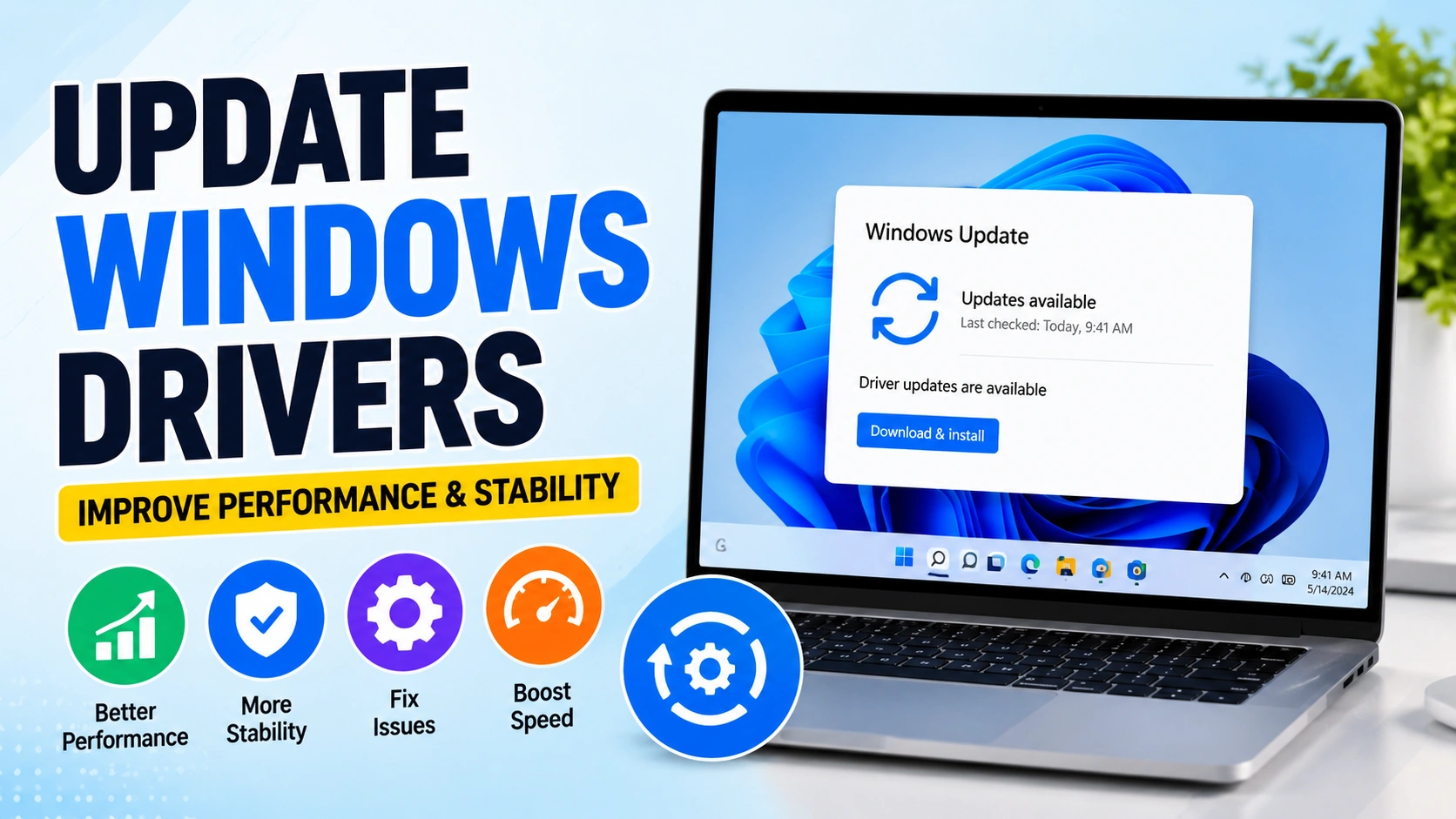
Keeping your device drivers up to date is one of the most effective ways to maintain a stable and fast Windows computer. Drivers act as the bridge between Windows and your hardware components, including graphics cards, network adapters, printers, sound devices, and storage controllers.
When you Update Windows Drivers, you can improve system stability, fix compatibility issues, enhance security, and unlock better hardware performance. Outdated or corrupted drivers can also cause applications to crash, freeze, or fail to launch properly. If you’re experiencing these symptoms, you may also want to check our guide on Software Not Opening on Windows to troubleshoot related software issues.
This guide explains seven proven methods to safely update drivers in Windows 11 and Windows 10, helping you keep your hardware running efficiently and your system performing at its best.
Why You Should Update Windows Drivers
Drivers receive regular updates from hardware manufacturers to:
- Improve device performance
- Fix bugs and compatibility issues
- Enhance hardware stability
- Increase gaming performance
- Improve security protections
- Support new Windows features
Outdated drivers may cause system crashes, hardware malfunctions, slow performance, or device recognition problems.
Method 1: Update Windows Drivers Using Windows Update
The easiest way to Update Windows Drivers is through Windows Update. Microsoft regularly delivers certified driver updates that improve compatibility, security, and overall system performance.
Steps:
- Press Windows + I
- Open Settings
- Select Windows Update
- Click Check for Updates
- Install any available driver updates
- Restart your PC
Windows Update often provides verified drivers for common hardware devices such as graphics cards, printers, network adapters, audio devices, and storage controllers.
If Windows Update fails to install driver updates or you encounter setup-related errors during the process, you may find it helpful to read our guide on How to Fix Windows Installation Failed, which covers common update and installation problems in Windows 11 and Windows 10.
Method 2: Update Windows Drivers Through Device Manager
Device Manager allows you to manually search for newer drivers.
Steps:
- Right-click the Start Menu
- Select Device Manager
- Expand the hardware category
- Right-click the device
- Select Update Driver
- Choose Search automatically for drivers
Windows will search Microsoft’s driver database and install available updates.
Method 3: Download Drivers from Manufacturer Websites
Another reliable way to Update Windows Drivers is by downloading them directly from the hardware manufacturer’s website. Many vendors release new driver versions before they become available through Windows Update, making this method ideal for users who want the latest performance improvements and bug fixes.
Popular hardware manufacturers include:
- NVIDIA
- AMD
- Intel
- Realtek
- ASUS
- MSI
- Gigabyte
- HP
- Dell
- Lenovo
To update a driver manually:
- Visit the official support website of your device manufacturer.
- Search for your specific hardware model.
- Download the latest driver compatible with your version of Windows.
- Run the installer and follow the on-screen instructions.
- Restart your computer after installation.
This method is particularly useful for graphics cards, network adapters, chipset drivers, and other hardware that receives frequent updates.
For additional information about how Windows manages driver updates and device compatibility, refer to the Microsoft Driver Update Documentation, which provides official guidance on driver deployment, maintenance, and update policies.
Method 4: Update Graphics Drivers
Graphics drivers receive frequent performance improvements.
NVIDIA
- Open GeForce Experience
- Navigate to Drivers
- Click Check for Updates
- Install the latest version
AMD
- Open AMD Software Adrenalin Edition
- Check for updates
- Install available releases
Intel
Use Intel Driver & Support Assistant to automatically detect updates.
Updating graphics drivers can improve gaming performance and fix display issues.
Method 5: Use Optional Driver Updates
Windows often hides additional drivers under Optional Updates.
Steps:
- Open Settings
- Go to Windows Update
- Select Advanced Options
- Open Optional Updates
- Review Driver Updates
- Install required drivers
This method helps locate drivers that are not installed automatically.
Method 6: Update Windows Drivers Using Manufacturer Utilities
Many PC brands include automatic update software.
Examples include:
- Dell SupportAssist
- Lenovo Vantage
- HP Support Assistant
- ASUS DriverHub
These tools scan your system and install recommended drivers automatically.
Method 7: Reinstall Corrupted Drivers
Sometimes updating is not enough. A damaged driver may require reinstallation.
Steps:
- Open Device Manager
- Right-click the affected device
- Select Uninstall Device
- Restart the computer
- Windows will reinstall the driver automatically
This method often resolves persistent hardware issues.
How to Check Driver Versions
To verify that you successfully Update Windows Drivers:
- Open Device Manager
- Right-click a device
- Select Properties
- Open the Driver tab
- Review:
- Driver Version
- Driver Date
- Driver Provider
Comparing these details with the manufacturer’s website can confirm whether you have the latest version.
Common Driver Update Problems
Even when you successfully Update Windows Drivers, some issues may still occur. Below are the most common problems and their solutions.
Driver Installation Fails
If Windows cannot install a driver update, try the following fixes:
- Run Windows Update again
- Restart your computer
- Download the latest driver directly from the manufacturer’s website
- Temporarily disable your antivirus software
- Ensure you have an active internet connection
These steps resolve most installation-related errors and driver conflicts.
Device Stops Working After Update
Occasionally, a new driver version may cause compatibility issues with your hardware.
Try these steps to roll back the driver:
- Open Device Manager
- Right-click the affected device
- Select Properties
- Open the Driver tab
- Click Roll Back Driver
- Restart your computer
Windows will restore the previous driver version that was working correctly.
Missing Driver
If Windows cannot locate a suitable driver, visit the device manufacturer’s official support page and download the correct driver package manually.
In some cases, driver issues may be caused by damaged Windows components rather than the driver itself. If problems continue after updating or reinstalling drivers, consider following a guide to Repair Corrupted System Files Windows 11, as corrupted system files can prevent hardware from functioning properly.
Best Practices When You Update Windows Drivers
Follow these recommendations:
- Create a restore point before major updates
- Download drivers only from official sources
- Avoid unknown driver updater software
- Keep Windows fully updated
- Update critical hardware first
- Back up important data regularly
These practices reduce the risk of installation problems.
Frequently Asked Questions
Should I Update Windows Drivers Regularly?
Yes. Critical drivers such as graphics, network, chipset, and storage drivers should be checked periodically.
Can Driver Updates Improve Performance?
Yes. Many updates include performance optimizations, bug fixes, and stability improvements.
Is Windows Update Enough?
For most users, yes. However, gamers and professionals may benefit from downloading the latest drivers directly from manufacturers.
Can Driver Updates Cause Problems?
Occasionally. Creating a restore point before updates allows you to recover quickly if issues occur.
Final Thoughts
Learning how to Update Windows Drivers is an important part of maintaining a healthy Windows PC. Updated drivers improve performance, increase system stability, fix hardware problems, and enhance security.
For best results, combine Windows Update, Device Manager, and official manufacturer downloads to keep your computer running efficiently and reliably. Regular driver maintenance can prevent many common Windows issues before they affect your productivity.