

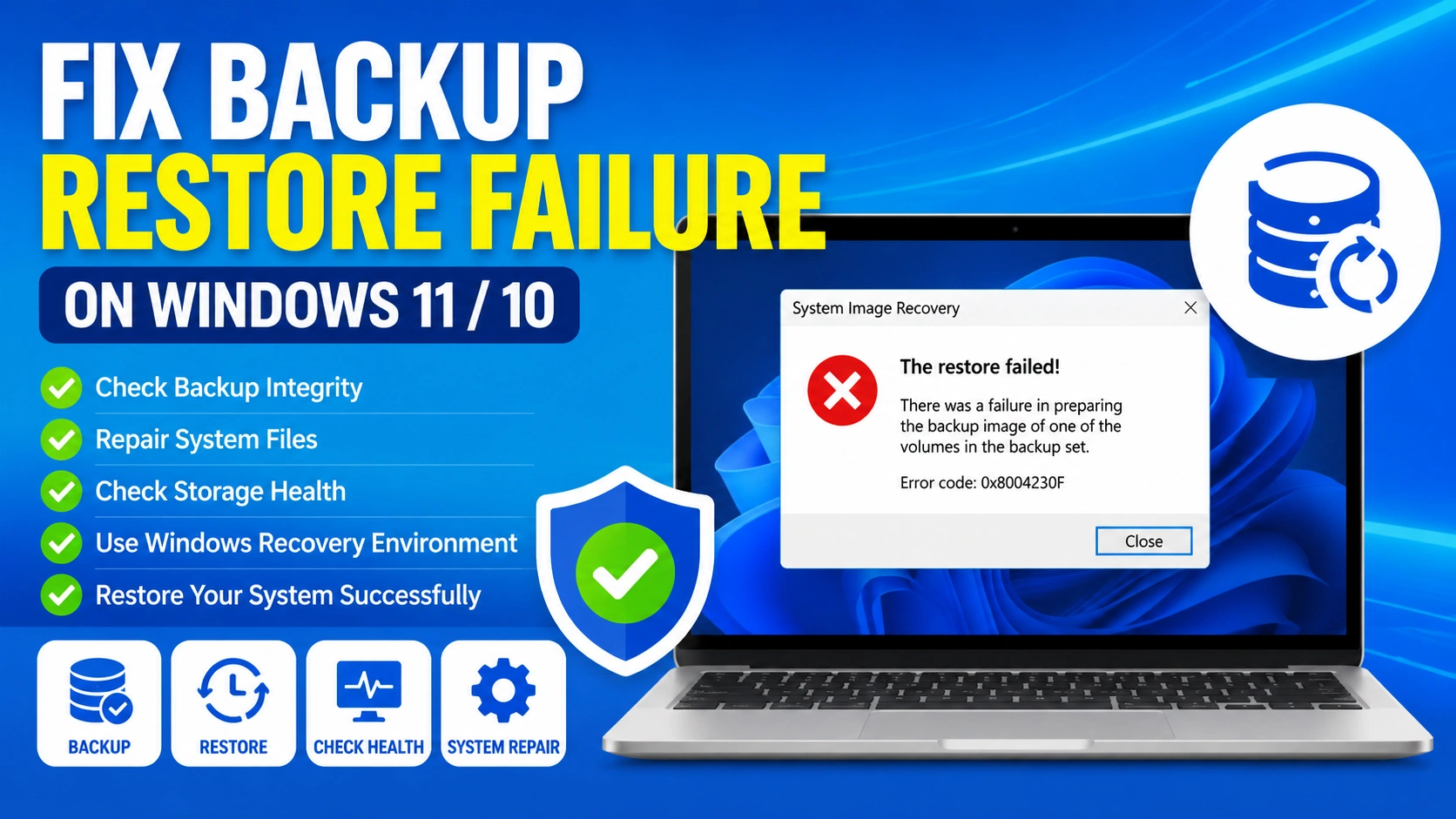
Experiencing a backup restore error can be frustrating, especially when you need to recover important files or restore your system after a problem. If you’re trying to Fix Backup Restore Failure, several factors could be preventing the restoration process from completing successfully.
Backup restore failures may occur because of corrupted backup files, damaged system files, insufficient storage space, disk errors, incompatible backup versions, or software conflicts. Fortunately, most backup restoration problems can be resolved without reinstalling Windows.
For more recovery solutions, visit our guide on Data Recovery to explore related troubleshooting methods and data restoration tips.
This guide explains nine proven methods to Fix Backup Restore Failure on Windows 11 and Windows 10.
Why Backup Restore Failures Happen
Understanding why you need to Fix Backup Restore Failure is important before applying any solutions. Backup restore errors usually occur due to system corruption, storage issues, or software conflicts.
Before applying solutions, it helps to understand common causes:
- Corrupted backup image files
- Damaged Windows system files
- Faulty storage devices
- Insufficient disk space
- Interrupted backup creation process
- Permission issues
- Incompatible backup versions
- Bad sectors on hard drives
- Third-party security software interference
Identifying the root cause can significantly speed up troubleshooting and help you effectively Fix Backup Restore Failure without unnecessary steps.
For related recovery situations such as file loss or accidental overwrite, you can also learn more in our Recover Overwritten Files guide, which explains how to restore lost or replaced data safely.
Fix 1: Verify Backup File Integrity
A damaged backup image cannot be restored properly.
Steps:
- Locate the backup folder.
- Verify all backup files exist.
- Check file sizes for abnormalities.
- If available, use backup software verification tools.
- Create a new backup if corruption is detected.
Corrupted backup files are one of the most common reasons users need to Fix Backup Restore Failure issues.
Fix 2: Run Windows System File Checker
Corrupted Windows system files may prevent restoration.
Steps:
- Open Command Prompt as Administrator.
- Run:
sfc /scannow
- Wait for the scan to finish.
- Restart your computer.
The System File Checker repairs damaged Windows components that may interfere with backup restoration.
For additional Windows repair techniques, see our guide on Repair Corrupted System Files Windows 11.
Fix 3: Use DISM to Repair Windows Images
If SFC cannot fix everything, use DISM.
Steps:
- Open Command Prompt as Administrator.
- Run:
DISM /Online /Cleanup-Image /RestoreHealth
- Wait for completion.
- Restart Windows.
DISM repairs the Windows image itself, often resolving persistent restore errors.
Fix 4: Check Available Disk Space
Backup restoration requires sufficient free storage.
Steps:
- Open File Explorer.
- Select This PC.
- Check free space on the target drive.
- Remove unnecessary files if storage is low.
A restore operation may fail if Windows cannot write restored files to the destination drive.
Fix 5: Scan the Drive for Disk Errors
Storage errors can interrupt restoration.
Steps:
- Open Command Prompt as Administrator.
- Run:
chkdsk C: /f /r
- Press Y if prompted.
- Restart the PC.
CHKDSK scans and repairs file system issues and bad sectors that can contribute to backup failures.
Fix 6: Disable Antivirus Temporarily
Security software may block restore operations.
Steps:
- Temporarily disable antivirus protection.
- Attempt the restoration again.
- Re-enable protection after testing.
Only disable antivirus briefly while troubleshooting.
Microsoft provides backup and recovery documentation here: https://support.microsoft.com/windows
Fix 7: Restore from Windows Recovery Environment
When you need to Fix Backup Restore Failure, the Windows Recovery Environment (WinRE) is often one of the most effective solutions. It can successfully restore your system even when standard recovery methods fail due to software conflicts or system corruption.
Windows Recovery Environment often succeeds when normal restoration fails.
Steps:
- Open Settings
- Go to System > Recovery
- Select Advanced Startup
- Click Restart Now
- Choose Troubleshoot
- Select Advanced Options
- Open System Image Recovery
This method bypasses many software conflicts that may prevent successful restoration and helps you effectively Fix Backup Restore Failure.
For related data loss situations, such as accidental deletion or missing files, you can also check our guide on Recover Permanently Deleted Files, which explains advanced recovery techniques to restore important data safely.
Fix 8: Create a New Backup Image
Sometimes the original backup cannot be repaired.
Steps:
- Connect a reliable storage device.
- Create a fresh system backup.
- Verify backup completion.
- Test restoration functionality.
Using verified backups reduces future restore failures significantly.
You may also want to review our guide on Update Windows Drivers because outdated drivers can affect storage device communication.
Fix 9: Perform a Repair Install
If all restoration methods fail, a repair install may resolve underlying Windows issues.
Steps:
- Download the latest Windows installation media.
- Launch Setup from within Windows.
- Select Keep Personal Files and Apps.
- Complete the installation.
A repair install refreshes Windows without deleting your files.
Additional Tips to Prevent Backup Restore Failure
To reduce the risk of needing to Fix Backup Restore Failure, it is important to follow consistent backup and system maintenance practices. These habits help ensure your backups remain reliable and restorable when needed.
Follow these best practices:
- Create backups regularly
- Store backups on reliable drives
- Verify backup integrity periodically
- Keep Windows updated
- Maintain sufficient free storage
- Avoid interrupting backup processes
- Replace aging hard drives proactively
Applying these habits consistently will significantly reduce backup errors and help prevent future situations where you need to Fix Backup Restore Failure.
Frequently Asked Questions
Why does backup restoration stop halfway?
This usually occurs because of corrupted backup files, storage errors, insufficient disk space, or hardware problems.
Can corrupted backup files be repaired?
Some backup applications offer repair tools, but severe corruption often requires creating a new backup.
Does Windows include backup repair tools?
Windows includes SFC, DISM, CHKDSK, and Recovery Environment tools that help resolve many restoration issues.
Will restoring a backup delete current files?
Depending on the restoration type, existing files may be overwritten. Always create a backup before restoring.
Final Thoughts
Learning how to Fix Backup Restore Failure can help you save valuable data and avoid unnecessary Windows reinstallation. Most restore issues can be resolved by following a structured troubleshooting approach instead of rushing to reset the system.
Start by verifying backup integrity, repairing system files with SFC and DISM, checking storage health, and using the Windows Recovery Environment. In most cases, one of these methods will successfully help you Fix Backup Restore Failure and restore your system to normal working condition.