

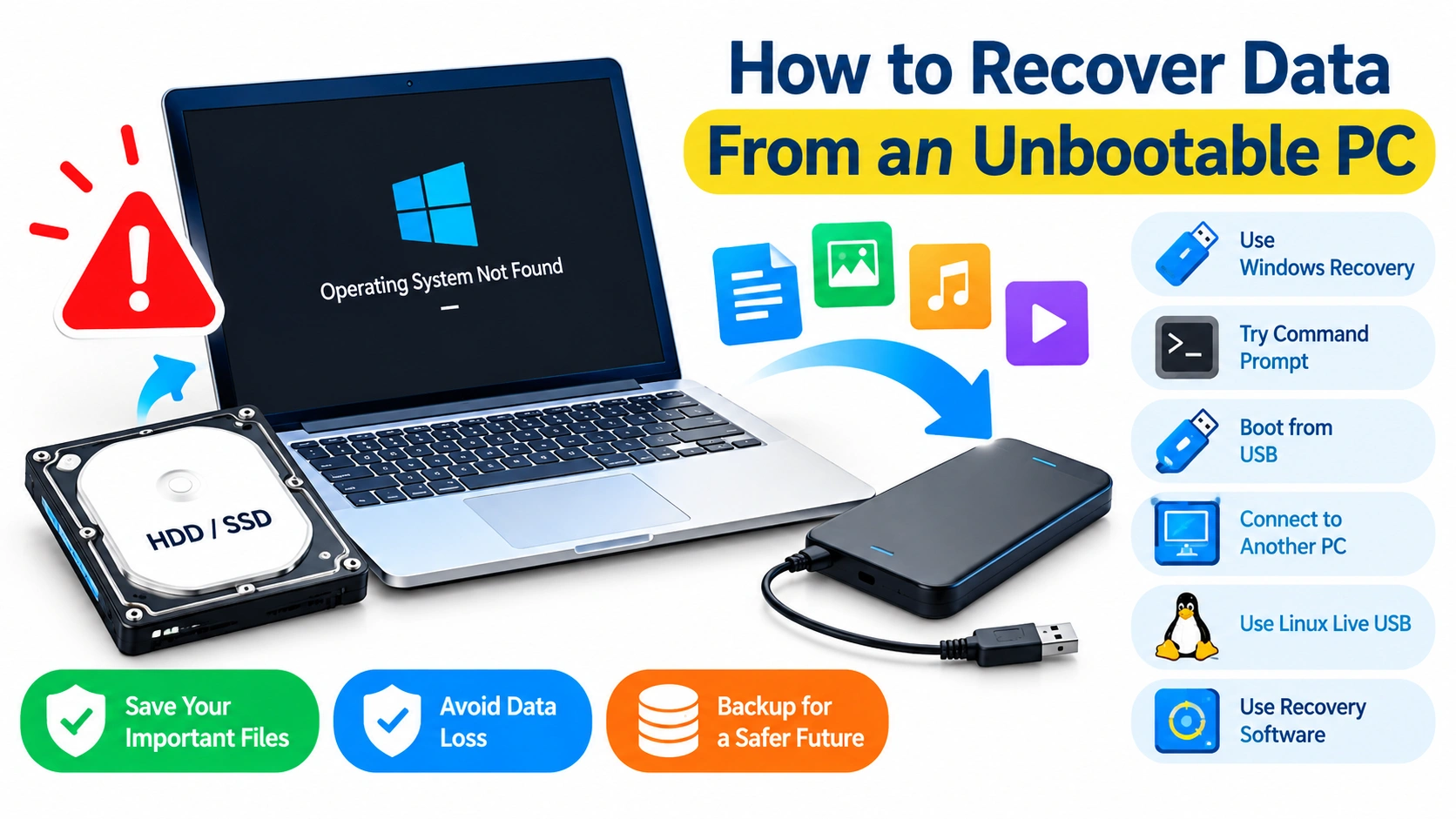
When a PC refuses to start, the problem can feel much worse if important documents, photos, videos, or work files are stored on its internal drive. Fortunately, an unbootable computer does not necessarily mean your data is lost. In many cases, the storage drive is still accessible even though Windows cannot load.
This guide explains practical ways to recover data from an unbootable PC while minimizing the risk of overwriting or damaging your files.
Why a PC Becomes Unbootable
Before attempting recovery, it helps to understand why Windows may stop booting. Common causes include:
- Corrupted Windows system files
- Failed or incomplete Windows updates
- Damaged boot configuration data
- Hard drive or SSD problems
- File-system corruption
- Malware infections
- Faulty drivers
- Damaged partitions
- Hardware failures
- Unexpected power loss
The important distinction is whether Windows is the problem or the storage device itself is failing. If the drive is healthy, recovering your files is usually much easier.
Stop Using the Drive if Data Is Important
If the computer contains valuable files, avoid repeatedly restarting it or installing Windows immediately.
Every write operation can potentially overwrite data that recovery software might otherwise be able to retrieve. This is especially important if files have already been deleted or the drive is showing signs of failure.
If you suspect a failing drive, prioritize copying or imaging the data before attempting repairs.
Method 1: Try Windows Recovery Environment
Windows includes a recovery environment that can provide access to troubleshooting tools.
To enter Windows Recovery Environment, you can:
- Turn on the PC.
- Allow Windows to begin loading.
- Interrupt the startup process by holding the power button to shut the computer down.
- Repeat this process a few times until Windows displays recovery options.
- Select Advanced options.
Depending on the problem, you may see tools such as:
- Startup Repair
- System Restore
- Command Prompt
- Uninstall Updates
- Startup Settings
If your primary goal is data recovery, Command Prompt can be particularly useful because it may allow you to access files without successfully booting into the Windows desktop.
Method 2: Copy Files Using Command Prompt
If Windows Recovery Environment can detect your internal drive, you may be able to copy important files to an external USB drive.
Connect a USB storage device and open Command Prompt from the recovery options.
Drive letters in the recovery environment may be different from normal Windows. Your Windows installation might appear as D: instead of C:.
You can check available drives with:
diskpart
list volume
exit
Look for the volume containing your Windows installation and personal files.
You can then use commands such as:
dir D:\Usersto check whether the expected user folders are available.
For example, important files might be located under:
D:\Users\YourName\Documents
D:\Users\YourName\Pictures
D:\Users\YourName\Desktop
D:\Users\YourName\Videos
To copy a folder to an external drive, you can use robocopy when available:
robocopy D:\Users\YourName\Documents E:\Backup\Documents /E /COPY:DATReplace D: with the Windows drive and E: with the external storage drive.
Method 3: Use a Windows Installation USB
If Windows Recovery Environment is unavailable, another option is to create a Windows installation USB using another working computer.
Boot the affected PC from the USB drive and select the recovery or repair options rather than immediately reinstalling Windows.
You can access Command Prompt through the Windows setup environment and attempt to copy your files to another storage device.
This approach is useful when the installed Windows environment is too damaged to start normally.
Important: Do not select options that format or delete partitions if your priority is recovering files.
Method 4: Connect the Drive to Another PC
One of the simplest recovery techniques is to remove the internal drive and connect it to another working computer.
For a desktop PC, this may involve connecting the drive internally using the appropriate SATA or NVMe interface. For a laptop, you may need a compatible USB-to-SATA adapter, NVMe enclosure, or external drive enclosure.
Once connected, the working computer may detect the affected drive as secondary storage.
You can then browse folders and copy important files to a separate storage device.
Be Careful With Permissions
Windows may prevent access to some folders because they belong to another user account.
If you encounter permission errors, you may need to take ownership of the folders or adjust their permissions from the working computer.
However, avoid changing permissions unnecessarily if the drive appears unstable. Your priority should be preserving the original data.
Method 5: Use a Linux Live USB
A Linux Live USB can be useful when Windows will not boot but the hardware and file system are still accessible.
You can create a bootable Linux USB on another computer and start the affected PC from it.
After Linux loads, you may be able to:
- Open the file manager.
- Locate the internal Windows drive.
- Open the user folders.
- Connect an external storage device.
- Copy important files to the external drive.
This method can sometimes bypass Windows-specific startup problems.
However, if the drive is encrypted with BitLocker or another encryption system, you will need the appropriate recovery credentials or key to access the protected data.
Method 6: Use Data Recovery Software
If normal file copying does not work, specialized data recovery software may help.
Recovery applications can scan a drive for accessible files, lost partitions, deleted files, or damaged file-system structures.
When using recovery software:
- Install it on another working computer whenever possible.
- Avoid installing recovery software onto the affected drive.
- Save recovered files to a different physical drive.
- Do not recover files back to the same source location.
- Scan only after determining that the drive is reasonably stable.
If the drive is physically failing, software scans can place additional stress on it. In that situation, creating a disk image or using professional recovery services may be safer.
Method 7: Create a Disk Image Before Recovery
If the storage device is unstable, consider creating a sector-by-sector image of the drive before performing extensive recovery operations.
The image should be stored on another drive with enough free space.
You can then work from the image instead of repeatedly accessing the original disk.
This is particularly useful when you notice symptoms such as:
- The drive frequently disconnects
- Extremely slow read speeds
- Clicking or unusual mechanical noises from a hard drive
- Frequent read errors
- The drive appears and disappears from the BIOS
- Files become inaccessible during copying
For a mechanically failing hard disk, minimize unnecessary operation and consider professional data recovery.
What If the Drive Is Not Detected?
If the BIOS or UEFI does not detect the storage drive at all, software-based recovery becomes more difficult.
First, check simple hardware possibilities:
- Power connections
- SATA cables
- USB adapters
- M.2 installation
- Drive seating
- Another compatible port
- BIOS/UEFI storage settings
For an external enclosure, try another cable or enclosure if available.
If the drive remains completely undetected and contains critical information, avoid repeatedly powering it on and off. A professional recovery service may be the safest option.
Recover Data From a BitLocker-Encrypted Drive
Modern Windows PCs may use BitLocker or device encryption to protect stored data.
If the drive is encrypted, having physical access to the drive does not automatically provide access to its contents.
You may need the BitLocker recovery key to unlock the volume.
Keep in mind that formatting the drive or reinstalling Windows will not solve an encryption problem and may make recovery more difficult.
If you cannot locate the recovery key and the data is important, avoid destructive recovery attempts.
Do Not Reinstall Windows Too Soon
Reinstalling Windows can solve an operating-system problem, but it should not be your first move when your files have not been backed up.
Before reinstalling:
- Recover important personal files.
- Verify that the copied files open correctly.
- Make another backup if possible.
- Confirm that you have any required application licenses or credentials.
- Only then consider repairing or reinstalling Windows.
A clean installation can alter partitions and overwrite information that might otherwise be recoverable.
When to Use Professional Data Recovery
Professional assistance is worth considering when:
- The drive makes unusual mechanical noises.
- The drive is not detected by multiple systems.
- The drive repeatedly disconnects.
- The file system is severely damaged.
- The drive contains irreplaceable information.
- Recovery software causes repeated read errors.
- The storage device has suffered physical damage.
Professional recovery laboratories can use specialized hardware and techniques that are not available through ordinary recovery software.
How to Prevent Data Loss in the Future
Recovering data from an unbootable PC is much easier when a recent backup exists.
Consider following the 3-2-1 backup strategy:
- Keep at least 3 copies of important data.
- Store them on at least 2 different types of storage.
- Keep at least 1 copy off-site or in the cloud.
You should also regularly check whether your backups can actually be restored. A backup that cannot be opened when needed provides little protection.
Final Thoughts
An unbootable PC does not automatically mean that your files are gone. If the storage drive is still healthy, you may be able to recover your data through Windows Recovery Environment, a bootable USB, another computer, Linux, or dedicated recovery software.
The most important rule is to protect the original data before attempting repairs. Avoid formatting the drive, reinstalling Windows, or repeatedly running potentially destructive repair tools until your important files have been copied or the drive has been safely imaged.
If the drive shows signs of physical failure, stop experimenting and consider professional recovery. Acting carefully can make the difference between a straightforward recovery and permanent data loss.