

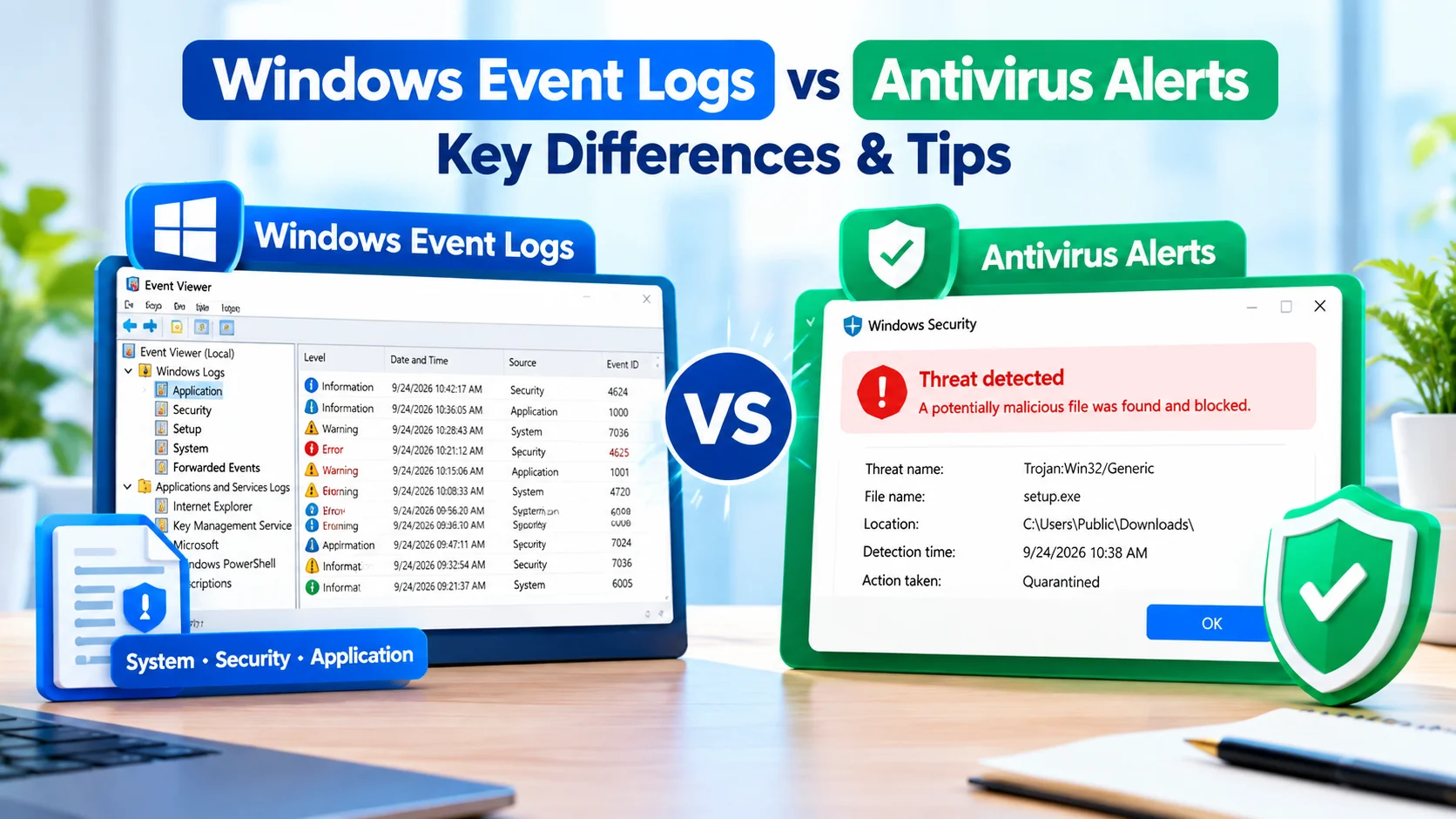
Windows Event Logs vs Antivirus Alerts is an important distinction when troubleshooting security issues on a Windows PC. Both can reveal suspicious activity, but they serve different purposes and provide different types of information.
Antivirus software is designed to detect and respond to malware, while Windows Event Logs record system, application, security, and other events. Understanding how these two sources differ can make security investigations much easier.
What Are Windows Event Logs?
Windows Event Logs are records generated by Windows and installed applications. They contain information about events that occur on the computer, including successful operations, errors, warnings, authentication attempts, and system changes.
You can view these records using Event Viewer.
To open Event Viewer:
- Press Windows + R.
- Type
eventvwr.msc. - Press Enter.
- Expand Windows Logs.
- Review categories such as Security, System, and Application.
Security logs can contain information about account logons, authentication activity, policy changes, and other security-related events, depending on auditing configuration.
What Are Antivirus Alerts?
Antivirus alerts are notifications generated by security software when it identifies potentially malicious or suspicious activity.
For example, an antivirus program may alert you when it detects:
- Malware or potentially unwanted software
- A suspicious executable file
- A malicious script
- Unsafe behavior from an application
- A suspicious download
- Attempts to access protected resources
Antivirus products typically combine detection methods such as signatures, behavioral analysis, reputation services, and other security technologies.
Windows Event Logs vs Antivirus Alerts
The biggest difference is their purpose.
Windows Event Logs provide a broad record of activity occurring within Windows and applications. They are useful for investigating what happened and when it happened.
Antivirus alerts focus specifically on security threats or suspicious behavior identified by the security product.
| Feature | Windows Event Logs | Antivirus Alerts |
|---|---|---|
| Primary purpose | Record system activity | Detect security threats |
| Main source | Windows and applications | Antivirus/security software |
| Malware detection | Not specifically designed for it | Core function |
| System errors | Commonly recorded | Usually not the focus |
| Login activity | Can be recorded | May provide related alerts |
| Investigation | Useful for detailed timelines | Useful for threat identification |
| Response actions | Mostly informational records | May quarantine or block threats |
What Information Can Windows Event Logs Provide?
Event logs can help establish a timeline of activity.
For example, if a computer experiences a suspicious login followed by a software installation, relevant events may appear around the same period.
Important information can include:
- Date and time
- Event ID
- Event source
- User or account involved
- Computer name
- Event description
- Success or failure status
However, an event appearing in the Security log does not automatically mean that malicious activity occurred. Many legitimate Windows operations generate security-related events.
What Information Can Antivirus Alerts Provide?
Antivirus alerts are generally more focused on identifying potential threats.
Depending on the security product, an alert may provide information such as:
- Threat name
- Detection type
- File path
- Process name
- Detection time
- Action taken
- Quarantine status
- Recommended remediation
This information can help determine whether a detected file was blocked, quarantined, removed, or allowed.
Can Windows Event Logs Detect Malware?
Windows Event Logs can provide evidence that helps investigate suspicious activity, but they are not a replacement for antivirus protection.
For example, logs might reveal unusual account activity, process-related events, service changes, or repeated authentication failures. Investigators can use this information to understand what occurred.
However, an event log entry by itself may not identify a file as malware.
Can Antivirus Alerts Show Everything That Happened?
No. Antivirus alerts are also not a complete activity history.
An antivirus product may detect and report a threat without recording every unrelated system event that occurred before or after the detection.
For a detailed investigation, security alerts can therefore be combined with Windows Event Logs and other available security information.
When Should You Check Windows Event Logs?
Event Viewer is particularly useful when:
- You are investigating repeated login failures.
- Windows reports unexpected errors.
- A service repeatedly stops or starts.
- You need to investigate system activity.
- You want to build a timeline around an incident.
- An application behaves unexpectedly.
- You need additional context around a security alert.
Event logs are especially valuable when an antivirus notification does not provide enough historical context.
When Should You Check Antivirus Alerts?
Review antivirus alerts when:
- A threat has been detected.
- A suspicious file has been quarantined.
- Windows Security reports a security warning.
- You suspect malware infection.
- A downloaded file was blocked.
- An application is behaving suspiciously.
- You want to confirm whether security software took action.
Always review the exact detection details rather than assuming every alert represents a confirmed malware infection.
How to Investigate a Suspicious Security Event
A practical investigation can combine both sources.
Step 1: Review the Antivirus Alert
Start with the security product that generated the warning. Record the detection name, affected file, location, detection time, and action taken.
Step 2: Check the Event Logs
Open Event Viewer and examine relevant logs around the same time.
Look for related authentication activity, application events, system changes, or other events that may provide additional context.
Step 3: Compare the Timeline
Compare timestamps from the antivirus alert and Event Viewer.
A timeline can help answer questions such as:
- When did the activity begin?
- Which account was involved?
- What happened immediately before detection?
- Was a suspicious file executed?
- Did Windows report related errors?
Step 4: Verify the Security Action
Check whether the antivirus product blocked, quarantined, removed, or allowed the detected item.
Do not assume that seeing a detection automatically means the threat successfully executed.
Step 5: Investigate Further if Necessary
For more serious incidents, additional sources may be required, such as firewall logs, browser history, application logs, Windows Defender records, or endpoint security tools.
Why You Should Use Both Sources
Windows Event Logs and antivirus alerts complement each other.
An antivirus alert can tell you what the security software detected, while Windows Event Logs can help provide additional system context surrounding the event.
For example, an antivirus product may identify a suspicious executable. Event logs may then help determine what other system activity occurred around the same time.
Neither source should automatically be treated as a complete record of everything that happened on a computer.
Common Mistakes When Reviewing Security Events
Assuming Every Event ID Is Malicious
Windows generates a large number of normal events. An unfamiliar Event ID does not automatically indicate an attack.
Ignoring Timestamps
Time is extremely important during an investigation. Compare events occurring immediately before and after a suspicious detection.
Treating Antivirus Alerts as Proof of Infection
Some detections may involve blocked files, suspicious behavior, potentially unwanted applications, or other categories that require further investigation.
Looking at Only One Source
Relying exclusively on Event Viewer or antivirus notifications can leave important context missing.
Final Thoughts
Understanding Windows Event Logs vs Antivirus Alerts makes it easier to investigate security warnings and unusual computer activity.
Windows Event Logs provide broad information about events occurring throughout Windows and applications, while antivirus alerts concentrate on detecting and responding to potential threats. Using both sources together can provide a more complete picture of a security incident.
When investigating a suspicious event, start with the antivirus detection, examine relevant Event Viewer records, compare timestamps, and verify what security action was taken. This approach can help separate ordinary Windows activity from events that require further investigation.