

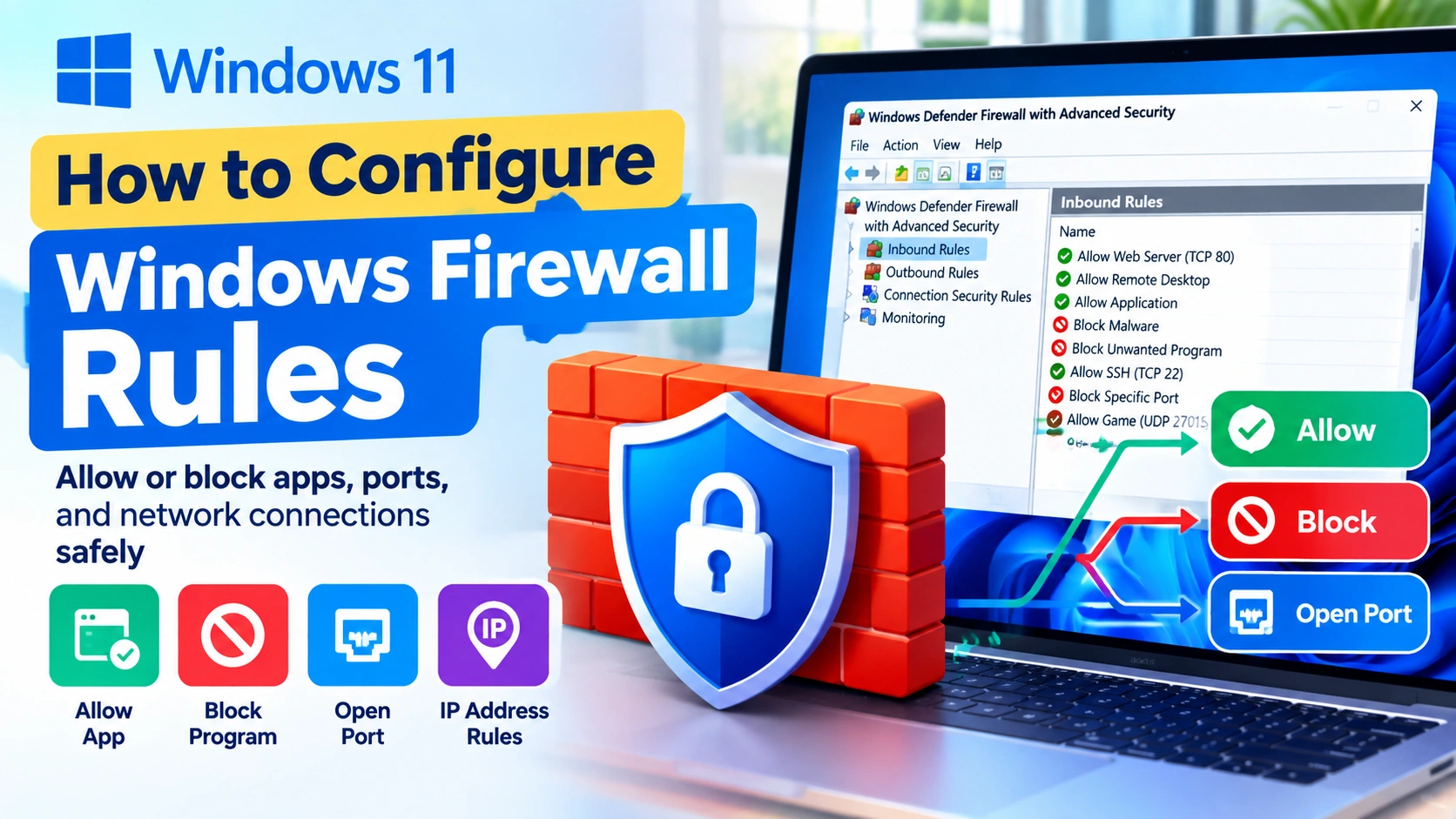
Windows Firewall is an important security feature that controls network traffic between your computer and other devices. It can prevent unauthorized connections while allowing trusted applications and services to communicate normally.
However, the default Windows Firewall configuration does not always cover every situation. You may need to create a custom rule to allow a specific application, block a program, open a network port, or restrict connections from certain IP addresses.
Windows 11 provides several ways to manage firewall rules, but Windows Defender Firewall with Advanced Security offers the most detailed control.
This guide explains how to configure Windows Firewall rules safely, including inbound and outbound rules, application rules, port rules, and troubleshooting techniques.
What Are Windows Firewall Rules?
Windows Firewall rules are instructions that tell the firewall how to handle network traffic.
A rule can determine whether a connection should be:
- Allowed
- Blocked
- Allowed only under specific conditions
Rules can apply to incoming connections, outgoing connections, specific programs, ports, IP addresses, network profiles, or protocols.
For example, you could create a rule that allows a particular application to communicate through your network while blocking another application from accessing the internet.
Inbound vs. Outbound Firewall Rules
Before creating a firewall rule, it is important to understand the difference between inbound and outbound traffic.
Inbound Rules
Inbound rules control connections coming into your Windows computer.
For example, an inbound rule can allow:
- Remote Desktop connections
- File and printer sharing
- Connections to a web server
- A local game server
- A specific application receiving network traffic
Outbound Rules
Outbound rules control connections going from your computer to another device or server.
An outbound rule can be useful when you want to:
- Prevent an application from accessing the internet
- Block a specific destination port
- Restrict a program from communicating externally
- Control network access for a particular application
In many situations, Windows allows outbound traffic by default unless a rule specifically blocks it.
How to Open Windows Firewall Advanced Settings
The easiest way to create detailed firewall rules is through Windows Defender Firewall with Advanced Security.
Method 1: Using Windows Search
- Press Windows + S.
- Type Windows Defender Firewall with Advanced Security.
- Open the result.
- The advanced firewall management console will appear.
You will see sections for:
- Inbound Rules
- Outbound Rules
- Connection Security Rules
- Monitoring
The Inbound Rules and Outbound Rules sections are where most custom firewall configurations are created.
Method 2: Using the Run Command
You can also open the advanced firewall console directly.
- Press Windows + R.
- Enter:
wf.msc
- Press Enter.
Windows will open the advanced firewall management interface.
How to Create an Inbound Firewall Rule
An inbound rule is useful when a program or service needs to receive network connections.
Follow these steps:
- Open Windows Defender Firewall with Advanced Security.
- Select Inbound Rules on the left.
- Click New Rule… on the right.
- Choose the type of rule you want to create.
- Click Next.
Windows provides several rule types.
Program
Choose Program when you want the rule to apply to a specific executable file.
For example, you could allow:
C:\Program Files\ExampleApp\ExampleApp.exe
Port
Choose Port when you want to control traffic based on a TCP or UDP port.
For example:
TCP 8080
Predefined
A predefined rule can be used for certain built-in Windows services and features.
Custom
The Custom option provides the greatest level of control.
It allows you to configure a combination of:
- Programs
- Protocols
- Local ports
- Remote ports
- IP addresses
- Profiles
For most users, Program or Port is the simplest choice.
How to Allow a Program Through Windows Firewall
Suppose an application cannot communicate over your network and you want to create an inbound rule for it.
- Open Windows Defender Firewall with Advanced Security.
- Select Inbound Rules.
- Click New Rule.
- Select Program.
- Click Next.
- Select This program path.
- Browse to the application’s
.exefile. - Click Next.
- Select Allow the connection.
- Click Next.
Windows will ask which network profiles should use the rule.
You may see:
- Domain
- Private
- Public
Select only the profiles that are appropriate for the application.
For example, a local application may only need access on a Private network.
- Click Next.
- Enter a descriptive name.
- Click Finish.
The new firewall rule will now appear under Inbound Rules.
How to Block a Program With Windows Firewall
You can also use Windows Firewall to prevent a particular application from accepting network connections.
- Open Windows Defender Firewall with Advanced Security.
- Select Inbound Rules.
- Click New Rule.
- Select Program.
- Select the application’s executable file.
- Click Next.
- Select Block the connection.
- Click Next.
- Select the appropriate network profiles.
- Give the rule a recognizable name.
- Click Finish.
The application will now be blocked by that inbound rule.
However, blocking inbound traffic does not necessarily prevent the application from connecting to the internet.
If you need to stop an application from making outgoing connections, create a corresponding outbound rule.
How to Create an Outbound Firewall Rule
Outbound rules are useful when you want to control connections initiated by programs on your computer.
To create one:
- Open Windows Defender Firewall with Advanced Security.
- Select Outbound Rules.
- Click New Rule.
- Select Program.
- Specify the application’s executable file.
- Click Next.
- Select Block the connection or Allow the connection.
- Click Next.
- Choose the appropriate network profiles.
- Enter a descriptive rule name.
- Click Finish.
For example, you could create an outbound rule that blocks a specific application from accessing external network resources.
How to Open a Port in Windows Firewall
Sometimes an application or service requires a specific network port.
For example, suppose a local service requires TCP port 8080.
You can create a port rule as follows:
- Open Windows Defender Firewall with Advanced Security.
- Select Inbound Rules.
- Click New Rule.
- Select Port.
- Select TCP or UDP.
- Select Specific local ports.
- Enter the required port number.
- Click Next.
- Select Allow the connection.
- Choose the appropriate network profiles.
- Give the rule a descriptive name.
- Click Finish.
The port will now be permitted according to the conditions defined by the rule.
TCP vs. UDP
Make sure you select the correct protocol.
TCP is commonly used when reliable, connection-oriented communication is required.
UDP is commonly used for applications where low overhead and speed are more important.
If an application requires UDP but you create a TCP rule, the firewall rule will not solve the problem.
How to Block a Port
You can create a rule to block traffic on a specific port.
- Open Windows Defender Firewall with Advanced Security.
- Select Inbound Rules or Outbound Rules.
- Click New Rule.
- Select Port.
- Choose TCP or UDP.
- Enter the port number.
- Select Block the connection.
- Choose the appropriate profiles.
- Give the rule a clear name.
- Click Finish.
Be careful when blocking ports used by Windows services or applications because an incorrect rule can cause unexpected connectivity problems.
How to Restrict a Firewall Rule to Specific IP Addresses
Windows Firewall can restrict a rule to specific remote or local IP addresses.
This is useful when you want to allow a connection only from trusted devices.
For example, suppose a local service should only accept connections from a particular network device.
During the rule configuration:
- Open the rule properties.
- Select the Scope tab.
- Locate Remote IP address.
- Select These IP addresses.
- Click Add.
- Enter the required IP address or network range.
- Click OK.
You can use this technique to reduce unnecessary exposure.
Instead of allowing a service to communicate with every device, you can restrict it to known systems.
How to Choose the Correct Network Profile
Windows Firewall uses different network profiles.
Domain
Used when the computer is connected to an organization-managed domain network.
Private
Generally intended for trusted networks such as your home network.
Public
Designed for less-trusted networks such as public Wi-Fi.
When creating firewall rules, avoid enabling unnecessary access on the Public profile.
For example, a file-sharing rule that is appropriate for your home network may not be appropriate when using public Wi-Fi.
How to Edit an Existing Firewall Rule
You do not need to delete and recreate a rule every time you need to change it.
To modify an existing rule:
- Open Windows Defender Firewall with Advanced Security.
- Select Inbound Rules or Outbound Rules.
- Locate the rule.
- Double-click it.
- Open the appropriate tab.
Depending on the rule, you can change:
- Program path
- Protocol
- Ports
- IP addresses
- Action
- Network profiles
- Users
- Computers
- Advanced conditions
Click Apply and then OK when finished.
How to Disable a Firewall Rule Temporarily
If you suspect a firewall rule is causing a problem, you can temporarily disable it.
- Open the advanced firewall console.
- Locate the rule.
- Right-click it.
- Select Disable Rule.
Test the application or network connection.
If the problem disappears, the firewall configuration may be responsible.
Re-enable the rule after testing unless you have determined that it is no longer required.
How to Delete an Unused Firewall Rule
Unused rules can make firewall configuration difficult to manage.
To remove a rule:
- Open Windows Defender Firewall with Advanced Security.
- Select Inbound Rules or Outbound Rules.
- Locate the rule.
- Right-click it.
- Select Delete.
- Confirm the deletion.
Before deleting a rule, make sure you understand which application or service depends on it.
How to Configure Firewall Rules Using PowerShell
Advanced users can manage Windows Firewall rules through PowerShell.
To view existing rules, open PowerShell as Administrator and run:
Get-NetFirewallRule
To display enabled rules:
Get-NetFirewallRule | Where-Object Enabled -eq 'True'
You can also create firewall rules with PowerShell.
For example:
New-NetFirewallRule -DisplayName "Allow TCP 8080" -Direction Inbound -Protocol TCP -LocalPort 8080 -Action Allow
This creates an inbound rule allowing TCP traffic on port 8080.
To create a blocking rule for a program:
New-NetFirewallRule -DisplayName "Block Example App" -Direction Outbound -Program "C:\Example\Example.exe" -Action Block
Be careful when using PowerShell commands because an incorrect rule can affect network connectivity.
How to Check Whether a Firewall Rule Is Working
Creating a rule does not always guarantee that it is responsible for the final network behavior.
You can test the connection after creating the rule.
For example, PowerShell includes the Test-NetConnection command:
Test-NetConnection example.com -Port 443
You can replace the hostname and port with the service you need to test.
If the connection succeeds, the requested port is reachable from your computer.
If it fails, the problem could involve:
- Windows Firewall
- Another firewall
- Router configuration
- The destination server
- Incorrect port configuration
- Network connectivity
Common Windows Firewall Rule Problems
The Rule Was Created for the Wrong Program
Some applications use multiple executable files.
Creating a rule for the wrong .exe may have no effect.
Check the application’s installation directory and confirm which executable actually performs the network communication.
The Wrong Direction Was Selected
An inbound rule controls incoming connections, while an outbound rule controls outgoing connections.
If you need to stop an application from connecting to an external server, an inbound rule may not accomplish that.
The Wrong Network Profile Was Selected
A rule enabled only for Private networks will not necessarily apply when Windows identifies the current connection as Public.
Check your active network profile before troubleshooting the rule.
The Wrong Protocol Was Selected
A TCP rule does not automatically allow UDP traffic, and vice versa.
Verify the application’s network requirements before creating the rule.
Another Rule Has Higher Priority
Windows Firewall can contain multiple rules affecting the same traffic.
If conflicting rules exist, the resulting behavior may not be what you expect.
Review related rules and remove obsolete configurations when appropriate.
Best Practices for Windows Firewall Rules
Creating firewall rules carefully can improve both security and troubleshooting.
Use Specific Rules
Avoid creating overly broad rules whenever possible.
Instead of allowing every program to use every port, restrict the rule to the application, port, protocol, and network profile that are actually required.
Use Descriptive Names
Instead of naming a rule:
Rule 1
use something such as:
Allow Example App TCP 8080
A descriptive name makes future troubleshooting much easier.
Avoid Opening Unnecessary Ports
Every unnecessary network service can increase the attack surface of a computer.
Only allow ports that are required.
Be Careful With Public Networks
A rule that makes sense on a trusted home network may be inappropriate on public Wi-Fi.
Review the network profiles associated with each custom rule.
Review Rules Regularly
Remove old rules associated with applications or services that you no longer use.
A clean firewall configuration is easier to troubleshoot and maintain.
Back Up Important Configurations
If you manage a computer with many custom firewall rules, consider documenting or exporting the configuration before making major changes.
This gives you a way to recover from an incorrect configuration.
Frequently Asked Questions
Does Windows Firewall block all internet traffic by default?
No. Windows Firewall is designed to protect the system while allowing normal network communication. Its behavior depends on the configured firewall policies and rules.
Should I allow an application through Windows Firewall?
Only allow applications that you trust and that genuinely require network access. If Windows asks for permission for an unfamiliar application, investigate it before allowing the connection.
What is the difference between Windows Firewall and antivirus software?
A firewall primarily controls network traffic, while antivirus and security software focuses on detecting and preventing malicious software. They perform different but complementary security functions.
Can Windows Firewall block a program from accessing the internet?
Yes. An outbound firewall rule can be configured to block network connections initiated by a specific program.
How do I know which firewall rule is blocking a program?
Review the relevant inbound and outbound rules and temporarily disable suspected rules for testing. Windows Firewall logging can also provide useful information when diagnosing blocked traffic.
Is it safe to open a port in Windows Firewall?
Opening a port can increase exposure if the service behind it is accessible from an untrusted network. Only open ports that are necessary, and restrict access where possible.
Can I reset Windows Firewall rules?
Yes. Windows provides options to restore firewall settings to their default configuration. However, resetting the firewall can remove custom rules, so document important configurations first.
Final Thoughts
Learning how to configure Windows Firewall rules gives you much greater control over network access in Windows 11. You can create rules for individual applications, specific ports, IP addresses, protocols, and network profiles.
For most users, the safest approach is to create specific rules that grant only the access an application or service actually needs. Avoid opening unnecessary ports or allowing unknown applications, especially when connected to public networks.
If a network problem appears after creating a rule, check the rule’s direction, program path, protocol, port, IP scope, and network profile. Temporarily disabling the rule can also help determine whether it is responsible.
With careful configuration and regular cleanup, Windows Firewall can provide strong network protection without unnecessarily interfering with legitimate applications.