

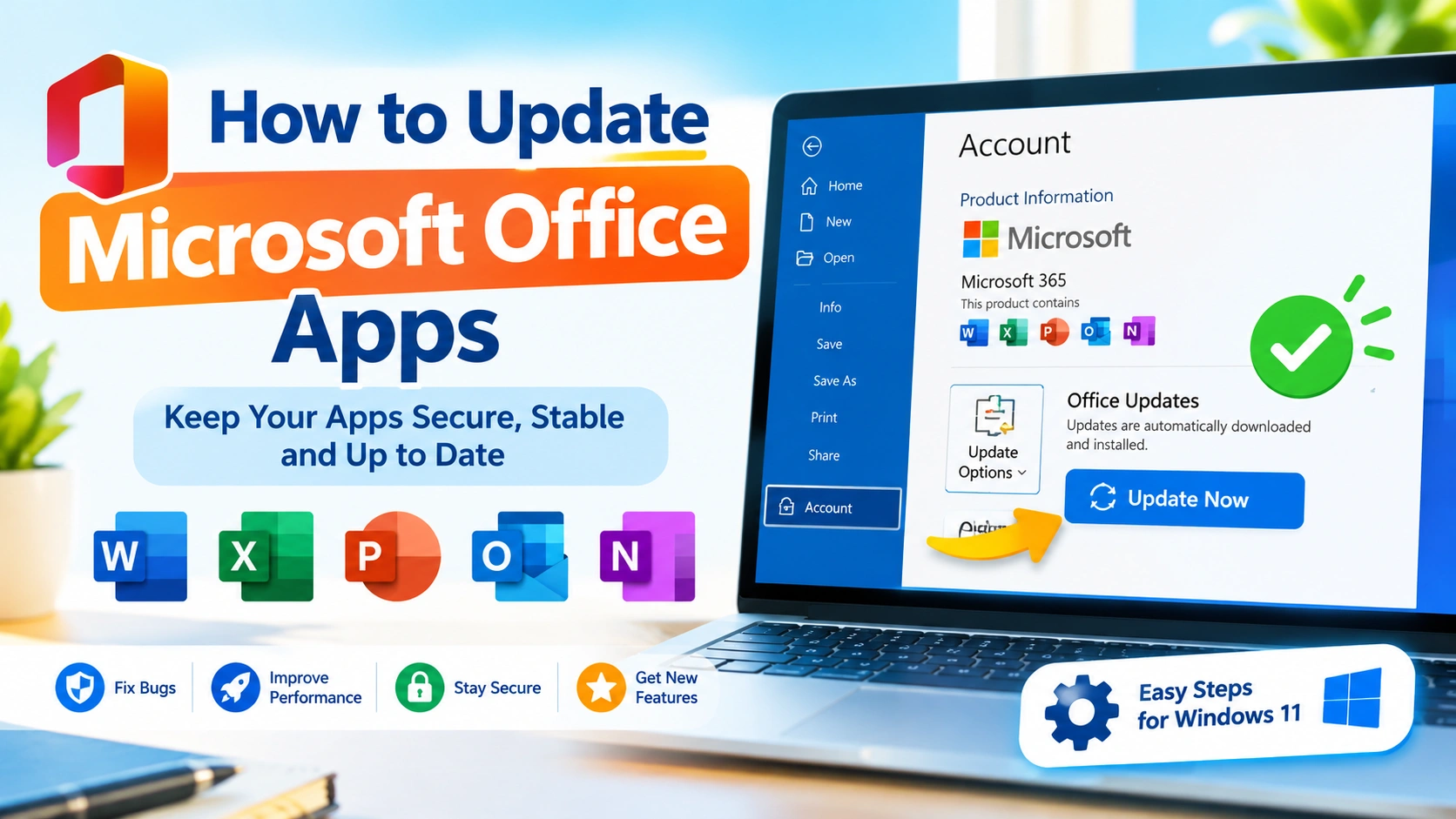
Keeping Microsoft Office apps updated is one of the easiest ways to maintain a secure, stable, and reliable Windows computer. Updates can fix bugs, improve performance, add new features, and protect applications against security vulnerabilities.
If Word, Excel, PowerPoint, Outlook, or another Microsoft Office app is behaving strangely, checking for updates should be one of the first troubleshooting steps.
In this guide, you will learn how to update Microsoft Office apps on Windows, how to update Office automatically, what to do when the update option is missing, and how to troubleshoot common Office update problems.
Why Should You Update Microsoft Office Apps?
Microsoft regularly releases updates for Office applications. Some updates introduce new features, while others focus on security, compatibility, and stability.
Updating Office can provide several benefits:
- Fixes known bugs and application errors
- Improves Office performance
- Patches security vulnerabilities
- Adds new features and improvements
- Improves compatibility with Windows
- Fixes problems with documents and file formats
- Improves compatibility with Microsoft 365 services
- Helps prevent unexpected application crashes
An outdated Office installation may continue working normally, but it can eventually experience compatibility or security problems.
Which Microsoft Office Apps Can Be Updated?
Depending on your Office installation, updates may apply to several applications at the same time.
Common Microsoft Office apps include:
- Microsoft Word
- Microsoft Excel
- Microsoft PowerPoint
- Microsoft Outlook
- Microsoft OneNote
- Microsoft Access
- Microsoft Publisher
- Microsoft Teams
The exact applications available depend on your Microsoft 365 subscription or Office edition.
How to Update Microsoft Office Apps Automatically
The easiest method is to use the built-in update feature inside an Office application.
Step 1: Open an Office App
Start Microsoft Word, Excel, PowerPoint, or another Office application.
For this example, open Microsoft Word.
Step 2: Open Your Account Page
Click File in the upper-left corner.
Then select Account.
You should see information about your Microsoft Office installation and account.
Step 3: Find Office Updates
Look for the Office Updates section.
Click Update Options.
Step 4: Select Update Now
Click Update Now.
Office will check Microsoft’s update servers for available updates.
If an update is available, Office will download and install it.
Step 5: Restart Office
After the update finishes, close and reopen your Office applications.
Some updates may require Office applications to restart before all changes take effect.
How to Turn On Automatic Microsoft Office Updates
You generally do not need to manually check for updates every time. Office can download and install updates automatically when automatic updating is enabled.
To check the setting:
- Open Word or another Office application.
- Select File.
- Click Account.
- Select Update Options.
- Look for the automatic update setting.
If automatic updates have been disabled, enable them when the option is available.
Automatic updates are useful because they reduce the chance of running an outdated version of Office.
How to Update Microsoft Office Through Windows Update
Depending on your Office installation and Windows configuration, Office updates can also be delivered through Windows Update.
To check for updates:
- Press Windows + I to open Settings.
- Select Windows Update.
- Click Check for updates.
- Allow Windows to download available updates.
- Restart the computer if Windows requests it.
You may also see optional updates related to Microsoft products. Review the available updates before installing them.
How to Update Microsoft 365 Apps
Microsoft 365 subscribers normally receive updates through Microsoft’s Click-to-Run technology.
You can manually check for an update from an Office application:
- Open Word, Excel, or PowerPoint.
- Click File.
- Select Account.
- Find Update Options.
- Click Update Now.
If a newer version is available, Microsoft 365 will download it in the background or begin the update process.
Afterward, reopen your Office applications.
How to Check Your Microsoft Office Version
Before troubleshooting an update problem, it can be useful to determine which Office version is installed.
Open an Office application and go to:
File → Account
Look for the Product Information section.
You may see information such as:
- Microsoft 365 Apps
- Office Home & Business
- Office Professional
- Office LTSC
- Office 2021
- Office 2019
You can also find the installed version and build number on the Account page.
Knowing the exact Office edition can help determine which update method applies to your installation.
What to Do If “Update Options” Is Missing
Sometimes the Update Options button does not appear in an Office application.
This can happen for several reasons.
1. Your Organization Manages Office Updates
If your computer belongs to a company or school, an administrator may control Office updates.
In this situation, you may not have permission to manually change the update settings.
Contact your organization’s IT administrator if you believe Office is outdated.
2. Your Office Installation Uses a Different Update Method
Some Office editions are updated differently from Microsoft 365 Click-to-Run installations.
For example, volume-license installations can have update policies controlled by an organization.
3. Office Updates Are Managed by Policy
Windows or Microsoft Office policies can prevent users from changing update settings.
This is common on managed computers.
4. Your Office Installation Has a Problem
A damaged Office installation can also cause update options or account information to behave unexpectedly.
Repairing Office may resolve the problem.
How to Repair Microsoft Office Before Updating
If Office refuses to update, repairing the installation can help.
On Windows 11:
- Open Settings.
- Select Apps.
- Click Installed apps.
- Find your Microsoft Office or Microsoft 365 installation.
- Click the three-dot menu.
- Select Modify.
Depending on the installation, Windows may provide repair options.
Quick Repair
Quick Repair is usually the faster option.
It attempts to fix common Office installation problems without requiring a full reinstallation.
Online Repair
If Quick Repair does not solve the problem, try Online Repair.
Online Repair is more comprehensive and may require an internet connection and additional time.
Save your work before starting the repair process.
How to Fix Microsoft Office Update Errors
Office updates can occasionally fail because of network problems, insufficient storage, damaged installation files, or conflicting software.
Try these solutions in order.
Restart Your Computer
A simple restart can resolve temporary Windows and Office update problems.
After restarting, open Word or Excel and try Update Now again.
Check Your Internet Connection
Office may need an internet connection to download updates.
Make sure your connection is stable and try opening a few websites.
If you’re using a VPN or proxy, temporarily disabling it may help identify a connection-related problem.
Free Up Disk Space
Office updates require available storage space.
If your Windows system drive is nearly full, remove unnecessary files and try the update again.
Close Other Office Applications
Close Word, Excel, PowerPoint, Outlook, and other Office applications before retrying an update.
Some updates cannot complete while Office processes are still running.
Run Windows Update
Make sure Windows itself is up to date.
Open:
Settings → Windows Update
Then select Check for updates.
Install available updates and restart your computer if necessary.
Repair Office
If the update continues to fail, use the Office repair feature described above.
Start with Quick Repair and use Online Repair if necessary.
How to Update Office Apps Installed From the Microsoft Store
Some Microsoft applications may be installed through the Microsoft Store rather than through a traditional Office installation.
To check for Microsoft Store app updates:
- Open the Microsoft Store.
- Select Library.
- Look for available updates.
- Select Get updates or the available update option.
- Allow the Store to download and install updates.
The exact Store interface can vary depending on your Windows version.
How Often Should Microsoft Office Be Updated?
For most users, the best approach is to leave automatic updates enabled.
You should not need to manually update Office every day.
Instead:
- Keep automatic updates enabled.
- Install important Windows updates.
- Check Office manually when troubleshooting problems.
- Restart Office after major updates.
- Keep enough free disk space for updates.
If you use Office for work or sensitive documents, staying current is particularly important because security updates can address vulnerabilities.
Should You Update Office Immediately?
In most cases, installing official Office updates is recommended.
However, businesses with large numbers of computers may use controlled update channels to test updates before deploying them throughout an organization.
For a personal computer, automatic updates are generally the simplest approach.
For business computers, follow your organization’s update policy.
What Happens to Your Documents After an Office Update?
A normal Office update should not delete your Word documents, Excel spreadsheets, PowerPoint presentations, or other personal files.
Nevertheless, it is always good practice to save important work and maintain backups.
For important documents, consider keeping copies in a trusted backup location or cloud storage service.
Can You Update Office Without Microsoft 365?
Yes. The update process depends on your Office edition and how it was installed.
Some perpetual Office versions receive security and quality updates even though they do not use a Microsoft 365 subscription model.
The available features and support period can differ between Office versions.
Check your product information before attempting to change the installation or purchase a new subscription.
How to Tell If Microsoft Office Is Up to Date
The simplest way is to open an Office application and go to:
File → Account → Update Options → Update Now
If Office checks for updates and reports that you are already up to date, there may not be a newer update available for your installation or update channel.
You can also check the displayed Office version and build number.
Common Microsoft Office Update Problems
Here are some common symptoms you may encounter:
| Problem | Possible Solution |
|---|---|
| Update Now does nothing | Restart Office and Windows |
| Update Options is missing | Check Office edition or administrator policies |
| Office update fails | Repair Office |
| Update downloads slowly | Check internet connection |
| Update cannot install | Free disk space |
| Office keeps asking for an update | Restart Windows and repair Office |
| Microsoft Store Office app is outdated | Check Microsoft Store Library |
| Office crashes after an update | Restart, repair Office, or check for another update |
Tips for Keeping Microsoft Office Healthy
Updating Office is only one part of maintaining a reliable installation.
Follow these additional practices:
Keep Windows Updated
Windows updates often contain compatibility, security, and reliability improvements.
Avoid Modified Office Installations
Unofficial or modified Office packages may interfere with normal updates and can introduce security risks.
Use Microsoft’s official installation sources whenever possible.
Maintain Backups
Keep backups of important documents instead of relying entirely on your Office installation or computer.
Keep Enough Free Storage
Low disk space can interfere with Windows and Office updates.
Restart Your PC Regularly
Restarting Windows can complete pending updates and clear temporary system problems.
Use the Latest Supported Office Version
Older Office versions eventually reach the end of their support lifecycle.
If your Office edition is no longer supported, consider upgrading to a supported version.
Frequently Asked Questions
How do I manually update Microsoft Office apps?
Open Word, Excel, or PowerPoint and select File → Account → Update Options → Update Now. Office will check for available updates and install them when available.
Why can’t I find Update Options in Office?
The option may be unavailable because of your Office edition, installation type, or administrator-controlled update policies.
Do Office updates happen automatically?
Microsoft 365 and many modern Office installations can update automatically when automatic updating is enabled.
Will updating Office delete my files?
A normal Office update should not delete your personal documents. However, maintaining backups of important files is always recommended.
Can I update Word without updating Excel?
For many Microsoft 365 installations, Office applications share the same installation and update mechanism. As a result, updates may apply to multiple Office applications rather than only Word.
What should I do if an Office update gets stuck?
Restart Windows, check your internet connection, make sure enough storage is available, close Office applications, and try the update again. If the problem continues, use Office Repair.
Should I uninstall Office before updating it?
Usually, no. You normally update the existing installation. Uninstalling Office should be considered only when troubleshooting a serious installation problem or when following Microsoft’s recommended recovery procedure.
Final Thoughts
Knowing how to update Microsoft Office apps can help keep Word, Excel, PowerPoint, Outlook, and other Office applications secure and reliable.
For most users, the easiest method is to open an Office application, go to File → Account → Update Options → Update Now, and allow Office to install available updates.
If the update fails, start with simple solutions such as restarting Windows, checking your internet connection, freeing disk space, and running Windows Update. If those steps do not work, repairing the Office installation can often resolve damaged or incomplete installation files.
Keeping automatic updates enabled is generally the best long-term approach because it allows Office to receive important improvements without requiring you to manually check for updates every time.