

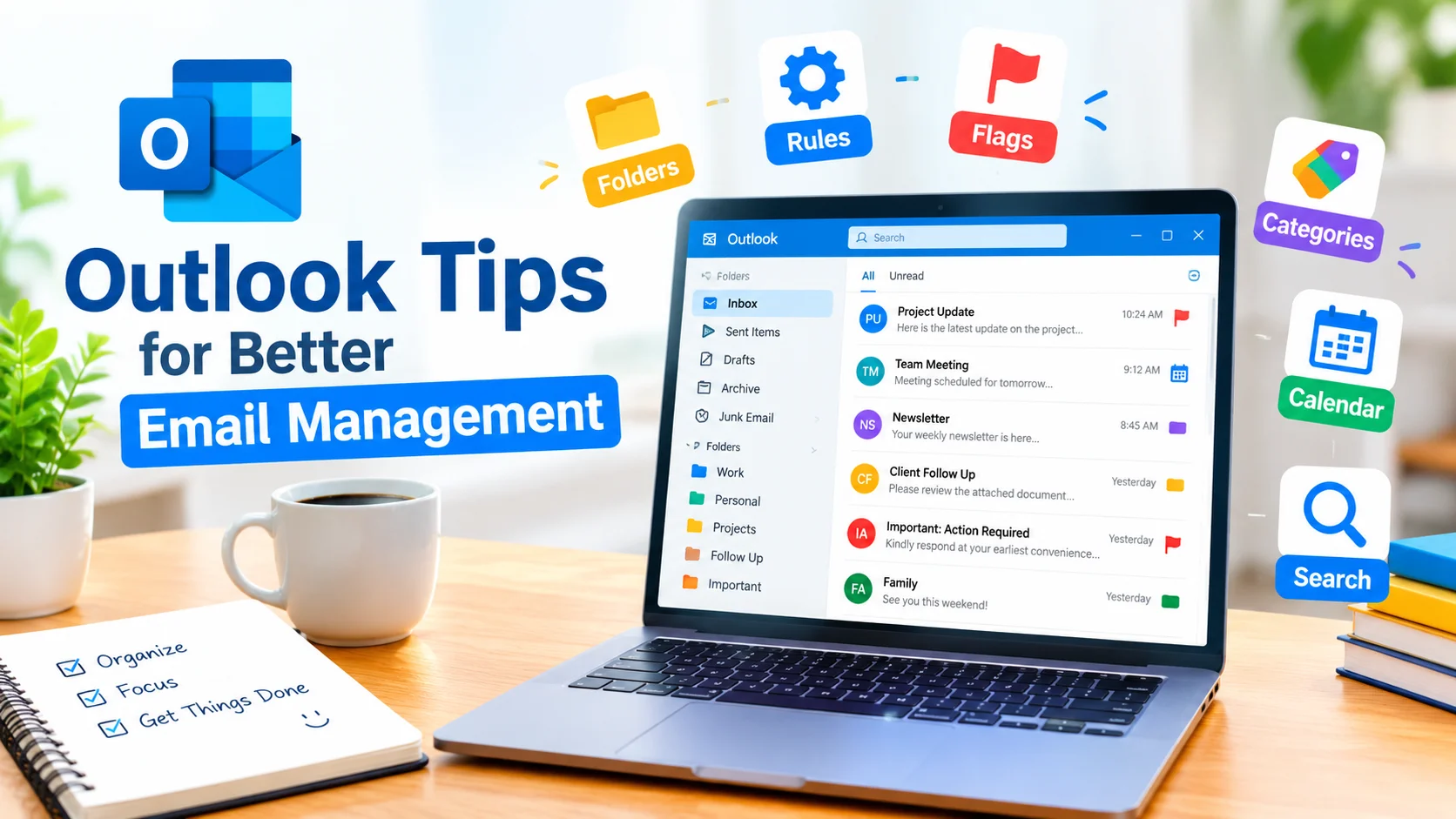
Outlook Tips for Better Email Management can help you organize your inbox, reduce distractions, and handle daily messages more efficiently. Whether you use Outlook for work, school, or personal communication, a few simple organizational habits can make email much easier to manage.
Microsoft Outlook includes useful features for sorting messages, creating folders, scheduling emails, managing tasks, and reducing inbox clutter. Learning how to use these tools can save time and help you stay focused.
1. Keep Your Inbox Organized
A crowded inbox can make important messages difficult to find. Create folders based on projects, clients, departments, or other categories that match the way you work.
Move messages out of your main inbox after you have handled them. This keeps the inbox focused on emails that still require attention.
2. Use Outlook Rules
Outlook rules can automatically organize incoming messages. For example, you can create a rule that moves newsletters into a specific folder or sends messages from a particular sender to a designated folder.
Rules are especially helpful when you receive a large number of repetitive emails every day.
3. Flag Important Emails
Use flags to identify messages that require follow-up. Instead of relying on memory, flag an email and give yourself a clear reminder to handle it later.
This can be useful for messages involving deadlines, unanswered questions, approvals, or tasks.
4. Use Categories
Categories provide another way to organize Outlook messages. You can assign different categories to emails based on projects, priorities, or types of work.
For example, you could create categories for:
- Work projects
- Personal messages
- Follow-ups
- Important documents
- Meetings
Using consistent categories makes it easier to scan your mailbox and locate related messages.
5. Search Instead of Scrolling
When you need an older message, use Outlook’s search tools instead of manually browsing through folders.
Search can help you locate emails using details such as the sender, subject, keywords, date, or attachments. Developing the habit of searching can save considerable time when managing a large mailbox.
6. Reduce Unnecessary Notifications
Constant email notifications can interrupt your concentration. Review your Outlook notification settings and limit alerts to messages that genuinely need immediate attention.
For less urgent communication, consider checking your inbox at planned intervals rather than responding to every notification immediately.
7. Use the Calendar With Email
Outlook combines email and calendar features, making it convenient to turn important messages into scheduled activities.
If an email requires a meeting or deadline, add the relevant information to your calendar. This helps separate actionable commitments from ordinary correspondence.
8. Clean Up Unwanted Emails
Regularly remove unnecessary messages and unsubscribe from newsletters you no longer read. You can also delete obsolete conversations and review large attachments that are taking up mailbox space.
A short cleanup session each week can prevent your inbox from becoming overwhelming.
9. Use Templates for Repeated Messages
If you frequently send similar responses, Outlook templates can reduce repetitive typing. Templates are useful for common replies, instructions, confirmations, and routine business communications.
Create a reusable message and customize it when necessary before sending.
10. Schedule Emails When Appropriate
Scheduling can help you send messages at a more suitable time. Instead of sending every email immediately, prepare messages in advance and schedule them when recipients are most likely to need them.
This can also make it easier to manage communication across different work schedules and time zones.
11. Prioritize Emails That Need Action
Not every email deserves an immediate response. Separate messages that require action from those that are informational.
A simple approach is to ask:
- Does this email require a response?
- Is there a deadline?
- Can I handle it now?
- Should I delegate or schedule it?
- Can I archive it after reading?
This approach helps prevent low-priority messages from taking over your workday.
12. Review Your Inbox Regularly
Good email management is easier when it becomes a routine. Set aside time to process new messages, respond to important requests, archive completed conversations, and update follow-up reminders.
The goal is not necessarily to maintain a completely empty inbox. Instead, create an organization system that makes important messages easy to find and actionable tasks easy to track.
Conclusion
Using these Outlook Tips for Better Email Management can make your inbox more organized and easier to control. Features such as folders, rules, categories, flags, search, templates, and calendar integration can reduce manual work and improve productivity.
The most effective approach is to choose a few Outlook features that match your workflow and use them consistently. With a simple system in place, you can spend less time sorting emails and more time focusing on important tasks.