

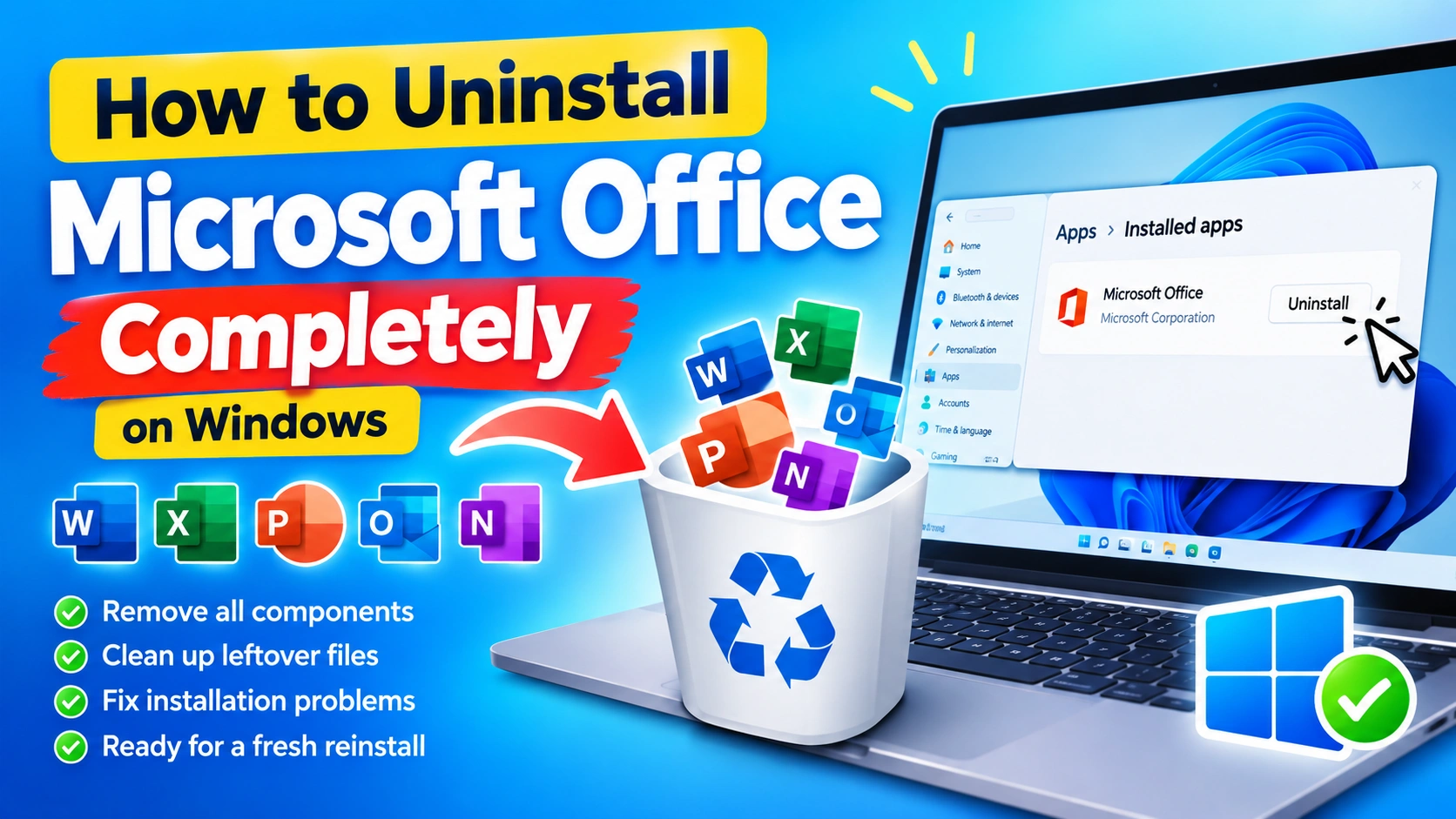
Uninstalling Microsoft Office may seem as simple as removing an application from Windows, but a normal uninstall can sometimes leave behind settings, cached files, licensing components, or other remnants. These leftovers can cause problems when you try to reinstall Office or switch to another productivity suite.
In this guide, you’ll learn how to uninstall Microsoft Office completely from Windows 10 and Windows 11, including several methods for removing Office when the standard uninstall process does not work.
Why Completely Remove Microsoft Office?
There are several reasons you may want to completely uninstall Microsoft Office:
- Office applications keep crashing.
- Microsoft Office will not activate correctly.
- You want to install a different Office version.
- A previous Office installation is interfering with a new installation.
- You are troubleshooting Microsoft Word, Excel, or PowerPoint.
- Office installation files have become corrupted.
- You want to free up disk space.
- You are moving from Microsoft 365 to another productivity suite.
A clean removal is particularly useful when a normal uninstall fails or when you plan to reinstall Office from scratch.
Before Uninstalling Microsoft Office
Before removing Office, make sure you understand what will happen.
Uninstalling Microsoft Office removes the installed Office applications, such as:
- Microsoft Word
- Microsoft Excel
- Microsoft PowerPoint
- Microsoft Outlook
- Microsoft OneNote
- Microsoft Access
- Microsoft Publisher
Your personal documents are normally not deleted by uninstalling Office. However, it is still a good idea to back up important Word documents, Excel spreadsheets, PowerPoint presentations, Outlook data, and custom templates before beginning.
If you use Microsoft Outlook with locally stored data files, make sure important PST or other locally stored data is backed up before removing Office.
Method 1: Uninstall Microsoft Office From Windows Settings
The easiest way to remove Microsoft Office is through Windows Settings.
This method works well when Office is installed normally and Windows can detect the installation.
Step 1: Open Windows Settings
Press:
Windows + I
Alternatively, right-click the Start button and select Settings.
Step 2: Open Installed Apps
In Windows 11, select:
Apps → Installed apps
In some versions of Windows, the section may be labeled Apps & features.
Step 3: Search for Microsoft Office
Use the search box and type:
Microsoft Office
Depending on your installation, you may see entries such as:
- Microsoft 365
- Microsoft 365 Apps
- Microsoft Office
- Microsoft Office Home and Student
- Microsoft Office Professional Plus
Step 4: Start the Uninstall Process
Click the three-dot menu next to Microsoft Office and select:
Uninstall
Follow the instructions displayed on screen.
Windows will remove the main Office installation.
Step 5: Restart Windows
When the uninstall process finishes, restart your computer.
Restarting is important because Office services and background processes may still be loaded in memory.
Method 2: Uninstall Office Through Control Panel
If Office does not appear correctly in Windows Settings, the traditional Control Panel can be useful.
Step 1: Open Control Panel
Press:
Windows + R
Type:
controlPress Enter.
Step 2: Open Programs and Features
Select:
Programs → Programs and Features
Step 3: Find Microsoft Office
Look through the installed programs for your Office installation.
For example:
Microsoft 365 Apps for enterprise
or
Microsoft Office Professional Plus
Step 4: Select Uninstall
Right-click Microsoft Office and select:
Uninstall
Follow the instructions provided by the Office installer.
Step 5: Restart Your PC
After the process completes, restart Windows.
Method 3: Use Microsoft’s Office Uninstall Troubleshooter
Sometimes Office cannot be removed using Windows Settings or Control Panel.
This can happen when:
- The Office installation is damaged.
- The uninstall entry is missing.
- Office files are corrupted.
- An earlier Office installation was interrupted.
- Multiple Office versions have been installed.
Microsoft provides an official recovery and troubleshooting tool that can help remove Microsoft 365 or Office installations when normal removal does not work.
For the safest approach, use Microsoft’s current official support instructions rather than downloading an Office removal utility from an unknown website.
Look for Microsoft’s instructions for uninstalling Microsoft 365 or Office from a PC.
Important: Avoid downloading random “Office removal tools” from third-party websites. Some utilities can contain unwanted software or make unnecessary system changes.
Method 4: Remove Microsoft Office When the Uninstaller Is Broken
If the normal uninstall process does nothing, first check whether Office processes are still running.
Step 1: Open Task Manager
Press:
Ctrl + Shift + Esc
Step 2: Look for Office Processes
Check for processes associated with Office applications.
For example:
- WINWORD.EXE
- EXCEL.EXE
- POWERPNT.EXE
- OUTLOOK.EXE
If an Office application is open, save your work and close it.
Step 3: End Remaining Office Applications
If an Office application refuses to close, select it in Task Manager and choose:
End task
Then try uninstalling Office again through Windows Settings or Control Panel.
Method 5: Restart Windows Before Trying Again
A surprisingly common cause of uninstall problems is an Office process that remains active in the background.
If Office refuses to uninstall:
- Close all Office applications.
- Save your documents.
- Restart Windows.
- Do not open Word, Excel, or Outlook.
- Immediately try the uninstall process again.
This can release files that were locked by Office.
Method 6: Remove Leftover Office Folders
A standard uninstall should remove the main Office installation. However, some configuration or cache files may remain.
If you’re troubleshooting a corrupted Office installation, you can check for leftover folders after uninstalling.
Common locations include:
C:\Program Files\Microsoft Officeand:
C:\Program Files\Common Files\Microsoft SharedOn some 32-bit installations, Office may instead be located under:
C:\Program Files (x86)\Be Careful With These Folders
Do not blindly delete everything inside Microsoft Shared.
Other Microsoft applications can use shared components.
Only remove files or folders when you are confident they belong to the old Office installation and are no longer required by another Microsoft application.
For most users, Microsoft’s official Office removal procedure is safer than manually deleting system folders.
Method 7: Check for Microsoft Office Entries After Uninstallation
After uninstalling Office, Windows may still show related Microsoft applications.
Open:
Settings → Apps → Installed apps
Search for:
OfficeYou may see additional components.
However, don’t automatically uninstall every Microsoft component containing the word “Microsoft.”
Some components are shared by other applications and services.
For example, Microsoft Edge WebView2 and Microsoft Visual C++ components may be required by other programs.
Method 8: Remove Microsoft 365 From a PC Without Deleting Your Account
Uninstalling Microsoft 365 from Windows does not mean your Microsoft account is deleted.
Your Microsoft account and Microsoft 365 subscription are separate from the locally installed Office applications.
After uninstalling Office, you can still sign into your Microsoft account online and reinstall Microsoft 365 later if your subscription is active.
This is useful if you are troubleshooting Office activation or installation problems.
How to Remove Office Completely Before Reinstalling
If your goal is to reinstall Microsoft Office because Word, Excel, or another Office application is malfunctioning, use this sequence:
1. Back up important files
Save important documents, spreadsheets, presentations, templates, and Outlook data.
2. Close Office
Close Word, Excel, PowerPoint, Outlook, and other Office applications.
3. Uninstall Office
Use:
Settings → Apps → Installed apps → Microsoft Office → Uninstall
4. Restart Windows
Restart the computer after uninstalling.
5. Check Installed Apps
Search for Office again and verify whether the main Office installation has disappeared.
6. Use Microsoft’s recovery procedure if necessary
If Office remains installed or the uninstall process failed, use Microsoft’s official Office troubleshooting/removal instructions.
7. Restart again
Restart Windows after completing the cleanup.
8. Install Office again
Download Office from Microsoft’s official website and sign in with the Microsoft account associated with your license or subscription.
This approach gives you a much cleaner starting point than repeatedly installing Office over a damaged installation.
Should You Delete Office Registry Entries?
You may find guides recommending that users manually delete Microsoft Office registry keys.
This should generally not be your first choice.
The Windows Registry contains important configuration information, and deleting the wrong key can create additional problems.
Before modifying the Registry:
- Create a backup.
- Know exactly which key you are removing.
- Understand whether another Microsoft application uses it.
- Prefer Microsoft’s official removal process whenever possible.
For most users, manually cleaning the Registry is unnecessary.
What Happens to Your Word and Excel Files?
Uninstalling Microsoft Office normally does not remove your personal documents.
For example, files such as:
Document.docx
Budget.xlsx
Presentation.pptx
remain on your storage unless you manually delete them.
However, documents stored inside an Office application’s installation directory or unusual temporary locations may require additional care.
If you have important files, back them up before uninstalling.
What About OneDrive Files?
Uninstalling Microsoft Office does not automatically delete files stored in your OneDrive account.
Your cloud files remain associated with your Microsoft account.
If OneDrive is installed separately, uninstalling Office generally does not mean that OneDrive itself is removed.
Before performing major cleanup, however, make sure important files have finished syncing.
You can verify your files through the OneDrive service before making changes to your computer.
What About Microsoft Outlook Data?
Outlook deserves special attention.
If you use Outlook with local data files, check your Outlook data before uninstalling Office.
Potentially important files include:
.pst
.ost
PST files can contain locally stored email, contacts, calendars, and other Outlook data.
An OST file is generally associated with synchronized mailbox data and can usually be recreated, but you should still verify your account and synchronization status before removing Office.
If you’re unsure whether your Outlook data is safely synchronized or backed up, don’t rush into manual file deletion.
How to Tell If Microsoft Office Was Completely Removed
After uninstalling Office, perform a few checks.
Check 1: Installed Apps
Open:
Settings → Apps → Installed apps
Search for:
Office
Check 2: Start Menu
Open Start and search for:
- Word
- Excel
- PowerPoint
- Outlook
The applications should no longer be installed if the Office suite has been removed.
Check 3: Program Files
Check whether the previous Office installation directory still exists.
Don’t automatically delete shared Microsoft folders simply because they remain.
Check 4: Restart Windows
Restart your computer after completing the cleanup.
Check 5: Test a Fresh Installation
If you plan to reinstall Office, download the installer from Microsoft and perform a fresh installation.
Common Problems When Uninstalling Microsoft Office
Office Does Not Appear in Installed Apps
If Microsoft Office doesn’t appear in Windows Settings, check:
Control Panel → Programs and Features
If it is missing there too, the installation may be damaged.
Microsoft’s official troubleshooting tools may be necessary.
Office Uninstall Gets Stuck
If the uninstall process appears frozen:
- Wait several minutes.
- Check Task Manager.
- Make sure Office applications are closed.
- Restart Windows.
- Try uninstalling again.
Avoid repeatedly terminating the installer unless Windows is genuinely unresponsive.
Word or Excel Still Appears After Uninstalling
A shortcut may remain even after the application has been removed.
Try launching the application.
If it no longer starts, the shortcut may simply be leftover.
You can remove the unused shortcut from the Start menu or desktop.
Microsoft Office Keeps Reappearing
This can happen when another Office-related installation mechanism or organizational management system is present.
On a work or school computer, Office may be managed by an organization.
In that situation, removing Office manually may not be permanent because your organization’s management system can reinstall it.
Contact your IT administrator if the computer is managed by your employer or school.
Can You Reinstall Office After Removing It?
Yes.
Once Microsoft Office has been removed, you can install it again using your Microsoft account or the installation media associated with your Office license.
A clean reinstall can resolve problems involving:
- Damaged Office files
- Installation errors
- Activation problems
- Missing Office components
- Repeated application crashes
- Broken updates
- Incorrect Office configuration
However, reinstalling Office isn’t always necessary. If only one application is malfunctioning, using the Office repair feature may be faster.
Uninstall vs. Repair Microsoft Office
Before completely removing Office, consider whether repairing it would solve your problem.
Windows typically provides Office repair options such as:
Quick Repair
and:
Online Repair
Quick Repair is generally faster and requires less downloading.
Online Repair performs a more comprehensive repair and may reinstall Office components.
If Office is severely corrupted or you are changing Office versions, a complete uninstall and reinstall may be the better option.
Frequently Asked Questions
Does uninstalling Microsoft Office delete my documents?
Normally, no. Your personal Word, Excel, and PowerPoint files are not normally deleted when Office is uninstalled. Nevertheless, backing up important files before making major changes is recommended.
Can I uninstall Office without deleting my Microsoft account?
Yes. Uninstalling the Office software from your computer does not delete your Microsoft account.
Do I need to restart Windows after uninstalling Office?
A restart is recommended. It helps close remaining Office processes and completes pending changes.
Should I manually delete the Office Registry keys?
Usually not. Manual Registry deletion can cause additional problems if the wrong entries are removed. Use Microsoft’s official removal procedure first.
Why can’t I uninstall Microsoft Office?
The installation may be corrupted, another Office process may be running, or the Office installation may be managed by an organization. Microsoft’s official Office troubleshooting tools can help with difficult installations.
Can I install Office again after uninstalling it?
Yes. If you have a valid Microsoft 365 subscription or Office license, you can reinstall the appropriate Office version after removing the previous installation.
Is Microsoft 365 the same as Microsoft Office?
Microsoft 365 is Microsoft’s subscription-based productivity service that includes Office applications and additional services. “Microsoft Office” is also commonly used as a general term for the Office application suite.
Final Thoughts
Knowing how to uninstall Microsoft Office completely can be useful when you’re troubleshooting installation problems, fixing corrupted Office applications, or preparing to install a different version.
For most Windows users, the safest approach is straightforward:
Back up important files → close Office → uninstall through Windows Settings or Control Panel → restart Windows → use Microsoft’s official removal procedure if the normal uninstall fails → reinstall Office if necessary.
Avoid randomly deleting Office folders or Registry entries. Shared Microsoft components can be used by other applications, so aggressive manual cleanup can create more problems than it solves.
If a normal uninstall doesn’t work, Microsoft’s official support and recovery tools are the preferred way to perform a deeper Office removal.