

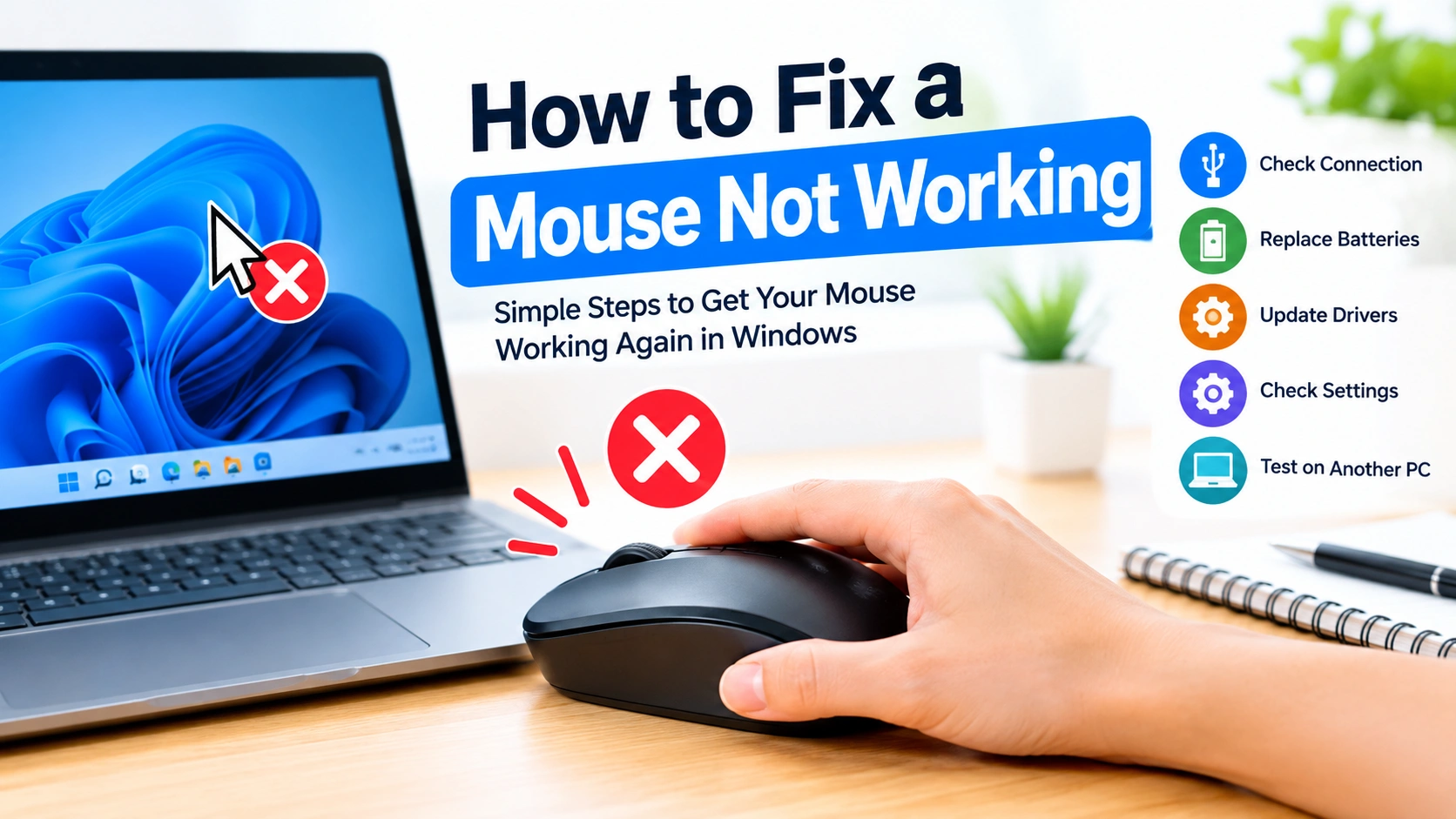
A mouse that suddenly stops working can make even simple computer tasks frustrating. Whether you use a wired USB mouse, a wireless mouse, or a Bluetooth model, the problem may be caused by a loose connection, depleted batteries, driver issues, incorrect settings, or a hardware failure.
Fortunately, you can usually identify the cause with a few straightforward troubleshooting steps. This guide explains how to fix a mouse not working in Windows and how to determine whether the problem is with the mouse, connection, or PC.
Why Is My Mouse Not Working?
Before changing system settings, check the most common causes. A mouse may stop responding because of:
- A loose or damaged USB connection
- Dead or weak batteries
- A wireless receiver that is disconnected
- Bluetooth connection problems
- Corrupted or outdated mouse drivers
- Windows configuration issues
- USB port problems
- A dirty optical sensor
- Physical damage to the mouse or cable
- Temporary Windows or software glitches
Starting with simple hardware checks can save time before you move on to Windows troubleshooting.
1. Check the Mouse Connection
If you use a wired USB mouse, disconnect it and reconnect it firmly.
Try these steps:
- Unplug the mouse from the USB port.
- Wait a few seconds.
- Connect it to another USB port.
- Move the mouse and check whether the pointer responds.
If the mouse works after switching ports, the original USB port may be experiencing a problem.
Avoid connecting the mouse through a faulty USB hub while troubleshooting. Connect it directly to the computer whenever possible.
2. Replace the Batteries in a Wireless Mouse
For a wireless mouse, check its batteries before investigating Windows settings.
Open the battery compartment and replace the batteries with fresh ones. If the mouse has a rechargeable battery, charge it for a while before testing it again.
Also check the power switch. Some wireless mice have a small switch on the bottom that can easily be moved accidentally.
3. Check the Wireless Receiver
USB wireless mice normally use a small receiver that connects to the computer.
Make sure the receiver is properly inserted. If possible:
- Remove the receiver.
- Wait several seconds.
- Plug it into another USB port.
- Turn the mouse off and on again.
- Test the pointer.
Keep the receiver relatively close to the mouse and avoid unnecessary USB extension devices while troubleshooting.
4. Reconnect a Bluetooth Mouse
Bluetooth mice can stop working if their connection is interrupted.
If you can control Windows using the keyboard or touchpad, open Settings > Bluetooth & devices and check whether the mouse is connected.
If necessary, remove the mouse from the Bluetooth device list and pair it again.
You should also verify that Bluetooth is enabled on the computer.
5. Clean the Mouse Sensor
A dirty optical sensor can cause a mouse to appear unresponsive or make the pointer move erratically.
Turn the mouse over and inspect the sensor area. Remove dust, hair, or debris using a soft, dry cloth or suitable compressed air.
Also test the mouse on a clean, non-reflective surface. Some optical sensors can behave poorly on glass or highly reflective surfaces.
6. Restart Your Computer
A temporary Windows problem can sometimes prevent a mouse from responding correctly.
If the keyboard still works, save your work and restart the computer.
You can restart Windows using the keyboard:
- Press Ctrl + Alt + Delete.
- Use the keyboard to select the power menu.
- Choose Restart.
After Windows starts again, test the mouse.
7. Check the Mouse in Device Manager
Windows uses device drivers to communicate with your mouse. A corrupted or malfunctioning driver can prevent the device from working correctly.
To check the mouse:
- Press Windows + X.
- Select Device Manager.
- Expand Mice and other pointing devices.
- Look for your mouse.
- Check for warning icons.
If the device appears with an error, Windows may have detected a driver or hardware problem.
You can also use the keyboard to navigate Device Manager if the mouse is completely unavailable.
8. Update or Reinstall the Mouse Driver
An outdated or corrupted driver can cause mouse problems after Windows updates, hardware changes, or software installations.
In Device Manager:
- Expand Mice and other pointing devices.
- Select your mouse.
- Open the driver options.
- Choose Update driver.
- Follow the instructions provided by Windows.
If updating does not help, uninstalling the device and restarting Windows can allow the operating system to detect and reinstall the driver.
For specialized gaming or professional mice, you may also need the manufacturer’s official software or driver.
9. Check Mouse Settings in Windows
Sometimes the mouse works, but Windows settings make it appear as though it does not.
Open Settings > Bluetooth & devices > Mouse and review the available options.
Check settings such as:
- Primary mouse button
- Mouse pointer speed
- Scrolling behavior
- Additional mouse settings
If the pointer is moving but clicks do not behave normally, the button configuration may have been changed.
10. Test the Mouse on Another Computer
One of the easiest ways to determine whether the problem is hardware or software is to test the mouse on another computer.
Connect the mouse to a different PC and see whether it works.
If the mouse works on another computer
The problem is more likely related to:
- Windows settings
- Drivers
- USB or Bluetooth configuration
- The original computer’s hardware
If the mouse does not work on another computer
The mouse itself may have a damaged cable, sensor, buttons, receiver, or internal electronics.
This test can quickly narrow down the cause.
11. Try Another Mouse on Your PC
You can perform the opposite test by connecting another working mouse to your computer.
If the second mouse works normally, your original mouse is likely the source of the problem.
If neither mouse works, investigate Windows, USB ports, Bluetooth, drivers, or other system-level issues.
12. Check for Windows Updates
Windows updates can contain driver improvements and hardware compatibility fixes.
Open Settings > Windows Update and check for available updates.
If the mouse stopped working immediately after a Windows update, however, the update itself could potentially be related. In that situation, check Microsoft’s current documentation and known-issue information before making major system changes.
13. Run Windows Troubleshooting
Windows includes troubleshooting features that can help identify certain hardware and system problems.
Depending on your Windows version, troubleshooting options are available through Settings > System > Troubleshoot.
Run any relevant troubleshooter and follow the recommended actions.
Remember that troubleshooters may not identify every hardware problem, so also perform the physical and connection checks described above.
14. Check USB Power Management
Some Windows power-management settings can affect USB devices.
If a wired or wireless USB mouse frequently disconnects, inspect the USB-related settings in Device Manager.
Be careful when changing power-management options because USB devices can behave differently depending on the computer’s hardware and Windows configuration.
If the mouse problem started after changing power settings, restoring the previous configuration can also be useful.
15. Check for Physical Damage
If software troubleshooting does not solve the problem, inspect the mouse carefully.
Look for:
- Frayed USB cables
- Bent connectors
- Cracked plastic
- Damaged buttons
- A broken scroll wheel
- A loose wireless receiver
- Battery corrosion
- Signs of liquid damage
Do not continue using a visibly damaged device if it could pose an electrical or safety risk.
What to Do If the Mouse Still Does Not Work
If none of these solutions works, use a process of elimination:
Mouse → connection → USB/Bluetooth → Windows settings → drivers → hardware
Try the mouse with another computer, another USB port, and another connection method where applicable. These tests can help determine whether you need to troubleshoot Windows further or replace the mouse.
If a mouse works everywhere except one computer, focus on that PC. If it fails everywhere, replacing the mouse or its receiver may be necessary.
Final Thoughts
When a mouse stops working, there is no need to immediately assume that the device is broken. Start with simple checks such as reconnecting the mouse, replacing batteries, cleaning the sensor, and trying another USB port.
If those steps do not help, move on to Bluetooth settings, Device Manager, drivers, Windows settings, and hardware testing. Testing the mouse on another computer is particularly useful because it can quickly tell you whether the problem is with the mouse or your Windows PC.
With a systematic approach, you can usually identify the cause and fix a mouse not working in Windows without replacing your computer or making complicated system changes.