

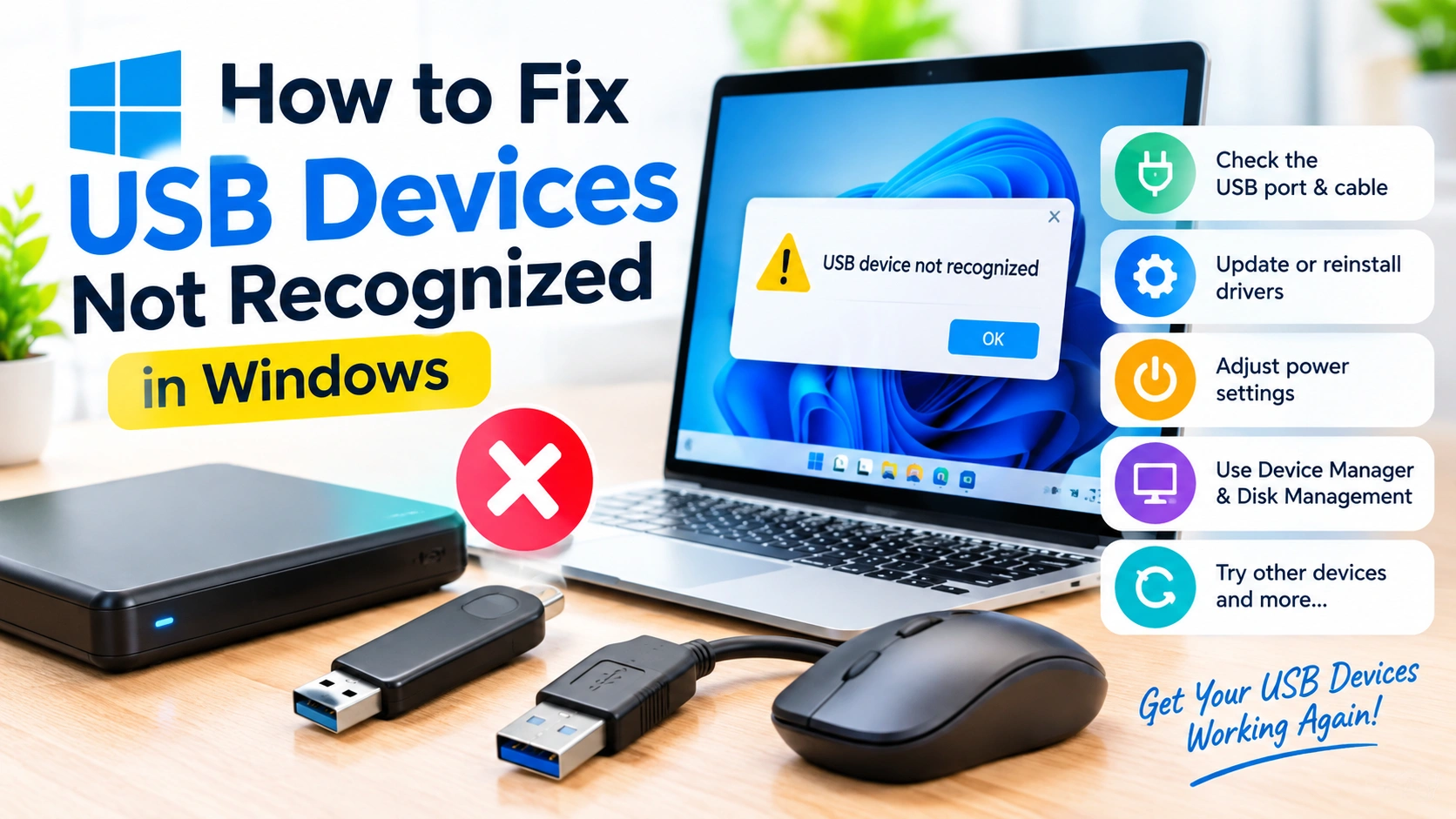
When Windows displays a “USB device not recognized” message, your computer has detected that something is connected but cannot communicate with the device correctly. The problem can affect USB flash drives, external hard drives, keyboards, mice, printers, smartphones, webcams, and other peripherals.
The good news is that many USB connection problems can be fixed without replacing the device. A faulty port, damaged cable, outdated driver, power-management setting, or temporary Windows glitch may be responsible.
This guide explains practical ways to troubleshoot USB devices not recognized in Windows, starting with simple checks and progressing to more advanced solutions.
Why Is My USB Device Not Recognized?
There are several possible reasons Windows may fail to recognize a USB device:
- The USB port is damaged or dirty.
- The USB cable is faulty.
- The device is not receiving enough power.
- Windows has a temporary hardware-detection problem.
- The USB driver is outdated or corrupted.
- A recent Windows or driver update caused a compatibility issue.
- USB power-management settings are interfering with the connection.
- The device itself has failed.
- The file system or partition on a storage device is damaged.
Identifying whether the problem is with the computer, USB connection, or device can make troubleshooting much easier.
1. Disconnect and Reconnect the USB Device
Start with the simplest solution.
- Safely disconnect the USB device if possible.
- Remove it from the USB port.
- Wait several seconds.
- Plug it back in firmly.
- Wait for Windows to detect it.
Avoid repeatedly forcing a connector into a port. If the connection feels unusually loose, the port or device connector may be physically damaged.
2. Try a Different USB Port
A single USB port can fail while the others continue working normally.
Move the device to another USB port on your computer. If you’re using a desktop PC, try ports directly connected to the motherboard, particularly those on the rear panel.
If the device works in another port, the original port may have a hardware or power-related problem.
For USB storage devices, avoid connecting through an unpowered hub while troubleshooting.
3. Restart Your Computer
Windows can occasionally experience a temporary USB or hardware-detection error.
Save your work and restart the computer. After Windows loads again, reconnect the USB device.
A restart can reset USB controllers and clear temporary driver or system-state problems.
4. Check the USB Cable
If the USB device uses a detachable cable, inspect it carefully.
Look for:
- Bent connectors
- Frayed sections
- Cuts or visible damage
- Loose connections
- Signs of wear near the connector
Try another compatible cable if one is available.
This is especially useful with external hard drives, smartphones, printers, cameras, and other devices that use separate USB cables.
5. Test the Device on Another Computer
Testing the device elsewhere helps determine where the problem is located.
Connect the USB device to another Windows computer.
If it works normally on another computer, the original PC may have a USB port, driver, or Windows configuration problem.
If the device fails on multiple computers, the USB device, cable, or its internal hardware may be defective.
6. Run the Windows Hardware Troubleshooter
Depending on your Windows version, available troubleshooting options can vary. Windows includes tools that can help identify certain hardware and device problems.
You can also use Windows Settings to access available troubleshooters:
Settings → System → Troubleshoot → Other troubleshooters
Look for relevant hardware, device, or connected-device troubleshooting options if they are available on your system.
7. Check Device Manager
Device Manager is one of the most useful tools for diagnosing USB devices not recognized.
Right-click the Start button and select Device Manager.
Expand categories such as:
- Universal Serial Bus controllers
- Disk drives
- Portable Devices
- Other devices
Look for devices with a yellow warning icon or an entry that appears as an unknown device.
Right-click the affected device and select Properties to view its status.
The General tab may display information about why Windows cannot start or recognize the device.
8. Update the USB Driver
A corrupted or outdated driver can prevent Windows from communicating properly with a USB device.
In Device Manager:
- Expand Universal Serial Bus controllers.
- Locate the relevant USB controller or device.
- Right-click it.
- Select Update driver.
- Choose the appropriate automatic driver-search option.
You can also check the device manufacturer’s website for current drivers when Windows does not find a suitable update.
Only install drivers from trustworthy sources.
9. Reinstall the USB Device Driver
If updating the driver does not help, reinstalling it may clear corrupted driver information.
In Device Manager:
- Find the problematic device.
- Right-click it.
- Select Uninstall device.
- Confirm the removal.
- Restart Windows.
Windows may automatically reinstall the required driver after restarting.
If the problem involves a USB controller, be careful when uninstalling devices. Removing multiple controllers at once can temporarily affect connected USB hardware.
10. Disable USB Power Saving Temporarily
Windows can use power-management features to reduce energy consumption. In some situations, these settings can interfere with USB devices.
Open Device Manager and expand Universal Serial Bus controllers.
For applicable USB Root Hub or Generic USB Hub entries:
- Right-click the device.
- Select Properties.
- Open the Power Management tab if available.
- Look for the option allowing Windows to turn off the device to save power.
- Temporarily disable that option.
- Restart Windows and test the USB device.
If the device begins working normally, power management may have contributed to the problem.
11. Check Disk Management for USB Storage
If Windows recognizes a USB flash drive or external disk but it does not appear in File Explorer, the problem may not be USB detection itself.
Right-click Start and open Disk Management.
Look for the connected drive.
If the disk appears without a drive letter, you may be able to assign one through Disk Management.
However, be careful with options involving formatting, deleting partitions, or initializing disks. These actions can result in data loss.
If the USB drive contains important files, do not format it simply because Windows cannot open it.
12. Check for Windows Updates
Windows updates can include fixes for hardware compatibility and device drivers.
Open:
Settings → Windows Update
Check for available updates and install appropriate updates.
If the USB problem started immediately after a particular update, investigate whether Microsoft has documented a related issue before attempting to roll back system components.
13. Remove Unnecessary USB Devices
Too many connected USB devices can sometimes create power or configuration problems.
Disconnect unnecessary peripherals, leaving only the device you are troubleshooting.
For example, temporarily remove:
- USB hubs
- External storage
- Printers
- Game controllers
- Webcams
- Other USB accessories
Then reconnect the problematic device directly to the computer.
14. Avoid Unpowered USB Hubs
Some USB devices require more power than a basic USB hub can provide.
If your device is connected through a hub, remove the hub from the setup and connect the device directly to the computer.
For power-hungry external drives or multiple peripherals, a properly powered USB hub may provide a more reliable connection.
15. Check for Physical Damage
Hardware damage should not be overlooked.
Inspect the USB port and connector for:
- Bent pins
- Broken plastic
- Debris
- Corrosion
- Loose connections
Do not insert sharp objects into a USB port to clean it. If a port appears damaged, professional repair may be safer.
Likewise, if a USB flash drive becomes unusually hot, produces an unusual smell, or repeatedly disconnects, stop using it.
16. Use the Manufacturer’s Support Tools
Some specialized USB devices require software supplied by the manufacturer.
This can apply to:
- Smartphones
- Printers
- Cameras
- Audio interfaces
- Specialized storage devices
- Business peripherals
Visit the manufacturer’s official support website and look for Windows drivers, firmware updates, compatibility information, or troubleshooting documentation.
Avoid downloading drivers from random third-party driver websites.
17. Check Whether the Problem Affects One Device or All USB Devices
This is an important diagnostic step.
If only one USB device fails, the device, cable, or its specific driver may be responsible.
If multiple USB devices fail, investigate the computer’s USB controllers, Windows drivers, power settings, and physical ports.
This distinction can save considerable troubleshooting time.
18. Restore the System After a Recent Change
If the USB problem began after installing software, drivers, or another system change, Windows System Restore may be an option if a suitable restore point exists.
System Restore can return certain system settings and drivers to an earlier state without normally removing personal documents.
Before using recovery options, understand what changes they make and consider creating a backup of important files.
19. When a USB Device May Need Replacement
Sometimes troubleshooting cannot fix the problem because the device itself has failed.
Consider hardware replacement when:
- The device is not detected on multiple computers.
- Different USB ports produce the same result.
- A known-good cable does not help.
- The device has visible physical damage.
- The device repeatedly disconnects.
- A storage device makes unusual noises.
- The manufacturer confirms a hardware failure.
For USB storage devices containing important data, avoid repeatedly reconnecting a failing drive. Professional data-recovery assistance may be appropriate when the information is valuable.
Quick Fix Checklist
If you need a short troubleshooting sequence, try these steps in order:
- Disconnect and reconnect the USB device.
- Restart Windows.
- Try another USB port.
- Connect the device directly instead of through a hub.
- Try another compatible USB cable.
- Test the device on another computer.
- Check Device Manager.
- Update or reinstall the relevant driver.
- Check USB power-management settings.
- Check Disk Management for USB storage.
- Install available Windows updates.
- Contact the device manufacturer if the problem persists.
How to Prevent Future USB Problems
A few habits can reduce USB-related issues.
Always disconnect storage devices safely through Windows when appropriate. Avoid pulling cables at sharp angles, and do not force connectors into ports.
Use good-quality cables and avoid overloading inexpensive USB hubs. Keep USB ports reasonably clean and protect portable devices from moisture, impacts, and excessive heat.
For important files, maintain a separate backup rather than relying on a single USB flash drive or external disk.
Frequently Asked Questions
Why does Windows say “USB device not recognized”?
Windows may display this message because of a faulty USB port, damaged cable, insufficient power, driver problems, Windows configuration issues, or a failing USB device.
Why does my USB work on another computer but not mine?
If the device works elsewhere, the problem is more likely related to the original computer’s USB port, driver, power settings, or Windows configuration.
Why is my USB drive not showing in File Explorer?
The drive may be detected but missing a drive letter, have a partition or file-system problem, or have a hardware fault. Check Disk Management before making changes that could erase data.
Can updating USB drivers fix the problem?
Yes. A corrupted, outdated, or incompatible driver can prevent Windows from communicating correctly with USB hardware. Updating or reinstalling the relevant driver can sometimes resolve the issue.
Should I format a USB drive that Windows does not recognize?
Not immediately. Formatting can erase data. First determine whether Windows detects the drive and whether the problem can be repaired without deleting its contents.
What if none of these solutions work?
Test the USB device on another computer and test another known-working USB device on the affected computer. These tests can help determine whether the problem is the device or the PC. If the device fails everywhere, hardware failure is possible.
Conclusion
When USB devices are not recognized in Windows, the cause can range from a loose connection to a damaged device driver or failing hardware. Start with simple solutions such as changing USB ports, restarting Windows, checking the cable, and testing the device on another computer.
If those steps do not work, use Device Manager, check USB power settings, inspect Disk Management for storage devices, and install appropriate Windows or manufacturer updates. For devices containing important data, avoid formatting or other destructive operations until you have determined whether the files can be recovered safely.
With a systematic troubleshooting process, you can often identify whether the problem lies with the USB device, its connection, or Windows itself.