

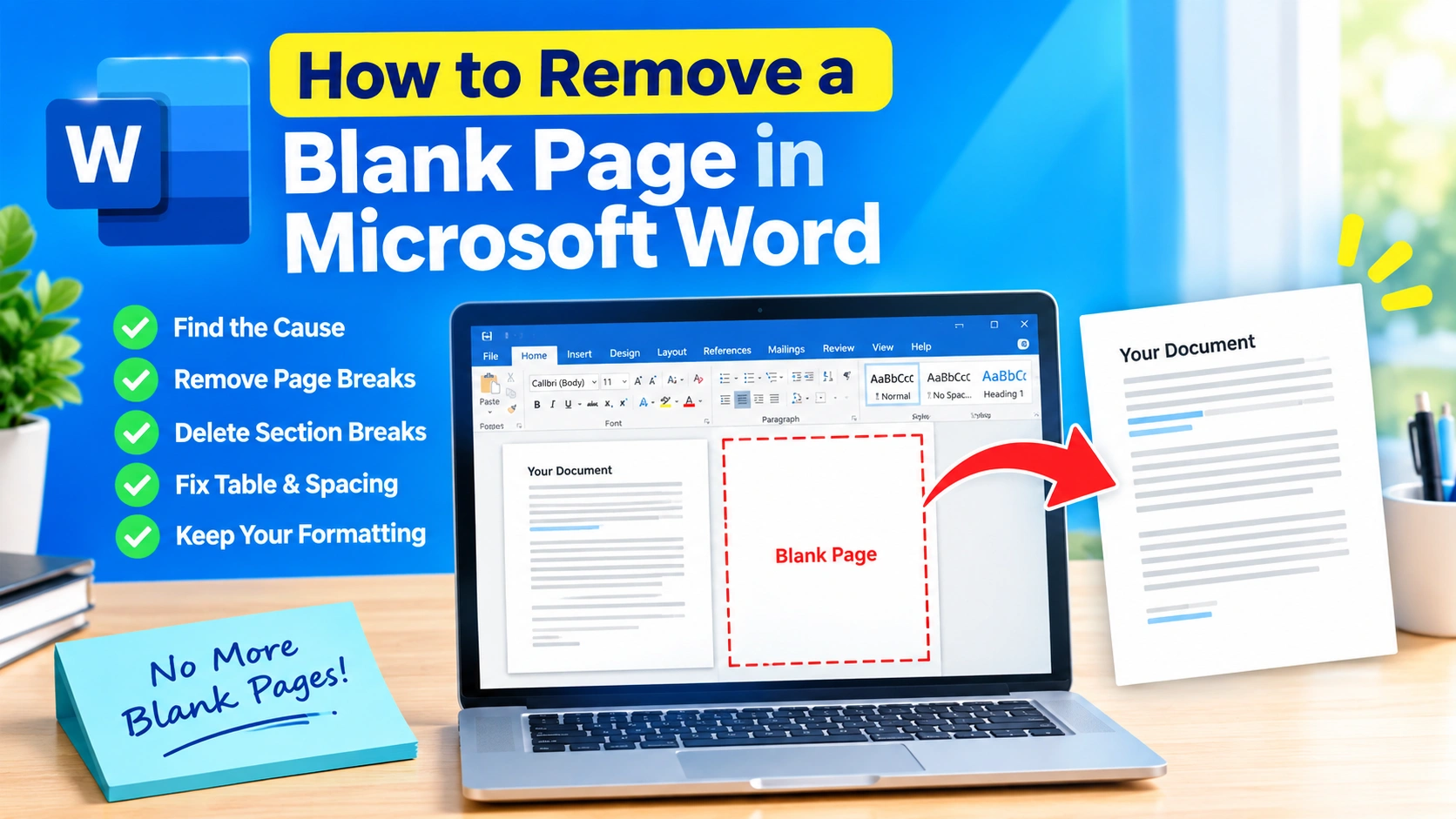
A blank page in Microsoft Word can appear unexpectedly at the end or in the middle of a document. It may be caused by extra paragraph marks, manual page breaks, section breaks, tables, or formatting that pushes content onto another page.
Fortunately, you can usually remove a blank page in Microsoft Word in just a few steps. The best method depends on what is creating the empty page.
This guide explains several reliable ways to remove a blank page in Microsoft Word without accidentally changing the rest of your document.
Why Does Microsoft Word Create a Blank Page?
Before deleting a blank page, it helps to identify what is causing it. Common reasons include:
- Extra paragraph marks
- Manual page breaks
- Section breaks
- Large tables
- Incorrect paragraph spacing
- Different page layouts
- Empty paragraphs at the end of a document
- Content that is slightly too large to fit on the previous page
Word does not always make the cause obvious because formatting marks are normally hidden.
The first step is therefore to make those marks visible.
How to Show Formatting Marks in Microsoft Word
Formatting marks make it much easier to find the reason for a blank page.
Method 1: Use the Home Tab
- Open your Word document.
- Select the Home tab.
- Find the Paragraph section.
- Click the ¶ Show/Hide button.
You should now see symbols throughout your document.
The ¶ symbol represents a paragraph mark. You may also see indicators for page breaks and section breaks.
Method 2: Use a Keyboard Shortcut
You can quickly display formatting marks by pressing:
Ctrl + Shift + 8
Press the same shortcut again to hide them.
Once the marks are visible, go to the blank page and inspect what appears there.
How to Remove a Blank Page at the End of a Word Document
A blank page at the end of a document is one of the most common Word problems.
Usually, it is caused by one or more empty paragraph marks.
Step 1: Display Formatting Marks
Press Ctrl + Shift + 8 to show the paragraph marks.
Step 2: Go to the Blank Page
Scroll to the empty page at the end of the document.
Look for one or more ¶ symbols.
Step 3: Delete the Extra Paragraphs
Place your cursor before the extra paragraph marks and press Backspace.
Alternatively, select the unwanted paragraph marks and press Delete.
The blank page should disappear.
How to Delete a Blank Page Using the Navigation Pane
Microsoft Word’s Navigation Pane can make it easier to locate unwanted pages.
- Open the View tab.
- Enable Navigation Pane.
- Select the Pages tab in the Navigation Pane.
- Locate the blank page.
- Click the page to jump directly to it.
- Turn on formatting marks using Ctrl + Shift + 8.
- Delete the unwanted breaks or paragraph marks.
This method is particularly useful when working with long documents.
How to Remove a Manual Page Break
A manual page break can force Word to start a new page even when there is enough space on the previous page.
To remove it:
- Press Ctrl + Shift + 8.
- Locate the blank page.
- Look for a line labeled Page Break.
- Click immediately before the page break.
- Press Delete.
You can also click after the page break and press Backspace.
Once the manual page break is removed, the content should move back onto the previous page.
How to Remove a Section Break Causing a Blank Page
Section breaks can be slightly more complicated because they control formatting between different parts of a document.
For example, a section break may be configured to start the next section on a new page.
Delete the Section Break
- Turn on formatting marks with Ctrl + Shift + 8.
- Find the section break near the blank page.
- Click immediately before the section break.
- Press Delete.
Be careful when deleting section breaks. Removing one can change:
- Headers
- Footers
- Page numbering
- Margins
- Orientation
- Columns
- Other section-specific formatting
If you need to preserve the formatting, changing the section break type may be safer than deleting it.
How to Change a Section Break Instead of Deleting It
If deleting the section break causes formatting problems, you can change its type.
- Place your cursor inside the section after the break.
- Open the Layout tab.
- Select Page Setup.
- Open the Layout options.
- Look for the Section start setting.
- Change the section start option to an appropriate setting.
Depending on your document, changing the section break from a new-page type to a continuous section can eliminate the unwanted blank page while preserving section formatting.
How to Remove a Blank Page Caused by a Table
Tables can sometimes create a blank page at the end of a Word document.
This happens because Word requires a paragraph after a table. If the table reaches the bottom margin, that final paragraph may be pushed onto a new page.
You may see a single ¶ symbol on the blank page.
Instead of deleting it, try reducing its size.
Make the Final Paragraph Smaller
- Turn on formatting marks.
- Select the paragraph mark after the table.
- Open the Home tab.
- Change the font size to 1 pt.
- Check whether the blank page disappears.
You can also modify the paragraph spacing if necessary.
Reduce Paragraph Spacing
Select the paragraph after the table and choose:
Home → Line and Paragraph Spacing → Line Spacing Options
Set the spacing before and after the paragraph to a smaller value.
This may allow the final paragraph to fit on the previous page.
How to Remove a Blank Page in the Middle of a Document
If the blank page appears between two sections of text, check for a page break or section break.
- Press Ctrl + Shift + 8.
- Navigate to the blank page.
- Look for Page Break or Section Break.
- Select the break.
- Press Delete.
If there are several empty paragraphs, remove them as well.
Afterward, check the surrounding pages because deleting a break can change the document’s pagination.
How to Remove a Blank Page in Word Using Backspace
For simple blank pages, the Backspace key is often enough.
- Click at the beginning of the page after the blank page.
- Press Backspace.
- Continue pressing it until the blank page disappears.
This works particularly well when an extra page is created by empty paragraphs or a page break.
If Backspace does not work, enable formatting marks to identify the underlying cause.
How to Remove a Blank Page Using Delete
You can also remove unwanted content from the blank page directly.
- Click at the beginning of the blank page.
- Hold the mouse button and select the unwanted paragraph marks or breaks.
- Press Delete.
For long documents, using the Navigation Pane can help you find the exact location more quickly.
Check Paragraph Pagination Settings
Sometimes Word creates an apparently blank page because of paragraph pagination settings.
Word includes options such as:
- Keep with next
- Keep lines together
- Page break before
- Widow/Orphan control
The Page break before setting is particularly important because it can force a paragraph onto a new page.
Disable Page Break Before
- Select the paragraph that starts on the unwanted page.
- Right-click and choose Paragraph.
- Open the Line and Page Breaks tab.
- Look for Page break before.
- Clear the checkbox if it is enabled.
- Click OK.
Check the document again to see whether the blank page has disappeared.
Check the Document’s Margins
Large margins can cause content to move to another page.
If your document contains a table, image, heading, or large paragraph near the bottom of a page, even a small amount of additional spacing can push it onto the next page.
To check the margins:
- Open the Layout tab.
- Click Margins.
- Select a standard margin option.
- Check whether the blank page disappears.
If the document has specific formatting requirements, avoid changing the margins unnecessarily.
Check Paragraph Spacing
Large spacing before or after paragraphs can also create unexpected pages.
To reduce it:
- Select the affected paragraph.
- Open the Home tab.
- Click Line and Paragraph Spacing.
- Select an appropriate spacing option.
For more precise control, open Paragraph settings and adjust the Before and After spacing values.
Check Images and Other Objects
A large image, text box, chart, or other object can push content onto a new page.
If a blank page appears after inserting an image:
- Select the image.
- Open Picture Format.
- Check its size.
- Reduce the image slightly if appropriate.
- Check the Wrap Text setting.
Different text-wrapping options can change how Word positions an object.
Try Square, Tight, or In Line with Text, depending on the document layout.
How to Delete a Blank Page in Word on Mac
The process is similar on Mac.
- Open the Word document.
- Display formatting marks.
- Navigate to the blank page.
- Look for extra paragraph marks, page breaks, or section breaks.
- Select the unwanted formatting.
- Press Delete or Backspace.
The exact keyboard shortcut for displaying formatting marks can vary depending on the Word version and Mac keyboard configuration, so using the ¶ Show/Hide button is the most reliable approach.
How to Remove Multiple Blank Pages in Word
If your document contains several unwanted pages, you can remove them systematically.
First, enable formatting marks.
Then inspect each blank page for:
- Extra paragraph marks
- Page breaks
- Section breaks
- Large objects
- Tables
- Excessive paragraph spacing
Remove only the formatting responsible for the unwanted pages.
For a large document, the Navigation Pane can help you move quickly between pages.
What to Do If the Blank Page Will Not Delete
If the blank page remains after deleting visible paragraph marks, check these areas:
1. Section Breaks
A section break may be forcing content onto a new page.
2. Tables
A table at the bottom of a page may force Word’s required ending paragraph onto another page.
3. Paragraph Settings
Check Page break before, Keep with next, and Keep lines together.
4. Large Objects
Images, charts, and text boxes may be extending beyond the available page area.
5. Page Margins
Large margins can reduce the available space for content.
6. Hidden Content
Use formatting marks to reveal content that is normally invisible.
How to Prevent Blank Pages in Microsoft Word
Preventing blank pages is easier than fixing them later.
Here are some useful practices:
- Avoid pressing Enter repeatedly to create spacing.
- Use paragraph spacing instead of multiple empty paragraphs.
- Use page breaks intentionally.
- Check section breaks before deleting them.
- Keep images within the printable area.
- Avoid unnecessarily large tables.
- Review pagination settings for important headings.
- Use Word’s built-in formatting tools instead of manually adding spaces.
These practices help keep documents more stable when you add or remove content.
Quick Fix: Remove a Blank Page in Word
If you need the fastest solution, try this sequence:
- Open the Word document.
- Press Ctrl + Shift + 8.
- Go to the blank page.
- Look for ¶, Page Break, or Section Break.
- Select the unwanted mark.
- Press Delete.
- Check the document layout.
- If the page remains, inspect tables, paragraph settings, margins, and objects.
In many cases, this solves the problem within a few seconds.
Frequently Asked Questions
Why is there a blank page at the end of my Word document?
A blank page at the end is often caused by an extra paragraph mark after the document’s final content. It can also be caused by a table that extends close to the bottom margin.
Why can’t I delete a blank page in Word?
The page may be created by a section break, page break, table, or paragraph pagination setting. Turn on formatting marks to identify what is creating it.
How do I remove a page break in Word?
Turn on formatting marks, select the Page Break marker, and press Delete.
Can a table create a blank page in Word?
Yes. Word requires a paragraph after a table, and that paragraph can sometimes be pushed onto a new page when the table reaches the bottom of the document.
Will deleting a section break change my formatting?
It can. Section breaks can control margins, headers, footers, page numbering, orientation, and other formatting. Always check the surrounding pages after deleting one.
How do I find blank pages in a long Word document?
Open the View tab and enable the Navigation Pane. Select the Pages view to navigate through the document and locate unwanted pages.
Final Thoughts
Removing a blank page in Microsoft Word is usually straightforward once you identify what is creating it. Start by enabling formatting marks, then look for extra paragraph marks, page breaks, or section breaks.
If the blank page remains, inspect tables, paragraph pagination settings, margins, images, and other objects. Avoid deleting section breaks blindly because they can affect the formatting of the rest of your document.
With these techniques, you can quickly remove unwanted blank pages while keeping your Word document properly formatted.