

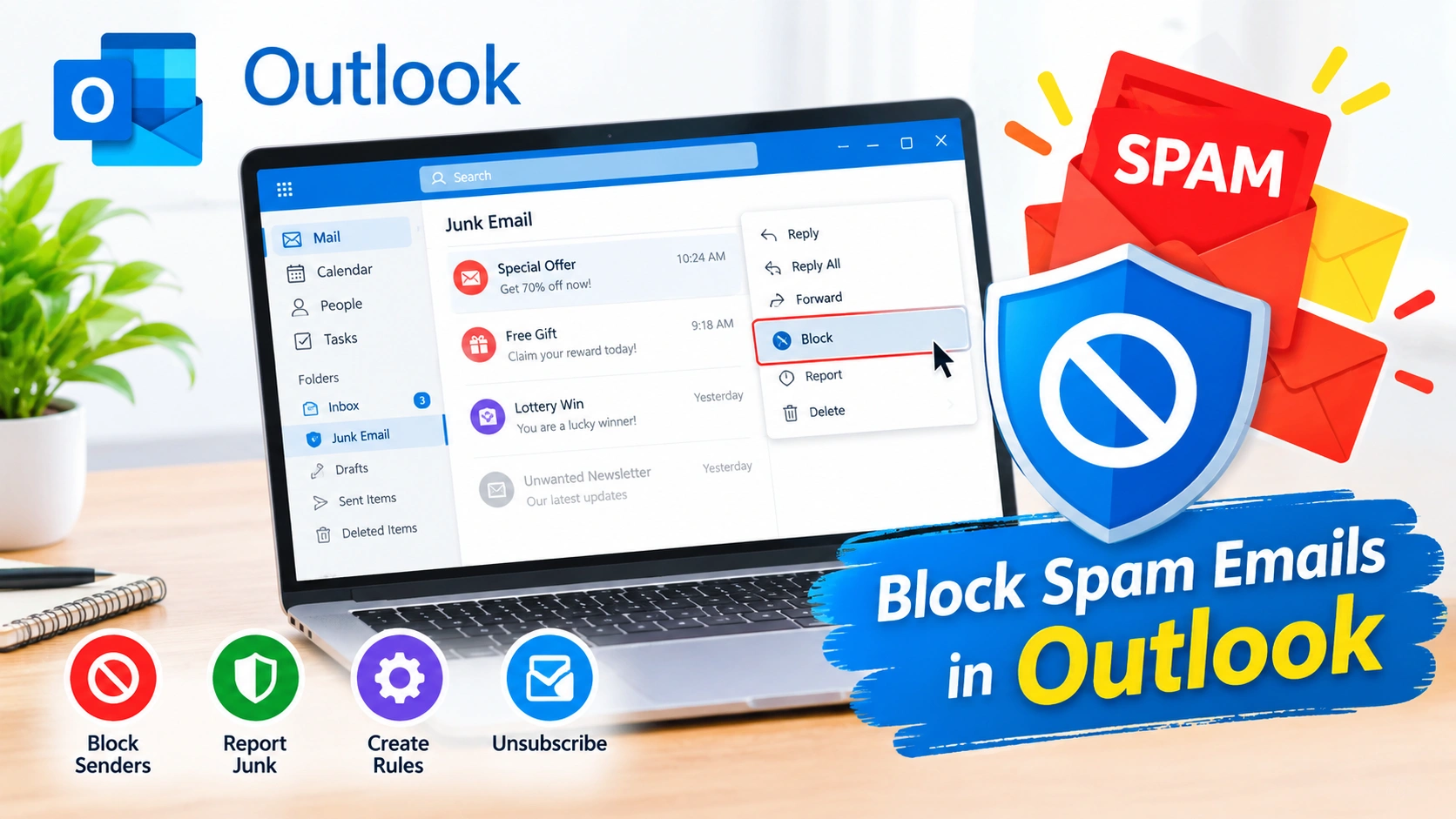
Spam emails can quickly fill your inbox with unwanted advertisements, suspicious messages, newsletters you never requested, and potentially dangerous phishing attempts. Fortunately, Microsoft Outlook includes several built-in features that can help you block unwanted senders, filter junk mail, and keep your inbox more organized.
In this guide, you’ll learn how to block spam emails in Outlook, create useful filtering rules, report junk messages, and reduce the amount of unwanted email you receive.
Why Should You Block Spam Emails?
Spam is more than an inconvenience. Some unwanted emails may contain malicious links, deceptive attachments, or fake login pages designed to steal personal information.
Blocking and filtering spam can help you:
- Keep your inbox organized.
- Reduce unwanted promotional messages.
- Avoid accidentally opening suspicious links.
- Protect yourself from phishing attempts.
- Spend less time deleting unwanted emails.
- Make important messages easier to find.
Outlook’s built-in junk email controls can handle many unwanted messages automatically, while blocking specific senders gives you additional control.
1. Block a Spam Sender in Outlook
One of the simplest ways to stop unwanted messages is to block the sender.
In the current Outlook interface, you can generally do this by selecting the unwanted message and using the Block or Block sender option.
A typical process is:
- Open Outlook.
- Select the spam email.
- Choose Block or Block sender from the message options.
- Confirm the action if Outlook asks you to do so.
Future messages from that sender can then be treated as unwanted mail.
When Should You Block a Sender?
Blocking works well when you repeatedly receive messages from the same address. However, spammers often change email addresses, so blocking individual addresses may not stop an entire spam campaign.
For recurring spam, reporting the message as junk or phishing can provide a better signal to Outlook’s filtering system.
2. Report Spam as Junk
Instead of simply deleting a suspicious message, consider reporting it as junk.
To do this:
- Select the unwanted email.
- Choose Report or Junk.
- Select the appropriate spam or junk option.
Reporting spam helps Outlook recognize unwanted messages and can improve filtering for similar emails.
If a message appears to be attempting to steal passwords, financial information, or other sensitive data, use the phishing reporting option when available.
Important: Don’t click suspicious links or open unexpected attachments before reporting the message.
3. Add an Email Address to the Blocked Senders List
Outlook also provides blocked sender controls where you can manage addresses and domains that should be treated as unwanted.
This can be useful when you want to manually maintain your blocked list.
Look for the Junk Email settings in Outlook and locate the section for Blocked senders and domains. From there, you can add an email address or domain.
For example, if messages repeatedly arrive from:
spam@example.com
you can add that address to your blocked senders list.
Be careful when blocking entire domains. A domain-wide block can also prevent legitimate messages from other users at the same organization.
4. Use Outlook Rules to Filter Repeated Spam
Rules can provide more advanced control over incoming messages.
For example, you can create a rule that moves messages containing specific words into another folder.
Potential filtering criteria include:
- Specific sender addresses.
- Subject keywords.
- Words commonly used in unwanted advertisements.
- Messages sent to a particular address.
- Specific domains.
A basic workflow is:
- Open Outlook settings.
- Go to Mail and then Rules.
- Select Add new rule.
- Give the rule a descriptive name.
- Choose a condition.
- Select an action, such as moving the message to a folder.
- Save the rule.
Avoid creating overly broad rules. A rule based on a common word could accidentally move legitimate emails out of your inbox.
5. Create a Dedicated Spam Folder
Although Outlook’s Junk Email folder is designed to handle unwanted messages, you can also create folders for specific types of email.
For example, you might create folders such as:
- Promotions
- Newsletters
- Suspicious
- Marketing
- Unwanted Notifications
Rules can then automatically move matching messages into these folders.
This approach can be useful when you don’t necessarily want to delete messages but don’t want them cluttering your primary inbox either.
6. Unsubscribe From Legitimate Mailing Lists
Not every unwanted email is technically spam.
If you subscribed to a newsletter, online store, service, or website and no longer want its messages, use the legitimate Unsubscribe option.
Look for an unsubscribe link near the bottom of the message or an unsubscribe option provided by Outlook.
However, don’t interact with unsubscribe links in suspicious emails. If the message looks fraudulent, phishing-related, or deceptive, report it instead.
7. Don’t Reply to Suspicious Spam
Replying to spam usually isn’t an effective way to stop it.
Avoid responding to suspicious messages with requests such as “remove me” or “stop emailing me.” This can potentially confirm that your address is actively monitored.
Instead:
- Report the message as junk.
- Report phishing when appropriate.
- Block the sender.
- Delete the message.
8. Be Careful With Email Attachments and Links
Spam filtering isn’t perfect, so some unwanted messages may still reach your inbox.
Before opening an attachment or clicking a link, check:
- The sender’s actual email address.
- The domain used by links.
- Whether the message was expected.
- Whether the request creates unusual urgency.
- Whether the sender asks for passwords or payment information.
- Whether the attachment makes sense for the conversation.
A message that looks professional can still be fraudulent.
9. Review Your Outlook Junk Email Settings
If you’re receiving too much spam, review your Outlook junk email settings.
Depending on your Outlook version and account type, available controls may include options for:
- Blocked senders.
- Safe senders.
- Blocked domains.
- Junk email handling.
- Phishing reporting.
Keep legitimate contacts and domains on your safe list when necessary, but don’t add unknown senders simply because you want their messages to bypass spam filtering.
10. Keep Your Outlook Account Secure
Spam and phishing attacks often target compromised or poorly protected accounts.
Improve your account security by:
- Using a strong, unique password.
- Enabling multifactor authentication when available.
- Keeping Windows and Outlook updated.
- Avoiding password reuse.
- Reviewing unexpected account-security notifications carefully.
- Checking account activity for unfamiliar sign-ins.
Security measures won’t eliminate spam completely, but they can reduce the risk associated with malicious email.
What If Blocked Senders Keep Sending Spam?
Blocking one sender doesn’t necessarily stop a spam campaign.
Spammers can use:
- Different email addresses.
- Multiple domains.
- Spoofed sender information.
- Automated mailing systems.
- Compromised accounts.
If similar spam continues, report the messages as junk instead of repeatedly blocking individual addresses. You can also create carefully targeted rules for recurring patterns.
Blocked Sender vs. Junk Reporting
These features serve slightly different purposes.
| Feature | Best Used For |
|---|---|
| Block sender | Repeated messages from a specific sender |
| Report junk | Unwanted or unsolicited email |
| Report phishing | Suspicious messages attempting fraud or credential theft |
| Rules | Automatically organizing messages based on specific conditions |
| Unsubscribe | Legitimate newsletters and mailing lists |
Using the appropriate feature makes it easier to keep your Outlook inbox under control.
Common Mistakes to Avoid
When managing spam, avoid these common mistakes:
Blocking entire domains unnecessarily
A domain may contain both unwanted and legitimate senders. Block an entire domain only when you’re confident you don’t need messages from it.
Clicking links in suspicious emails
Don’t click a link just to find out where it goes. Use Outlook’s reporting tools instead.
Opening unexpected attachments
Unexpected ZIP files, documents, scripts, and executable files can pose security risks.
Creating overly broad rules
A poorly designed rule can move important messages into the wrong folder.
Deleting without reporting
If an email is clearly spam or phishing, reporting it can be more useful than simply deleting it.
How to Reduce Spam in the Future
Blocking existing spam is only part of the solution. You can also reduce future unwanted messages by being selective about where you provide your email address.
Consider these habits:
- Avoid posting your primary email address publicly.
- Use separate email addresses for newsletters and online registrations.
- Review mailing-list subscriptions regularly.
- Don’t enter your email address on suspicious websites.
- Be cautious when signing up for unfamiliar services.
- Never provide passwords or sensitive information through unexpected email requests.
Final Thoughts
Learning how to block spam emails in Outlook can make your inbox cleaner and help reduce exposure to unwanted and potentially dangerous messages. Start by reporting obvious spam, blocking persistent senders, and using Outlook rules when you need more advanced filtering.
For legitimate newsletters, unsubscribe rather than treating every unwanted message as malicious. Most importantly, remain cautious with unexpected links, attachments, login requests, and messages asking for sensitive information.
With a combination of Outlook’s junk-mail controls, sender blocking, rules, and good email security habits, you can significantly improve your inbox management and reduce the impact of spam.