

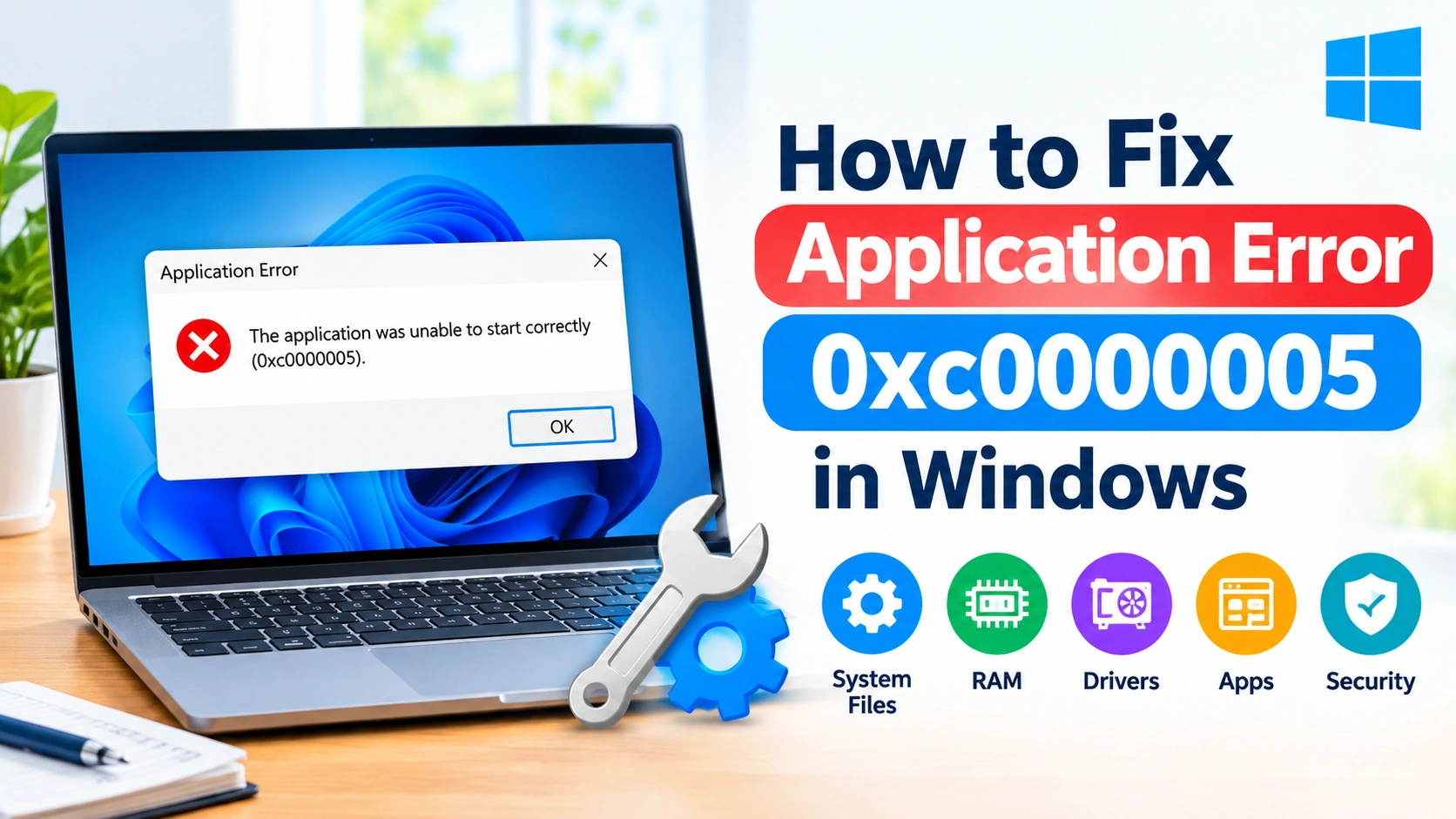
Application Error 0xc0000005 is a common Windows problem that can prevent an application from launching or cause it to crash unexpectedly. The error is often associated with an access violation, meaning a program attempted to access a memory location or resource that Windows could not allow it to use.
The problem can appear after installing software, updating Windows, changing system settings, or encountering corrupted system files. Fortunately, several troubleshooting methods can help you identify and resolve the underlying cause.
This guide explains how to fix Application Error 0xc0000005 in Windows using practical solutions, starting with simple checks and progressing to more advanced repairs.
What Is Application Error 0xc0000005?
Application Error 0xc0000005 is commonly known as an Access Violation error. It occurs when a Windows application attempts to read, write, or execute data from a memory address without the required permission.
You may see a message similar to:
The application was unable to start correctly (0xc0000005).
The error can affect individual applications or, in some cases, multiple programs.
Why Does Error 0xc0000005 Occur?
Several problems can trigger this Windows error, including:
- Corrupted Windows system files
- Damaged application files
- Faulty RAM or memory problems
- Outdated or incompatible drivers
- Conflicts with security software
- Incorrect application permissions
- Windows update problems
- Conflicting background applications
- Malware or unwanted software
- Data corruption on the storage drive
- Compatibility problems with older applications
Because the error has multiple possible causes, you may need to try more than one solution.
1. Restart Your Windows PC
Before changing advanced settings, restart your computer.
A temporary memory or application conflict can sometimes trigger error 0xc0000005. Restarting Windows clears temporary processes and reloads system services.
After restarting, open the affected application again.
If the error returns, continue with the following methods.
2. Run the Application as Administrator
An application may fail if it does not have sufficient permissions to access a required file, folder, or system resource.
To test this:
- Locate the application’s shortcut or executable file.
- Right-click it.
- Select Run as administrator.
- Choose Yes if User Account Control appears.
- Check whether the application starts normally.
If this fixes the problem, the issue may be related to application permissions.
For a permanent test, right-click the application executable, select Properties, open the Compatibility tab, and enable Run this program as an administrator.
Avoid granting administrator privileges permanently to software unless you trust the application.
3. Check Windows System Files With SFC
Corrupted system files can cause applications to behave incorrectly. Windows includes the System File Checker (SFC) utility for detecting and repairing protected system files.
Open Windows Terminal or Command Prompt as administrator and run:
sfc /scannow
Wait for the scan to reach 100 percent.
If SFC finds corrupted files, Windows will attempt to repair them automatically. Restart the PC afterward and test the affected application.
4. Run DISM to Repair the Windows Image
If SFC cannot repair all detected problems, use the Deployment Image Servicing and Management tool.
Open an elevated Terminal or Command Prompt and run:
DISM /Online /Cleanup-Image /RestoreHealth
The process may take some time.
When it finishes, restart Windows and run SFC again:
sfc /scannow
Running DISM before SFC can help repair the Windows component store that SFC relies on.
5. Update Windows
An outdated Windows installation can contain compatibility or security problems that affect applications.
To check for updates in Windows 11:
- Open Settings.
- Select Windows Update.
- Click Check for updates.
- Install available updates.
- Restart the computer if Windows requests it.
After updating, launch the affected application again.
If error 0xc0000005 started immediately after a particular update, however, note the update’s installation date before attempting to remove it.
6. Update Device Drivers
Incompatible drivers can contribute to application crashes and memory-related errors.
Pay particular attention to:
- Graphics drivers
- Chipset drivers
- Storage drivers
- Network drivers
To check drivers:
- Right-click Start.
- Select Device Manager.
- Expand the relevant hardware category.
- Right-click a device.
- Select Update driver.
- Follow the instructions provided by Windows.
For graphics and chipset hardware, obtaining the latest compatible driver from the hardware manufacturer’s official website can also be useful.
7. Repair or Reinstall the Affected Application
If only one application produces error 0xc0000005, the program itself may be damaged.
First, check whether Windows provides a repair option:
- Open Settings.
- Go to Apps > Installed apps.
- Find the affected application.
- Open its menu.
- Select Advanced options, if available.
- Choose Repair.
If Repair does not solve the problem, try Reset if the option is available.
For traditional desktop applications without these options, uninstall the program and reinstall the latest compatible version from its official source.
8. Check Windows Compatibility Settings
Older applications may encounter problems on newer versions of Windows.
To test compatibility mode:
- Right-click the application’s executable.
- Select Properties.
- Open the Compatibility tab.
- Select Run this program in compatibility mode for.
- Choose an appropriate older Windows version.
- Click Apply.
- Start the application.
Do not assume compatibility mode is required for every program. Test it only when the application is older or has known compatibility issues.
9. Perform a Windows Memory Diagnostic Test
Because 0xc0000005 involves memory access, defective RAM should not be ignored.
Windows includes a built-in memory testing utility.
Press Windows + R, enter:
mdsched.exe
Press Enter.
Choose Restart now and check for problems if you can restart immediately.
Windows will reboot and perform a memory test. If errors are reported, faulty or improperly configured RAM may be contributing to application crashes.
For persistent memory errors, shut down the PC and have the RAM modules tested individually if you are comfortable working with computer hardware.
10. Check the Drive for File-System Errors
Storage errors can damage application files and Windows components.
You can use Check Disk to examine the file system.
Open Terminal or Command Prompt as administrator and run:
chkdsk C: /scan
If Windows reports serious file-system problems that require offline repair, it may recommend scheduling an additional scan during the next restart.
Back up important data before performing extensive disk repairs, especially if the drive is showing signs of physical failure.
11. Temporarily Check Security Software Conflicts
Security software can sometimes interfere with applications that need access to specific files, processes, or system resources.
If the problem began after installing or changing security software, review its quarantine, protection, and application-blocking history.
Rather than permanently disabling security protection, add an application exception only when:
- You trust the application.
- You obtained it from a legitimate source.
- You understand what the exception allows.
If disabling protection is necessary for troubleshooting, keep the test brief and restore protection immediately afterward.
12. Scan Windows for Malware
Malware can modify system files, inject code into processes, or interfere with normal application behavior.
Run a scan with Windows Security:
- Open Windows Security.
- Select Virus & threat protection.
- Choose Scan options.
- Start a suitable scan.
- Follow Microsoft’s recommendations if threats are detected.
If you suspect a persistent infection, a more thorough offline scan may be appropriate.
13. Perform a Clean Boot
A third-party service or startup application can sometimes conflict with the affected program.
A clean boot starts Windows with a minimal set of Microsoft services and helps identify software conflicts.
Press Windows + R, type:
msconfig
Then:
- Open the Services tab.
- Select Hide all Microsoft services.
- Click Disable all.
- Open the Startup tab.
- Open Task Manager.
- Disable unnecessary startup applications.
- Restart Windows.
- Test the affected application.
If the error disappears after a clean boot, gradually re-enable services and startup programs to identify the conflicting software.
Remember to restore your normal startup configuration after testing.
14. Check Whether Data Execution Prevention Is Causing a Conflict
Windows includes Data Execution Prevention (DEP), a security feature designed to prevent certain types of malicious code execution.
In some older or poorly compatible applications, DEP-related behavior can contribute to startup problems.
Before changing DEP settings, make sure the application is legitimate and updated.
Avoid broadly disabling Windows security protections simply to bypass an application error. If a particular older program requires a compatibility workaround, check its official documentation for a supported configuration.
15. Restore Windows to an Earlier State
If error 0xc0000005 appeared after a recent system or software change, System Restore may help when restore points are available.
Search Windows for:
Create a restore point
Open System Properties, select System Restore, and choose an appropriate restore point.
System Restore can roll back system files, drivers, registry settings, and installed software changes while generally leaving personal files untouched.
Review the affected programs shown by the wizard before confirming the restoration.
16. Uninstall a Recently Installed Program
If the error started immediately after installing new software, that software may be conflicting with Windows or another application.
Consider uninstalling recently added:
- System utilities
- Driver tools
- Performance optimizers
- Overlay applications
- Security programs
- Hardware management software
- Untrusted freeware
Restart Windows after uninstalling the suspected application and test again.
17. Reset or Repair Windows as a Last Resort
If error 0xc0000005 continues across multiple applications despite the previous troubleshooting steps, the Windows installation itself may have deeper problems.
Before resetting Windows:
- Back up important documents.
- Back up browser data and other important files.
- Record software licenses and activation information.
- Make sure you know your Microsoft account credentials.
- Disconnect unnecessary external storage.
Windows provides recovery options that can reinstall or reset the operating system. Choose an option that matches your situation and carefully review whether applications and personal files will be removed.
How to Identify the Real Cause of 0xc0000005
The most useful clue is when the error occurs.
| Situation | Possible cause |
|---|---|
| Only one application crashes | Damaged application or compatibility problem |
| Several applications crash | Windows, RAM, driver, or malware problem |
| Error began after an update | Update or driver compatibility issue |
| Error occurs after installing software | Software conflict |
| Windows reports memory errors | RAM or hardware problem |
| Programs crash randomly | Memory, storage, driver, or system corruption |
| Application works as administrator | Permission-related problem |
This distinction can prevent you from making unnecessary system changes.
What Should You Try First?
For most users, start with the least disruptive solutions:
- Restart Windows.
- Run the affected application as administrator.
- Repair or reinstall the application.
- Run
sfc /scannow. - Run DISM.
- Install Windows and driver updates.
- Test RAM with Windows Memory Diagnostic.
- Check the storage drive.
- Investigate security software and startup conflicts.
- Use System Restore or Windows recovery options if necessary.
Conclusion
Application Error 0xc0000005 in Windows is usually related to an access violation, but the underlying cause can range from corrupted application files and Windows components to driver conflicts, memory problems, or malware.
If only one program is affected, repairing or reinstalling that application is a sensible starting point. If several programs experience the same error, investigate Windows system files, RAM, drivers, storage health, and security issues.
Work through the solutions systematically rather than changing multiple advanced Windows settings at once. This makes it easier to identify what actually resolved the problem and reduces the risk of creating additional system issues.