

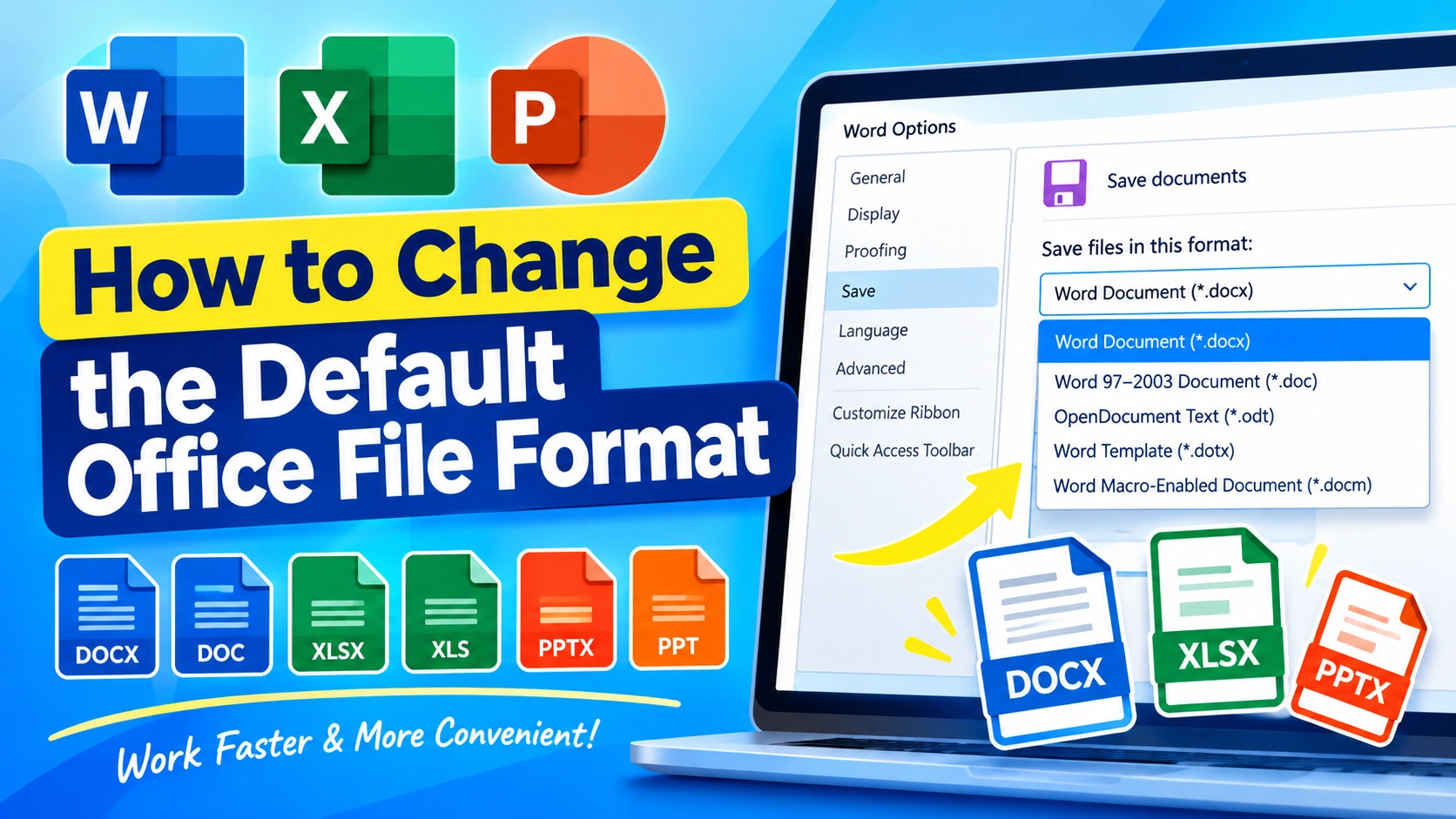
If Microsoft Office always saves your documents in a format you do not want to use, you can change the default file format from the application settings. This is useful when you regularly work with older Office versions, need compatibility with other programs, or prefer formats such as PDF or OpenDocument.
Microsoft Word, Excel, and PowerPoint each provide settings for choosing how new files are saved. Once changed, the selected format becomes the default for future documents.
Learn how to change the default Office file format in Word, Excel, and PowerPoint, including DOCX, XLSX, PPTX, DOC, XLS, and more.
Why Change the Default Office File Format?
Microsoft Office normally uses modern XML-based formats:
- Word:
.docx - Excel:
.xlsx - PowerPoint:
.pptx
These formats are widely supported, but there are situations where another format may be more convenient.
For example, you might need to:
- Open documents with an older version of Microsoft Office.
- Share files with users who use different office software.
- Work with
.doc,.xls, or.pptfiles. - Use OpenDocument formats such as
.odt,.ods, or.odp. - Reduce compatibility problems when exchanging files.
- Make a particular format the standard for your daily workflow.
The important point is that changing the default format does not convert your existing files automatically. It changes the format Office uses when saving new files.
How to Change the Default File Format in Microsoft Word
Word allows you to choose the format used when saving new documents.
Step 1: Open Microsoft Word
Launch Microsoft Word on your Windows computer.
You can open an existing document or create a blank document. The setting is available through Word’s Options menu.
Step 2: Open Word Options
Click File in the upper-left corner.
Then select Options.
The Word Options window will appear.
Step 3: Select Save
In the left-hand menu, click Save.
Look for the section related to saving documents.
Step 4: Change the Default Format
Find:
Save files in this format
Click the drop-down menu.
You may see options such as:
- Word Document (
.docx) - Word 97–2003 Document (
.doc) - OpenDocument Text (
.odt) - Other supported formats
Select the format you want Word to use by default.
Step 5: Save the Setting
Click OK.
From now on, new Word documents will use the selected format when you save them unless you manually choose a different format.
How to Change the Default File Format in Microsoft Excel
Excel has a similar setting for workbooks.
Step 1: Open Excel
Start Microsoft Excel.
Step 2: Open Excel Options
Click File and then select Options.
Step 3: Open the Save Settings
Select Save from the left side of the Excel Options window.
Step 4: Choose a Default Format
Find:
Save files in this format
Open the drop-down menu and select the format you prefer.
Common choices include:
- Excel Workbook (
.xlsx) - Excel 97–2003 Workbook (
.xls) - OpenDocument Spreadsheet (
.ods) - Other available workbook formats
Step 5: Confirm
Click OK.
Excel will now use your selected format as the default when creating and saving new workbooks.
How to Change the Default File Format in PowerPoint
PowerPoint also lets you choose its default presentation format.
Step 1: Launch PowerPoint
Open Microsoft PowerPoint.
Step 2: Open PowerPoint Options
Select File and click Options.
Step 3: Select Save
Click Save in the left-hand navigation panel.
Step 4: Choose the Format
Locate:
Save files in this format
Select your preferred presentation format from the drop-down menu.
Common formats include:
- PowerPoint Presentation (
.pptx) - PowerPoint 97–2003 Presentation (
.ppt) - OpenDocument Presentation (
.odp)
Step 5: Click OK
Click OK to apply the change.
Future presentations will use your selected format by default.
Which Office File Format Should You Use?
The right format depends on how you use your files.
| Format | Application | Best For |
|---|---|---|
.docx | Word | Modern Word documents |
.doc | Word | Older Office compatibility |
.xlsx | Excel | Modern spreadsheets |
.xls | Excel | Older Excel compatibility |
.pptx | PowerPoint | Modern presentations |
.ppt | PowerPoint | Older PowerPoint compatibility |
.odt | Word | OpenDocument workflows |
.ods | Excel | OpenDocument spreadsheets |
.odp | PowerPoint | OpenDocument presentations |
For most users, the modern Office formats are the safest general-purpose choice because they support current Microsoft Office features.
Modern Office Formats vs. Older Formats
One of the most common reasons to change the default format is compatibility.
Modern Office formats use the Office Open XML standard:
.docx.xlsx.pptx
Older versions of Microsoft Office used binary formats:
.doc.xls.ppt
If someone is using an older version of Office, they may have difficulty opening newer files without compatibility support.
However, saving a document in an older format can cause some newer Office features to be lost or changed.
For this reason, do not switch permanently to an older format unless you regularly need that compatibility.
What Happens When You Save in an Older Office Format?
When you save a modern document as an older format, Office may display a compatibility warning.
Some features available in newer versions may not work correctly in the older format.
For example, a Word document containing newer formatting or features could behave differently after being saved as .doc.
Similarly, an Excel workbook using newer formulas or functionality may not preserve every feature when saved as .xls.
If you only need to send an older-format copy to another person, consider keeping your original file in the modern format and creating a separate compatibility copy.
How to Save One File in a Different Format
You do not have to change the global default setting every time you need a different file type.
Instead, use Save As.
Open the document and select:
File → Save As
Choose the destination folder and open the Save as type or file-format menu.
Select the format you need and save the file.
This approach is useful when most of your documents use .docx, .xlsx, or .pptx, but you occasionally need an older format.
How to Change the Default Format Back
If you change the setting and later decide to return to the standard Microsoft Office format, you can reverse the process.
Word
Go to:
File → Options → Save → Save files in this format
Choose Word Document (*.docx).
Excel
Go to:
File → Options → Save → Save files in this format
Choose Excel Workbook (*.xlsx).
PowerPoint
Go to:
File → Options → Save → Save files in this format
Choose PowerPoint Presentation (*.pptx).
Click OK after making the change.
Can You Set PDF as the Default Office Format?
PDF is different from formats such as DOCX, XLSX, and PPTX.
PDF is primarily intended for sharing and viewing rather than continued editing.
Although Office applications can export documents, spreadsheets, and presentations to PDF, you generally should not treat PDF as the normal working format for documents you expect to edit frequently.
A practical workflow is:
- Create and edit the original Office file.
- Save it in its native format.
- Export a copy to PDF when you need a fixed-layout version for sharing.
For example, keep the editable Word document as .docx and create a .pdf copy when sending the finished document.
How to Avoid Formatting Problems After Changing Formats
Changing file formats can sometimes affect formatting, especially when moving between modern and older formats or between Office and OpenDocument formats.
Before switching permanently, test the format with a copy of an important document.
Check:
- Fonts
- Tables
- Images
- Charts
- Page breaks
- Headers and footers
- Formulas
- Macros
- Animations
- Transitions
- Embedded objects
If everything works correctly, you can continue using the new format.
What About Excel Macros?
Excel macro-enabled workbooks require special consideration.
If your workbook contains VBA macros, saving it as a normal .xlsx file can remove the macros.
For macro-enabled Excel workbooks, the appropriate format is generally:
Excel Macro-Enabled Workbook (.xlsm)
Therefore, do not change a macro-enabled workbook to .xlsx simply because .xlsx is the standard Excel format.
Always check the file type before saving important workbooks.
What About Word Templates and PowerPoint Templates?
Microsoft Office also has specialized formats for templates.
Word uses formats such as:
.dotx.dotm
PowerPoint uses formats such as:
.potx.potm
These are different from ordinary documents and presentations.
If you are creating reusable templates, use the appropriate template format instead of changing the normal document format.
Does Changing the Default Format Convert Existing Files?
No.
This is an important distinction.
Changing the setting only affects how Office saves future files by default. It does not automatically convert documents that already exist on your computer.
For example, suppose you change Word’s default from .docx to .doc.
Your existing .docx files remain .docx.
Only documents that you subsequently save using the new default will use the selected format.
To convert an existing document, open it and use Save As to select another format.
Troubleshooting: Office Keeps Using the Old Format
If Office continues saving files in the previous format, check the following.
1. Verify the Save Setting
Return to:
File → Options → Save
Check the Save files in this format setting again.
2. Check the Existing File
If you opened an existing document, Office may continue working with that document’s current format.
Look at the filename extension to determine its format.
3. Check the Save As Type
When manually saving a file, make sure you have selected the correct format from the file-type menu.
4. Check for Templates
In some workflows, templates can influence how documents are created and saved. If new documents behave differently from what you expect, check whether a customized Office template is being used.
5. Restart Office
After changing settings, close and reopen the Office application if the behavior does not immediately appear to change.
Should You Use DOC, XLS, and PPT Instead of Modern Formats?
For general use, there is usually no need to switch from the modern Office formats.
Use:
- DOCX for Word
- XLSX for Excel
- PPTX for PowerPoint
Consider older formats when you have a specific compatibility requirement.
If an organization, school, client, or older computer specifically requires .doc, .xls, or .ppt, changing the default format can save time.
Otherwise, using the modern formats helps you retain access to newer Office features.
Frequently Asked Questions
How do I change the default save format in Office?
Open the Office application, go to File → Options → Save, find Save files in this format, select your preferred format, and click OK.
Can I change Word, Excel, and PowerPoint separately?
Yes. Word, Excel, and PowerPoint have their own application settings, so you can choose different default formats for each program.
Will changing the default format convert my old documents?
No. Existing files are not automatically converted. The setting affects future saves.
Can I make DOC the default Word format?
Yes. In Word Options, choose Word 97–2003 Document (*.doc) under Save files in this format.
Is DOCX better than DOC?
DOCX is the modern Word format and generally provides better support for current Word features. DOC is mainly useful when compatibility with older software is required.
Can I make XLS the default Excel format?
Yes. Excel lets you select Excel 97–2003 Workbook (*.xls) as the default save format.
What is the default format for PowerPoint?
Modern PowerPoint presentations normally use the .pptx format.
Will changing formats cause data loss?
It can happen when a format does not support particular features. Office may display compatibility warnings when saving in formats that cannot preserve all document features.
Final Thoughts
Changing the default Office file format is a simple way to adapt Word, Excel, or PowerPoint to your workflow. The setting is available under File → Options → Save, where you can select the format Office should use when saving files.
For everyday work, the modern DOCX, XLSX, and PPTX formats are generally the most practical. If you frequently exchange files with older software or use OpenDocument applications, selecting a different default format can make file sharing easier.
Before making a permanent change, test the format with a copy of an important file. This helps ensure that formatting, formulas, macros, and other Office features remain intact.