

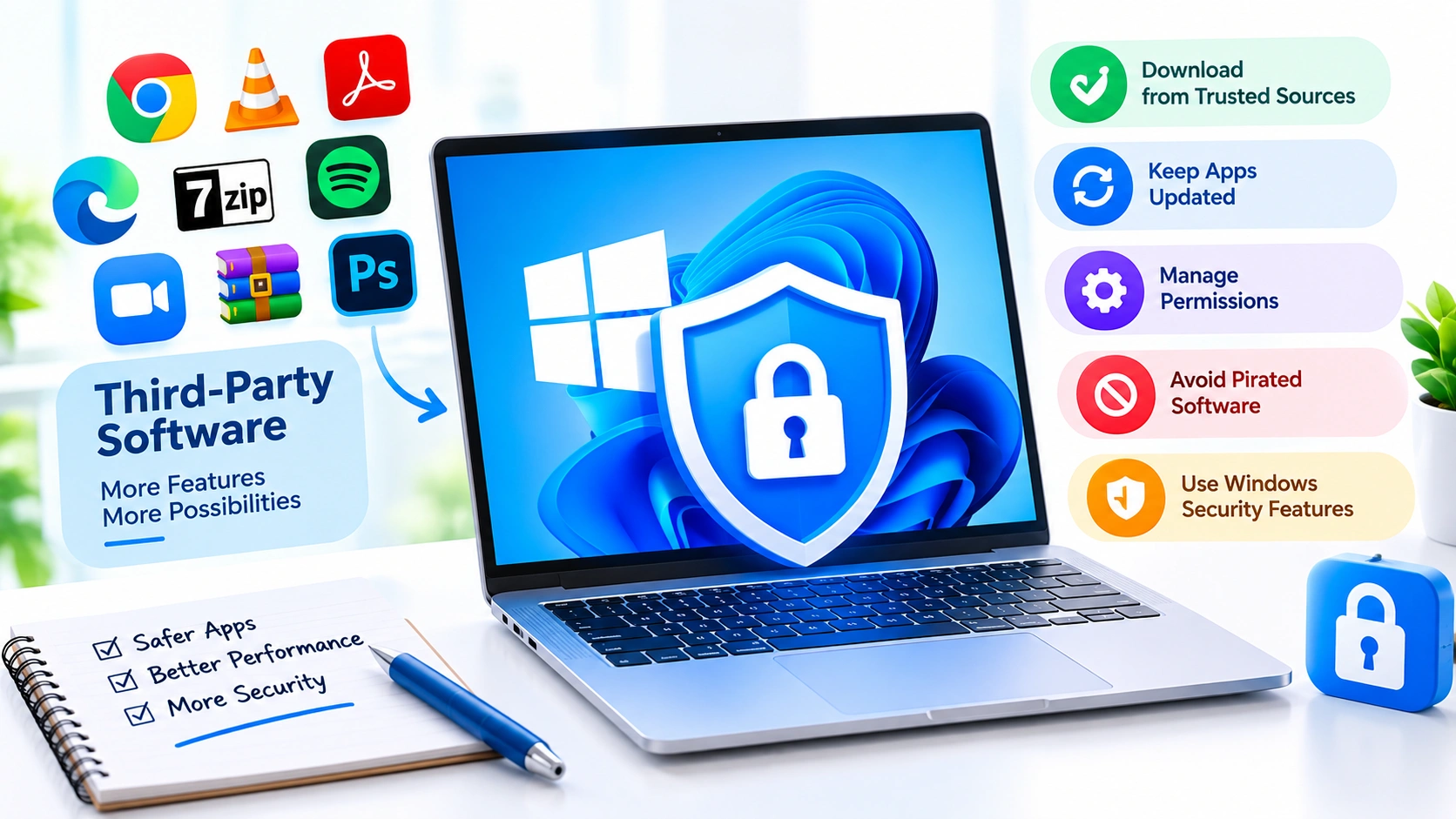
Third-party software can make a Windows PC more useful by adding productivity tools, media players, utilities, communication apps, creative programs, and specialized applications. However, applications installed outside Microsoft’s own ecosystem can also introduce security risks if they are outdated, downloaded from unreliable sources, or given excessive permissions.
Learning how to secure third-party software on Windows helps reduce the risk of malware infections, unauthorized access, data theft, and other security problems. The good news is that you can significantly improve application security with a few practical habits.
Why Third-Party Software Security Matters
Third-party applications are developed and distributed by companies or individuals outside Microsoft. While many are legitimate and trustworthy, attackers can exploit vulnerabilities in popular applications or disguise malicious programs as legitimate software.
Common risks include:
- Outdated applications containing known security vulnerabilities
- Malware hidden inside unofficial installers
- Fake software updates
- Modified or pirated applications
- Excessive application permissions
- Malicious browser extensions and plugins
- Software that continues running unnecessary background services
- Vulnerable applications accessing sensitive files
Keeping Windows itself updated is important, but it does not automatically make every application on your PC secure.
1. Download Software From Trusted Sources
One of the simplest ways to improve software security is to obtain applications from reputable sources.
Whenever possible, download software from:
- The developer’s official website
- The Microsoft Store
- An organization’s official download portal
- A trusted enterprise software repository
Avoid downloading installers from suspicious file-sharing websites, random advertisements, or unofficial download pages.
Before installing an application, check the publisher name and make sure the website address is legitimate. Attackers sometimes create websites that closely imitate real software vendors.
2. Keep Third-Party Applications Updated
Software updates often contain security fixes in addition to new features and performance improvements.
An outdated application may contain vulnerabilities that attackers already know how to exploit.
Check regularly for updates to applications such as:
- Web browsers
- PDF readers
- Media players
- Office alternatives
- Compression utilities
- Communication software
- Graphics applications
- Development tools
- Remote-access applications
If an application provides automatic updates, enabling them can reduce the chance of forgetting important security patches.
3. Remove Software You No Longer Use
Unused applications can become security liabilities, particularly when they continue receiving network access or running background services.
To uninstall unnecessary software in Windows:
- Open Settings.
- Select Apps.
- Choose Installed apps.
- Find the application you no longer need.
- Select the three-dot menu.
- Choose Uninstall.
- Follow the application’s removal instructions.
Removing unnecessary programs also frees storage space and can reduce the number of applications that need to be maintained.
4. Avoid Pirated and Modified Software
Cracked, pirated, and modified applications can present significant security risks.
An installer may appear to provide a paid application for free while secretly containing:
- Trojans
- Password stealers
- Ransomware
- Cryptominers
- Remote-access malware
- Browser hijackers
Security software may not always immediately identify every modified installer.
Use legitimate software and official licensing channels whenever possible. Saving money on an application is not worth compromising passwords, personal files, or other sensitive information.
5. Review Application Permissions
Some applications request access to files, devices, networks, cameras, microphones, or other resources.
Review permissions carefully, especially when an application does not obviously need them.
You can manage many Windows privacy permissions through:
Settings > Privacy & security
Review categories such as:
- Camera
- Microphone
- Location
- Notifications
- Account information
- Contacts
- Documents
- Pictures
- Videos
If an application does not need a particular capability, consider disabling its access.
6. Use Microsoft Defender and Security Features
Windows includes built-in security protections that can help detect malicious applications and suspicious activity.
Make sure Microsoft Defender Antivirus and other Windows security features remain enabled unless you have a specific, trustworthy reason to configure them differently.
You can open:
Windows Security > Virus & threat protection
From there, you can check protection status and run scans when necessary.
SmartScreen can also help warn users about potentially dangerous applications and downloads. Avoid ignoring security warnings simply because an application appears familiar.
7. Check the Publisher Before Installing
Before running an installer, verify who created the software.
Pay attention to:
- Publisher name
- Digital signature
- Download source
- Application reputation
- Version number
- File name
- Requested permissions
A legitimate installer should generally identify its publisher correctly.
You can inspect an executable’s properties by right-clicking it and selecting Properties. Depending on the application, digital-signature information may be available under the Digital Signatures tab.
8. Be Careful With Software Installers
Some legitimate applications bundle additional software or change browser and system settings during installation.
Instead of repeatedly clicking Next, carefully review every installation screen.
Look for options involving:
- Additional applications
- Browser extensions
- Search-engine changes
- Startup programs
- Default applications
- Data collection
- Advertising software
Choose custom or advanced installation options when available so you can review what will actually be installed.
9. Limit Administrator Privileges
Avoid running ordinary applications with administrator privileges unless they genuinely require them.
Administrator access gives software greater control over the system. If malicious code executes with elevated privileges, the potential damage can be greater.
When Windows displays a User Account Control prompt, check the application and publisher information before selecting Yes.
If an unexpected application suddenly requests administrator access, stop and investigate before continuing.
10. Disable Unnecessary Startup Programs
Some third-party applications configure themselves to start automatically with Windows.
While this is convenient for frequently used programs, unnecessary startup applications increase the amount of software running in the background.
Open Settings > Apps > Startup and review the list.
Disable startup entries you do not need, particularly unfamiliar programs. If you do not recognize a startup application, investigate its publisher and installation source before disabling or removing it.
11. Monitor Software Network Activity
Applications that connect to the internet can communicate with remote servers and potentially transmit or receive data.
Pay particular attention to applications that:
- Request network access unexpectedly
- Connect to unfamiliar servers
- Continue running after being closed
- Provide remote-access functionality
- Handle sensitive information
Windows Firewall can help control network communication. For organizations and advanced users, firewall rules can provide more granular control over application traffic.
12. Use Strong Security Settings in Applications
Securing the software itself is only part of the process. Many applications provide their own security settings.
For example, review whether an application supports:
- Multi-factor authentication
- Automatic security updates
- Encryption
- Session controls
- Login alerts
- Password protection
- Access restrictions
Enable appropriate protections, especially for applications that store personal, financial, business, or authentication information.
13. Protect Software Accounts With Unique Passwords
A compromised application account can expose data even when Windows itself remains secure.
Use a unique, strong password for important third-party services. Do not reuse the same password across multiple applications.
Where available, enable multi-factor authentication (MFA). This provides an additional layer of protection if your password is stolen.
A reputable password manager can also make it easier to create and maintain unique credentials.
14. Be Careful With Browser Extensions
Browser extensions are also third-party software and deserve the same security considerations as desktop applications.
Only install extensions from trusted sources. Before adding one, check:
- Developer information
- User reviews
- Number of users
- Requested permissions
- Update history
- Privacy policy
Remove extensions you no longer use. An extension with excessive permissions can potentially access browsing-related information that you would rather keep private.
15. Scan Suspicious Installers Before Running Them
If you are unsure about an installer, do not immediately execute it.
You can first scan the file using your installed security software. You can also investigate the application’s publisher, reputation, and official documentation.
Be particularly cautious with files received through:
- Unexpected email messages
- Unknown websites
- Social media messages
- Untrusted USB drives
- Peer-to-peer networks
- Suspicious advertisements
Never disable antivirus protection simply because an installer claims that security software is blocking it.
16. Back Up Important Data
Software security cannot eliminate every risk. A compromised application, ransomware infection, hardware failure, or accidental deletion can still cause data loss.
Maintain regular backups of important documents, photos, projects, and other irreplaceable files.
For particularly important data, consider maintaining more than one backup and keeping at least one copy separate from the main PC.
A reliable backup strategy makes recovering from a serious software security incident much easier.
17. Monitor for Suspicious Software Behavior
Unexpected behavior can indicate that an application has been compromised or that unwanted software was installed alongside it.
Watch for:
- New browser pop-ups
- Unexpected advertisements
- Unknown startup programs
- Unusual CPU or disk usage
- Frequent crashes
- New browser extensions
- Changed browser settings
- Unknown applications
- Unexpected security warnings
- Unusual network activity
If suspicious behavior appears after installing a particular application, investigate the software before continuing to use it.
18. Keep a Software Inventory
Maintaining a list of installed applications can make security maintenance easier.
Periodically review your installed software and identify:
- Applications you still use
- Applications that need updates
- Applications you no longer recognize
- Applications that are no longer supported
- Applications that should be removed
Businesses can take this further by maintaining an approved software inventory and restricting unauthorized installations.
19. Remove Unsupported Software
An application that no longer receives security updates can remain vulnerable indefinitely.
If the developer has discontinued a product, consider replacing it with actively maintained software.
This is particularly important for applications that process sensitive files or communicate over the internet.
Using current, supported software reduces exposure to vulnerabilities that may never receive patches.
20. Create a Secure Software Maintenance Routine
You do not need to inspect every application every day. A simple maintenance routine can help keep third-party software under control.
For example:
Weekly
- Install important available updates.
- Review unexpected security notifications.
- Check applications that behave unusually.
Monthly
- Review installed applications.
- Remove software you no longer need.
- Review browser extensions.
- Check startup applications.
Periodically
- Review application permissions.
- Verify backup availability.
- Replace unsupported software.
- Review important application account security settings.
Common Mistakes to Avoid
Even careful Windows users can introduce unnecessary risks by making a few common mistakes.
Avoid:
- Downloading software from unknown websites
- Installing pirated applications
- Ignoring update notifications
- Running unknown installers as administrator
- Disabling Microsoft Defender to install questionable software
- Keeping unused applications installed
- Installing excessive browser extensions
- Giving applications unnecessary permissions
- Reusing passwords across software accounts
- Failing to maintain backups
Final Thoughts
Securing third-party software on Windows is an ongoing process rather than a one-time configuration. Start by downloading applications from trustworthy sources, keeping them updated, removing unnecessary programs, reviewing permissions, and using Windows security features.
You should also pay attention to software behavior and avoid applications that are unsupported, suspicious, pirated, or distributed through unreliable channels. Combined with strong account security and regular backups, these practices can substantially reduce the risks associated with third-party software.