

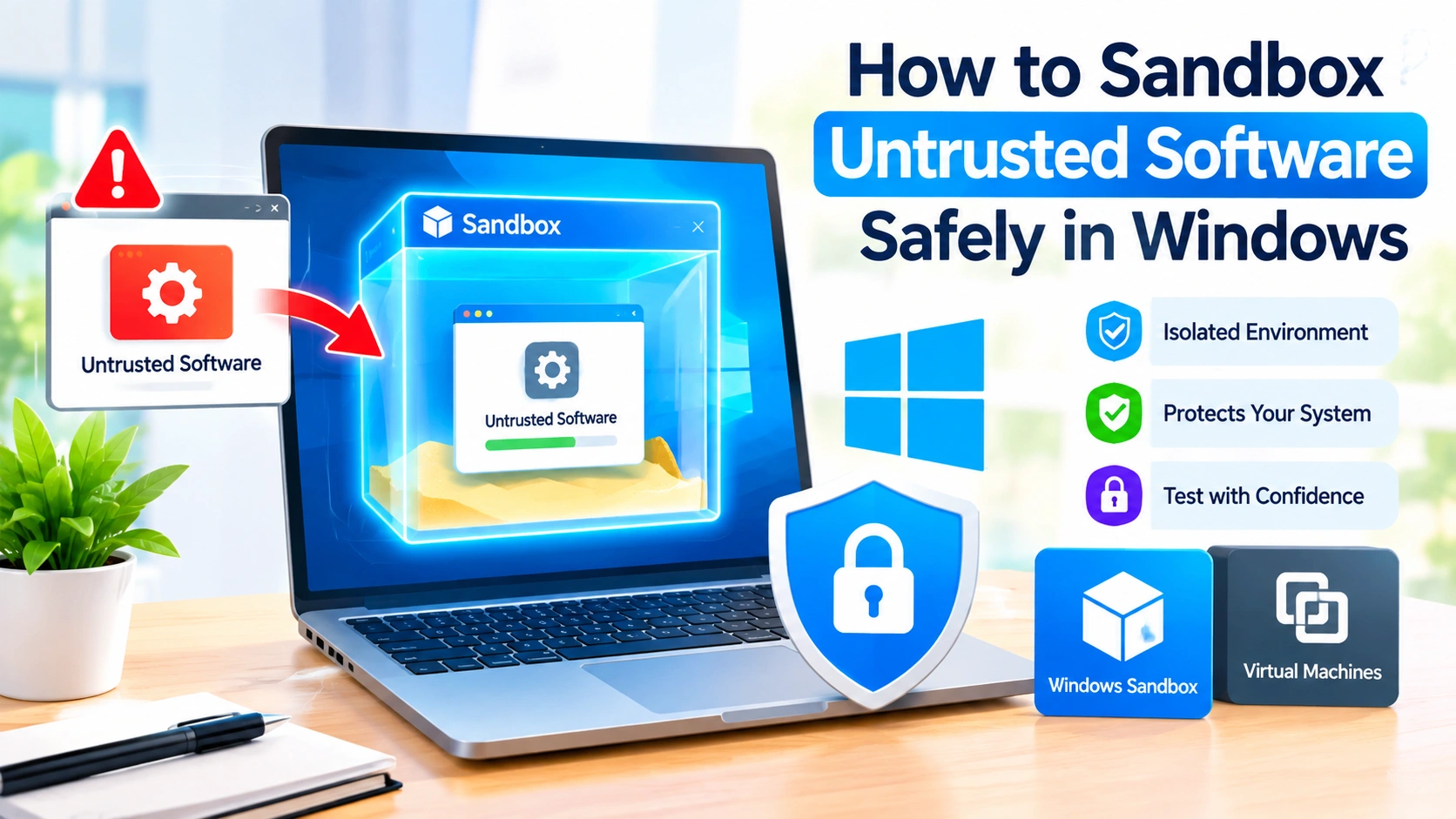
Installing unfamiliar software can expose your Windows PC to malware, unwanted changes, privacy risks, or system instability. Even applications that appear legitimate may behave unexpectedly, especially when downloaded from unofficial websites.
One of the safest ways to test potentially untrusted software is to sandbox it. Sandboxing creates an isolated environment where an application can run with limited access to your main Windows system.
This guide explains how to sandbox untrusted software in Windows, which tools you can use, and what precautions to take before running unknown applications.
What Is Software Sandboxing?
A sandbox is an isolated environment designed to prevent software from freely interacting with your primary operating system.
When an application runs inside a sandbox, its files, settings, and system changes can be separated from your normal Windows environment. Depending on the sandbox technology, changes may disappear when the sandbox is closed.
Sandboxing is useful when you want to:
- Test unfamiliar applications
- Open potentially risky installers
- Examine software before installing it permanently
- Test configuration changes
- Run older applications
- Reduce the impact of unwanted software
- Analyze suspicious behavior in a controlled environment
However, sandboxing is not a guarantee that malware cannot escape or cause harm. You should still use reputable security software and avoid deliberately executing highly dangerous files on your everyday computer.
Why Sandbox Untrusted Software?
Running an unknown program directly on your main Windows installation can make troubleshooting difficult if the program:
- Installs unwanted applications
- Modifies system settings
- Changes registry entries
- Creates persistent startup processes
- Attempts to access personal files
- Connects to suspicious online services
- Installs browser extensions
- Changes security settings
A sandbox adds an additional layer between the application and your normal Windows environment.
Use Windows Sandbox
Windows Sandbox is one of the simplest options for testing software in an isolated Windows environment, provided your edition and hardware support it.
Windows Sandbox creates a temporary desktop environment. When you close it, the sandbox and its temporary contents are discarded.
Step 1: Check Windows Sandbox Availability
Windows Sandbox is available on supported editions of Windows, such as Windows 11 Pro, Enterprise, and Education.
Your computer also needs hardware virtualization support and sufficient system resources.
To check your Windows edition:
- Press Windows + R.
- Type
winver. - Press Enter.
- Review the Windows version and edition.
You can also open Settings > System > About to view system information.
Step 2: Enable Windows Sandbox
Open the Start menu and search for:
Turn Windows features on or off
Open the Windows Features dialog and locate:
Windows Sandbox
Select it and click OK.
Windows may need to download or configure additional components. Restart your computer if prompted.
Step 3: Launch Windows Sandbox
After restarting:
- Open the Start menu.
- Search for Windows Sandbox.
- Launch the application.
- Wait for the isolated Windows desktop to appear.
You now have a temporary Windows environment separate from your normal desktop.
Step 4: Test the Software
Transfer or access the installer inside the sandbox using a method appropriate for your environment.
Then install or run the application within the sandbox.
Observe its behavior before deciding whether it is safe enough to use on your primary Windows installation.
Step 5: Close the Sandbox
When finished, simply close Windows Sandbox.
Windows will warn you that the contents of the sandbox will be discarded.
Confirm that you want to close it.
Any files or software stored exclusively inside the sandbox are removed when the sandbox session ends.
Use a Virtual Machine for Greater Isolation
A virtual machine (VM) provides another practical way to test unfamiliar software.
Instead of running the application directly on your primary Windows installation, you create a separate virtual computer using virtualization software.
Popular virtualization platforms include:
- Hyper-V
- VirtualBox
- VMware Workstation
A VM can be useful when you need a more persistent testing environment than Windows Sandbox provides.
For example, you can create a Windows virtual machine, install your testing software, take a snapshot, and return to an earlier state if necessary.
Create a Snapshot Before Testing
Snapshots are particularly useful when experimenting with potentially problematic software in a virtual machine.
Before installing the application:
- Shut down or prepare the VM according to your virtualization platform.
- Create a snapshot or checkpoint.
- Give it a descriptive name such as Clean Windows Test Environment.
- Start the VM.
- Install and test the software.
If the software causes unwanted changes, you can restore the previous snapshot.
This is often more convenient than manually undoing numerous system changes.
Disconnect Sensitive Data
Isolation becomes less useful if the sandbox has unrestricted access to your personal information.
Before testing unknown software, avoid exposing:
- Personal documents
- Password databases
- Banking information
- Work files
- Private photos
- Browser profiles
- Cryptocurrency wallets
- Backup drives
If possible, use a test environment containing only files specifically created for the experiment.
Be Careful With Shared Folders
Virtual machines and sandbox environments may allow files to be shared between the host and guest systems.
Shared folders can be convenient, but they can also reduce isolation.
If you are testing suspicious software, minimize shared folders and clipboard integration whenever practical.
Do not automatically give an unknown application access to your entire Documents, Downloads, or Desktop folders.
Limit Network Access When Appropriate
Some applications need internet access to function. Others do not.
If networking is unnecessary for your test, consider disabling it.
For software that requires network connectivity, remember that an isolated environment can still communicate with external servers.
Network isolation can reduce certain risks and may also help you observe whether an application attempts to connect to the internet.
Scan Software Before Running It
Sandboxing should complement antivirus protection rather than replace it.
Before opening an unfamiliar installer:
- Keep Microsoft Defender or another reputable security solution enabled.
- Update security definitions.
- Scan the downloaded file.
- Review any warnings before proceeding.
A clean antivirus result does not prove that a file is completely safe, but scanning can detect many known threats.
Download Software From Trusted Sources
The safest sandbox is still not a substitute for obtaining software from legitimate sources.
Whenever possible, download applications from:
- The developer’s official website
- Microsoft Store
- Reputable software repositories
- Official vendor download portals
Be especially cautious with cracked software, unofficial activators, modified installers, and pirated applications. These files are frequently distributed through sources where their contents cannot be trusted.
Verify Digital Signatures
Windows allows you to inspect whether an executable has a digital signature.
Right-click the file and select:
Properties > Digital Signatures
If a signature is present, check the listed signer and certificate details.
A valid signature does not automatically mean an application is safe. However, an unexpected or missing signature can be useful information when evaluating unfamiliar software.
Don’t Disable Security Features Just to Run an App
Avoid instructions that require you to permanently disable:
- Microsoft Defender
- Windows Firewall
- SmartScreen
- User Account Control
- Security updates
Some questionable applications may instruct users to disable security features because those protections interfere with their installation.
If software requires extensive security changes simply to run, investigate the application carefully before proceeding.
Use a Dedicated Test Account
For some testing scenarios, a separate standard Windows account can provide another layer of separation.
Avoid testing questionable applications while signed in with an administrator account unless administrative privileges are genuinely required.
A standard account limits what many applications can change on the system.
However, a separate account is not equivalent to a sandbox or virtual machine. Malware can still potentially affect the computer.
Watch for Suspicious Behavior
While testing software, pay attention to unusual activity such as:
- Unexpected browser changes
- New startup applications
- Unknown processes
- Unexpected network connections
- Security warnings
- New desktop shortcuts
- Unwanted advertisements
- Modified system settings
- Unknown applications appearing after installation
Unexpected behavior does not automatically prove that software is malicious, but it is a reason to stop and investigate.
What Sandboxing Cannot Protect You From
Sandboxing reduces risk, but it is not an absolute security boundary.
Depending on the technology and configuration, sophisticated threats may attempt to exploit vulnerabilities in the virtualization or sandbox environment.
You should therefore avoid assuming that:
“It is sandboxed, so it cannot possibly cause harm.”
Instead, treat sandboxing as one layer in a broader security strategy.
Keep Windows updated, maintain reliable backups, use security software, and avoid intentionally executing highly suspicious files on systems containing important information.
Best Practices for Sandboxing Untrusted Software
For safer testing, follow this checklist:
- Use Windows Sandbox or a virtual machine.
- Keep Windows and security software updated.
- Create a clean testing environment.
- Avoid exposing personal files.
- Limit shared folders and clipboard access.
- Disable networking when it is unnecessary.
- Use snapshots or checkpoints with virtual machines.
- Scan suspicious files before execution.
- Download applications from legitimate sources.
- Use a standard user account when practical.
- Monitor unusual application behavior.
- Never treat sandboxing as a complete security guarantee.
Final Thoughts
Sandboxing is a useful security technique for testing software without immediately exposing your primary Windows environment to every change the application wants to make. Windows Sandbox provides a convenient temporary environment, while virtual machines offer greater control and persistence for more advanced testing.
For everyday users, the safest approach is to combine sandboxing with reputable security software, regular Windows updates, cautious downloading habits, and reliable backups. When an application looks suspicious or comes from an untrusted source, testing it in an isolated environment is considerably safer than installing it directly on your main system.