

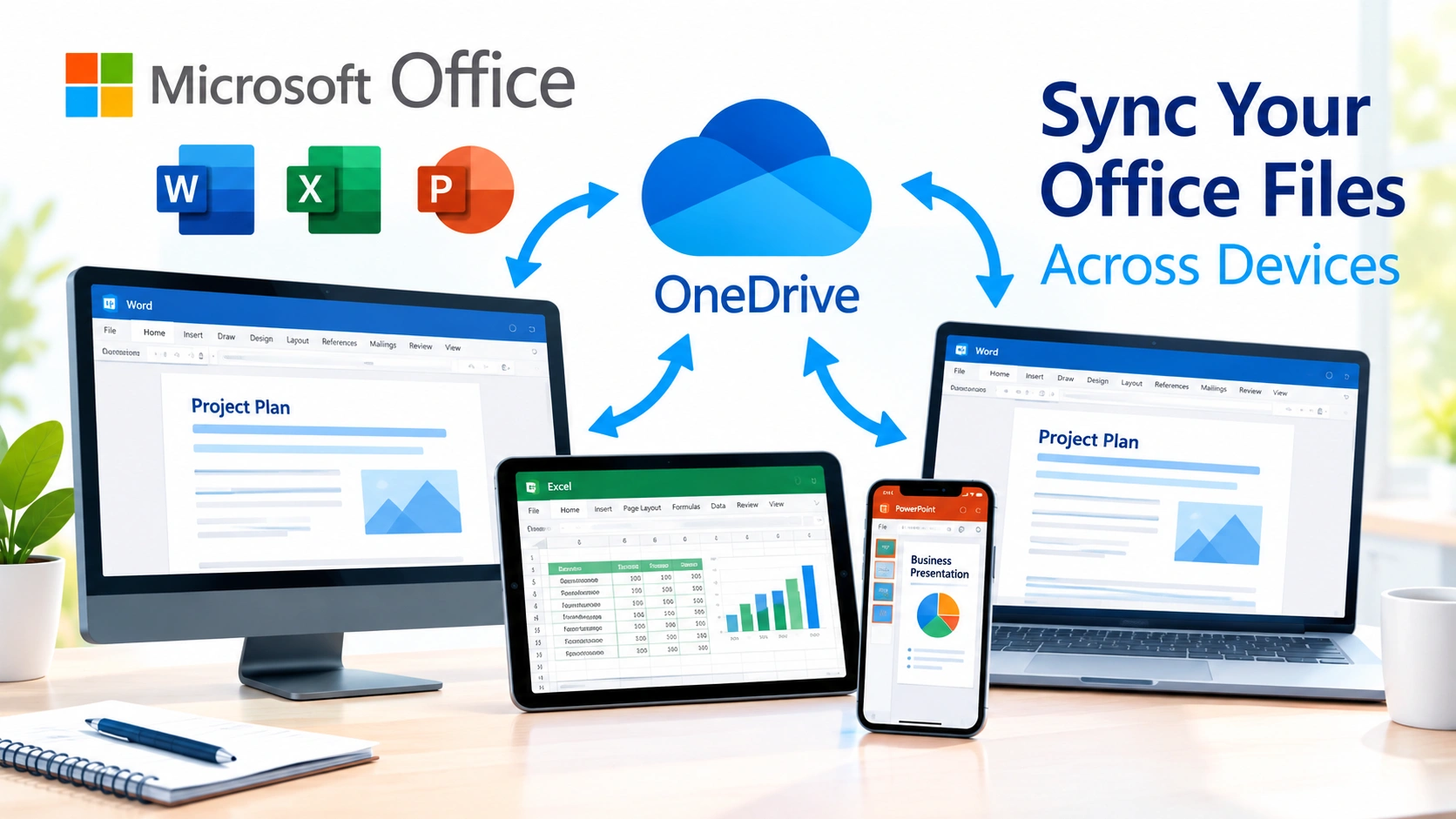
Working on Microsoft Office documents across multiple devices is much easier when your files are synchronized automatically. Instead of copying Word documents to a USB drive or emailing Excel spreadsheets to yourself, you can use cloud storage to keep your files available on your PC, laptop, tablet, and other supported devices.
Microsoft 365 integrates closely with OneDrive, making it possible to save Word, Excel, and PowerPoint files online and access the latest version from different devices. With the right setup, changes made on one device can be synchronized automatically.
This guide explains how to sync Microsoft Office files across devices, how OneDrive works with Office apps, and what to do if synchronization stops working.
Why Sync Microsoft Office Files Across Devices?
Synchronizing Office files provides several practical benefits:
- Access documents from multiple devices.
- Keep the latest version of a file available online.
- Reduce the need for manual file transfers.
- Continue working when switching between devices.
- Recover previous versions of supported files.
- Make collaboration easier.
- Keep important documents backed up in cloud storage.
For example, you could start editing a Word document on your desktop, continue working on a laptop, and later review it from a tablet without manually transferring the file.
What You Need to Sync Office Files
Before setting up synchronization, make sure you have the following:
- A Microsoft account.
- OneDrive access.
- Microsoft Office or Microsoft 365 apps.
- An active internet connection for cloud synchronization.
- Enough OneDrive storage for your files.
A Microsoft 365 subscription can provide additional OneDrive storage and Office features, but the exact storage and feature availability depend on your account and plan.
How to Sync Microsoft Office Files Across Devices
The simplest method is to save your Office documents to OneDrive and sign in with the same Microsoft account on your other devices.
1. Sign In to OneDrive
On Windows, open OneDrive from the Start menu or taskbar.
Sign in using the Microsoft account you want to use for file synchronization.
After signing in, OneDrive creates a dedicated folder on your computer. Files placed inside this folder can be synchronized with your OneDrive cloud storage.
2. Save Office Files to OneDrive
Open Microsoft Word, Excel, or PowerPoint.
Create a new document or open an existing file. Then choose:
File > Save As > OneDrive
Select the OneDrive folder where you want to store the document.
For example, you could organize your files into folders such as:
OneDrive
├── Documents
├── Work
├── Personal
└── Projects
Saving files inside OneDrive makes them available to other devices connected to the same account.
3. Turn On AutoSave
If your version of Microsoft Office supports AutoSave with OneDrive, enable the AutoSave option near the top of the Office application.
AutoSave can save changes automatically while you work on a compatible cloud-stored document.
This is particularly useful when switching between devices because the latest saved changes can be synchronized through OneDrive.
However, AutoSave and OneDrive synchronization are related but different features. AutoSave saves changes to the cloud-based document, while OneDrive handles synchronization between your device and cloud storage.
4. Install OneDrive on Your Other Device
On your second Windows computer, install and open OneDrive if it is not already available.
Sign in using the same Microsoft account that contains your Office files.
OneDrive will synchronize the files associated with your account according to your synchronization settings.
You can then open the OneDrive folder through File Explorer.
5. Open the Document on the Second Device
Navigate to your OneDrive folder and find the Office document.
Double-click the Word, Excel, or PowerPoint file to open it.
After OneDrive has synchronized the latest version, you can continue editing the document.
When you save your changes, OneDrive can synchronize the updated file back to the cloud.
Use OneDrive Files On-Demand
If you have many Office documents, you don’t necessarily need to store every file locally.
Windows OneDrive includes Files On-Demand, which allows files to remain available through File Explorer without necessarily occupying the same amount of local disk space.
Depending on the file status, you may see different OneDrive icons.
Online-only files
Online-only files remain in the cloud and can be downloaded when you open them.
This option can help conserve storage space.
Locally available files
A file can be downloaded to your device so that it is available locally.
Always keep on this device
You can choose to keep important files downloaded locally.
This can be useful for documents that you frequently access or need when working without an internet connection.
Sync Office Files on a Mac
You can also synchronize Microsoft Office files across Windows and Mac computers using OneDrive.
Install OneDrive on your Mac and sign in with the same Microsoft account.
Then save your Office documents inside the OneDrive folder.
When synchronization is working correctly, files saved to OneDrive can become accessible from both platforms.
This makes OneDrive useful when your workflow involves a Windows desktop and a MacBook.
Sync Office Files on Android or iPhone
Microsoft Office applications can also provide access to cloud-stored documents on mobile devices.
Install the appropriate Microsoft 365 or Office applications and sign in using the same Microsoft account.
Open OneDrive or the Office application and navigate to your cloud-stored documents.
You can then view or edit supported files depending on the application, account, and device.
Changes made on a mobile device can synchronize with the cloud when the device has an internet connection.
Keep Your Office Files Organized
A well-organized OneDrive folder can make synchronization much easier.
Instead of storing everything in one folder, create logical categories.
For example:
OneDrive
│
├── Microsoft Word
│   ├── Articles
│   └── Documents
│
├── Excel
│   ├── Reports
│   └── Budgets
│
└── PowerPoint
    ├── Presentations
    └── Projects
A consistent folder structure also makes it easier to locate files when switching between devices.
Check the OneDrive Sync Status
If a file isn’t appearing on another device, first check OneDrive’s synchronization status.
On Windows, select the OneDrive icon in the notification area.
Look for indications that synchronization is complete, paused, or experiencing an error.
A synchronization problem can occur because of:
- No internet connection.
- OneDrive being paused.
- An incorrect Microsoft account.
- Insufficient cloud storage.
- File naming or path restrictions.
- OneDrive errors.
- Conflicting file changes.
- Files being stored outside the synchronized folder.
Checking the OneDrive status before troubleshooting Office itself can help identify the source of the problem.
Make Sure You’re Using the Same Microsoft Account
One common reason files appear to be missing is that different devices are signed into different Microsoft accounts.
For example, suppose your desktop uses:
account@example.comwhile your laptop uses another Microsoft account.
The files stored in the first account’s OneDrive won’t automatically appear in the second account’s OneDrive.
Check the account displayed in OneDrive on each device and make sure you’re using the account that contains your documents.
Resolve Office File Conflicts
File conflicts can occur when the same document is changed on different devices before synchronization completes.
For example, you might edit a Word document on your laptop while another device has an older version open.
When the changes synchronize, Office or OneDrive may need to resolve the conflict.
To reduce the risk of conflicts:
- Allow OneDrive to finish syncing.
- Avoid editing the same document simultaneously on multiple devices when possible.
- Keep Office applications updated.
- Check the file version before making major changes.
- Review conflict notifications carefully.
For collaborative documents, using Microsoft’s cloud collaboration features can be more appropriate than manually maintaining multiple copies.
Use Version History for Important Documents
OneDrive can provide version history for supported files and accounts.
If you accidentally overwrite important content, version history may allow you to restore an earlier version.
To use version history, locate the file in OneDrive and open its available version-history options.
This can be particularly helpful for documents that are edited frequently.
Don’t Rely on Sync as Your Only Backup
File synchronization and backup are not exactly the same thing.
If you delete a synchronized file, that deletion may also synchronize to your other devices.
For important documents, maintain an appropriate backup strategy in addition to cloud synchronization.
You can keep additional copies of critical files on another storage device or use a dedicated backup solution.
The goal is to protect your documents against accidental deletion, corruption, hardware failure, and other problems.
What to Do If Office Files Are Not Syncing
If your Office files aren’t appearing on another device, try these troubleshooting steps.
Check Your Internet Connection
Make sure the device has a stable internet connection.
A disconnected or unstable connection can prevent OneDrive from uploading or downloading changes.
Restart OneDrive
Quit OneDrive and start it again.
This can resolve temporary synchronization problems.
Check Available OneDrive Storage
If your cloud storage is full, new files may not synchronize correctly.
Check your available OneDrive storage and remove unnecessary files or increase your available storage if necessary.
Resume Synchronization
OneDrive can be paused manually or automatically under certain circumstances.
Open the OneDrive menu and check whether synchronization is currently paused.
Resume syncing if necessary.
Update Microsoft Office
An outdated Office installation can sometimes cause compatibility or synchronization problems.
Install available Microsoft Office updates and restart the application afterward.
Check the File Location
Make sure the document is actually stored inside a OneDrive-synchronized location.
A Word document saved to a local folder such as:
C:\Users\YourName\Documentsmay not synchronize through OneDrive unless that folder has been configured for OneDrive backup.
Best Practices for Microsoft Office File Sync
Following a few simple practices can make cross-device synchronization more reliable.
Save Important Files to OneDrive
If you need a document on multiple devices, store it in OneDrive rather than keeping it only on one computer.
Use Descriptive File Names
Instead of names such as:
Document1.docx
Report2.xlsx
FinalFinal.pptx
use descriptive names such as:
Windows-Maintenance-Guide.docx
Monthly-Sales-Report.xlsx
Marketing-Plan-2026.pptx
Avoid Unnecessary Duplicate Copies
Multiple copies of the same document can create confusion about which version is current.
Use one synchronized master document when appropriate.
Wait for Synchronization
Before shutting down a device or switching to another computer, allow important changes to synchronize.
This reduces the possibility of opening an outdated version elsewhere.
Keep Your Software Updated
Keep Windows, OneDrive, and Microsoft Office updated to improve compatibility and security.
Microsoft Office File Sync vs Manual File Transfer
Traditional file transfers require you to manually copy documents between devices.
For example:
Manual method:
PC → USB drive → LaptopWith OneDrive, the workflow becomes:
PC → OneDrive → LaptopThe cloud-based approach reduces manual copying and makes the latest synchronized files accessible from multiple devices.
However, synchronization still depends on your account, storage, internet connection, and configuration.
Final Thoughts
Learning how to sync Microsoft Office files across devices can make your workflow more convenient and reduce the need for manual file transfers. OneDrive provides a straightforward way to store Word, Excel, and PowerPoint documents in the cloud and access them from multiple devices.
For the best results, save important Office files to OneDrive, use the same Microsoft account across devices, enable AutoSave when appropriate, monitor synchronization status, and maintain separate backups for critical data.
With these practices in place, moving between your desktop, laptop, Mac, or mobile device becomes much easier while keeping your Office documents organized and accessible.