

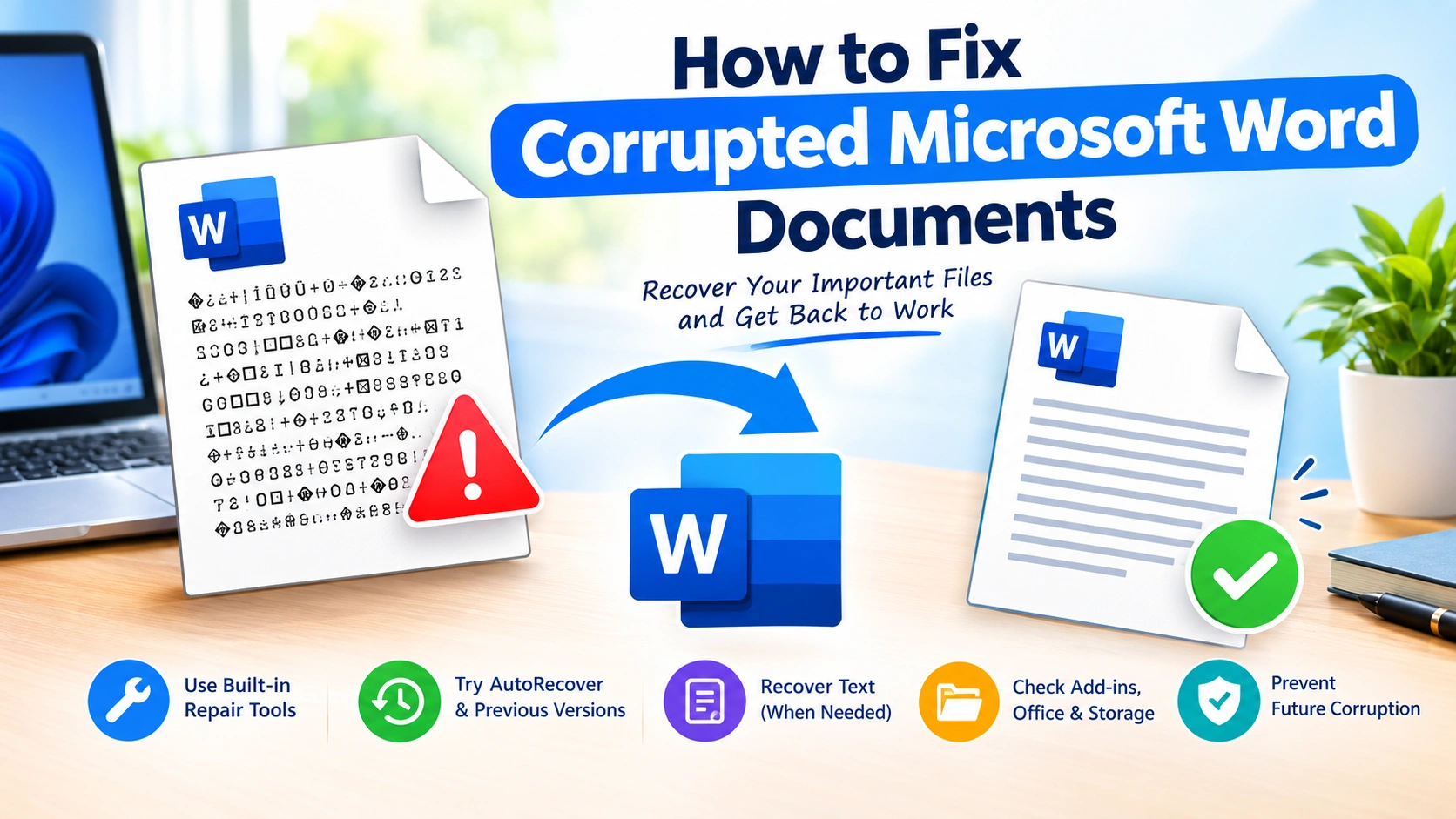
A corrupted Microsoft Word document can turn an important file into an unreadable mess. You may see error messages when opening the document, missing text or formatting, unexpected characters, or Word may simply stop responding.
Fortunately, a damaged Word file is not always permanently lost. Microsoft Word includes several recovery features, and Windows also provides alternative ways to retrieve an earlier or undamaged version of a document.
This guide explains how to fix corrupted Microsoft Word documents, starting with the safest methods and moving toward more advanced recovery techniques.
What Causes a Microsoft Word Document to Become Corrupted?
Before attempting repairs, it helps to understand what can damage a Word document.
Common causes include:
- Sudden computer shutdowns while Word is saving
- Power failures or system crashes
- Interrupted file transfers
- Damaged hard drives or SSDs
- Faulty USB drives
- Malware or unwanted software
- Conflicts between Word add-ins
- Very large or complex documents
- Problems with embedded images, charts, or objects
- Saving files in incompatible formats
- Cloud synchronization conflicts
- Damaged Word templates
A document can also appear corrupted when the problem is actually related to Microsoft Word itself. For example, an add-in or damaged installation may prevent an otherwise healthy document from opening.
1. Make a Copy of the Corrupted Word File
Before trying anything else, create a backup copy.
Right-click the document and select Copy, then paste it into another folder. Give the copy a different name.
For example:
Important_Report.docx
could become:
Important_Report_Recovery_Copy.docx
This is important because some recovery methods can modify the original file. Working from a duplicate gives you a safer way to experiment.
Tip: If the document is stored on a failing USB drive, external hard drive, or other unreliable storage device, copy it to a healthy local drive first if possible.
2. Use Word’s “Open and Repair” Feature
One of the easiest ways to repair a corrupted Word document is Microsoft’s built-in Open and Repair feature.
How to use Open and Repair
- Open Microsoft Word.
- Select File > Open.
- Choose Browse.
- Locate the damaged document.
- Select the file.
- Click the arrow next to the Open button.
- Select Open and Repair.
Word will attempt to repair the document while opening it.
If successful, save the recovered document under a new filename.
Why this method works
Word documents contain multiple internal components, including text, formatting information, images, tables, and other XML data. If one part becomes damaged, Word may be able to reconstruct enough of the document to make it usable again.
3. Open the Document in Word’s Safe Mode
Sometimes the document isn’t actually corrupted. A Word add-in, template, or configuration problem may be preventing it from opening correctly.
You can test this by starting Word in Safe Mode.
Press Windows + R, enter:
winword /safeand press Enter.
Then try opening the problematic document.
If the file opens successfully in Safe Mode, an add-in or Word configuration is a possible cause.
Disable suspicious add-ins
In Word, go to:
File > Options > Add-ins
At the bottom of the window, select COM Add-ins from the Manage menu and click Go.
Temporarily disable add-ins and restart Word normally.
If the document works afterward, enable the add-ins one at a time to identify the source of the problem.
4. Recover Text from the Damaged Document
If Word cannot fully open the document, you may still be able to recover the text.
In Word:
- Select File > Open > Browse.
- Select the damaged file.
- Open the file-type dropdown.
- Choose Recover Text from Any File.
- Open the document.
This method focuses on extracting readable text rather than preserving the original formatting.
You may lose:
- Images
- Tables
- Formatting
- Headers and footers
- Embedded objects
- Some special characters
However, if the document contains important written content, recovering the text can be much better than losing the entire document.
5. Try Word’s Draft or Plain-Text Recovery Options
If the document opens but contains strange formatting, missing content, or broken objects, try creating a new document and transferring the recoverable text.
If you can select the document’s contents:
- Open the damaged file.
- Press Ctrl + A.
- Copy the content.
- Create a new blank Word document.
- Use Paste Special.
- Try Unformatted Text.
This removes much of the problematic formatting and can produce a cleaner document.
Afterward, you can rebuild the formatting manually.
6. Rename the DOCX File to ZIP
A modern .docx file is essentially a package containing XML files and other resources.
If the document is badly damaged but still partially accessible, you can sometimes inspect its contents.
Before doing this
Make a backup copy first.
Then:
- Make a copy of the
.docxfile. - Rename the copy from
.docxto.zip. - Open the ZIP archive.
- Look for the word folder.
- Open
document.xmlwith a text editor or compatible XML viewer.
The main document text is stored in this XML file.
You may also find media in:
word/media
This can help recover images separately from the damaged document.
Important limitation
This is an advanced recovery technique. If the ZIP archive itself cannot be opened, the file’s package structure may be seriously damaged.
Don’t edit XML files unless you understand the structure and have another backup.
7. Recover an Earlier Version of the Document
If the damaged file was stored on a system with file history, cloud synchronization, or backups, an older copy may be easier to recover than the corrupted version.
Check OneDrive or SharePoint
If you saved the document using Microsoft’s cloud storage services, check whether an earlier version is available.
Version history can sometimes restore a copy from before the corruption occurred.
Check Windows Previous Versions
Depending on your Windows configuration and backup setup:
- Right-click the document or its containing folder.
- Select Properties.
- Look for a Previous Versions tab.
- Check whether older versions are available.
If one exists, copy or restore the appropriate version.
8. Look for Word AutoRecover Files
Microsoft Word can automatically save recovery information while you work.
If Word crashes or a document becomes inaccessible, AutoRecover may contain a more recent copy.
Open Word and check:
File > Options > Save
Look for the AutoRecover file location.
You can then inspect that location for recovery files.
Depending on the situation, you may encounter files with extensions such as:
.asd.wbk.tmp
Not every file will be recoverable, and availability depends on Word’s AutoRecover settings and what happened before the document became corrupted.
9. Try Opening the Document with Another Word Processor
Another office application may interpret a damaged document differently from Microsoft Word.
You can try opening a copy of the document with a compatible office suite.
This can sometimes recover text and basic formatting when Word refuses to open the file.
However, don’t overwrite your original file. Always test with a duplicate.
10. Repair Microsoft Office
If multiple Word documents fail to open, the problem may not be the individual files.
Your Microsoft Office installation could be damaged.
On Windows, open:
Settings > Apps > Installed apps
Find Microsoft 365 or Microsoft Office, open its options, and look for the repair feature.
Depending on your Office installation, you may have options such as:
- Quick Repair
- Online Repair
Quick Repair is generally the less disruptive option. Online Repair is more comprehensive and may require more time and an internet connection.
After repairing Office, restart the computer and test the document again.
11. Check Whether the Storage Drive Is Having Problems
If Word files are repeatedly becoming corrupted, investigate the storage device.
A failing drive can damage documents and other files.
Warning signs include:
- Files becoming corrupted unexpectedly
- Extremely slow file access
- Frequent application crashes
- Missing files
- Windows reporting disk errors
- Unusual noises from older mechanical hard drives
If you suspect hardware failure, prioritize backing up important data before repeatedly attempting repairs.
For particularly valuable files, professional data recovery may be safer than repeatedly writing data to a failing drive.
12. Remove Problematic Content from a Damaged Document
Sometimes only one component of a Word document is causing problems.
For example, a document may contain a damaged:
- Image
- Chart
- Embedded Excel object
- Text box
- Shape
- Font
- Section
- Table
If you can open the document but Word behaves strangely, try copying the content into a new document in smaller sections.
For example:
- Create a new blank document.
- Copy several paragraphs from the old document.
- Paste them into the new document.
- Save the new file.
- Repeat with the remaining sections.
If Word crashes when copying a particular section, you’ve potentially identified the damaged content.
You can then recreate that section manually.
13. Use the .doc Format as a Recovery Option
For some older or problematic documents, saving a recovered copy in another Word format can help eliminate problematic internal structures.
If you can open the file:
- Select File > Save As.
- Choose a different Word-compatible format.
- Save it as a new file.
- Close Word.
- Reopen the newly created file.
For modern documents, keeping a .docx copy is generally preferable, but changing formats can occasionally help with recovery.
14. What to Do If Word Says “Word Found Unreadable Content”
A common message is:
“Word found unreadable content in [filename].”
If you see this message, Word has detected something in the document that it cannot properly interpret.
Try these steps in order:
- Make a backup of the document.
- Try Open and Repair.
- Try opening the file in Word Safe Mode.
- Try recovering the text.
- Check AutoRecover and previous versions.
- Try opening a copy in another compatible office application.
- If the file is a
.docx, inspect its ZIP contents as an advanced recovery method.
If the document opens after any of these steps, immediately save the recovered content as a new file.
How to Prevent Word Documents from Becoming Corrupted
Recovering a damaged document is stressful, so prevention is just as important.
Enable AutoRecover
In Word, go to:
File > Options > Save
Make sure AutoRecover is enabled and consider using a relatively short recovery interval for important work.
Keep multiple copies
For important documents, maintain at least one additional copy.
A useful approach is:
Computer + Cloud + External Backup
This reduces the chance that one damaged file becomes the only copy.
Don’t interrupt saves
Avoid shutting down your computer, removing USB drives, or forcibly closing Word while a document is being saved.
Keep Windows and Office updated
Updates can fix bugs and compatibility problems that may contribute to application instability.
Avoid working directly from unreliable storage
If a USB drive is unstable, copy the document to a reliable local drive before editing it.
Use meaningful file versions
Instead of repeatedly overwriting one critical file, consider creating versions such as:
Project_Report_v1.docx
Project_Report_v2.docx
Project_Report_Final.docx
For particularly important documents, version history through cloud storage can provide additional protection.
Frequently Asked Questions
Can a corrupted Word document be repaired?
Often, yes. The chances depend on the extent and location of the corruption. Word’s Open and Repair, AutoRecover, previous versions, and text recovery features can sometimes restore all or part of a damaged document.
Why won’t my Word document open?
Possible causes include document corruption, damaged Word components, incompatible content, problematic add-ins, storage errors, or a damaged Office installation.
Does changing .docx to .zip repair the file?
No. Renaming the extension does not repair the document. It allows you to inspect the internal package structure of a .docx file and may provide an advanced way to recover text or media.
Can I recover a Word document without formatting?
Yes. Word’s Recover Text from Any File option can sometimes retrieve the written content even when the original formatting and objects cannot be recovered.
Should I use third-party Word repair software?
Third-party recovery tools can be an option when built-in methods and backups fail. However, important or confidential documents should be handled carefully. Avoid uploading sensitive documents to an unknown online repair service.
Final Thoughts
A corrupted Microsoft Word document isn’t necessarily a lost document. The safest strategy is to work from a copy and progress from simple recovery methods to more advanced techniques.
Start with Open and Repair, then check AutoRecover and previous versions. If the document still won’t open, attempt text recovery or investigate the internal .docx package. If multiple documents are affected, investigate Microsoft Office and the storage device rather than assuming every document is independently corrupted.
Most importantly, once you recover the document, create a clean new copy and establish a backup routine. Preventing the next corruption event is far easier than reconstructing an important document from scratch.