

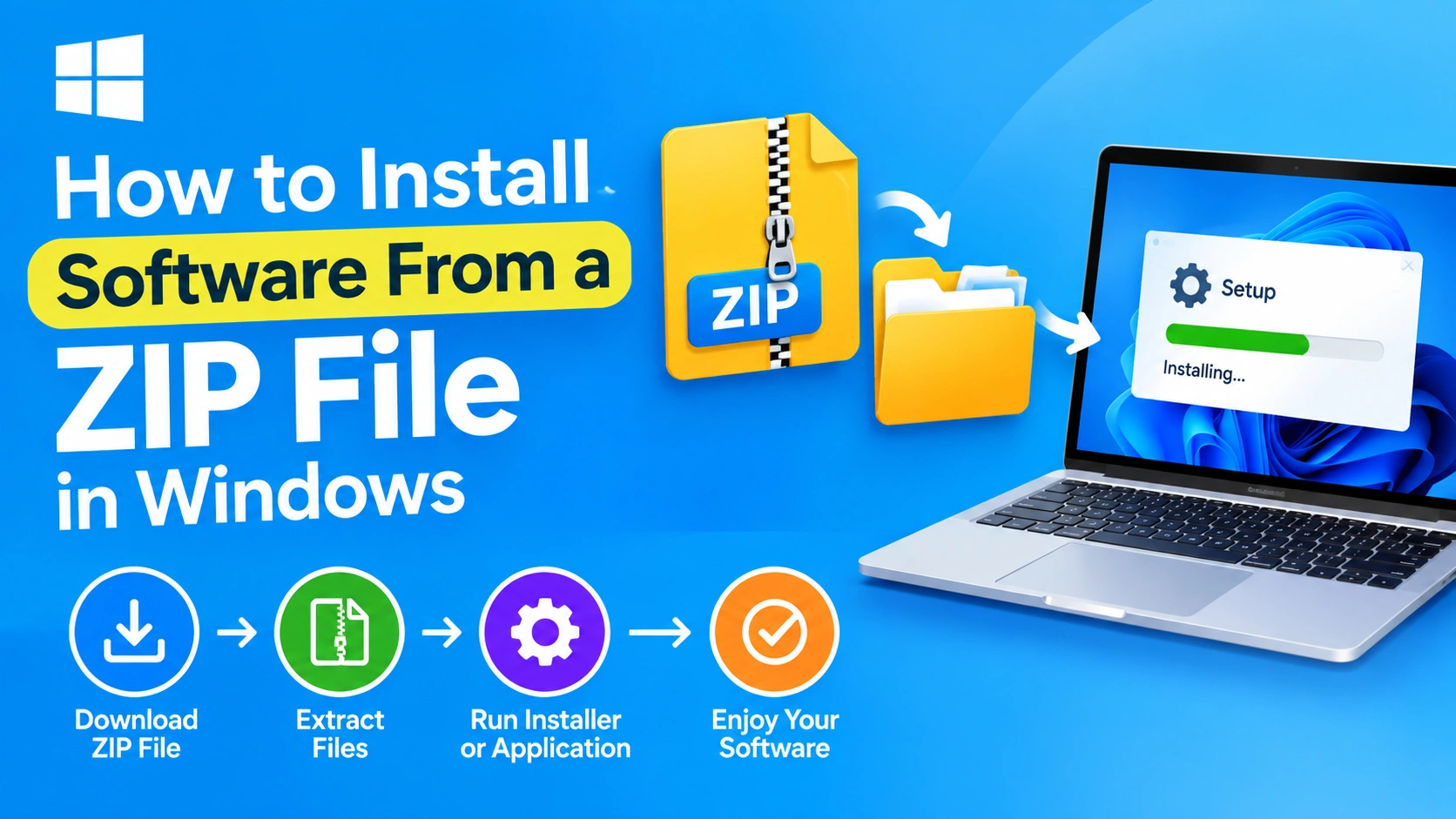
Installing software on Windows is usually as simple as downloading an installer and following the setup wizard. However, not every application comes with a traditional .exe or .msi installer. Some Windows programs are distributed as ZIP files, which means you need to extract the files before you can run or install the software.
If you have downloaded a program in ZIP format and are unsure what to do next, don’t worry. This guide explains how to install software from a ZIP file in Windows, how to extract it correctly, how to identify the program’s installer or executable file, and what to do if the software does not start.
What Is a ZIP File?
A ZIP file is a compressed archive that can contain one or more files and folders. Software developers often use ZIP archives to package applications because they make it easier to distribute multiple files as a single download.
A ZIP file might contain:
- An
.exeapplication file - An installation program such as
setup.exe - Configuration files
- Program libraries
- Documentation
- Readme or license files
- Additional folders required by the application
It’s important to understand that extracting a ZIP file is not always the same as installing software. Some programs are portable and can run directly after extraction, while others include an installer that you need to launch.
How to Install Software From a ZIP File
Follow these steps to install or run a Windows application distributed as a ZIP file.
Step 1: Download the ZIP File
First, download the software’s ZIP file from a trusted source, preferably the application’s official website.
The downloaded file will usually appear in your Downloads folder. Its name may look something like:
software-name.zip
Before opening the file, make sure you obtained it from a legitimate source. Avoid downloading software from unfamiliar websites that may bundle unwanted programs or modified files.
Step 2: Locate the ZIP File
Open File Explorer by pressing Windows + E.
Navigate to the folder where you downloaded the ZIP file, usually:
Downloads → software-name.zip
You can also use the search box in File Explorer if you cannot find the downloaded file.
Step 3: Extract the ZIP File
Windows includes built-in support for extracting ZIP archives, so you normally don’t need additional software.
Right-click the ZIP file and select:
Extract All…
Windows will ask you where you want to extract the files.
Choose a convenient folder and click Extract.
Windows will create a new folder containing the files from the ZIP archive.
Step 4: Open the Extracted Folder
After extraction is complete, open the new folder.
Look for files such as:
setup.exeinstall.exeinstaller.exeprogram-name.exe
You may also find a README.txt or similar documentation file.
If the software developer provides installation instructions, read them before launching any executable file.
Step 5: Run the Installer
If the extracted folder contains an installer such as setup.exe, double-click it.
Windows may display a security prompt asking whether you want to allow the application to make changes to your device.
If you trust the software and downloaded it from a legitimate source, select Yes to continue.
Follow the instructions shown by the installation wizard. Depending on the application, you may be able to choose:
- Installation location
- Start Menu shortcuts
- Desktop shortcuts
- Additional components
- File associations
When the installation finishes, you can usually launch the application from the Start menu or desktop shortcut.
What If There Is No Installer?
Not every ZIP-based Windows application needs to be installed.
Some programs are portable applications. A portable program can run directly from the folder where you extracted it.
If you don’t see setup.exe or another installer, look for an executable file with the application’s name.
For example:
PhotoEditor.exe
Double-clicking this file may launch the application immediately.
Portable applications may not create Start menu entries or desktop shortcuts automatically. If you use the program frequently, you can create a shortcut manually.
How to Create a Desktop Shortcut
Right-click the application’s .exe file and select:
Show more options → Send to → Desktop (create shortcut)
Depending on your version of Windows, the menu may look slightly different.
You can then launch the application from the desktop shortcut.
Should You Run the EXE Directly From the ZIP File?
It’s generally better to extract the entire ZIP archive first.
Some applications require additional files stored alongside the main executable. Running an .exe directly from inside a compressed archive can cause errors if the program cannot properly access those files.
For best results:
- Extract the complete ZIP archive.
- Open the extracted folder.
- Run the installer or application from that folder.
How to Uninstall Software Installed From a ZIP File
The uninstall process depends on how the software was packaged.
If you installed the application using a setup program, open:
Settings → Apps → Installed apps
Find the application and select its uninstall option.
Some applications also include an uninstaller inside their installation folder, such as:
uninstall.exe
Portable applications are different. Because they don’t use a traditional installation process, they may not appear in the Installed apps list.
To remove a portable application, close the program and delete its extracted folder. If you created shortcuts, remove those as well.
Keep in mind that some programs store settings or data in other Windows folders, so deleting the application folder may not remove every file associated with the program.
What to Do If the Program Won’t Open
Sometimes a program extracted from a ZIP file won’t start. Several common issues can cause this.
1. The ZIP File Was Not Fully Extracted
Make sure you used Extract All and are running the application from the extracted folder.
Do not move only the .exe file away from the other files in the program folder unless the developer specifically says that you can.
2. The Software Requires Additional Components
Some applications require specific Windows components, runtimes, or libraries.
Check the software’s documentation or official website for its system requirements.
3. Windows Blocks the File
Windows may restrict files downloaded from the internet.
If you trust the source, right-click the executable, select Properties, and check whether Windows provides an Unblock option. Only unblock files when you are confident that the software is legitimate.
4. The Program Requires Administrator Access
Some applications need administrator permissions to perform certain operations.
Try right-clicking the executable and selecting:
Run as administrator
Only do this for software you trust.
5. The Application Is Incompatible
Check whether the software supports your version of Windows and your system architecture.
Older applications may also have compatibility problems with newer versions of Windows.
Is It Safe to Install Software From a ZIP File?
A ZIP file itself is not an indication that software is safe or unsafe. The important factor is where the file came from and what it contains.
Before running software from a ZIP archive:
- Download it from the official developer or another reputable source.
- Check the developer’s system requirements.
- Scan suspicious downloads with your security software.
- Be cautious with unexpected
.exe,.bat,.cmd, or script files. - Read the included documentation when available.
- Avoid disabling Windows security features simply to run an unknown program.
If a download unexpectedly asks you to disable antivirus protection or other security features, investigate the software carefully before proceeding.
ZIP File vs. Installer: What’s the Difference?
A traditional Windows installer typically handles the installation process for you. It may copy files into the appropriate directories, create shortcuts, register components, and add an uninstall entry.
A ZIP distribution simply provides the application files in a compressed package.
Here’s a basic comparison:
| ZIP-Based Software | Traditional Installer |
|---|---|
| Must usually be extracted first | Usually starts installation immediately |
| May be portable | Usually installs into a Windows folder |
| May not create shortcuts automatically | Often creates shortcuts |
| May not appear in Installed apps | Usually appears in Installed apps |
| Can often be moved easily | May depend on installed components |
Neither approach is inherently better. Developers choose the distribution method based on how their software works.
Common Mistakes to Avoid
When installing software from a ZIP file, avoid these common mistakes:
Running the program before extraction: Some applications need all files in the extracted folder.
Extracting only one file: The main .exe may depend on DLLs or other files in the archive.
Deleting the ZIP immediately: Keep the original archive until you’ve confirmed that the application works properly.
Downloading from suspicious websites: A legitimate-looking program can be repackaged with unwanted or malicious software.
Ignoring the README file: Developers sometimes include important setup instructions or compatibility information.
Moving program files randomly: Portable applications may depend on their original folder structure.
Frequently Asked Questions
Can Windows open ZIP files without extra software?
Yes. Modern versions of Windows include built-in support for opening and extracting standard ZIP files.
Does extracting a ZIP file install the software?
Not necessarily. Extraction only decompresses the files. You may need to run an installer, or the extracted program may be portable and ready to use.
Where should I extract a software ZIP file?
A simple location such as your Downloads folder or a dedicated folder for portable applications can work. If the developer provides specific instructions, follow those instead.
Why can’t I find a setup.exe file?
The software may be portable and use an executable with a different name. Check the documentation included with the download.
Can I delete the ZIP file after installation?
Usually, yes, once you have confirmed that the application works. However, keeping the original ZIP can be useful if you need to reinstall the software later.
Is a ZIP file safer than an EXE file?
Neither file type is automatically safe. Security depends primarily on the source and contents of the download. Treat software downloaded from unknown sources with caution.
Final Thoughts
Installing software from a ZIP file in Windows is usually straightforward once you understand the difference between extracting and installing.
In most cases, the process is:
Download the ZIP file → Extract All → Open the extracted folder → Run the installer or application → Follow the setup instructions.
If there is no installer, the program may be portable and can often be launched directly from its extracted folder. Always download software from a trustworthy source and check the included documentation before running unfamiliar files.
With these steps, you can confidently install and use many Windows applications distributed as ZIP archives without needing additional extraction software.