

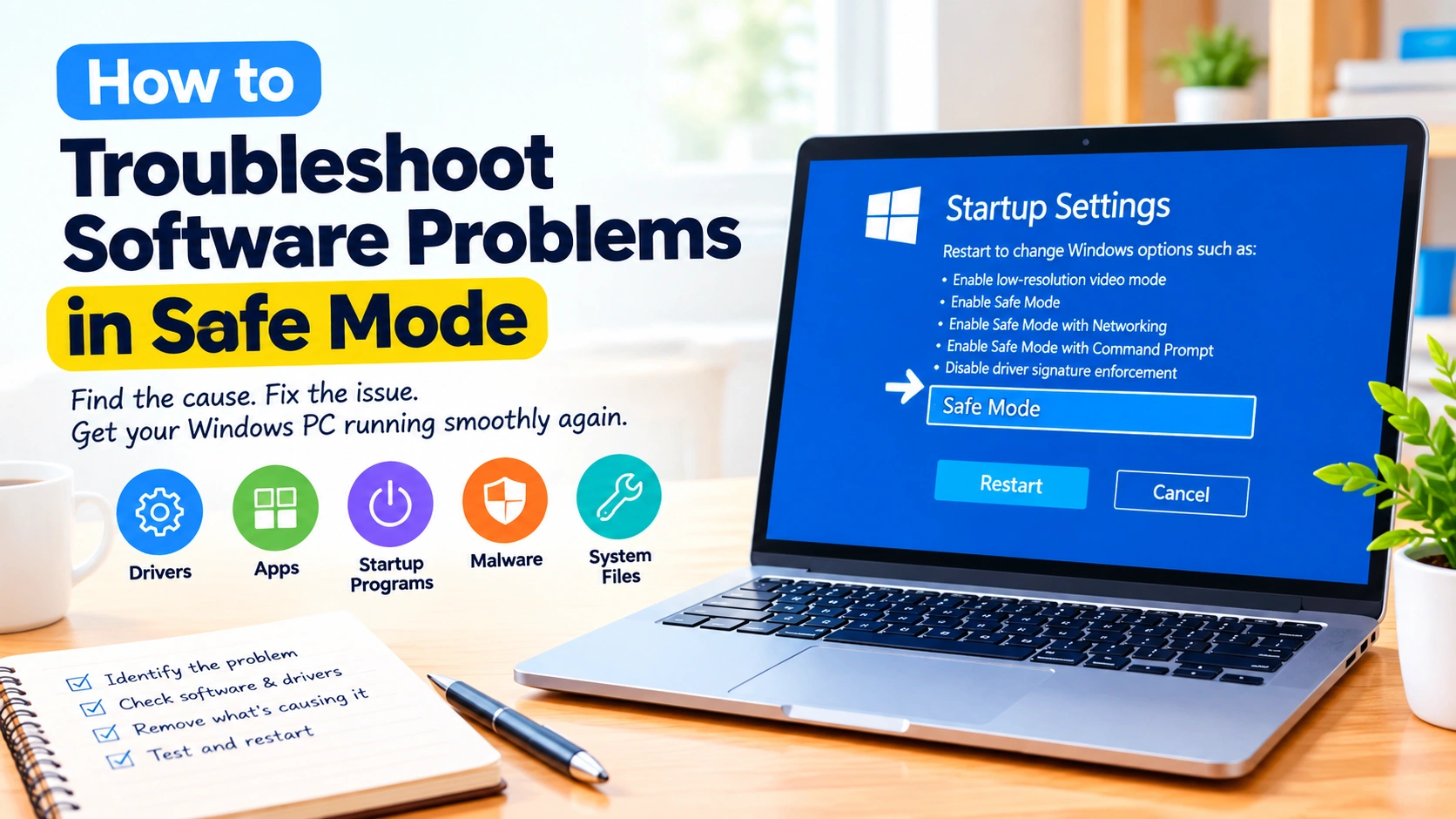
When a Windows computer crashes, freezes, displays error messages, or behaves strangely, identifying the cause can be difficult. A recently installed application, driver, startup program, or background service may be responsible. One of the most useful ways to narrow down the problem is to start Windows in Safe Mode.
Safe Mode loads Windows with a limited set of drivers and services. Because many third-party programs and startup components are disabled, it can help determine whether a software conflict is behind a problem.
In this guide, you’ll learn how to troubleshoot software problems in Safe Mode, how to enter Safe Mode, what to check once you’re there, and how to return to normal Windows operation.
What Is Windows Safe Mode?
Safe Mode is a Windows diagnostic startup environment. Instead of loading every driver, service, and startup application, Windows starts with only the components needed to run the operating system.
This makes Safe Mode useful for diagnosing problems such as:
- Windows freezing or crashing
- Blue screen errors
- Programs that stop responding
- Startup problems
- Driver conflicts
- Recently installed software causing instability
- Unwanted startup applications
- Display or graphics problems
- Software conflicts
- Malware-related issues
Safe Mode does not automatically repair the problem. Instead, it creates a simpler environment that can help you identify what is causing it.
Why Use Safe Mode to Troubleshoot Software Problems?
Software problems can be difficult to diagnose because multiple applications and background services may run simultaneously.
For example, if Windows crashes shortly after starting, the problem could be caused by a third-party driver or startup application. If the computer works normally in Safe Mode, that provides an important clue: a component that normally loads during a regular startup may be responsible.
Safe Mode can therefore help you separate Windows system components from third-party software.
However, not every problem will disappear in Safe Mode. Hardware failures, damaged Windows components, and certain low-level drivers can still cause problems.
How to Start Windows in Safe Mode
There are several ways to access Safe Mode in Windows 10 and Windows 11.
Method 1: Use Windows Recovery Options
If you can still access Windows:
- Open Settings.
- Go to System > Recovery in Windows 11.
- Find Advanced startup.
- Select Restart now.
- Windows will restart and display recovery options.
- Select Troubleshoot.
- Choose Advanced options.
- Select Startup Settings.
- Click Restart.
- After the computer restarts, choose the Safe Mode option.
You will generally see options such as:
- Safe Mode
- Safe Mode with Networking
- Safe Mode with Command Prompt
For most software troubleshooting, standard Safe Mode is a good starting point.
Method 2: Use System Configuration
You can also use the System Configuration utility.
- Press Windows + R.
- Type
msconfig. - Press Enter.
- Open the Boot tab.
- Select Safe boot.
- Choose Minimal.
- Click Apply and then OK.
- Restart the computer.
Be careful with this method. Windows may continue starting in Safe Mode until you remove the Safe boot setting.
How to Tell Whether Software Is Causing the Problem
Once Windows starts in Safe Mode, try to reproduce the problem.
For example, if an application normally causes Windows to freeze, check whether the same behavior occurs in Safe Mode.
The results can provide useful clues.
If the Problem Disappears in Safe Mode
This often suggests that something disabled in Safe Mode is contributing to the problem.
Possible causes include:
- Third-party drivers
- Startup applications
- Background services
- Recently installed software
- Security software
- Hardware utilities
- Graphics-related software
This does not prove that a specific application is responsible, but it gives you a narrower area to investigate.
If the Problem Still Occurs in Safe Mode
If the problem continues even with minimal software loaded, consider investigating:
- Windows system files
- Hardware problems
- Storage errors
- Memory problems
- Core Windows components
- Malware
- System configuration issues
Safe Mode is therefore a diagnostic tool rather than a universal repair method.
Check Recently Installed Software
If the problem started after installing an application, update, utility, or driver, that recent change is worth investigating.
In Safe Mode, review installed applications and think about what changed immediately before the problem appeared.
You can remove a recently installed program if you are confident it is related to the issue.
After uninstalling it, restart Windows normally and test the computer again.
Don’t Remove Multiple Programs at Once
Avoid uninstalling several applications simultaneously. If you remove multiple programs, you may not know which one fixed the problem.
Instead:
- Identify the most likely recent change.
- Remove or reverse that change.
- Restart Windows normally.
- Test the system.
- Continue investigating only if the problem remains.
This approach makes troubleshooting much easier.
Disable Problematic Startup Programs
Some applications launch automatically when Windows starts. A faulty startup program can cause slow boot times, crashes, freezes, or unexpected errors.
To investigate startup applications:
- Start Windows normally if possible.
- Open Task Manager.
- Select Startup apps.
- Review applications configured to start automatically.
- Disable suspicious or recently installed items.
- Restart Windows.
- Check whether the problem returns.
You can also use Safe Mode to determine whether the issue disappears when many normal startup components are not loaded.
Be cautious when disabling startup items you do not recognize. Avoid disabling essential Windows components unless you know what they do.
Check Recently Updated Drivers
Drivers allow Windows to communicate with hardware such as graphics cards, network adapters, printers, and storage devices.
A faulty or incompatible driver can create serious problems.
If an issue started after a driver update, consider reverting to a previous driver version when Windows provides that option.
Common warning signs of driver-related problems include:
- Blue screen errors
- Display problems
- Audio failures
- Network problems
- Unexpected restarts
- Device malfunctions
- System freezes
Device Manager can help you identify devices with warning indicators and inspect their driver information.
Uninstall a Recent Application
If you strongly suspect an application, uninstalling it can help determine whether it is responsible.
Open:
Settings > Apps > Installed apps
Find the application and select the available uninstall option.
After removing the program, restart Windows normally and test the system.
If the problem disappears, check the application’s official website for a newer compatible version before reinstalling it.
Use System Restore When Appropriate
If the problem began recently and System Restore is available, restoring Windows to an earlier restore point may help.
System Restore can reverse certain system changes, including some:
- Driver installations
- Software installations
- System configuration changes
- Updates
It is important to understand that System Restore is not a complete backup solution. Personal files are not intended to be restored through System Restore.
Choose a restore point from before the problem began and follow Windows’ instructions.
Scan for Malware
Some malicious software can cause crashes, unusual processes, browser problems, performance issues, and other software-related symptoms.
If you suspect malware:
- Start Windows normally when possible.
- Update your security software.
- Run a full malware scan.
- Follow the security software’s recommendations for detected threats.
- Restart the computer and test it again.
Safe Mode can sometimes make malware troubleshooting easier, but it should not be assumed that every type of malware will be inactive there.
Repair Windows System Files
If software problems continue even after removing suspicious applications or drivers, damaged Windows system files may be involved.
Windows includes built-in tools that can check and repair system components.
One commonly used tool is System File Checker. Open Command Prompt or Windows Terminal with administrator privileges and run:
sfc /scannow
Allow the scan to finish before restarting the computer.
Depending on the condition of Windows, additional repair tools may also be appropriate.
Check Whether the Problem Is Application-Specific
Sometimes Windows itself is working correctly and only one application is damaged.
If a single program crashes while other applications work normally, try:
- Updating the application.
- Repairing the application if Windows provides a repair option.
- Resetting the application’s settings.
- Uninstalling and reinstalling the program.
- Checking the developer’s support documentation.
If the same problem affects multiple applications, investigate Windows, drivers, and background services instead.
Test Windows After Leaving Safe Mode
After making a change, restart Windows normally.
This step is important because Safe Mode does not represent a normal Windows environment.
If the problem disappears after removing a suspected application or driver, use the computer normally for a while and watch for the original symptom.
If the problem returns, continue narrowing down recently changed software.
How to Exit Safe Mode
If you entered Safe Mode through Windows Recovery, simply restarting the computer will normally return Windows to its regular startup mode.
If you used System Configuration (msconfig), you may need to change the setting manually.
- Press Windows + R.
- Enter
msconfig. - Press Enter.
- Open the Boot tab.
- Clear Safe boot.
- Select Apply.
- Click OK.
- Restart the computer.
If Windows repeatedly starts in Safe Mode, checking the System Configuration boot settings is an important first step.
What to Do If Safe Mode Won’t Start
If Windows cannot enter Safe Mode, the problem may be more serious than a typical application conflict.
Try accessing Windows Recovery Environment and using other available troubleshooting options.
Depending on the symptoms, you may also consider:
- Startup Repair
- System Restore
- Windows recovery tools
- Offline malware scanning
- Checking storage health
- Checking memory
- Repairing Windows system files
- Restoring from a known-good backup
If important files are stored on the computer, consider protecting or backing them up before performing major recovery operations.
Common Mistakes to Avoid
Assuming Safe Mode Automatically Fixes Everything
Safe Mode is primarily a diagnostic environment. It helps you identify potential causes but does not automatically repair every software problem.
Deleting System Files
Do not delete Windows system files simply because they look unfamiliar. Removing essential files can create additional problems.
Disabling Every Startup Program
Disabling everything at once can make troubleshooting harder. Change one category or suspected item at a time when possible.
Ignoring Recent Changes
If the problem appeared immediately after a software installation or update, investigate that change before making numerous unrelated modifications.
Forgetting to Return to Normal Startup
If you enabled Safe Mode through System Configuration, remember to disable the Safe boot setting when troubleshooting is finished.
Safe Mode Troubleshooting Checklist
Use this checklist when diagnosing a Windows software problem:
- Start Windows in Safe Mode.
- Check whether the original problem still occurs.
- Think about recently installed software.
- Review recently updated drivers.
- Check startup applications.
- Remove suspicious or unnecessary software.
- Scan for malware.
- Repair damaged Windows system files.
- Consider System Restore if appropriate.
- Restart Windows normally.
- Test the computer after each major change.
- Keep track of what you changed.
Changing one thing at a time makes it much easier to identify the actual cause.
When Should You Seek Additional Help?
Safe Mode is useful for many software problems, but some issues require more advanced troubleshooting.
Consider getting professional assistance if:
- Windows repeatedly crashes in both normal mode and Safe Mode.
- The computer cannot boot into Windows.
- Important files are inaccessible.
- The storage drive shows signs of failure.
- The computer repeatedly restarts.
- You suspect serious malware.
- Hardware diagnostics report errors.
- Windows recovery tools cannot resolve the problem.
If valuable files are involved, avoid repeatedly experimenting with repairs that could make data recovery more difficult.
Final Thoughts
Learning how to troubleshoot software problems in Safe Mode gives you a practical way to isolate Windows problems without loading every application and background component.
Start by determining whether the issue disappears in Safe Mode. If it does, investigate third-party applications, startup programs, and drivers. If the problem remains, look beyond ordinary software conflicts and consider Windows system files, hardware, malware, or other system-level causes.
The key is to make changes carefully, test Windows after each significant step, and keep track of what you changed. A systematic approach can turn a confusing software problem into a much easier troubleshooting process.
Frequently Asked Questions
Can Safe Mode fix software problems?
Safe Mode does not automatically fix most software problems. Its main purpose is to provide a minimal Windows environment that helps you identify applications, drivers, and services that may be causing the issue.
How do I know if a driver is causing a problem?
If the issue began after a driver update and disappears in Safe Mode, the driver may be involved. You can investigate the affected device through Device Manager and consider updating or rolling back the driver when appropriate.
Can I uninstall software in Safe Mode?
Some applications can be removed while Windows is running in Safe Mode, although certain uninstallers may require normal Windows operation. If an application cannot be removed in Safe Mode, try uninstalling it after restarting Windows normally.
Does Safe Mode remove viruses?
Safe Mode does not guarantee that malware will be removed. It can limit the software that starts with Windows, which may help with some malware-related troubleshooting, but you should use an appropriate security scanner for malware detection and removal.
Why does my computer work in Safe Mode but not normally?
This commonly indicates that something loaded during a normal Windows startup may be contributing to the problem. Possible causes include third-party drivers, startup applications, background services, or recently installed software.
Can I use the internet in Safe Mode?
Windows provides a Safe Mode with Networking option that loads additional networking components. However, standard Safe Mode is often sufficient when diagnosing software problems that do not require internet access.
What should I do if Safe Mode also crashes?
If Windows crashes in Safe Mode, investigate broader causes such as damaged system files, hardware problems, storage issues, memory problems, or serious Windows configuration problems. Recovery tools and hardware diagnostics may be necessary.