

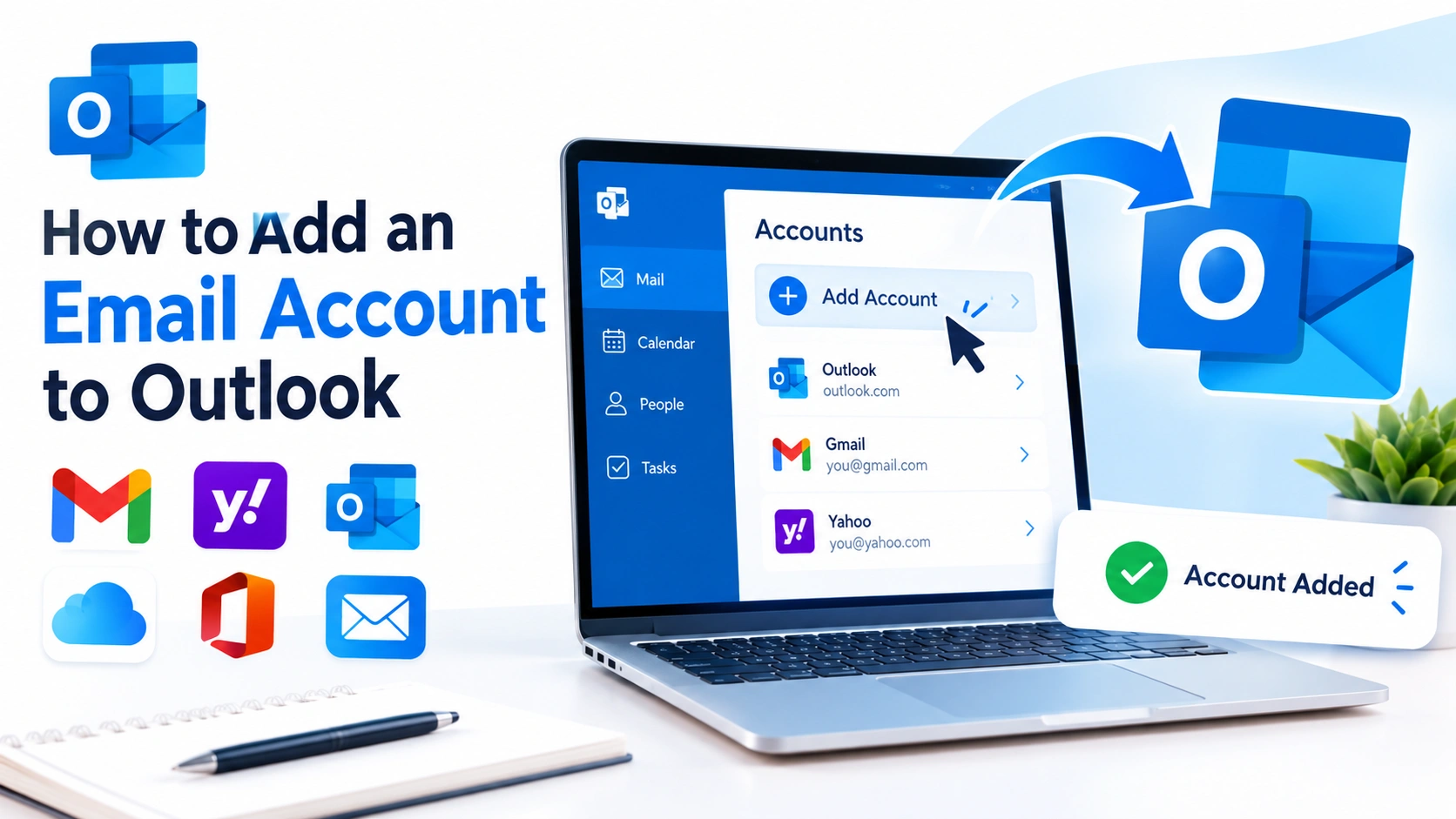
Adding an email account to Microsoft Outlook makes it easier to manage messages, contacts, calendars, and other communication tools from one application. Whether you use Gmail, Yahoo Mail, a work account, or another email service, Outlook can usually configure the necessary settings automatically.
In this guide, you’ll learn how to add an email account to Outlook, troubleshoot common setup problems, and verify that your account is working correctly.
Why Add an Email Account to Outlook?
Using Outlook to manage multiple email accounts can save time and reduce the need to switch between different websites or apps.
Some benefits include:
- Managing multiple email addresses in one place
- Sending and receiving messages from a single application
- Accessing email while working with Outlook’s calendar and contacts
- Organizing messages with folders and rules
- Receiving desktop notifications for new messages
- Searching across multiple mailboxes
Before starting, make sure you know the email address and password for the account you want to add.
How to Add an Email Account to Outlook
The exact steps depend on which version of Outlook you use. New Outlook and classic Outlook have slightly different interfaces.
1. Open Outlook
Start Microsoft Outlook on your Windows PC.
If you are using the new Outlook app, wait for it to load completely before beginning the setup process.
2. Open Account Settings
In the new Outlook interface, select the Settings icon near the top-right corner.
Look for the option related to Accounts or Email accounts.
In classic Outlook, select File, then choose Add Account.
3. Enter Your Email Address
Type the email address you want to add to Outlook.
Select Continue, Connect, or the equivalent button shown on your version of Outlook.
Outlook will attempt to identify your email provider and configure the required server settings automatically.
4. Enter Your Password
When prompted, enter the password associated with your email account.
If your provider uses additional security, you may also need to complete a verification step, such as entering a security code or approving a sign-in notification.
5. Allow Outlook to Connect to Your Account
Depending on the email provider, Outlook may open a separate sign-in window.
Follow the instructions provided by your email service. You may need to grant Outlook permission to access your mailbox.
This step is particularly important for accounts that use modern authentication or two-factor authentication.
6. Complete the Setup
After authentication is successful, Outlook should confirm that the account has been added.
Your mailbox may take a few moments to synchronize, especially if it contains a large number of emails.
Once synchronization finishes, your messages should appear in Outlook.
How to Add a Gmail Account to Outlook
Gmail accounts can generally be added through Outlook’s standard account setup process.
Open Outlook and choose the option to add a new account. Enter your Gmail address and continue through Google’s sign-in process.
If Google requests additional verification, complete the required security check.
You may also need to approve Microsoft’s or Outlook’s request to access your Gmail account.
After authentication is complete, Outlook will begin synchronizing your Gmail messages.
How to Add a Work or School Email Account
Work and school accounts may use Microsoft 365, Exchange, or another mail service.
To add one, enter your organization-provided email address in Outlook’s account setup screen.
If the account belongs to a Microsoft 365 organization, Outlook may redirect you to your organization’s Microsoft sign-in page.
Enter your credentials and complete any multi-factor authentication requirements.
If automatic configuration fails, your organization’s IT administrator may need to provide additional server information or account permissions.
What If Outlook Cannot Automatically Configure the Account?
Most modern email services provide automatic configuration, but some accounts require manual settings.
You may need information such as:
- Incoming mail server
- Outgoing mail server
- IMAP or POP settings
- SMTP port
- Encryption method
- Username
- Password
- Authentication requirements
If you are unsure about these settings, check your email provider’s official support documentation rather than guessing the server information.
Incorrect IMAP, POP, or SMTP settings can prevent Outlook from sending or receiving messages.
IMAP vs. POP: Which Should You Use?
When manual configuration is required, you may encounter IMAP and POP.
IMAP keeps messages synchronized between Outlook and the mail server. This is generally useful if you access the same account from multiple devices.
POP typically downloads messages from the mail server to your device. It is more suitable for certain single-device setups but offers less convenient synchronization across multiple devices.
For most users who regularly access email from a computer, phone, and web browser, IMAP is usually the more practical choice when available.
Common Problems When Adding an Email Account
Incorrect Password
Double-check that you are using the correct password. If you recently changed your email password, update the credentials used by Outlook.
Two-Factor Authentication Is Required
Some email providers require two-factor authentication before allowing an application to access the account.
Complete the authentication process when prompted.
Some older email configurations may require an app-specific password, depending on the provider and account security settings.
Outlook Keeps Asking for Your Password
Repeated password prompts can occur because of authentication problems, outdated credentials, account permissions, or issues with Outlook’s saved account information.
First, verify that you can sign in to your email account through its official website.
If web sign-in works, restarting Outlook and removing or re-adding the account may help resolve the problem.
Outlook Cannot Send Emails
If you can receive messages but cannot send them, the problem may involve the outgoing SMTP configuration.
Check the account’s outgoing server settings and make sure the required authentication and encryption options match your email provider’s instructions.
Emails Are Not Synchronizing
Give Outlook some time to synchronize after adding an account.
If messages still do not appear, check your internet connection and confirm that the account works through webmail.
You can also restart Outlook and check whether the account is showing any synchronization errors.
How to Test the New Outlook Account
After adding the account, send a test message to another email address.
Then send a reply back to the new Outlook account.
This lets you confirm both outgoing and incoming email functionality.
You should also check whether recent messages, folders, and other mailbox content are synchronizing correctly.
How to Remove an Email Account From Outlook
If you no longer want an account in Outlook, you can remove it from the application’s account settings.
Open Outlook’s account settings, select the email account, and choose the option to remove or delete the account from Outlook.
Removing an account from Outlook does not necessarily delete the actual email account. Your mailbox normally remains available through your email provider unless you separately request account deletion.
Tips for Managing Multiple Email Accounts
If you use several accounts in Outlook, a few simple practices can make email management easier:
- Give each account a recognizable name.
- Use folders to organize important messages.
- Create rules for frequently received emails.
- Review account synchronization settings regularly.
- Keep Outlook updated.
- Use strong, unique passwords for email accounts.
- Enable multi-factor authentication whenever your provider supports it.
- Avoid entering email credentials into unofficial applications or websites.
Final Thoughts
Adding an email account to Outlook is usually a straightforward process. In most cases, you only need to enter your email address, authenticate with your provider, and allow Outlook to synchronize the mailbox.
For accounts that cannot be configured automatically, you may need IMAP, POP, and SMTP information from your email provider. If you encounter authentication or synchronization problems, verify your credentials and security settings before changing advanced configuration options.
Once your account is successfully connected, Outlook provides a convenient way to manage email alongside calendars, contacts, and other productivity features from one application.