

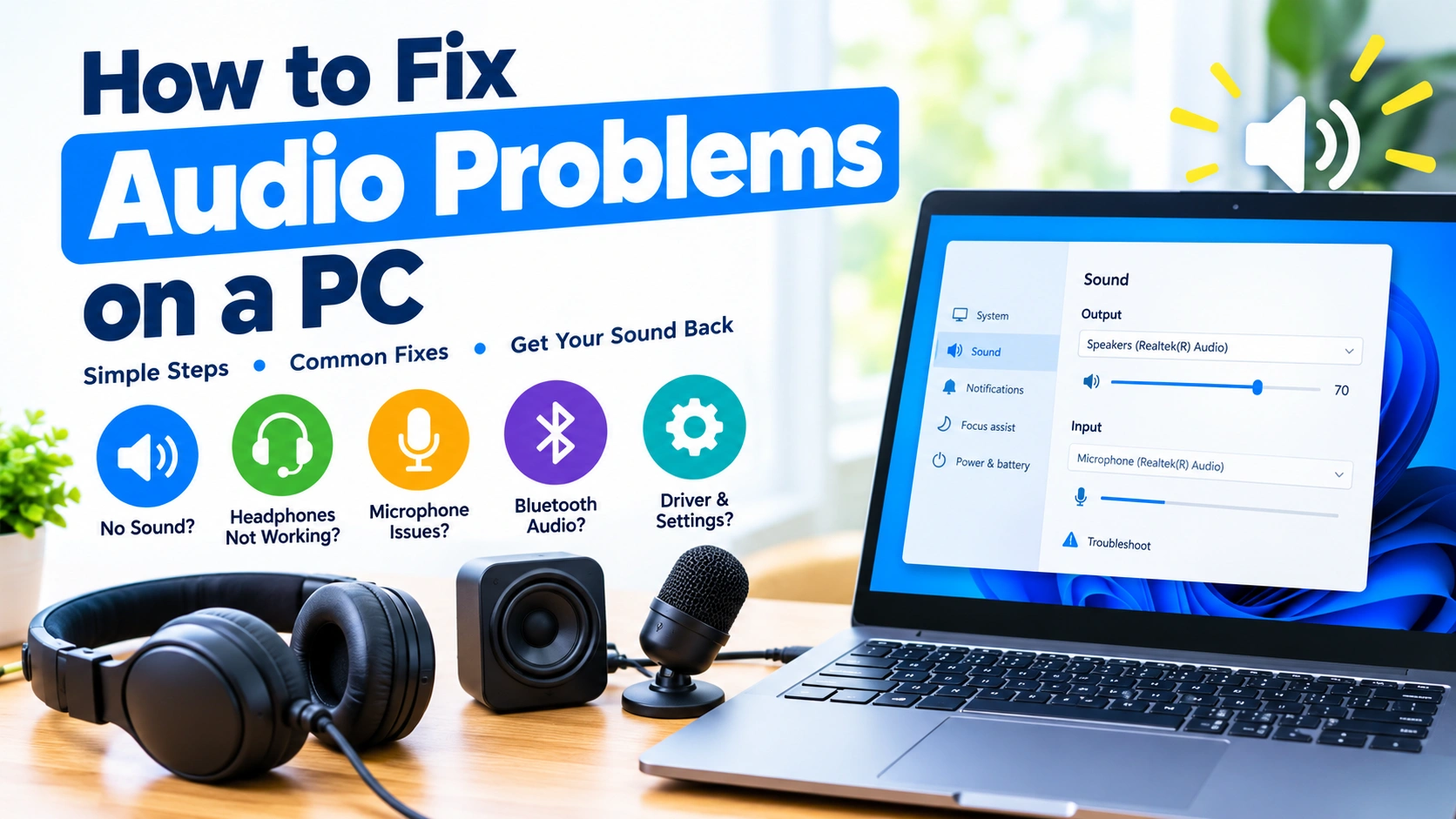
Audio problems on a PC can appear in many forms. Your computer may suddenly have no sound, speakers may produce crackling or distorted audio, headphones might not be detected, or your microphone may stop working. Fortunately, most PC audio problems can be fixed without replacing your hardware.
Whether you’re using built-in speakers, headphones, a USB headset, Bluetooth earbuds, or an external microphone, the right troubleshooting steps can help identify the cause quickly.
In this guide, you’ll learn how to fix audio problems on a PC, including common Windows sound issues and practical solutions you can try at home.
Common PC Audio Problems
Before changing settings, identify exactly what is going wrong. Common audio issues include:
- No sound from speakers or headphones
- Very low volume
- Crackling, buzzing, or distorted audio
- Headphones not being detected
- Microphone not working
- Bluetooth audio cutting out
- Sound working in one application but not another
- Audio disappearing after a Windows update
- Wrong audio device being selected
- Intermittent sound or audio dropouts
The specific symptom can provide an important clue about the underlying problem.
1. Check the Volume and Mute Settings
The simplest solution is often the easiest to overlook.
Click the speaker icon in the Windows taskbar and make sure the volume isn’t muted or set extremely low. If your keyboard has dedicated volume controls, check those as well.
Also check the volume inside the application you’re using. For example, a video player or game may have its own volume setting.
If you use an external monitor, television, or docking station, Windows may also be sending audio to that device instead of your normal speakers.
2. Select the Correct Audio Output Device
One of the most common reasons for having no sound is that Windows is using the wrong playback device.
For example, if you connect Bluetooth headphones, Windows may switch audio from your desktop speakers to the headphones. When you disconnect them, it may not automatically return to the device you expect.
To check:
- Open Settings.
- Go to System > Sound.
- Find the output or playback device.
- Select the speakers or headphones you actually want to use.
- Play some audio to test the connection.
If several devices appear, test each relevant option.
3. Disconnect and Reconnect Your Headphones
If your headphones suddenly stop working, disconnect them and reconnect them.
For wired headphones, check whether the plug is fully inserted. If you’re using a 3.5 mm connector, try another compatible audio jack if your computer has one.
For USB headphones, unplug the device and connect it to another USB port.
For Bluetooth headphones, disconnect and reconnect them through Windows Bluetooth settings.
If the headphones work on another device but not your PC, the problem is more likely related to your computer’s settings, drivers, or hardware.
4. Restart Your PC
A restart can resolve temporary audio-service problems, driver conflicts, and device-detection errors.
If you’ve recently connected a new headset, installed an audio driver, or updated Windows, restarting the computer is especially worthwhile.
Don’t simply put the PC to sleep and wake it again. Choose Restart so Windows can reload its audio components and device drivers.
5. Run the Windows Audio Troubleshooter
Windows includes built-in troubleshooting tools that can automatically detect certain sound problems.
Open Settings > System > Troubleshoot > Other troubleshooters and look for the available audio or sound troubleshooting option.
The troubleshooter may identify problems involving:
- Incorrect audio settings
- Disabled devices
- Audio services
- Driver-related issues
- Output configuration
Automated troubleshooting doesn’t fix every problem, but it can be a useful first diagnostic step.
6. Check Whether the Audio Device Is Disabled
An audio device can sometimes become disabled in Windows.
Open the sound settings and review your available output devices. If your speakers, headphones, or microphone are disabled, enable the appropriate device.
You can also inspect devices through Device Manager.
Press Windows + X, select Device Manager, and expand categories such as:
- Sound, video and game controllers
- Audio inputs and outputs
Look for warning symbols or devices that appear disabled.
7. Update or Reinstall Your Audio Driver
Audio drivers allow Windows to communicate with your computer’s sound hardware. A corrupted, outdated, or incompatible driver can cause problems.
In Device Manager, locate your audio device and check whether a driver update is available.
If updating doesn’t solve the problem, reinstalling the driver may help. Windows can often reinstall a compatible driver after the device is removed and the computer is restarted.
For the most reliable driver, you can also check the support website of your PC or motherboard manufacturer.
Avoid downloading random drivers from unfamiliar websites. Using the manufacturer’s official support page reduces the risk of installing incorrect or unwanted software.
8. Check Windows Audio Services
Windows relies on background services to process sound.
If these services stop running correctly, you may experience a complete loss of audio or other unusual sound behavior.
Press Windows + R, type:
services.msc
Then look for services associated with Windows audio.
If an audio service has stopped, restarting it may restore sound. Be careful when changing Windows services, however, because modifying unrelated services can create additional problems.
9. Disable Audio Enhancements
Audio enhancements can sometimes improve sound quality, but they can also cause distortion, crackling, or compatibility problems.
If your PC produces strange audio after an update or configuration change, try disabling audio enhancements.
Go to your selected playback device in Windows sound settings and look for options related to audio enhancements, sound effects, or similar processing features.
After disabling them, test the same audio again.
If the problem disappears, one of the enhancement features may have been conflicting with your hardware or driver.
10. Change the Audio Format
Sometimes an incompatible sample rate or bit depth can cause audio problems.
Depending on your version of Windows and audio hardware, you may be able to change the device’s default format through its advanced sound properties.
Try a standard format and test the audio again.
This can be particularly useful when you’re experiencing:
- Crackling
- Static
- Audio dropouts
- Distortion
- Problems after connecting an external DAC or USB audio device
Change one setting at a time so you know which adjustment affects the problem.
11. Fix Microphone Problems on a PC
If your speakers work but your microphone doesn’t, the problem may be related to microphone permissions or the selected input device.
Go to Settings > System > Sound and locate the input section.
Make sure the correct microphone is selected.
Then check Windows privacy settings to ensure applications are allowed to access your microphone.
This is especially important for applications such as:
- Zoom
- Microsoft Teams
- Discord
- Web browsers
- Voice-recording software
- Online games
If your microphone works in one program but not another, check the individual application’s audio settings as well.
12. Check App-Specific Volume Settings
Sometimes your PC’s audio works perfectly everywhere except inside one application.
Windows can control volume separately for individual programs.
If a browser, game, media player, or communication application has no sound, check the Volume Mixer and make sure that application isn’t muted or assigned to an unexpected output device.
This is a common explanation when system sounds work but one particular application remains silent.
13. Troubleshoot Bluetooth Audio
Bluetooth headphones can introduce additional sources of audio problems.
If your Bluetooth headset is connected but produces no sound, try:
- Disconnecting the headset.
- Turning Bluetooth off and back on.
- Removing the device from Windows.
- Restarting the PC.
- Pairing the headset again.
- Selecting the headset as the active output device.
Also check whether the headset is connected to another phone, tablet, or computer. Some Bluetooth devices automatically reconnect to another nearby device.
If Bluetooth audio repeatedly cuts out, distance, interference, battery level, drivers, and Bluetooth adapter compatibility can all be factors.
14. Check Your Cables and Hardware
Software troubleshooting won’t solve a physically damaged connection.
Inspect your:
- Speaker cable
- Headphone connector
- USB cable
- Microphone cable
- HDMI or DisplayPort cable
- External audio interface
- Power connection
If possible, test the audio device on another computer.
This helps separate a PC configuration problem from a hardware problem.
For example, if a pair of headphones doesn’t work on multiple devices, the headphones themselves may be faulty.
15. Check HDMI and DisplayPort Audio
If you’re using a monitor or television through HDMI or DisplayPort, Windows may treat the display as an audio output device.
If sound suddenly disappears after connecting a monitor, open Windows sound settings and check whether the display has become the default output.
Make sure the selected device matches where you want the sound to come from.
Remember that not every monitor has built-in speakers, even if Windows recognizes it as an audio-capable display.
16. Roll Back a Recent Driver Update
If your audio stopped working immediately after a driver update, the new driver could be responsible.
Device Manager may provide a Roll Back Driver option for some devices.
Rolling back can be useful when:
- Sound worked before an update
- A manufacturer driver was recently installed
- Audio became distorted after updating
- A previously working device stopped being detected
If the rollback option isn’t available, check the manufacturer’s support page for an earlier compatible driver.
17. Restore Audio After a Windows Update
Major Windows updates can occasionally change device settings or introduce compatibility issues.
If your audio stopped working after an update, first check the selected output device and audio driver.
Then restart the computer and install any available updates for Windows and your PC manufacturer’s drivers.
If the issue began immediately after a specific update, documenting the timing can help determine whether the update is connected to the problem.
18. When to Suspect a Hardware Failure
If you’ve tried different software settings and the problem remains, consider the possibility of hardware failure.
Potential warning signs include:
- No audio device is detected
- A device repeatedly disconnects
- Speakers produce persistent static
- A headphone jack only works when the plug is moved
- USB audio devices disconnect randomly
- Multiple operating systems show the same problem
- The device fails on another computer
Testing the same headphones, speakers, or microphone on another device is one of the easiest ways to narrow down the cause.
A Quick PC Audio Troubleshooting Checklist
If you need a fast solution, work through these checks in order:
- Make sure Windows isn’t muted.
- Increase the volume.
- Select the correct output device.
- Check the application’s volume.
- Disconnect and reconnect the audio device.
- Restart the PC.
- Run Windows’ audio troubleshooter.
- Check Device Manager.
- Update or reinstall the audio driver.
- Disable audio enhancements.
- Check microphone permissions if input audio is affected.
- Test the hardware on another device.
This sequence starts with simple solutions before moving toward more technical troubleshooting.
Frequently Asked Questions
Why is there no sound on my PC?
No sound can be caused by muted volume, an incorrect output device, disabled hardware, driver problems, Windows audio services, or faulty speakers or headphones. Start by checking the selected output device and volume settings.
Why does my PC recognize my headphones but have no sound?
Windows may recognize the headphones without automatically selecting them as the active playback device. Open your sound settings and manually select the headphones as the output.
Why is my microphone not working on Windows?
Check that the correct microphone is selected, microphone permissions are enabled, and the application you’re using has access to the microphone. You should also check the microphone’s physical connection.
How do I fix crackling audio on my PC?
Try reconnecting the audio device, updating the driver, disabling audio enhancements, and changing the device’s audio format. If the crackling continues across multiple computers, the hardware may be defective.
Why does audio work in some apps but not others?
The affected application may be muted in Windows’ Volume Mixer or configured to use a different output device. Check both Windows and the application’s individual audio settings.
Can a Windows update cause audio problems?
Yes. Updates can sometimes affect drivers or audio configuration. If the problem appeared immediately after an update, check for newer drivers, review your audio settings, and consider whether rolling back a recently updated driver is appropriate.
Final Thoughts
Most PC audio problems don’t require expensive repairs. A wrong output device, muted application, outdated driver, Bluetooth connection, or Windows configuration issue can often explain why your computer suddenly stops producing sound.
The best approach is to troubleshoot systematically. Start with volume and device selection, then move through connections, Windows settings, drivers, and hardware testing. Changing several settings at once can make troubleshooting harder, so test the audio after each major adjustment.
Once you identify whether the problem comes from Windows, an application, a driver, a connection, or the audio hardware, finding the right solution becomes much easier.