

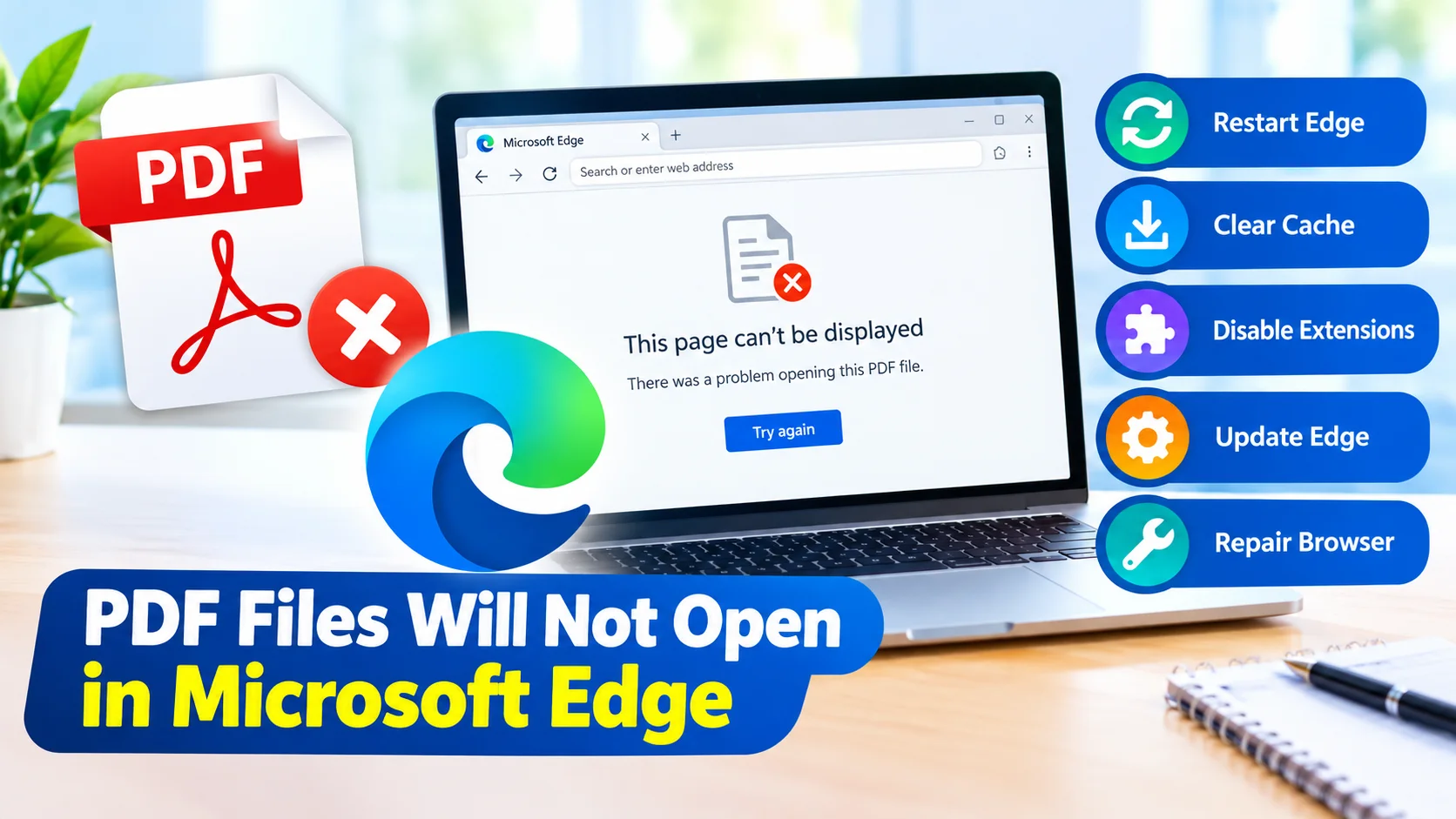
PDF files will not open in Microsoft Edge when the browser’s PDF viewer encounters a temporary glitch, corrupted cache, incorrect settings, blocked downloads, or an issue with the PDF file itself. Fortunately, most PDF problems in Edge can be fixed without reinstalling Windows or changing your default browser.
This guide explains practical ways to troubleshoot Microsoft Edge when PDF documents fail to open, display a blank page, download incorrectly, or show an error.
Why Won’t PDF Files Open in Microsoft Edge?
Several issues can prevent Edge from opening PDF documents:
- Microsoft Edge has a temporary software problem.
- The PDF file is damaged or incomplete.
- Edge’s cached data has become corrupted.
- The built-in PDF viewer is not working correctly.
- A browser extension interferes with PDF loading.
- The PDF was downloaded incorrectly.
- Microsoft Edge is outdated.
- Security software or Windows settings interfere with the file.
- The PDF contains features that Edge cannot properly render.
Identifying whether the problem affects one PDF or every PDF can help narrow down the cause.
1. Try Opening Another PDF
First, determine whether the problem is with Microsoft Edge or the specific document.
Download or open a different PDF file. If other PDFs open normally, the original file may be corrupted or incomplete.
If every PDF fails to open, continue with the troubleshooting steps below.
2. Restart Microsoft Edge
A temporary browser process can prevent PDFs from loading correctly.
- Close all Microsoft Edge windows.
- Wait a few seconds.
- Open Microsoft Edge again.
- Try opening the PDF.
If the problem continues, restart your computer and test the PDF again.
3. Update Microsoft Edge
An outdated version of Edge may contain bugs affecting PDF viewing.
To check for updates:
- Open Microsoft Edge.
- Select the three-dot menu in the upper-right corner.
- Select Help and feedback.
- Choose About Microsoft Edge.
- Allow Edge to check for available updates.
- Install the update if one is available.
- Restart Edge.
After updating, try opening the PDF again.
4. Clear Edge Cache
Corrupted cached files can interfere with websites and built-in browser features, including PDF viewing.
To clear cached data:
- Open Microsoft Edge.
- Press Ctrl + Shift + Delete.
- Select a suitable time range.
- Select Cached images and files.
- Click Clear now.
- Restart Microsoft Edge.
- Try opening the PDF again.
You can start by clearing cached files rather than deleting all browsing information.
5. Open the PDF in an InPrivate Window
An extension or browser setting may be interfering with the PDF viewer.
To test this:
- Open Microsoft Edge.
- Press Ctrl + Shift + N.
- Open the PDF in the InPrivate window.
If the PDF works in InPrivate mode, an extension or browser configuration may be responsible.
6. Disable Edge Extensions
Browser extensions can sometimes interfere with file handling or web content.
To temporarily disable extensions:
- Open Edge.
- Enter
edge://extensions/in the address bar. - Turn off installed extensions.
- Restart Edge.
- Try opening the PDF.
If the PDF works, enable extensions one at a time to identify the one causing the problem.
7. Download the PDF Instead of Opening It
If Edge cannot display the document directly, download the file first.
Right-click the PDF link and choose Save link as, if available. Save the document to your computer and then open the downloaded file.
This can also help determine whether the problem is related to the website or Edge’s PDF viewer.
8. Check Whether the PDF File Is Corrupted
A damaged PDF may fail in Edge as well as other PDF readers.
Try opening the same file with another PDF application. If it also fails there, the document itself may be damaged.
If possible, download the PDF again from the original source.
9. Repair Microsoft Edge
Windows provides a repair option that can fix problems with Edge while preserving browser data.
On Windows 11:
- Open Settings.
- Select Apps.
- Select Installed apps.
- Find Microsoft Edge.
- Select the three-dot menu.
- Choose Modify.
- Select Repair.
- Follow the instructions on screen.
An internet connection may be required during the repair process.
10. Check Your Default PDF Application
If downloaded PDF files open with another application, check your Windows default-app settings.
- Open Settings.
- Select Apps.
- Select Default apps.
- Search for
.pdf. - Review the application associated with PDF files.
- Choose Microsoft Edge if you want Edge to handle PDF files by default.
This setting mainly affects how downloaded PDF files are opened rather than whether Edge can display a PDF inside the browser.
11. Check Windows Security Software
Security software can sometimes block downloads or files it considers suspicious.
If only a particular PDF is affected, verify that the file comes from a trusted source. Avoid disabling security protection simply to open an unknown PDF.
For business or managed computers, security policies may also control how PDF files are handled.
12. Try a Different PDF Reader
If you need immediate access to an important document, open the PDF using another trusted PDF reader.
This is also useful for troubleshooting. If the document opens successfully elsewhere, the problem is more likely related to Edge rather than the PDF itself.
13. Restart Windows
If Edge continues to behave incorrectly, restart Windows before performing more advanced troubleshooting.
A restart can clear temporary processes and system resources that may be interfering with Edge.
PDF Still Won’t Open in Microsoft Edge?
If PDF files will not open in Microsoft Edge after trying these solutions, determine whether the issue affects all PDFs or only certain documents.
For problems affecting every PDF, focus on:
- Updating Edge
- Clearing cached data
- Disabling extensions
- Repairing Edge
- Checking Windows settings
For problems affecting only one or two files, download the PDF again and test it with another PDF reader. The document itself may be incomplete or corrupted.
Frequently Asked Questions
Why won’t PDF files open in Microsoft Edge?
PDF files may fail to open because of corrupted cache data, outdated Edge software, browser extensions, damaged PDF files, or other browser configuration problems.
How do I reset the PDF viewer in Edge?
Start by restarting Edge, clearing cached files, disabling extensions, and updating the browser. If the problem continues, use Windows’ Repair option for Microsoft Edge.
Can a corrupted PDF cause Edge to stop opening PDFs?
Yes. A damaged or incomplete PDF can fail to load correctly. Test another PDF to determine whether the issue is limited to one document.
Why does Edge download PDFs instead of opening them?
PDF handling settings or website behavior can cause a PDF to download rather than display in the browser. Check Edge’s PDF-related settings and the website’s download behavior.
Should I reinstall Microsoft Edge?
Usually, reinstalling is not the first step. Try updating, clearing the cache, disabling extensions, and repairing Edge first.
Conclusion
When PDF files will not open in Microsoft Edge, the cause is often a temporary browser problem, corrupted cache, extension conflict, outdated software, or a damaged document. Start with simple solutions such as restarting Edge, testing another PDF, clearing cached files, and updating the browser. If those steps do not work, repairing Microsoft Edge can resolve deeper installation problems.
With these troubleshooting methods, you can usually identify whether the problem comes from Microsoft Edge, Windows, or the PDF file itself.