

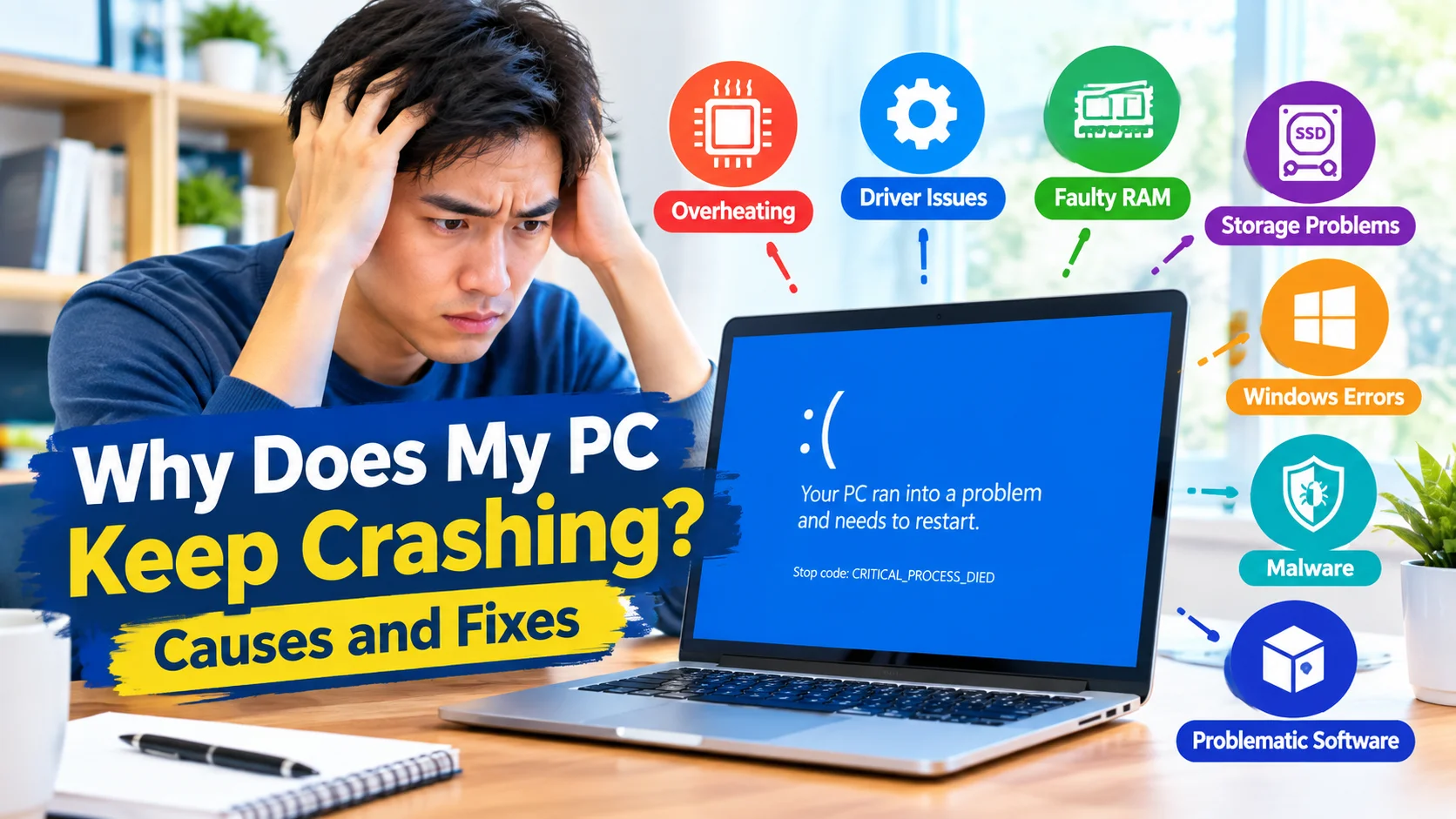
If your PC keeps crashing, freezing, restarting, or showing a blue screen, the problem may be caused by hardware, drivers, Windows system files, overheating, or problematic software. Finding the underlying cause is important because repeatedly restarting your computer without diagnosing the issue may not solve the problem.
This guide explains how to find out why your PC keeps crashing and what you can do to fix common causes in Windows.
Why Does My PC Keep Crashing?
A Windows PC can crash for many reasons. Common causes include:
- Outdated or corrupted device drivers
- Damaged Windows system files
- Overheating CPU or GPU
- Faulty RAM
- Hard drive or SSD problems
- Recently installed software
- Windows update problems
- Malware or unwanted programs
- Insufficient power or a failing power supply
- Hardware compatibility problems
The first step is to determine whether the crashes happen during a specific activity or randomly.
1. Check When the PC Crashes
Pay attention to what you are doing when the crash occurs.
For example, a crash that happens while gaming may point toward GPU drivers, overheating, or graphics hardware. A crash that occurs shortly after starting Windows could be related to startup software, drivers, or corrupted system files.
Write down any error message, blue screen code, or application name that appears before the crash.
2. Check Windows Event Viewer
Windows Event Viewer can provide useful information about system failures.
To check recent errors:
- Press Windows + X.
- Select Event Viewer.
- Expand Windows Logs.
- Select System.
- Look for Error or Critical events around the time the PC crashed.
- Open an event to view its details.
Look for recurring errors rather than focusing on a single warning. Repeated events occurring immediately before crashes can provide useful clues.
Learn how to check Windows Event Logs for security issues, identify suspicious events, and investigate unusual activity on your PC.
3. Check for Overheating
Excessive heat can cause a computer to freeze, shut down, or restart unexpectedly.
Common signs of overheating include:
- Fans running loudly
- Sudden performance drops
- Crashes during gaming or demanding tasks
- Unexpected shutdowns
- A hot laptop or desktop case
Make sure air vents are not blocked and that dust is not restricting airflow. Desktop users should also check whether the CPU and case fans are operating normally.
Learn how to fix an overheating PC by improving airflow, cleaning dust, checking fans, managing temperatures, and reducing system load.
4. Update Device Drivers
A damaged or incompatible driver can cause Windows to crash, particularly after installing new hardware or updating Windows.
To check drivers:
- Press Windows + X.
- Select Device Manager.
- Look for devices with warning icons.
- Expand categories such as Display adapters, Network adapters, and Storage controllers.
- Update or reinstall the affected driver.
If the crashes started immediately after a driver update, rolling back the problematic driver may also help.
5. Run Windows System File Checker
Corrupted Windows files can cause instability and unexpected crashes.
Open Command Prompt as administrator and run:
sfc /scannow
Wait until the scan reaches 100 percent. If Windows finds damaged system files, it will attempt to repair them automatically.
After the scan finishes, restart the PC and check whether the crashes continue.
Learn how to run Windows System File Checker (SFC) to scan for corrupted system files and repair common Windows problems using simple commands.
6. Repair the Windows Component Store
If SFC cannot repair all corrupted files, use the Deployment Image Servicing and Management tool.
Open an elevated Command Prompt and run:
DISM /Online /Cleanup-Image /RestoreHealth
When the command finishes, run:
sfc /scannow
Restart Windows after completing both scans.
7. Test Your RAM
Faulty memory can cause random crashes, freezes, application failures, and blue screen errors.
Windows includes a built-in memory diagnostic tool.
- Press Windows + R.
- Enter
mdsched.exe. - Press Enter.
- Choose Restart now and check for problems.
Windows will restart and test the installed memory. If errors are detected, the RAM may need to be reseated, tested individually, or replaced.
Learn how to check RAM health in Windows, test for memory errors, diagnose crashes, and identify faulty RAM using built-in Windows tools.
8. Check Your SSD or Hard Drive
Storage problems can also cause Windows crashes, especially when system files cannot be read correctly.
You can check a drive for file-system errors using:
chkdsk C: /scan
If Windows reports serious storage problems, back up important files before performing additional repairs.
For older hard drives, unusual clicking sounds, extremely slow performance, or frequent file corruption can indicate a hardware problem.
Learn how to check your SSD or hard drive in Windows, detect drive errors, monitor health, and identify storage problems before data loss occurs.
9. Remove Recently Installed Software
If the crashes began after installing an application, utility, antivirus program, or hardware-related tool, temporarily uninstalling it can help determine whether it is responsible.
Go to:
Settings > Apps > Installed apps
Sort applications by installation date and review recently installed programs.
Avoid removing essential Windows components unless you know exactly what the program does.
Learn how to remove recently installed Windows updates safely, troubleshoot update-related problems, and restore system stability when an update causes errors.
10. Scan for Malware
Malware can interfere with Windows processes and cause unusual system behavior.
Run a full scan using a trusted security solution. Windows Security can be opened from:
Settings > Privacy & security > Windows Security > Virus & threat protection
Choose the appropriate scan option and allow the scan to complete.
Learn how to scan your PC for malware in Windows, detect threats, remove suspicious software, and protect your computer from future infections.
11. Check Windows Updates
Microsoft regularly releases Windows updates containing security improvements, bug fixes, and driver-related changes.
Go to:
Settings > Windows Update
Install available updates and restart your PC.
If crashes began immediately after a particular update, investigate the update history and determine whether a recent update corresponds with the beginning of the problem.
12. Try Safe Mode
Safe Mode starts Windows with a limited set of drivers and services.
If the PC is stable in Safe Mode but crashes during normal startup, the problem may involve a third-party driver, startup application, or service.
You can use Safe Mode as a diagnostic step rather than assuming it is the permanent solution.
13. Check for Blue Screen Error Codes
If Windows displays a blue screen, record the Stop code.
Examples include:
MEMORY_MANAGEMENTPAGE_FAULT_IN_NONPAGED_AREACRITICAL_PROCESS_DIEDIRQL_NOT_LESS_OR_EQUALSYSTEM_SERVICE_EXCEPTION
Search for the exact stop code and compare it with recent driver, software, or hardware changes.
Learn how to fix Windows 11 blue screen errors, identify common causes, troubleshoot drivers and system files, and restore PC stability.
14. Use System Restore
If the crashes started recently after a software or driver change, System Restore may allow you to return Windows to an earlier restore point.
Search Windows for Create a restore point, open it, and select System Restore.
Choose a restore point created before the crashes began. System Restore can reverse certain system changes without removing your personal documents.
15. Check Hardware Connections
For desktop computers, loose hardware can cause instability.
With the PC powered off, check components such as:
- RAM modules
- Graphics card
- Power cables
- Storage connections
- Expansion cards
- Cooling components
If you are not comfortable opening the computer, consider having the hardware inspected by a qualified technician.
What to Do If Your PC Still Keeps Crashing
If the crashes continue after checking software, drivers, Windows files, temperatures, RAM, and storage, the problem may involve failing hardware.
At this point, consider creating a backup of important files before performing major repairs or reinstalling Windows.
Keep a record of:
- Crash times
- Blue screen stop codes
- Event Viewer errors
- Recent hardware changes
- Recent software installations
- Driver updates
- Temperature readings
These details can make troubleshooting much easier.
Frequently Asked Questions
Why does my PC keep crashing randomly?
Random crashes can be caused by faulty RAM, overheating, corrupted Windows files, bad drivers, failing storage, malware, or unstable hardware.
Can outdated drivers make a PC crash?
Yes. Incompatible, corrupted, or outdated drivers can cause system instability and blue screen errors.
How can I find out what caused a Windows crash?
Check Event Viewer for errors around the crash time and record any blue screen stop code. Repeated errors can provide clues about the underlying problem.
Can overheating cause Windows to crash?
Yes. Excessive CPU or GPU temperatures can cause instability, freezes, unexpected restarts, or shutdowns.
Should I reset Windows if my PC keeps crashing?
A Windows reset should generally be considered after less destructive troubleshooting steps have been attempted. First investigate drivers, system files, overheating, memory, storage, and recently installed software.
Conclusion
When your PC keeps crashing, avoid immediately assuming that Windows itself needs to be reinstalled. Start by identifying when the crashes occur, then check Event Viewer, temperatures, drivers, system files, RAM, storage, malware, and recent software changes.
A systematic troubleshooting process can help identify whether the problem is caused by Windows, software, drivers, or hardware and can help you choose the appropriate repair without unnecessarily replacing components or reinstalling the operating system.