

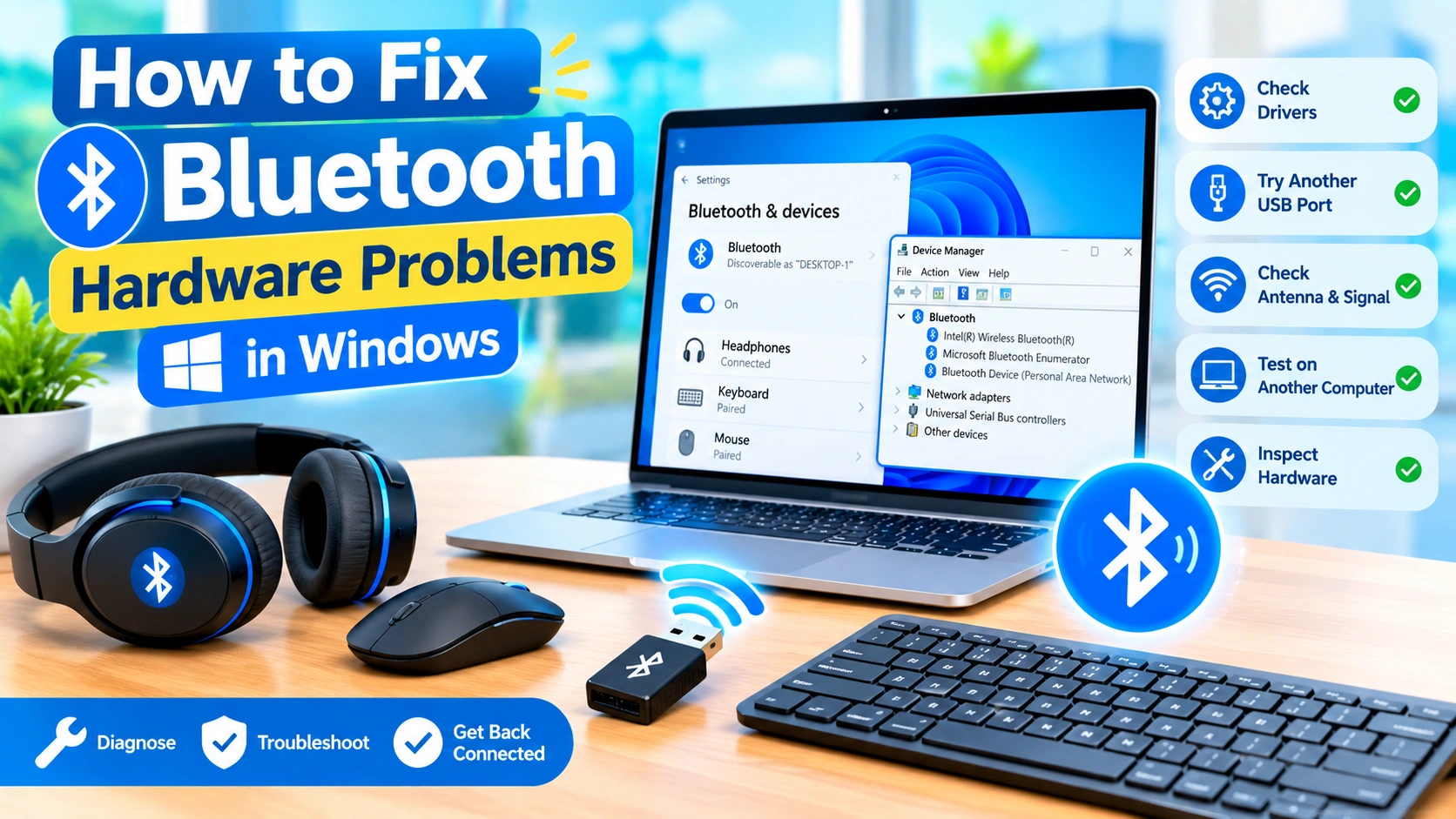
Bluetooth makes it easy to connect wireless headphones, keyboards, mice, speakers, game controllers, and other accessories to a Windows PC. However, sometimes Bluetooth problems are not caused by Windows settings or drivers. A damaged adapter, loose internal connection, faulty USB port, interference, or failing Bluetooth device can create hardware-related problems.
If Windows cannot find Bluetooth, the Bluetooth toggle is missing, connected devices frequently disconnect, or your PC cannot detect nearby accessories, the hardware may need to be checked.
This guide explains how to diagnose and fix common Bluetooth hardware problems in Windows without immediately replacing your computer.
Common Signs of a Bluetooth Hardware Problem
Hardware problems can look similar to software problems. Watch for these symptoms:
- Bluetooth does not appear in Windows Settings.
- The Bluetooth toggle is completely missing.
- Device Manager does not show a Bluetooth adapter.
- Bluetooth disappears after restarting the computer.
- USB Bluetooth adapters are not detected.
- Bluetooth devices repeatedly disconnect.
- Only one USB port detects the Bluetooth adapter.
- Bluetooth works intermittently.
- Windows reports that the Bluetooth device cannot start.
- Wireless headphones or keyboards cannot be detected.
- Bluetooth works on another computer but not on your PC.
- The adapter becomes unusually hot.
If several of these symptoms occur at the same time, checking the hardware is worthwhile.
1. Restart Your Computer
Before opening the computer or replacing hardware, perform a complete restart.
Temporary hardware initialization problems can prevent Windows from properly detecting a Bluetooth controller.
Select Start > Power > Restart and allow Windows to boot normally.
After restarting, open:
Settings > Bluetooth & devices
Check whether Bluetooth has returned.
If you use a USB Bluetooth adapter, disconnect it before restarting and reconnect it after Windows loads.
2. Check Whether Bluetooth Hardware Is Installed
Not every desktop computer includes built-in Bluetooth.
To check whether your computer has a Bluetooth adapter:
- Right-click Start.
- Select Device Manager.
- Look for a Bluetooth category.
- Expand the category if it exists.
- Look for an adapter from manufacturers such as Intel, Realtek, Qualcomm, MediaTek, or another vendor.
You may also find Bluetooth hardware under Network adapters or Universal Serial Bus controllers.
If there is no Bluetooth category, the adapter may be disabled, disconnected, missing, or not recognized by Windows.
3. Look for Hidden Bluetooth Hardware
Windows can hide devices that are currently disconnected or not functioning correctly.
To check:
- Open Device Manager.
- Select View.
- Click Show hidden devices.
- Look for Bluetooth-related entries.
A faded Bluetooth adapter may indicate that Windows previously detected the hardware but is no longer communicating with it.
If the adapter appears only as a hidden device, restart the computer and check whether it becomes active again.
4. Check for Hardware Error Icons
Device Manager can provide useful clues about hardware failures.
Look for a yellow warning symbol next to:
- Bluetooth adapters
- USB controllers
- Network adapters
- Unknown devices
Double-click the affected device and review the Device status section.
Windows may display an error code indicating that the device cannot start, cannot be found, or has encountered another problem.
Write down the error code before attempting further troubleshooting.
5. Test a USB Bluetooth Adapter on Another Port
If you use an external Bluetooth USB adapter, the USB port may be the problem rather than the adapter itself.
Remove the adapter and connect it to another USB port.
For a desktop PC, try ports directly connected to the motherboard rather than a USB hub.
For example:
- Disconnect the Bluetooth adapter.
- Wait several seconds.
- Connect it to another USB port.
- Open Device Manager.
- Check whether the adapter appears.
If the adapter works on one port but not another, the original USB port may have a hardware or power problem.
6. Avoid USB Hubs During Testing
USB hubs introduce another possible point of failure.
If your Bluetooth adapter is connected through a hub, docking station, monitor, or extension cable, temporarily connect it directly to the computer.
This helps determine whether the problem comes from:
- The Bluetooth adapter
- The USB hub
- The USB cable
- The docking station
- The computer’s USB port
If Bluetooth works when connected directly, investigate the hub or docking station rather than replacing the Bluetooth adapter immediately.
7. Inspect the Bluetooth USB Adapter
A physical inspection can reveal obvious problems.
Look for:
- Bent USB connectors
- Cracked plastic
- Loose components
- Burn marks
- Corrosion
- Physical damage
- Excessive heat
Do not continue using an adapter that shows signs of electrical damage or overheating.
A damaged Bluetooth adapter should generally be replaced rather than repaired.
8. Check Internal Bluetooth Hardware on a Laptop
Many laptops use a combined Wi-Fi and Bluetooth wireless card.
If Wi-Fi works but Bluetooth suddenly disappears, the Bluetooth portion of the wireless hardware may have a problem.
Some laptops also use internal antenna connections or removable wireless modules.
If you are comfortable working with computer hardware, check the manufacturer’s service documentation before opening the laptop.
Otherwise, have the device inspected by a qualified technician.
Avoid opening a laptop if doing so could void its warranty or if you are unfamiliar with internal hardware.
9. Check Whether Airplane Mode Is Enabled
Although Airplane Mode is primarily a software setting, it can affect wireless hardware.
Open:
Settings > Network & internet > Airplane mode
Make sure Airplane mode is turned off.
Then check Bluetooth again.
On some laptops, a physical wireless key or manufacturer-specific keyboard shortcut can also disable wireless connectivity.
10. Check the Bluetooth Hardware Switch
Some laptops have a physical wireless switch or dedicated keyboard key.
Look for a key showing an icon resembling:
- An antenna
- Wireless waves
- An airplane
- A radio signal
Press the appropriate key or use the manufacturer’s documented keyboard shortcut.
If the wireless hardware is disabled at the hardware level, Windows may not be able to use Bluetooth normally.
11. Remove and Reconnect a USB Bluetooth Adapter
If Windows detects your USB adapter but Bluetooth stops working, reconnecting the hardware can force Windows to initialize it again.
Follow these steps:
- Shut down Bluetooth devices currently connected to the computer.
- Remove the USB Bluetooth adapter.
- Wait about 10–15 seconds.
- Restart Windows.
- Connect the adapter again.
- Open Device Manager.
- Check whether the adapter appears.
This is particularly useful after a Windows update or system restart.
12. Check Device Manager After Connecting the Adapter
Device Manager can help determine whether Windows recognizes the physical adapter.
With Device Manager open:
- Expand the relevant categories.
- Disconnect the Bluetooth adapter.
- Wait a few seconds.
- Reconnect it.
- Watch for a new device to appear.
If a device appears when the adapter is connected and disappears when it is removed, Windows is detecting the USB hardware.
If absolutely nothing changes, the adapter, USB port, or USB controller may be involved.
13. Scan for Hardware Changes
Windows includes a function that can force Device Manager to search for newly connected hardware.
Open Device Manager and select:
Action > Scan for hardware changes
Wait for Windows to complete the scan.
If the Bluetooth adapter is physically connected but missing from Device Manager, this may cause Windows to detect it again.
14. Test the Bluetooth Adapter on Another Computer
One of the most useful hardware troubleshooting methods is cross-testing.
Connect your Bluetooth adapter to another Windows computer.
If it works normally there, the original PC may have a problem with:
- USB ports
- USB controllers
- Drivers
- Windows configuration
- Internal hardware
- Power management
If the adapter fails on multiple computers, the Bluetooth adapter itself is a strong suspect.
This test can prevent unnecessary replacement of working computer components.
15. Test Another Bluetooth Adapter
If possible, connect a known-working Bluetooth USB adapter to your computer.
If the second adapter works normally, the original adapter may be defective.
If neither adapter works, investigate the computer’s USB system, Windows configuration, drivers, or motherboard hardware.
Cross-testing is often more reliable than guessing which component has failed.
16. Check Bluetooth Device Distance
Bluetooth hardware may work correctly but have difficulty maintaining a connection when the connected device is too far away.
During testing, place the Bluetooth accessory close to the computer.
Remove obstacles where possible and temporarily disconnect other wireless accessories.
This helps distinguish hardware range problems from complete adapter failures.
17. Check for Wireless Interference
Bluetooth operates in the 2.4 GHz radio spectrum, which is also used by many Wi-Fi networks and other wireless devices.
Interference can cause:
- Audio dropouts
- Random disconnections
- Delayed keyboard input
- Mouse lag
- Short connection range
Try moving the Bluetooth device closer to the computer and away from sources of wireless interference.
If you use a USB Bluetooth adapter on the rear of a desktop PC, an extension cable can sometimes help position the adapter away from metal surfaces and other sources of interference.
18. Check the Bluetooth Antenna
Some desktop computers use Wi-Fi/Bluetooth adapters with external antennas.
If your motherboard or wireless card has external antenna connectors, make sure the antennas are properly attached.
A loose or missing antenna can significantly reduce wireless performance.
Check that:
- Antenna connectors are firmly attached.
- Antennas are installed on the correct connectors.
- Cables are not visibly damaged.
- The antenna is not physically broken.
Do not force antenna connectors because they can be delicate.
19. Check USB Power Problems
A USB Bluetooth adapter may malfunction if the USB port cannot provide stable power.
Try:
- Another USB port
- A direct motherboard USB connection
- Disconnecting unnecessary USB devices
- Removing the adapter from a USB hub
- Restarting the computer
If Bluetooth becomes stable after removing other USB devices, the issue may involve USB power or the hub rather than Bluetooth itself.
20. Check the Bluetooth Device Itself
The computer may not be the source of the problem.
Test the Bluetooth accessory with another device.
For example, if Bluetooth headphones do not connect to your PC, try pairing them with a smartphone or another computer.
If the headphones also fail elsewhere, the headphones may have a hardware problem.
This same approach works for:
- Bluetooth keyboards
- Mice
- Speakers
- Game controllers
- Printers
- Wireless adapters
21. Check the Bluetooth Device Battery
A low battery can make a Bluetooth device appear defective.
Charge the device completely or replace its batteries if applicable.
Then turn the device off and back on before attempting to pair it again.
Some accessories automatically enter low-power mode when their battery becomes critically low, which can make detection unreliable.
22. Remove Physical Obstacles
Bluetooth signals can be affected by physical obstacles and the placement of the computer.
For desktop PCs, a metal computer case positioned between the Bluetooth adapter and the accessory may reduce signal quality.
During testing, keep the Bluetooth device relatively close to the adapter.
If the connection becomes stable at close range but fails at normal distances, investigate antenna placement, interference, or adapter range.
23. Check BIOS or UEFI Wireless Settings
Some computers allow wireless hardware to be enabled or disabled through BIOS or UEFI settings.
If Bluetooth disappeared after changing firmware settings, enter the computer’s BIOS/UEFI setup and look for wireless-related options.
The exact menu names vary by manufacturer.
Common terms include:
- Wireless
- Bluetooth
- WLAN
- Internal Wireless
- Onboard Devices
- Integrated Peripherals
Do not change unrelated BIOS settings while troubleshooting Bluetooth.
If you are unsure about a setting, consult your computer manufacturer’s documentation.
24. Update the Bluetooth Driver
Not every Bluetooth failure is a hardware failure. A corrupted or incompatible driver can make healthy hardware appear defective.
Open Device Manager, right-click your Bluetooth adapter, and check the available driver options.
For the most appropriate driver, also check the official support website for your:
- Laptop manufacturer
- Motherboard manufacturer
- Bluetooth adapter manufacturer
Avoid downloading drivers from unknown websites.
25. Reinstall the Bluetooth Driver
If Windows recognizes the Bluetooth adapter but it does not work correctly, reinstalling its driver can help.
In Device Manager:
- Expand Bluetooth.
- Right-click the affected adapter.
- Select Uninstall device.
- Confirm the removal if prompted.
- Restart Windows.
- Allow Windows to detect the hardware again.
If Windows does not automatically install the correct driver, install the manufacturer’s official driver.
26. Run Windows Hardware Troubleshooting Tools
Windows includes several troubleshooting mechanisms that can help identify device problems.
Depending on your Windows version, available troubleshooting options may include Bluetooth and hardware-related troubleshooters.
You can also check:
Settings > System > Troubleshoot > Other troubleshooters
If a Bluetooth troubleshooter is available, run it and follow the recommendations.
Remember that software troubleshooting cannot repair physically damaged hardware.
27. Check Windows Update
Microsoft sometimes distributes Bluetooth, chipset, USB, and wireless drivers through Windows Update.
Go to:
Settings > Windows Update
Select Check for updates.
Also review Advanced options > Optional updates if driver updates are available.
After installing relevant updates, restart the computer and test Bluetooth again.
28. Update Chipset and USB Drivers
Bluetooth hardware can depend on other components of the computer.
For example, a motherboard’s chipset or USB controller may affect the operation of an external Bluetooth adapter.
If Bluetooth problems continue, check the computer manufacturer’s support page for updated:
- Chipset drivers
- USB controller drivers
- Motherboard drivers
- Wireless drivers
- BIOS or firmware updates
Install only drivers intended for your exact computer or hardware model.
29. Check for Physical Damage After a Drop or Spill
If Bluetooth stopped working immediately after physical damage, hardware should be considered a primary suspect.
Examples include:
- Laptop dropped from a desk
- Liquid spilled near the computer
- USB adapter bent
- Wireless antenna pulled loose
- Desktop components moved incorrectly
In these situations, repeated software troubleshooting may not solve the problem.
Professional hardware inspection may be appropriate.
30. When Should You Replace the Bluetooth Adapter?
Replacing the adapter makes sense when testing shows that the adapter itself is defective.
Strong indications include:
- It is not detected on multiple computers.
- Another adapter works normally on the same PC.
- The adapter has visible physical damage.
- It repeatedly disconnects despite working USB ports and updated drivers.
- The device becomes unusually hot.
- It stopped working after physical damage.
USB Bluetooth adapters are generally inexpensive, making replacement practical in many desktop troubleshooting situations.
Bluetooth Hardware Troubleshooting Checklist
Use this quick checklist before purchasing replacement hardware:
| Check | What It Can Reveal |
|---|---|
| Restart Windows | Temporary initialization problem |
| Check Device Manager | Hardware detection status |
| Show hidden devices | Previously detected adapter |
| Try another USB port | Faulty USB port |
| Remove USB hub | Hub or power problem |
| Test another computer | Defective Bluetooth adapter |
| Test another adapter | Computer-side problem |
| Check antennas | Poor wireless signal |
| Test another Bluetooth device | Faulty accessory |
| Check batteries | Low-power problem |
| Update drivers | Driver compatibility issue |
| Check Windows Update | Driver and system updates |
| Inspect physical damage | Hardware failure |
| Check BIOS/UEFI | Disabled wireless hardware |
Bluetooth Adapter vs. Bluetooth Accessory: How to Identify the Problem
A simple process of elimination can save considerable time.
If multiple Bluetooth accessories fail on your PC, investigate the computer’s Bluetooth adapter, drivers, USB system, or internal wireless hardware.
If only one accessory fails, test that accessory with another computer or phone.
If your USB Bluetooth adapter fails on multiple computers, replace the adapter.
If another Bluetooth adapter works perfectly on your PC, the original adapter is likely the source of the problem.
If Bluetooth disappears after physical damage, inspect the internal hardware or have the computer professionally checked.
What If Bluetooth Is Completely Missing?
When Bluetooth does not appear anywhere in Windows, check the problem in this order:
- Restart the PC.
- Check Device Manager.
- Enable Show hidden devices.
- Scan for hardware changes.
- Check whether the computer actually has Bluetooth hardware.
- Try another USB port if using an external adapter.
- Test the adapter on another computer.
- Check the manufacturer’s drivers.
- Check BIOS/UEFI wireless settings.
- Inspect internal hardware if the problem started after physical damage.
This sequence helps separate software detection problems from genuine hardware failures.
When to Seek Professional Repair
Consider professional assistance if:
- An internal wireless card appears to have failed.
- The laptop was exposed to liquid.
- The computer suffered physical damage.
- The Bluetooth hardware disappeared after motherboard repair.
- Internal antenna cables are damaged.
- You are uncomfortable opening the laptop.
- The wireless card needs replacement.
- BIOS or firmware problems prevent the hardware from being detected.
Opening a laptop or desktop can create additional damage if components are handled incorrectly, so follow the manufacturer’s repair instructions.
Frequently Asked Questions
Why is Bluetooth hardware not showing in Device Manager?
The adapter may be disabled, disconnected, malfunctioning, missing its driver, or not recognized by Windows. For USB adapters, test another USB port and another computer.
How do I know if my Bluetooth adapter is broken?
Test the adapter on another computer. If it is not detected there either, the adapter may be defective. You can also test a known-working Bluetooth adapter on your original PC.
Can a USB port cause Bluetooth problems?
Yes. A damaged USB port, unstable USB connection, insufficient power, or problematic USB hub can prevent an external Bluetooth adapter from working correctly.
Why does Bluetooth keep disconnecting?
Possible causes include weak signal, interference, low battery, driver problems, USB power issues, damaged hardware, or a failing Bluetooth accessory.
Can a Bluetooth adapter be repaired?
Small USB Bluetooth adapters are generally not practical to repair. If the adapter has failed, replacing it is usually more practical.
Why does Wi-Fi work but Bluetooth does not?
Many laptops use a combined Wi-Fi/Bluetooth module. One function can continue working while the other has a driver, configuration, antenna, or hardware problem.
Does Bluetooth require an antenna?
External Bluetooth adapters may have an integrated antenna, while some internal wireless cards use shared or dedicated antennas. An incorrectly connected or damaged antenna can reduce Bluetooth range and reliability.
Can Windows updates cause Bluetooth problems?
Yes. Driver or system changes can occasionally affect Bluetooth compatibility. Installing the latest manufacturer drivers or rolling back a recently changed driver may help identify the cause.
Final Thoughts
Bluetooth hardware problems can be difficult to identify because faulty hardware, drivers, Windows settings, USB problems, interference, and defective accessories can produce similar symptoms.
The most effective approach is to isolate each component instead of immediately replacing hardware. Check Device Manager, try another USB port, remove hubs, test the adapter on another computer, test another Bluetooth adapter, and verify the Bluetooth accessory independently.
If the hardware fails consistently across multiple systems, replacement is usually more appropriate than continued software troubleshooting. If the adapter works elsewhere, focus on the original computer’s drivers, USB system, wireless hardware, or Windows configuration.
By using a systematic process of elimination, you can determine whether the problem is caused by the Bluetooth adapter, the computer, the connected accessory, or the surrounding wireless environment.
Quick Takeaway
Start with the simplest tests: restart Windows, check Device Manager, reconnect the adapter, try another USB port, and test the hardware on another computer. These steps can quickly distinguish a genuine Bluetooth hardware failure from a software or configuration problem.