

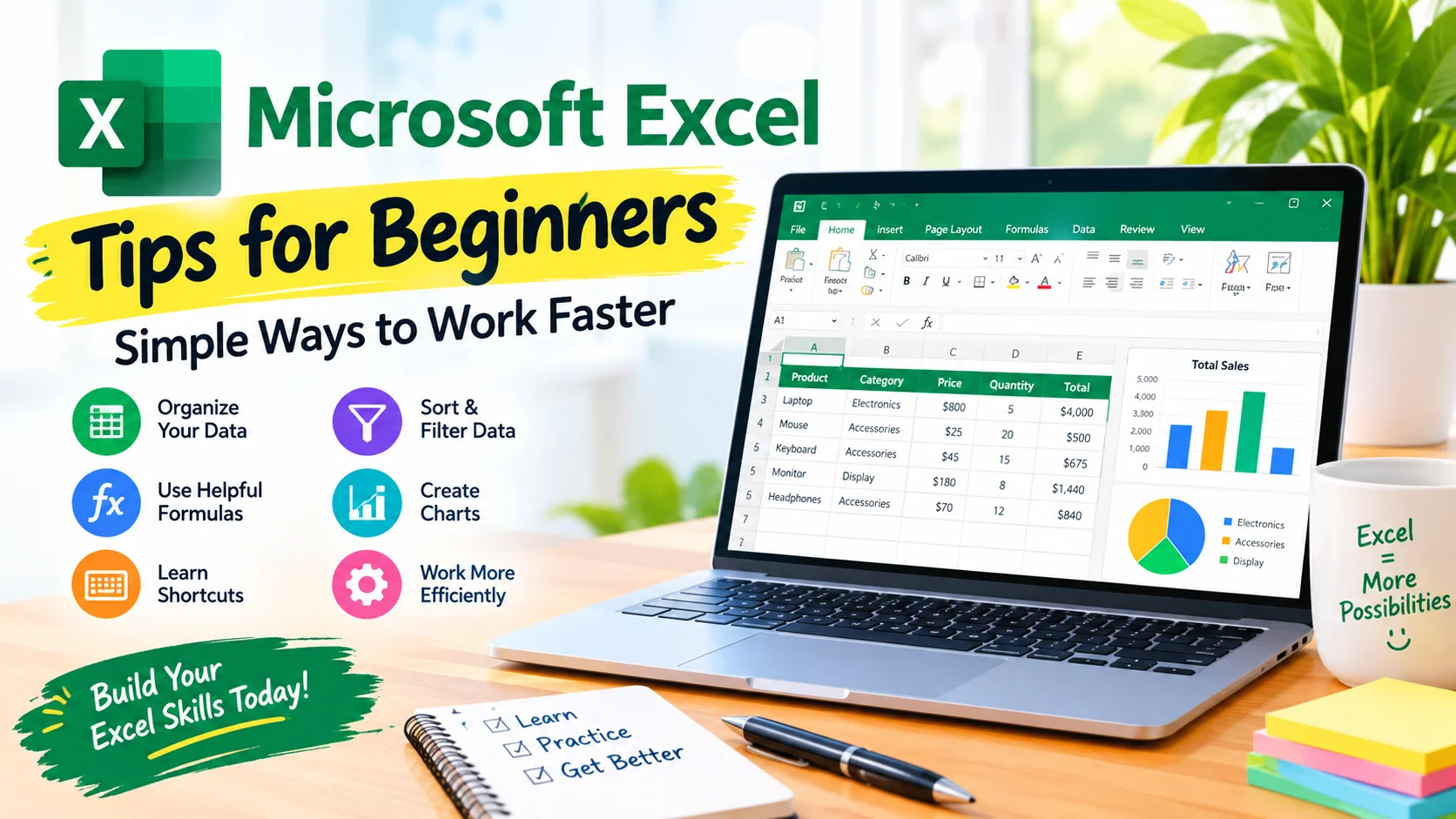
Microsoft Excel is one of the most useful spreadsheet applications for organizing information, performing calculations, tracking data, and creating reports. However, Excel can feel overwhelming when you are just getting started.
The good news is that you do not need to learn every Excel feature at once. By mastering a few basic tools, shortcuts, formulas, and formatting techniques, you can become much more comfortable using spreadsheets.
This guide covers practical Microsoft Excel tips for beginners that can help you work more efficiently and avoid common mistakes.
1. Learn the Excel Interface
Before working with data, take a few minutes to understand the main parts of Excel.
A typical Excel worksheet contains:
- Workbook: The entire Excel file.
- Worksheet: An individual spreadsheet inside a workbook.
- Rows: Horizontal lines identified by numbers.
- Columns: Vertical lines identified by letters.
- Cell: The intersection of a row and column.
- Formula Bar: The area used to view or edit cell contents.
- Ribbon: The toolbar containing Excel’s commands and features.
Understanding these basic elements makes it easier to follow tutorials and navigate large spreadsheets.
2. Use Keyboard Shortcuts
Keyboard shortcuts can significantly reduce the amount of time you spend navigating Excel.
Some useful Excel shortcuts for beginners include:
- Ctrl + C: Copy
- Ctrl + X: Cut
- Ctrl + V: Paste
- Ctrl + Z: Undo
- Ctrl + S: Save
- Ctrl + F: Find
- Ctrl + A: Select data
- Ctrl + Arrow Key: Move quickly through a data range
- Alt + Enter: Insert a new line within a cell
- F2: Edit the selected cell
You do not need to memorize every shortcut immediately. Start with a few commands you use frequently and gradually add more.
3. Keep Your Data Organized
A well-organized spreadsheet is easier to read, filter, calculate, and maintain.
For example, if you are creating a list of products, use separate columns for information such as:
| Product | Category | Price | Quantity |
|---|---|---|---|
| Keyboard | Accessories | 25 | 12 |
| Monitor | Display | 180 | 5 |
| Mouse | Accessories | 18 | 20 |
Avoid putting multiple unrelated pieces of information into one cell when they should be separate columns.
Consistent data organization also makes Excel’s sorting, filtering, and calculation features much easier to use.
4. Learn Basic Excel Formulas
Formulas are one of the most important Excel features to learn.
Every formula normally begins with an equal sign (=).
For example:
=A2+B2
This adds the values in cells A2 and B2.
Other useful beginner formulas include:
=SUM(B2:B10)
=AVERAGE(B2:B10)
=MIN(B2:B10)
=MAX(B2:B10)
=COUNT(B2:B10)
These formulas can calculate totals, averages, minimum values, maximum values, and the number of cells containing numbers.
5. Use AutoFill
Excel’s AutoFill feature allows you to quickly copy formulas, values, or patterns into neighboring cells.
For example, if you enter a formula in the first row of a column, you can drag the small fill handle in the lower-right corner of the cell to apply the formula to additional rows.
AutoFill is especially useful when working with:
- Monthly calculations
- Number sequences
- Dates
- Repeated formulas
- Lists
It can save considerable time compared with entering the same information manually.
6. Format Numbers Correctly
Excel allows you to format numbers according to the type of information they represent.
Common number formats include:
- General
- Number
- Currency
- Accounting
- Percentage
- Date
- Time
For example, if a column contains prices, applying a currency format makes the values easier to understand.
Similarly, percentages should generally use percentage formatting rather than being displayed as ordinary decimal numbers.
Proper formatting improves readability without changing the underlying value.
7. Use Sort and Filter
When a worksheet contains many rows, finding specific information manually can become difficult.
Excel’s Sort and Filter features can help.
Sorting allows you to arrange information, such as:
- Alphabetically
- From smallest to largest
- From largest to smallest
- By date
Filtering allows you to temporarily display only rows that match specific conditions.
For example, you could filter a sales table to show only products from one category or sales made during a particular month.
8. Convert Data Into an Excel Table
One of the most useful Excel tips for beginners is learning how to create a table.
Select your data and use Excel’s Format as Table feature.
Tables provide useful features such as:
- Automatic filtering
- Structured formatting
- Easier data expansion
- Sort controls
- Structured references
Tables are particularly useful when working with lists that will grow over time.
9. Freeze Important Rows or Columns
Large spreadsheets can become difficult to navigate because headings disappear when you scroll.
Excel’s Freeze Panes feature lets you keep important rows or columns visible.
For example, if the first row contains column headings, freezing the top row allows you to continue seeing those headings while scrolling through hundreds of records.
This simple feature can make large worksheets much easier to work with.
10. Use Absolute Cell References
When creating formulas, beginners often encounter situations where one cell reference needs to remain fixed.
Excel uses the dollar sign ($) to create an absolute reference.
For example:
=A2*$B$1
In this formula, A2 can change when the formula is copied, while $B$1 remains fixed.
Absolute references are particularly useful when applying a constant value, tax rate, discount rate, or other fixed number to multiple rows.
11. Use IF for Simple Decisions
The IF function allows Excel to return different results depending on whether a condition is true or false.
For example:
=IF(B2>=70,"Pass","Fail")
This formula displays Pass when the value in B2 is 70 or higher. Otherwise, it displays Fail.
The IF function is useful for simple tasks involving:
- Pass or fail results
- Status labels
- Discounts
- Eligibility checks
- Inventory warnings
12. Use Find and Replace
If you need to change repeated information in a worksheet, Find and Replace can save time.
Press Ctrl + H to open the Find and Replace dialog.
You can use it to replace repeated text, numbers, or other values throughout a worksheet.
Always review the replacement options carefully before applying a large change, especially when working with important data.
13. Use Conditional Formatting
Conditional formatting automatically changes the appearance of cells when they meet specific conditions.
For example, you could highlight:
- Sales below a target
- High expenses
- Duplicate values
- Upcoming dates
- Low inventory
This makes important information easier to identify without manually formatting each cell.
14. Check Your Formulas
A common beginner mistake is assuming that a formula is correct simply because Excel accepts it.
Always check the result and, when necessary, inspect the formula itself.
Look for common problems such as:
- Incorrect cell references
- Missing parentheses
- Incorrect ranges
- Numbers stored as text
- Unexpected blank cells
If a result looks unusual, review the formula before changing the data.
15. Save Your Workbook Regularly
Make saving a habit when working with important spreadsheets.
Press Ctrl + S regularly to save your latest changes.
You should also consider keeping backup copies of important workbooks. If your spreadsheet contains valuable business, financial, or personal information, use appropriate storage and security practices.
16. Give Worksheets Descriptive Names
New Excel workbooks often contain worksheets with generic names such as Sheet1, Sheet2, and Sheet3.
Renaming worksheets can make your workbook easier to understand.
For example, instead of:
- Sheet1
- Sheet2
- Sheet3
you might use:
- Sales
- Expenses
- Inventory
Descriptive names are especially helpful when a workbook contains many worksheets.
17. Use Charts to Visualize Data
Charts can make numerical information easier to understand.
Excel supports several common chart types, including:
- Column charts
- Bar charts
- Line charts
- Pie charts
- Area charts
Choose a chart based on the type of information you want to communicate. For example, a line chart can be useful for showing changes over time, while a column chart can compare categories.
Avoid adding unnecessary visual effects that make a chart harder to read.
18. Avoid Merging Cells Too Often
Merged cells can be useful for titles and certain layouts, but excessive use can make data harder to sort, filter, and manipulate.
For structured data, it is usually better to keep each piece of information in its own cell.
Use merging primarily when it improves the presentation of a heading or report rather than as part of the underlying data structure.
19. Use Undo When Something Goes Wrong
Making mistakes is normal when learning Excel.
If you accidentally delete information, apply incorrect formatting, or make an unwanted change, press Ctrl + Z to undo the action.
You can also use the Undo command on the Quick Access Toolbar.
Learning to use Undo confidently makes it easier to experiment with Excel features.
20. Practice With Real-World Spreadsheets
The fastest way to become comfortable with Excel is to practice.
Create simple spreadsheets for tasks such as:
- Monthly expenses
- Personal budgets
- Product inventories
- Study schedules
- Contact lists
- Sales records
- Project tracking
Start with basic data entry and formatting, then gradually add formulas, tables, filters, and charts.
Common Excel Mistakes Beginners Should Avoid
New Excel users often make a few avoidable mistakes.
Entering Numbers as Text
If numbers are stored as text, calculations may not work as expected. Check the cell formatting and make sure numerical data is recognized as numbers.
Leaving Blank Rows Inside Data
Blank rows can interfere with sorting, filtering, and other Excel operations. Keep structured datasets as continuous as possible.
Using Too Much Formatting
Bold text, colors, borders, and different fonts can make a worksheet difficult to read when used excessively. Use formatting to emphasize important information rather than decorating every cell.
Overwriting Original Data
Before making major changes to an important workbook, consider creating a backup copy. This gives you a way to recover the original information if something goes wrong.
Final Thoughts
Learning Microsoft Excel does not require mastering every feature at once. Start with the basics: organize your data, learn common formulas, use keyboard shortcuts, format information correctly, and practice sorting and filtering.
As you become more comfortable, move on to tables, conditional formatting, charts, and more advanced formulas. With regular practice, these Microsoft Excel tips for beginners can help you build a strong foundation and work more efficiently with spreadsheets.